Set articles as unavailable (sold-out) per sales zone
Employees or cashiers can manage article availability within the Recreatex system, allowing them to respond promptly when products are sold out or back in stock.
The availability of articles sold via the Vintia Order Kiosk can be managed through the backoffice application or by the cashier using the new extra function Article availabilities directly on the cash register screen.
Additionally, you can use colour configuration options to help customers quickly identify unavailable products and options on the kiosk screen.
Backoffice
In the Recreatex backoffice application, you can adjust the article availability through the sales zone or the article card.
Set article availability via sales zone
You can set article availability via sales zone if you need to manage multiple articles for the same sales zone.
In Recreatex, go to POS > Settings > Sales zones and open the relevant sales zone. Under the tab Article availability (1), you will find all articles from the sales list linked under the tab QR-code webshop (2), including the main articles and articles linked as options and components.
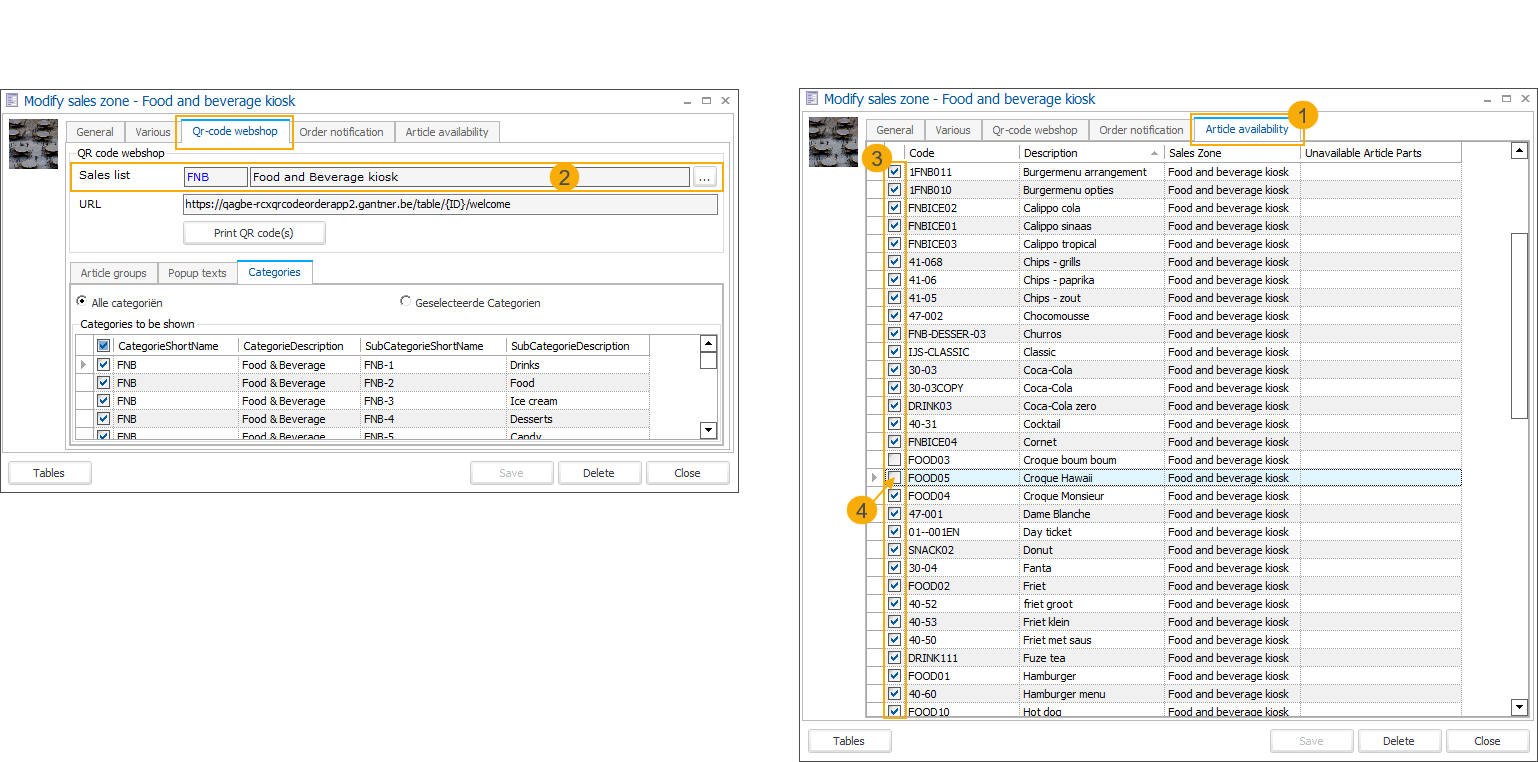
All articles are selected by default (3).
Deselecting an article makes the article unavailable. (4)
Composed articles consist of one or multiple components (configured on the article card > tab Components).
Deselecting a component makes the main (composed) article automatically unavailable.
The unavailable components are listed under Unavailable article parts.
If the last unavailable component becomes available again, the main article automatically becomes available again.
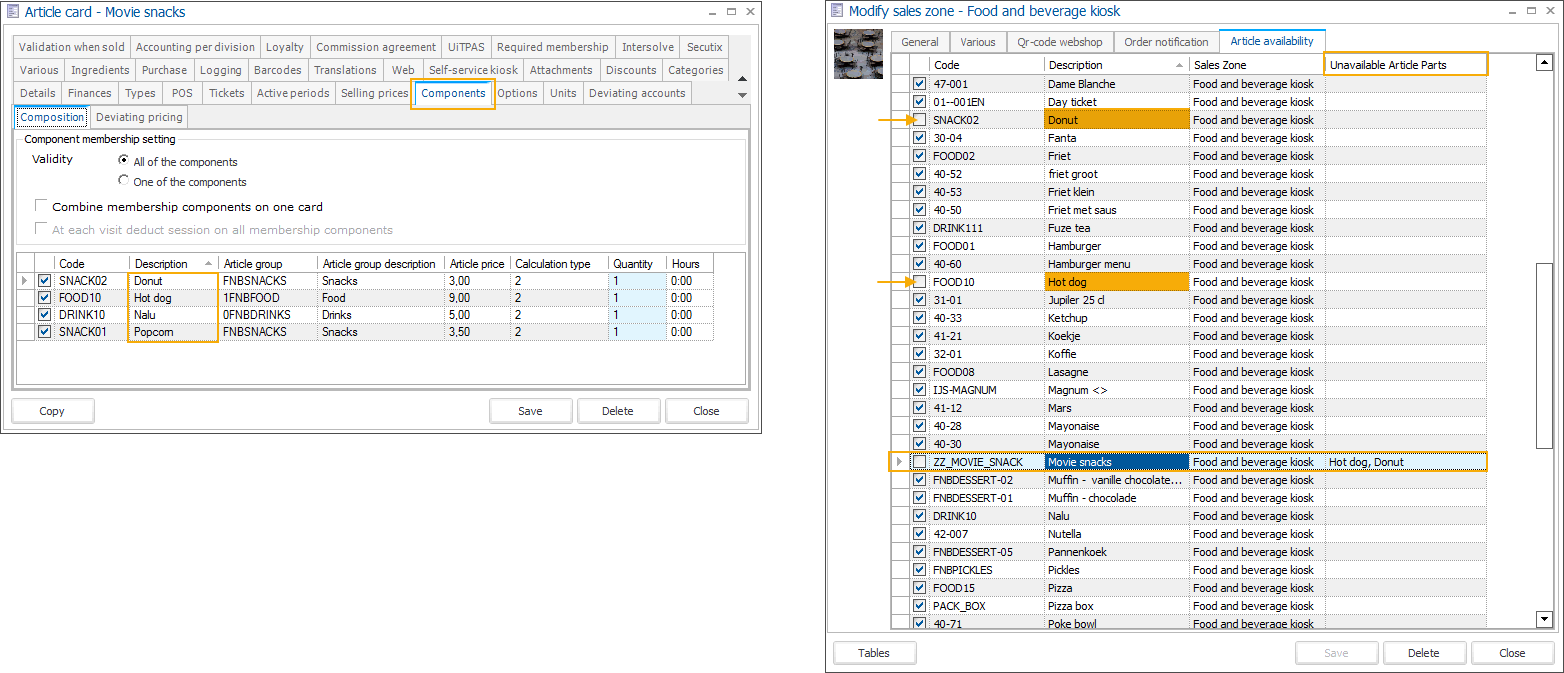
The main article can be made available manually, even if some components are unavailable.
If the main article is set unavailable manually, making all components available again will not automatically make the main article available.
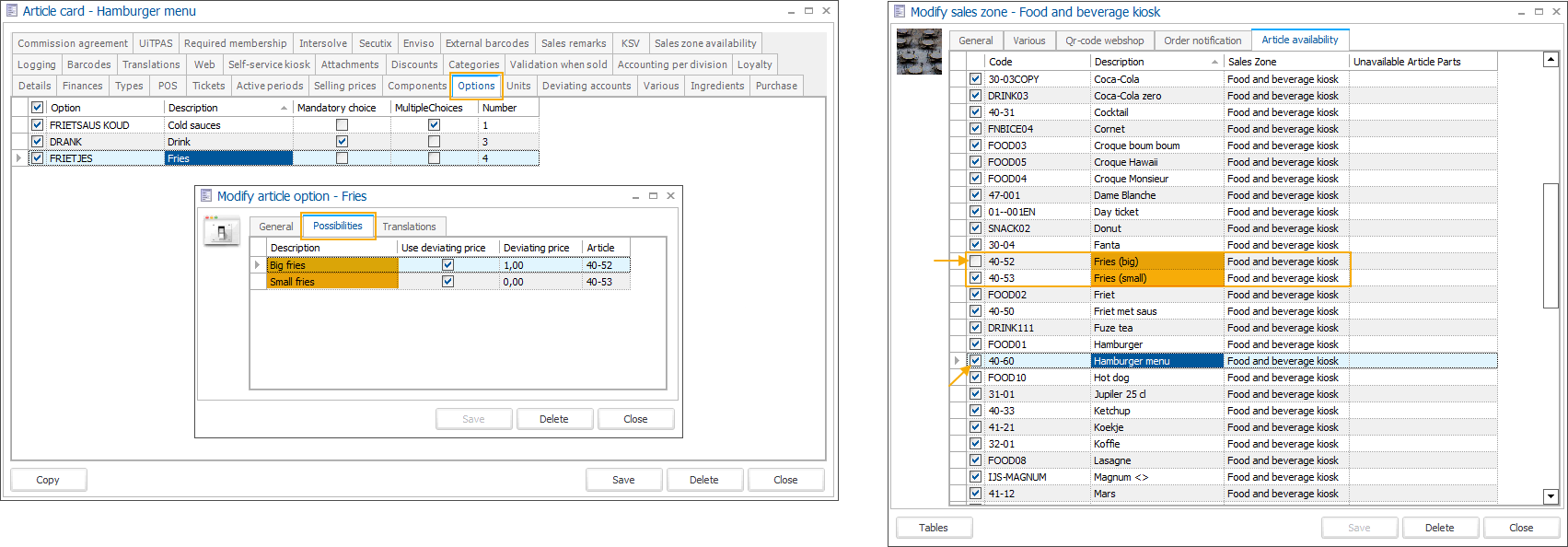
The main article can have options with articles linked as possibilities for the customer to choose from (article card > tab Options).
You can select and deselect options to adjust availability, but this will not automatically affect the availability of the main article.
Set article availability via article card
You can set article availability via the article card if you need to manage the same article for multiple sales zones.
In Recreatex, go to General > Basic data > Articles > Articles and find the relevant article. Under the tab Sales zone availability (1), you will find all sales zones relevant to this article, i.e., the article is included in sales lists linked to these sales zones.
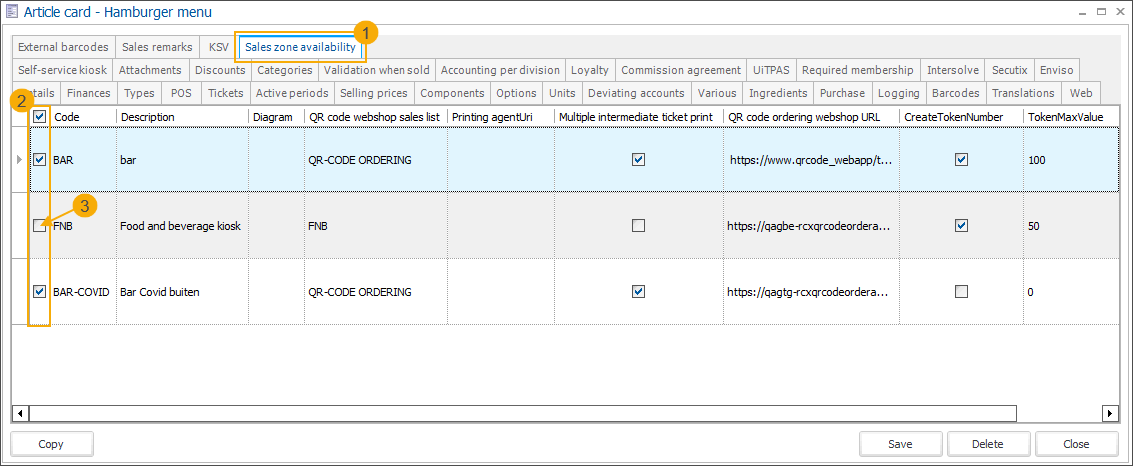
All sales zones are selected by default. (2)
Deselecting a sales zone makes the article unavailable in that specific sales zone. (3)
POS (cash register)
The availability of articles can be managed by the cashier using the extra function Article availabilities directly on the cash register screen.
With the new functionality, cashiers can now manage availability not only for their cash register but also for any sales zone that has a sales list assigned. This allows the cashier to mark articles as available or sold out across other relevant points of sale within their designated area, including Vintia Order Kiosks.
Set article availability via POS extra function
Access the POS extra function Article availabilities as follows:
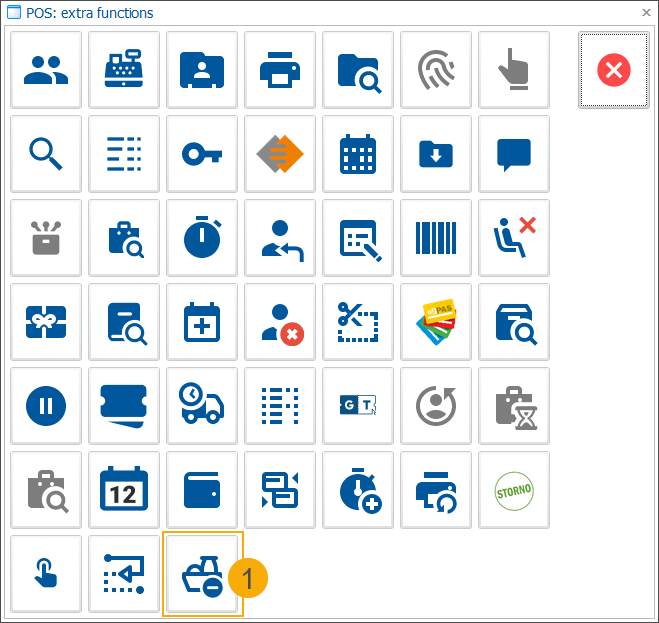
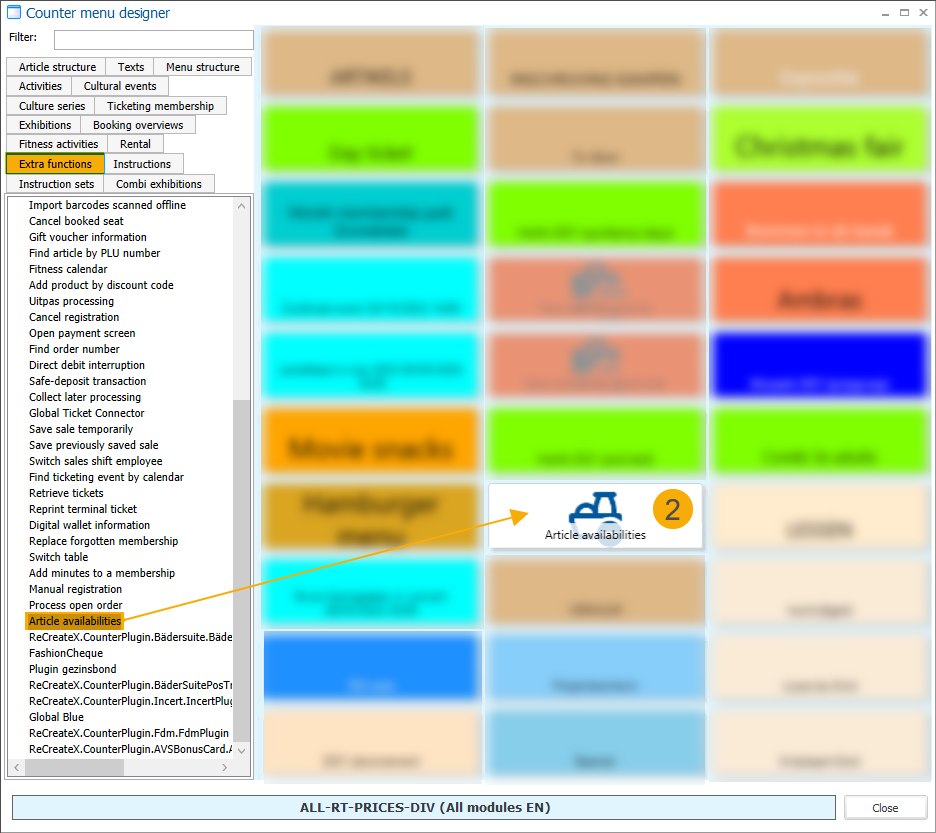
Via POS extra functions
 on your cash register screen, by clicking the option Article availabilities
By placing the function button directly on the cash register screen, using the counter menu designer.
On the Article availabilities screen, you can specify the Sales zone (1) for which you want to manage the article availability:
Default: The sales zone linked to the current cash register is preselected.
Sales zone selected: The overview displays all articles from the sales list linked to the selected sales zone.
No sales zone selected: The overview displays all articles from all sales zones with a linked sales list.
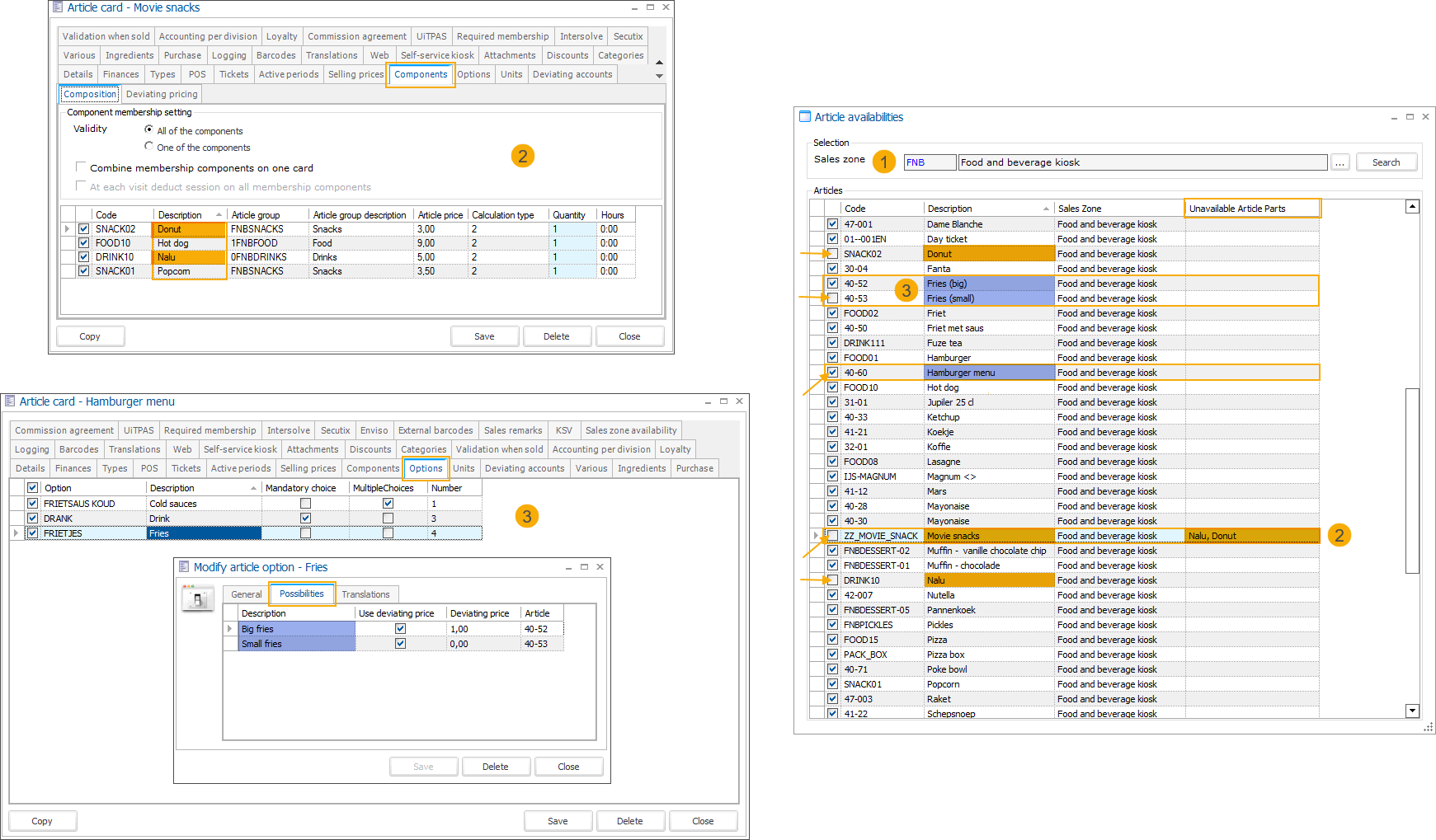
The overview includes all main articles and articles linked as options and components.
All articles are selected by default.
Deselecting an article makes the article unavailable.
Article components (2)
Composed articles consist of one or multiple components (configured on the article card > tab Components).
Deselecting a component makes the main (composed) article automatically unavailable.
The unavailable components are listed under Unavailable article parts.
If the last unavailable component becomes available again, the main article automatically becomes available again.
The main article can be made available manually, even if some components are unavailable.
If the main article is set unavailable manually, making all components available again will not automatically make the main article available.
Article options (3)
The main article can have options with articles linked as possibilities for the customer to choose from (article card > tab Options).
You can select and deselect options to adjust availability, but this will not automatically affect the availability of the main article.
Customise colours of unavailable products
In the F&B Manager, go to the tab User Interface and find the following settings:
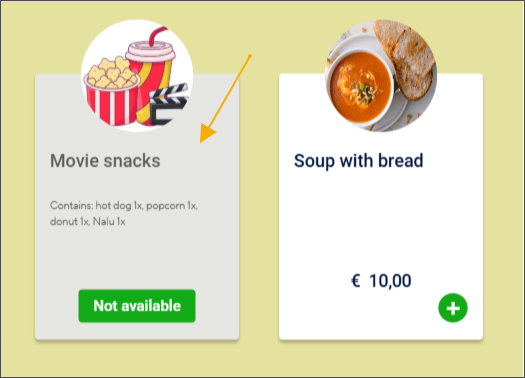
Disabled item colour
Sets the colour of the product tile in the following cases:
When the product is not available
When the product is filtered out by the allergen filter.
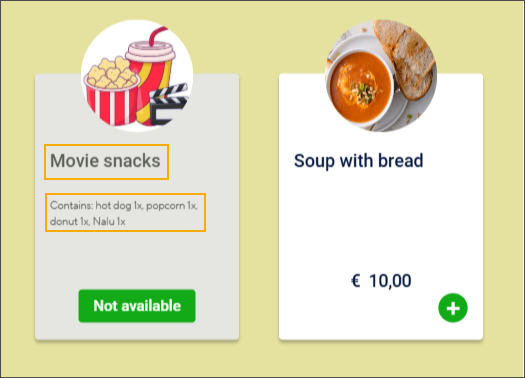
Disabled item text colour
Sets the text colour on the product tile of an unavailable product, including the product name and description.
Visualising unavailable articles on the kiosk screen
On the kiosk screen, the following user interface elements are used to visualise unavailable products (1) and product options (2):
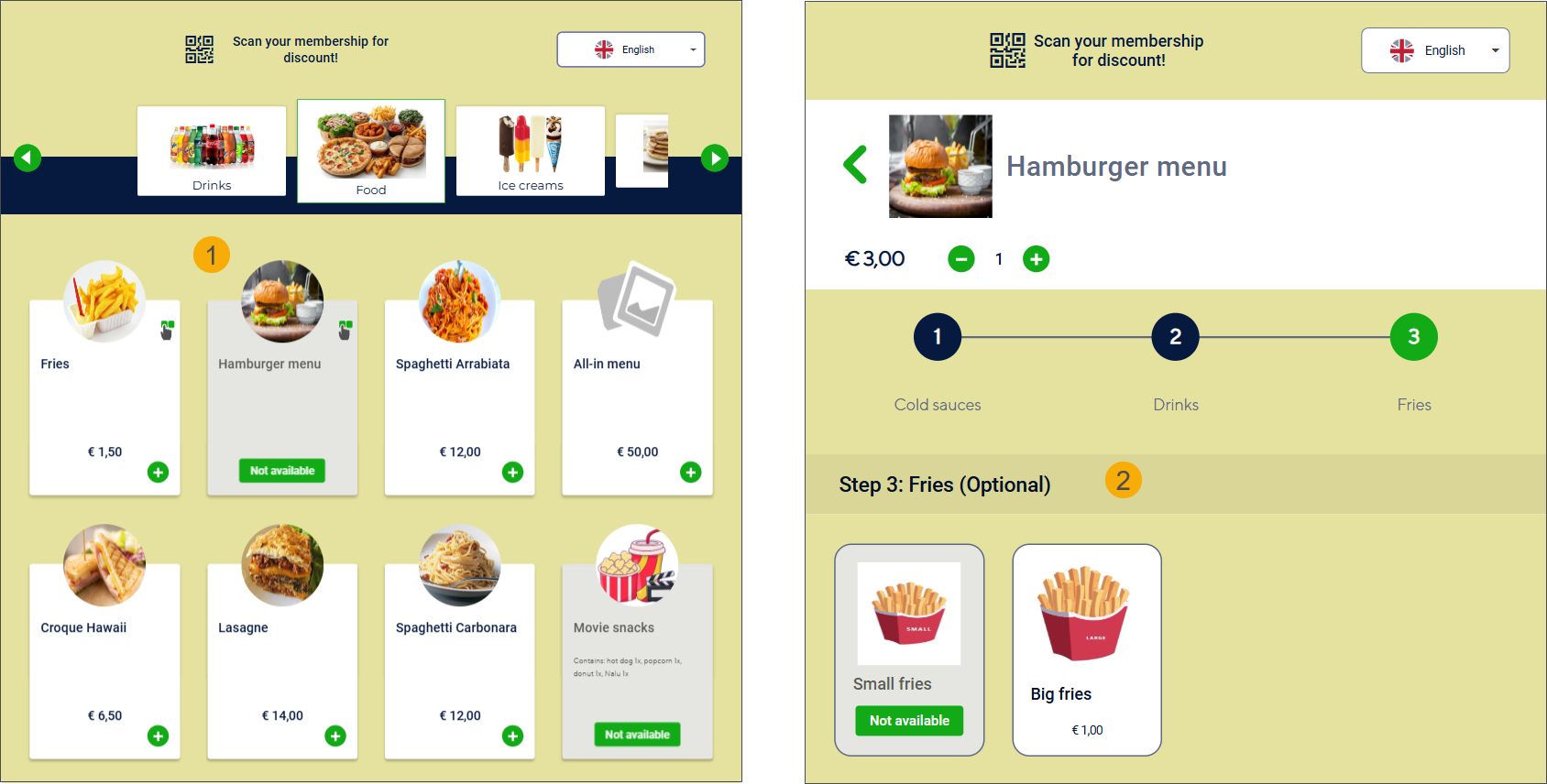
The product tiles are not clickable, so the product cannot be selected.
Customised colours (product tile and text) are applied.
The product price is not displayed.
The quantity selector is not displayed.
A label with the text Not available is displayed on the product tile.
If an article becomes unavailable while already in the basket, it will also be displayed without a price and quantity selector and with the label Not available attached. (1)
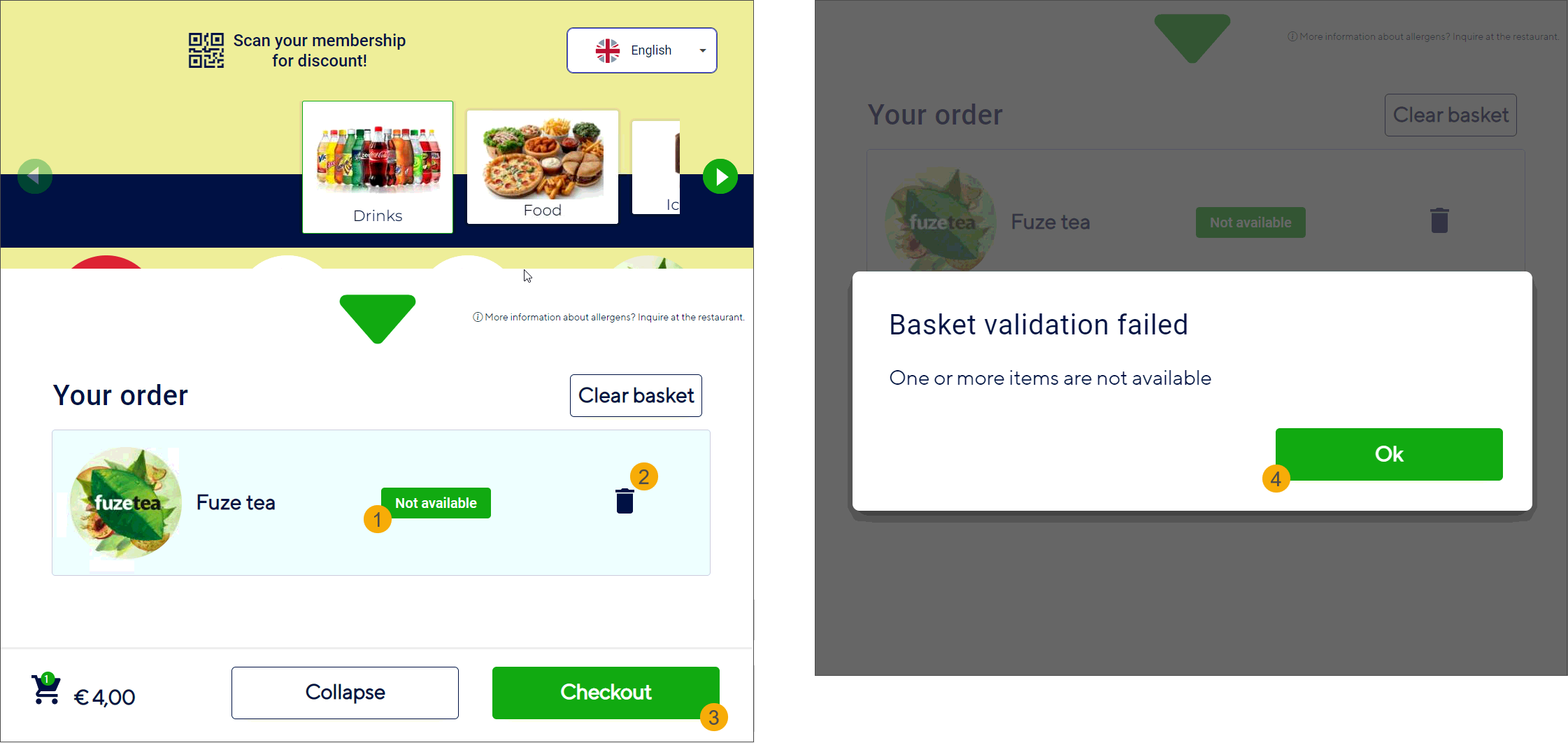
The customer can remove the article immediately (2) and continue with the checkout (3).
If the customer clicks Checkout (3) with the unavailable article still in the basket, a blocking message will appear. Clicking OK (4) will return the customer to the basket, where they can remove the unavailable article (2) and proceed with the checkout process (3).
Important
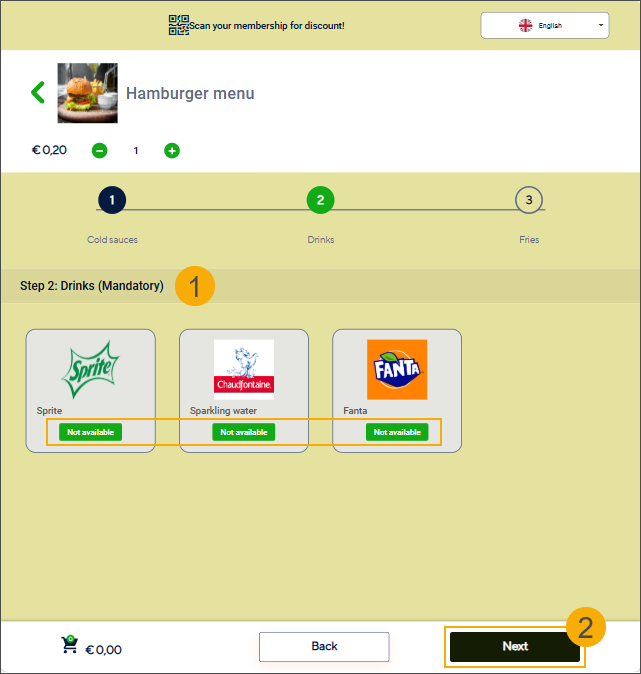
When setting article availability, pay attention to mandatory product options (1), especially when the same articles are used as both main products and product options. If you intend to keep the main article available while some options are sold out, ensure that at least one mandatory option remains selectable. Otherwise, users will be unable to complete their orders (2).