Print sales receipts and bar/kitchen tickets
You can set up a printing service to pass the order to the bar or kitchen printer without unnecessary delay, directly from the QR ordering app. Optionally, you can choose to print the sales receipts if useful for the customers or personnel.
The print service collects available orders/receipts at regular, predefined intervals and passes them to the specified printers.
Set up the print service
Open the SydAdmin application.
Go to Management > Service > Plugin overview.
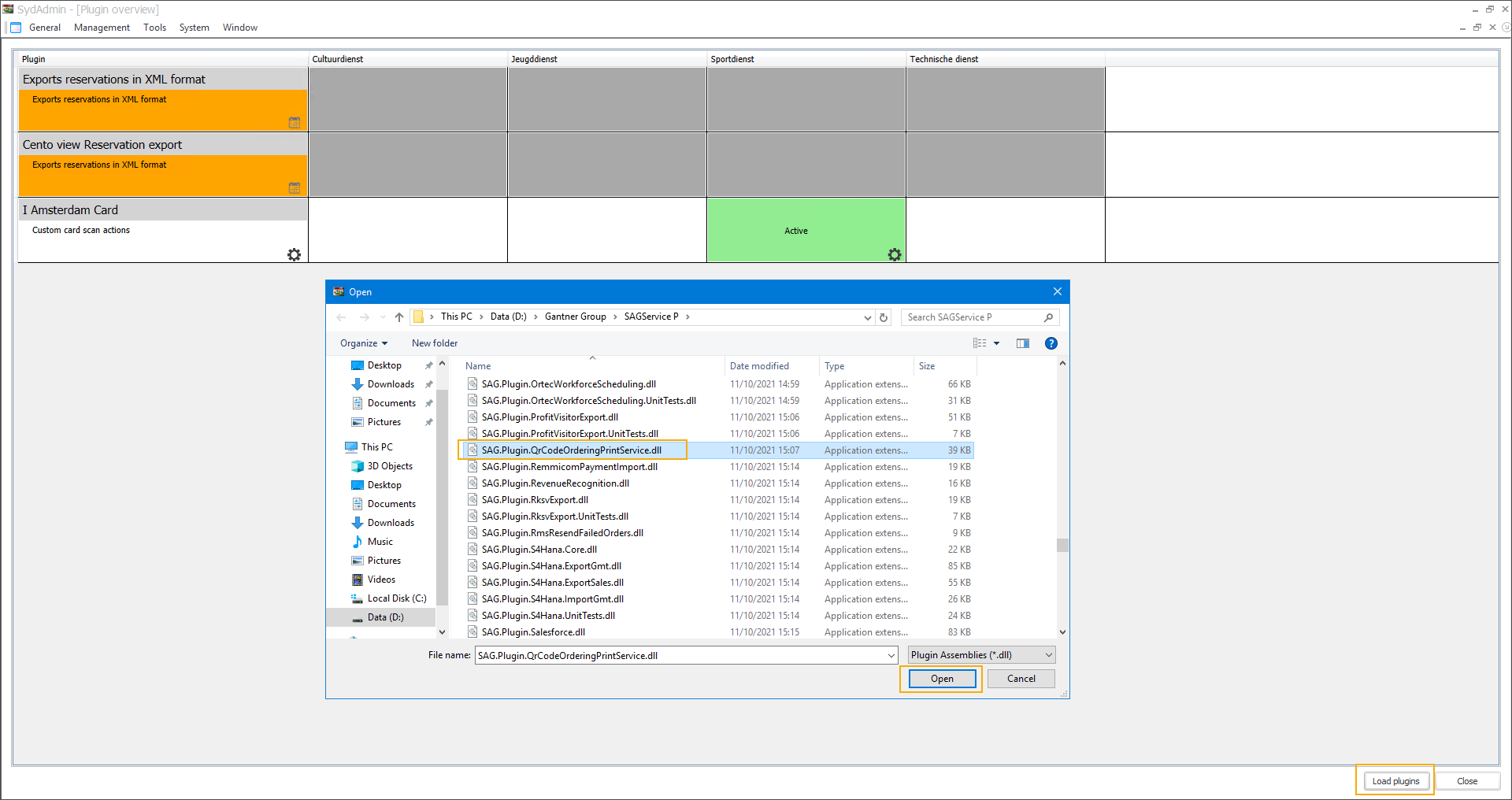
If the plugin is not yet available in the Plugin overview, click Load plugins in the bottom right corner. Select SAG.Plugin.QrCodeOrderingPrintService.dll and click Open.
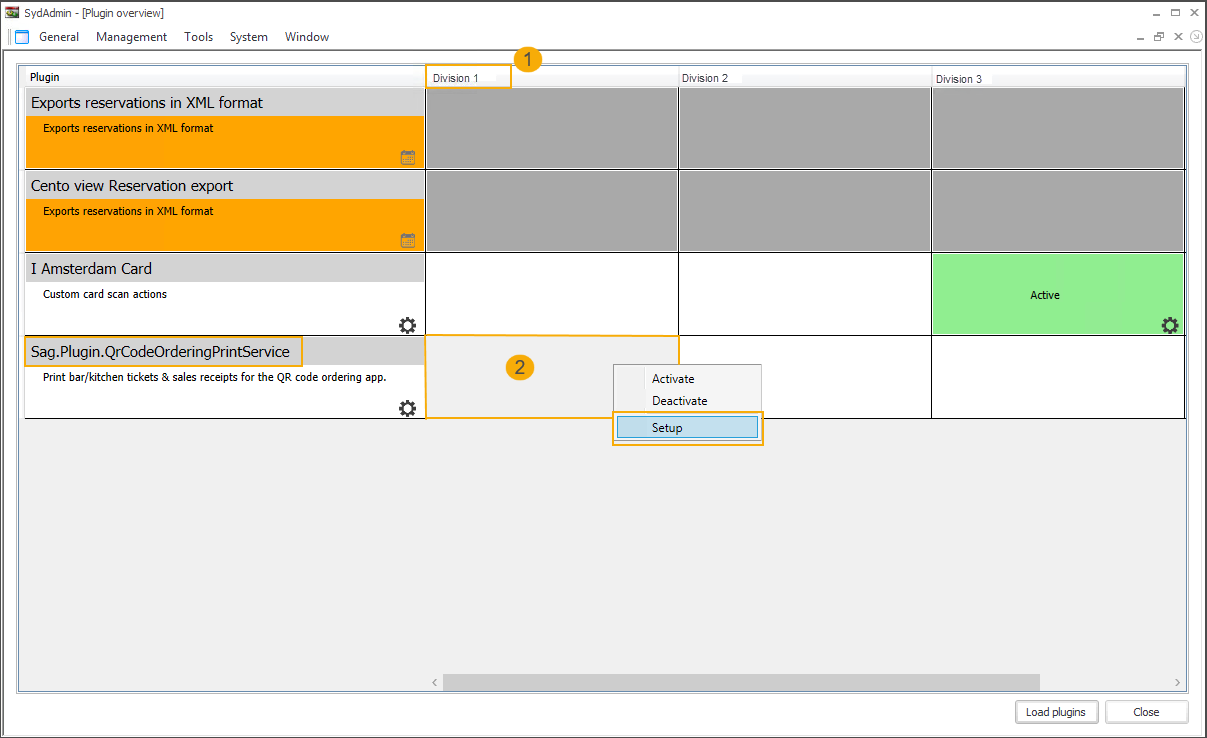
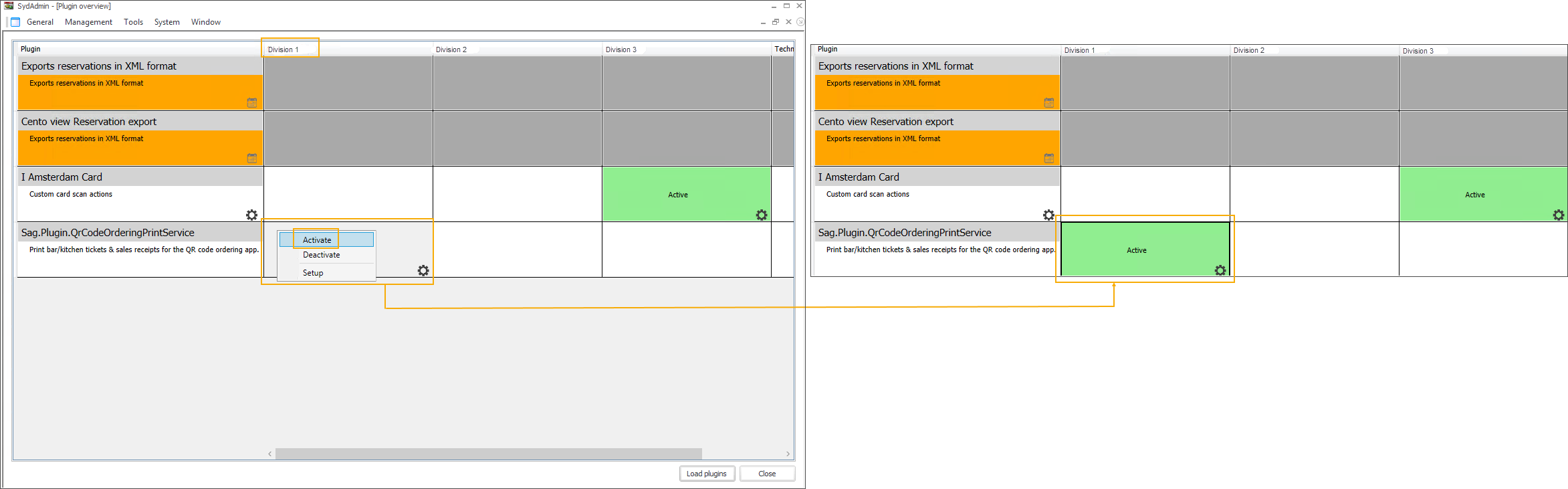
Under the division (1) for which you want to configure the printing service, right-click in the field next to the plugin name (2) and select Setup from the context menu.
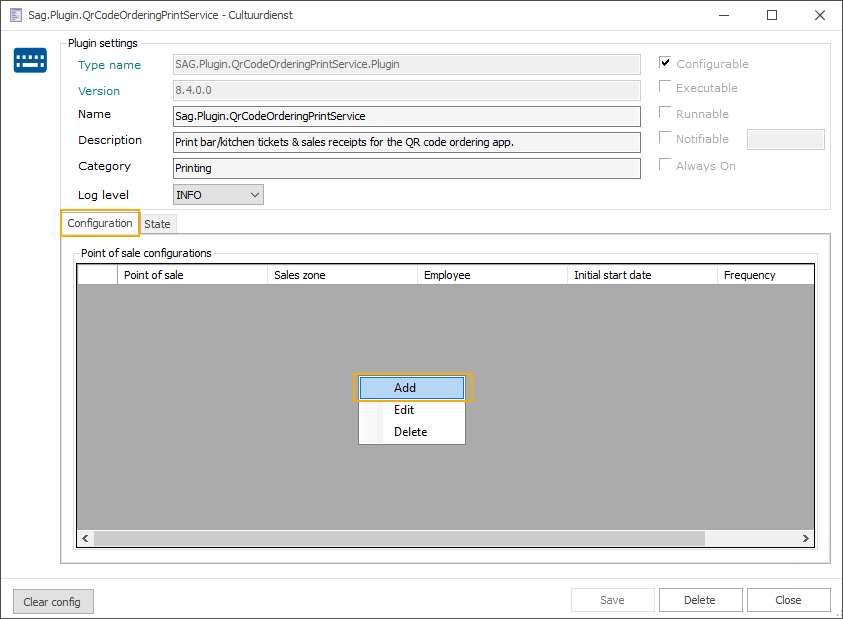
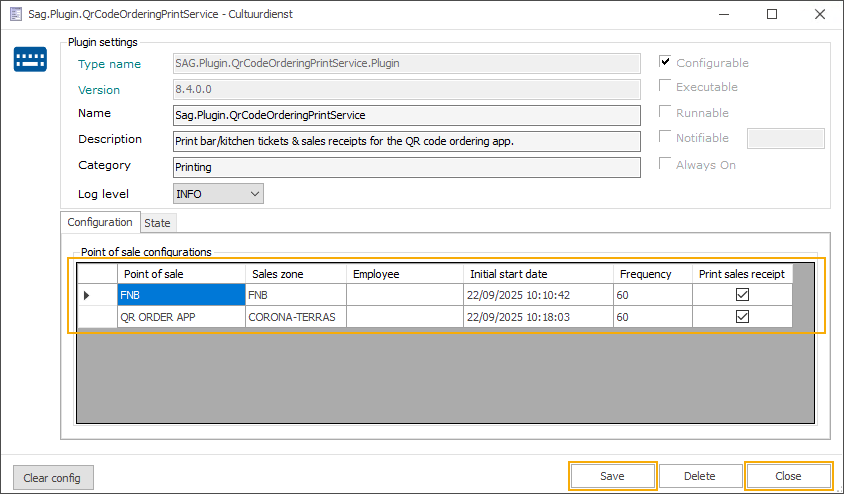
In the setup window, go to the tab Configuration, right-click and select Add from the context menu.
Fill in the configuration, click Save and then Close.
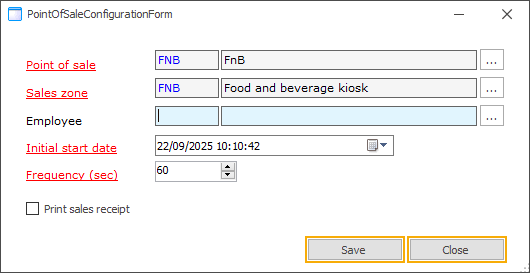
Point of sale
Only one configuration per point of sale is allowed.
This point of sale must be set up in Recreatex for the current user (option Set up locally). For more information, see Set up point of sale.
Sales zone
The sales zone that is configured for the Vintia Order App and Vintia Order Kiosk.
The kitchen/bar tickets and sales receipts from this sales zone will be printed.
Employee
Initial start date
The kitchen/bar tickets and sales receipts will be printed starting from the specified date and time.
Frequency (sec)
How often should the plugin check whether there are new kitchen or bar tickets and sales receipts to be printed.
Print sales receipt
For the customer, the sales receipt is available as a PDF document that can be downloaded from the QR ordering app. You can, however, choose to print the sales receipt on paper as well.
The kitchen/bar tickets are always printed.
Important
If you use integration with the FDM module (Belgium), you have to start the cash register in Recreatex (POS > Cash register sales) to be able to print the sales receipts.
Repeat steps 5 and 6 to add configuration for all needed points of sale, then click Save and Close.
To activate the printing service, right-click in the field under the division for which you have configured the plugin and from the context menu select Activate.
View print service logging
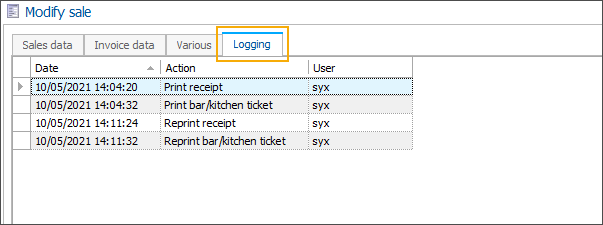
In Recreatex you can see per sale which receipts or bar/kitchen orders have been printed or reprinted.
Go to Sales > Visualisations > Sales and open a sale created via the Vintia Order Kiosk.
In the tab Logging, see if and when the sales receipts or bar/kitchen tickets have been printed and reprinted.