Configure article subcategories
The article subcategories are mandatory.
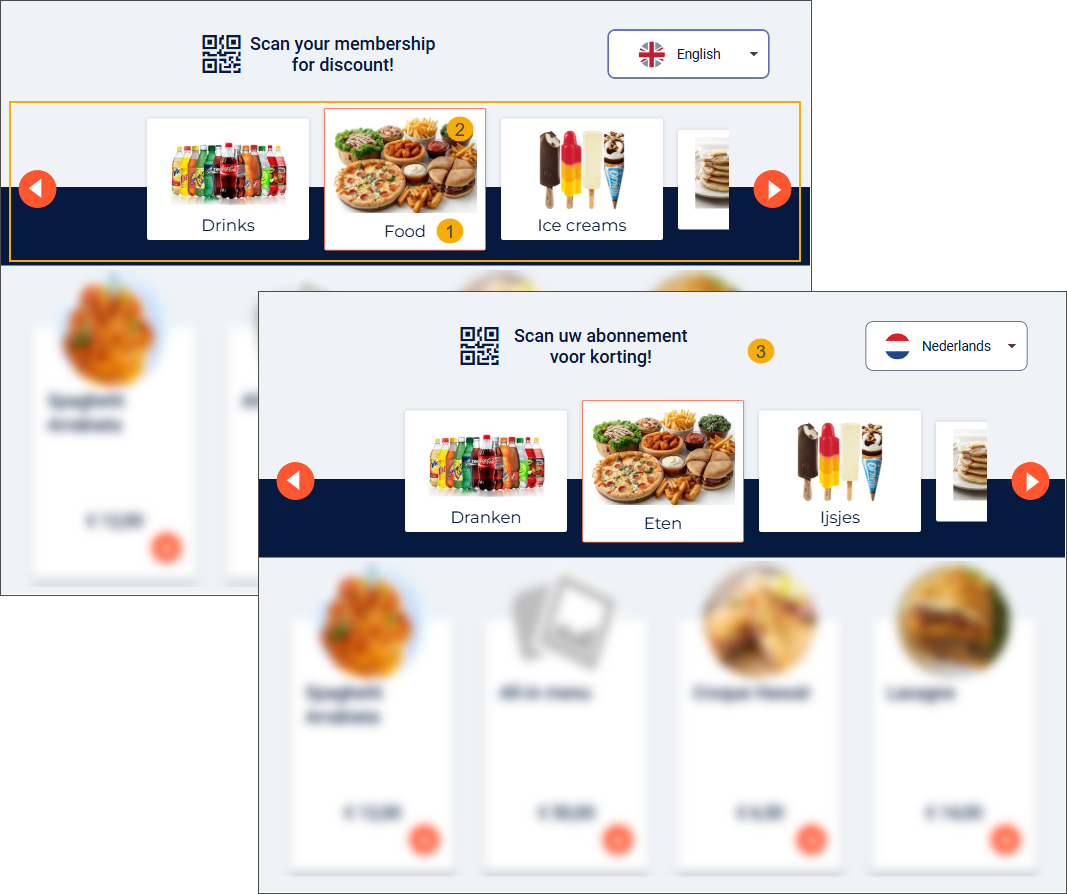
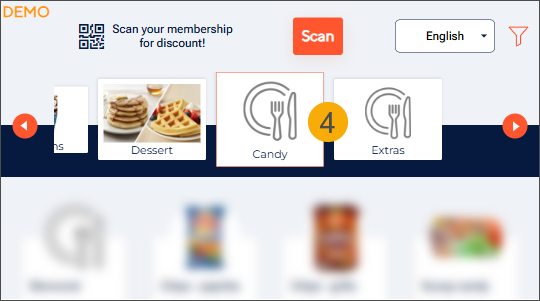
The subcategories are used as the product categories displayed in the kiosk carousel.
Go to General > Basic data > Articles > Settings > Article categories to open the Article categories overview. Create a dedicated article category that will serve as a container for the kiosk product subcategories.
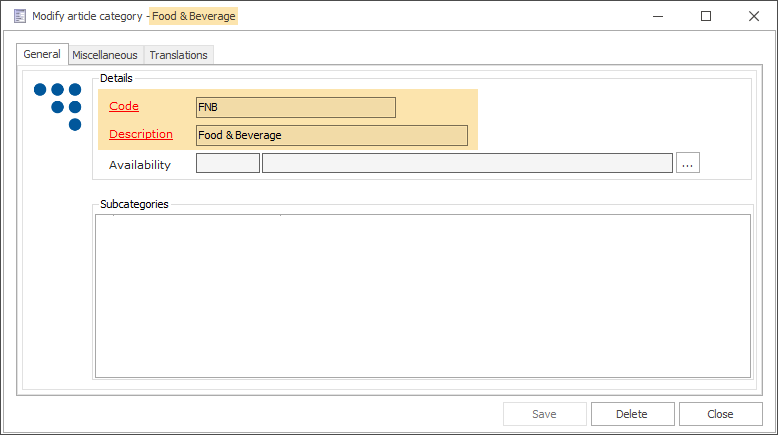
For the category, only the following fields are required:
Code: Enter a unique code.
Description: Enter a clear, recognisable name.
Click Save.
As the category itself is not displayed on the kiosk, no image or translations are required.
Under the dedicated article category, create all relevant subcategories that will be displayed as product categories on the kiosk.
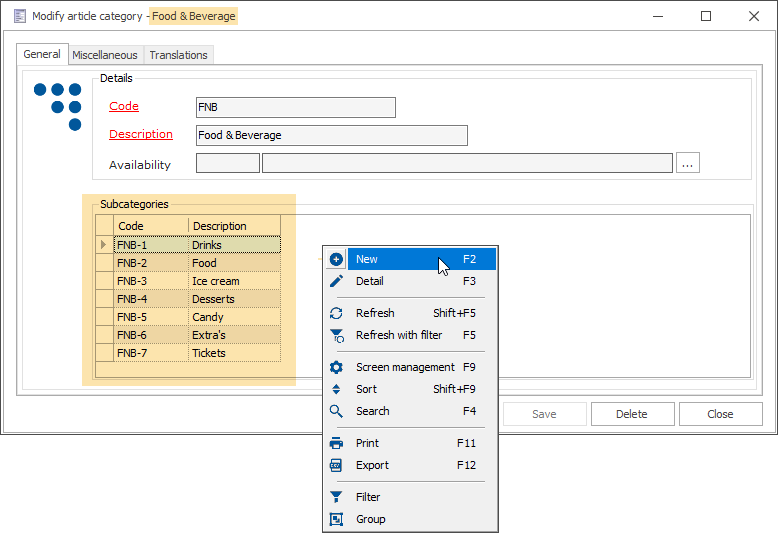
For each subcategory, provide the following elements:
Code: Enter a unique code.
Sorting article subcategories on the kiosk screen
By default, article subcategories on the F&B Kiosk are sorted alphabetically (A to Z) based on their Code. To control the display order of subcategories in the kiosk carousel, you can add numeric prefixes to the article subcategory codes (e.g. 01 Drinks, 02 Snacks, 03 Meals, 04 Desserts).
The Code is used only in the backoffice and for sorting purposes. It does not appear on the kiosk screen.
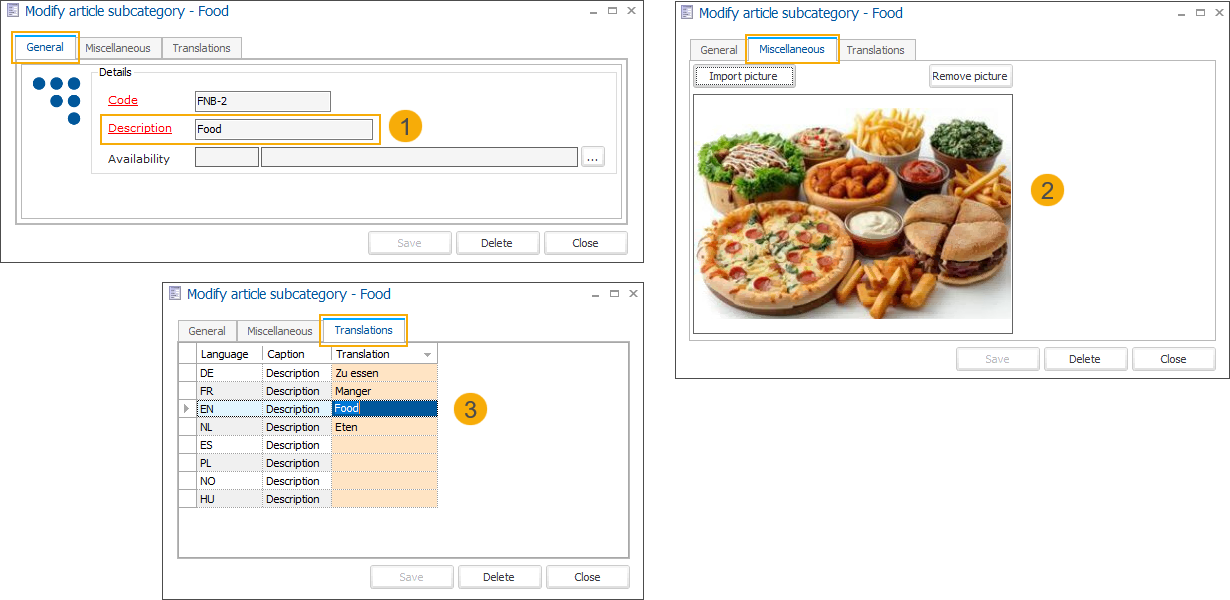
Description: Add an accurate and concise name for each product category. (1)
Availability: Link a timetable to an article subcategory to define when products in the corresponding kiosk menu category are available for sale. The timetable is automatically applied to all products in the category.
Category-based availability: Outside the configured availability periods, all products in the category are automatically marked as unavailable and cannot be selected.
Basket validation: If a product becomes unavailable after being added to the basket, checkout is blocked, and the customer is informed which product is no longer available.
Cross-selling filtering: Unavailable products are automatically excluded from cross-selling recommendations.
For more information about creating and maintaining timetables, see Timetables.
Image: Add an image in the tab Miscellaneous to represent the subcategory visually (2). If no image is available, a placeholder image will be displayed (4).
Translations: Add translations for all supported languages (3). If a translation is not provided for a particular language in the tab Translations, the kiosk will automatically display the description from the tab General.
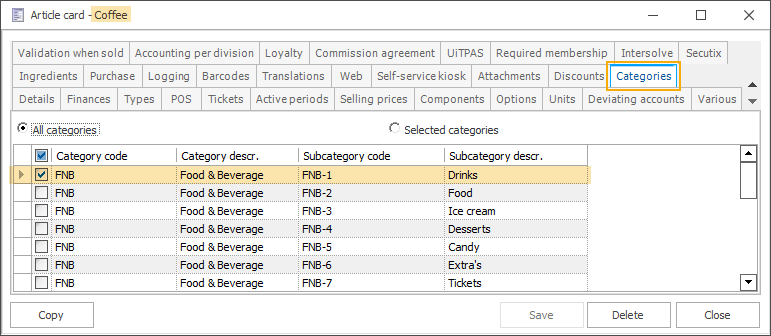
To display sales articles in the appropriate product categories on the kiosk, assign each article to the relevant article subcategory or subcategories.
Go to General > Basic data > Articles > Articles and open a sales article. In the tab Categories, select all subcategories in which the article should be displayed on the kiosk. Repeat this step for all relevant sales articles.
See also Select article subcategories to link subcategories to kiosk sales zone(s). Only linked subcategories can be displayed as product categories in the kiosk carousel.