Configure sales zones
Considering your sales concept, you may need one or two sales zones:
Single sales zone: If you do not need to distinguish between different types of sales, such as Eat-in and Take-out, one sales zone may be sufficient. In this setup, tapping the homepage brings customers directly to the product selection screen.
Two sales zones: If you need to differentiate which products can or cannot be sold based on the sales context, you will require two sales zones. A common example is distinguishing between Eat-in and Take-out orders. In this setup, tapping the homepage leads customers to a selection screen where they choose the sales type.

Note
In a two-sales-zone setup, you can always link the same sales zone to both sales types (Eat-in and Take-out). However, using two separate sales zones may offer more flexibility when managing product availability.
In Recreatex Online Help, you can find more information about designing and configuring sales zones under POS > POS - Management > Settings > Sales zones.
Link sales list to sales zone
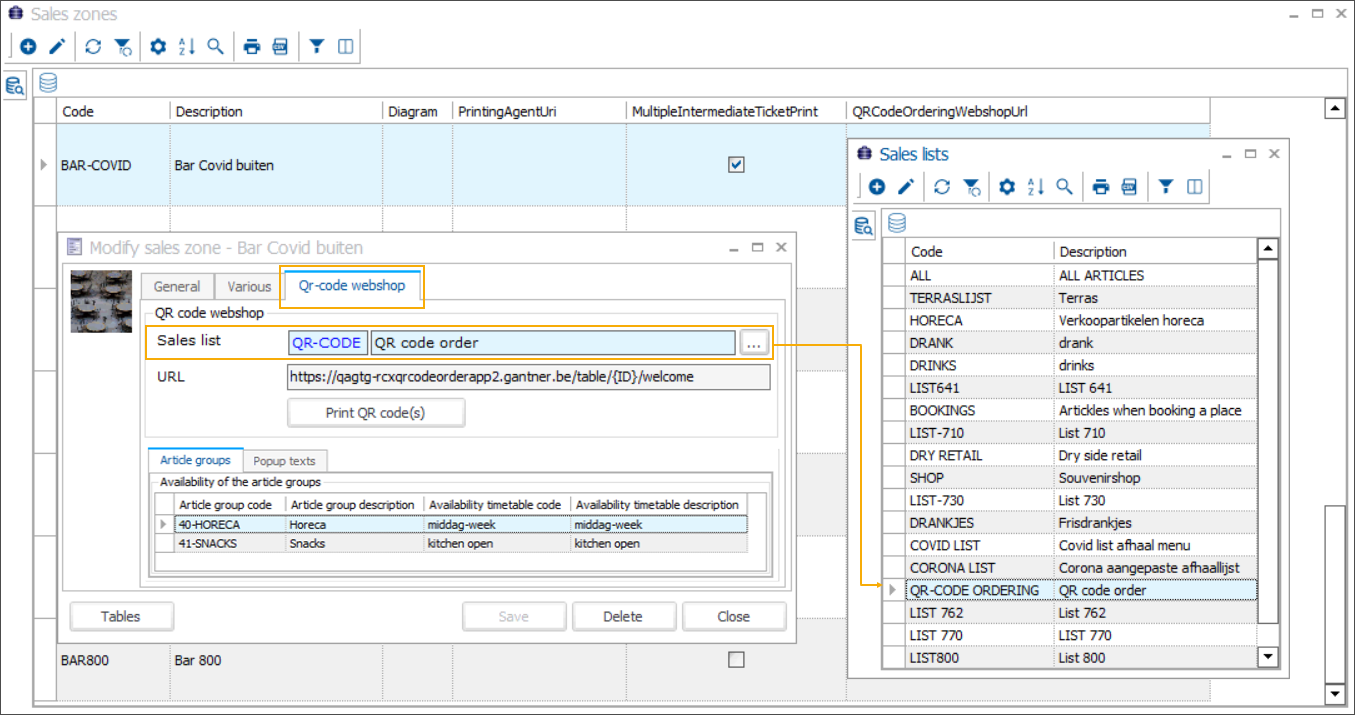
Linking a regular sales list is mandatory.
Go to POS > Settings > Sales zones and open the sales zone assigned to the F&B kiosk. Under the tab QR-code webshop, click the three-dot icon next to the field Sales list to select the appropriate sales list.
Link suggestions sales list to sales zone
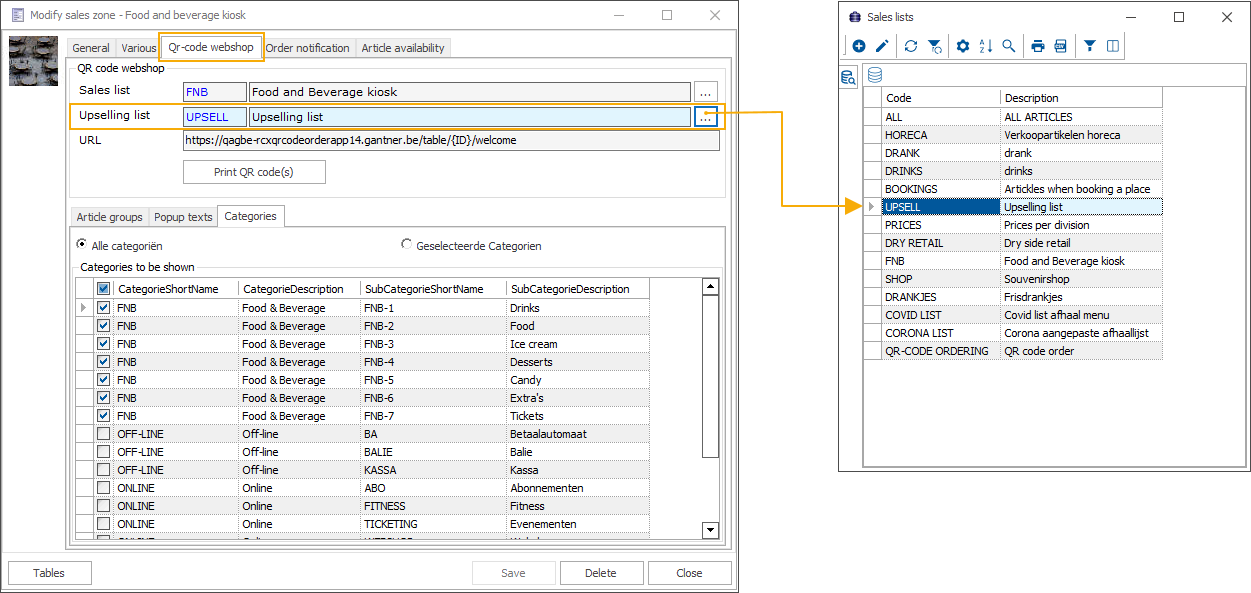
Linking a suggestions sales list is optional.
Go to POS > Settings > Sales zones and open the sales zone assigned to the F&B kiosk. Under the tab QR-code webshop, click the three-dot icon next to the field Upselling list to select the appropriate sales list for additional sales suggestions.
Tip
You can link an empty suggestions sales list to a sales zone in advance.
When you are ready to use it, add articles to the suggestions sales list. This will automatically trigger the Additional suggestions page during the ordering flow.
To deactivate the Additional suggestions page, remove all articles from the list rather than unlinking the sales list.
When ordering at the kiosk, the customer selects their items and clicks View order to display the basket overview (1). They then click Next (2) to proceed to checkout. At this point, an Additional suggestions (3) page appears, showing extra articles they might be interested in.
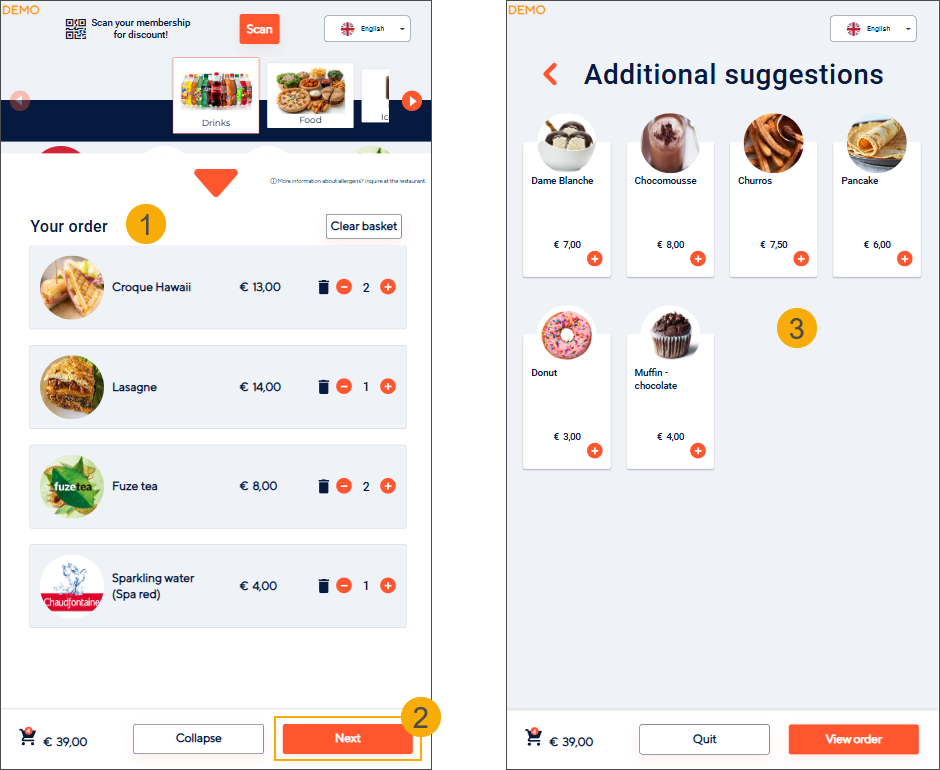
If the customer is not interested in additional items, they click Skip to checkout (4) to proceed directly to the payment flow.
If the customer selects items from the Additional suggestions page, the items are added to the basket immediately. (5)
Items with options trigger the options flow. Once finished or cancelled (using the Back button or the arrow icon), the customer is returned to the Additional suggestions page.
Removing additional items also removes them from the basket.
The customer clicks View order (6) to view the updated basket, including the additional suggestions.
The customer then proceeds to checkout to complete the payment.
Select article subcategories
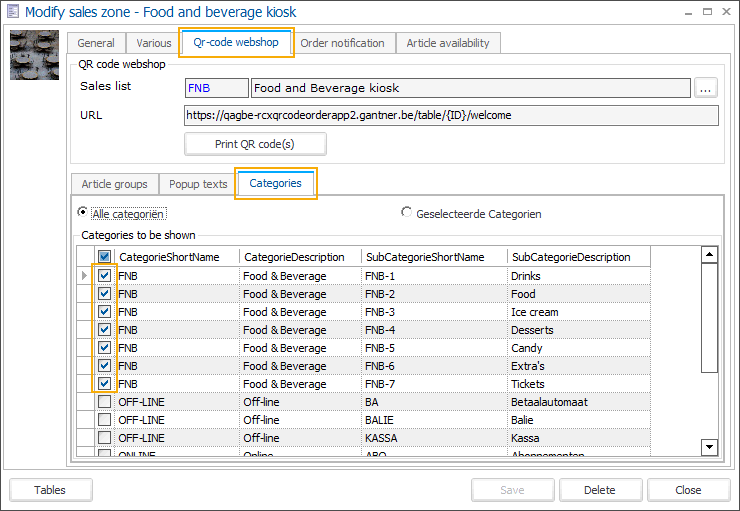
This step is mandatory.
Go to POS > Settings > Sales zones and open the sales zone assigned to the Vintia Order Kiosk. Under the tab QR-code webshop go to the tab Categories and select all subcategories to be displayed in the product category carousel at the top of the kiosk screen.
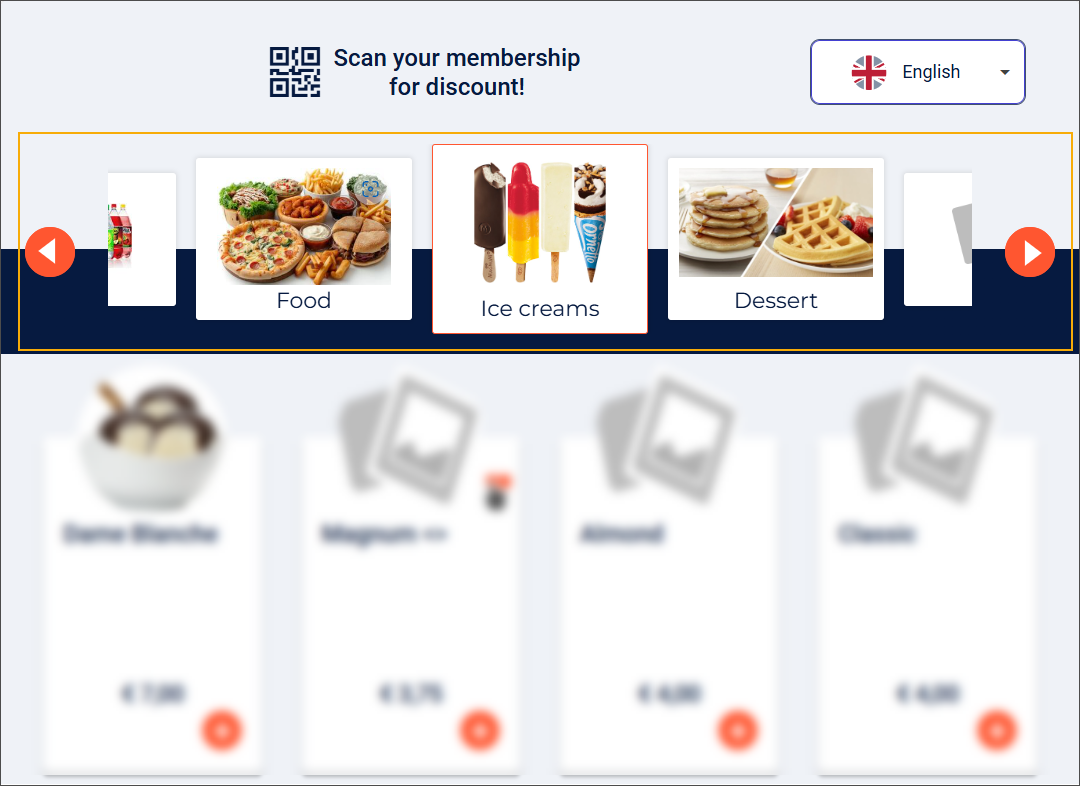
Link sales zones to kiosk
Although the Vintia Order Kiosk is considered a point of sale within Recreatex, its sales zones are linked differently compared to other point-of-sale types.
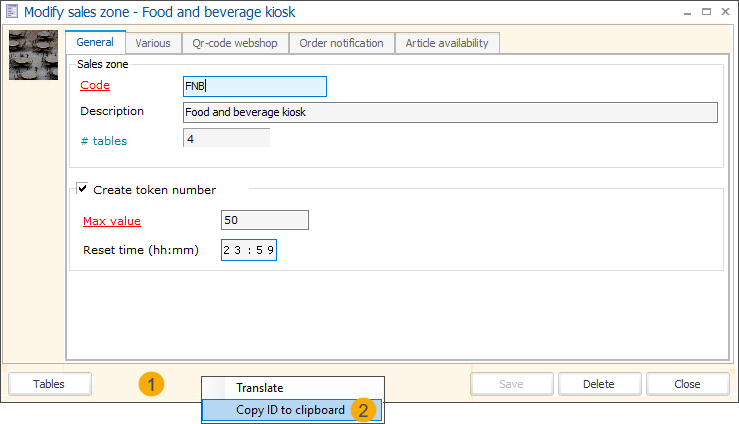
In Recreatex, go to POS > Settings > Sales zones and open the relevant sales zones. In the Modify sales zone screen, right-click anywhere within the highlighted area (1) and select Copy ID to clipboard (2) to retrieve the sales zone ID.
Open the F&B Manager > tab Technical and paste the sales zone IDs into the dedicated fields.
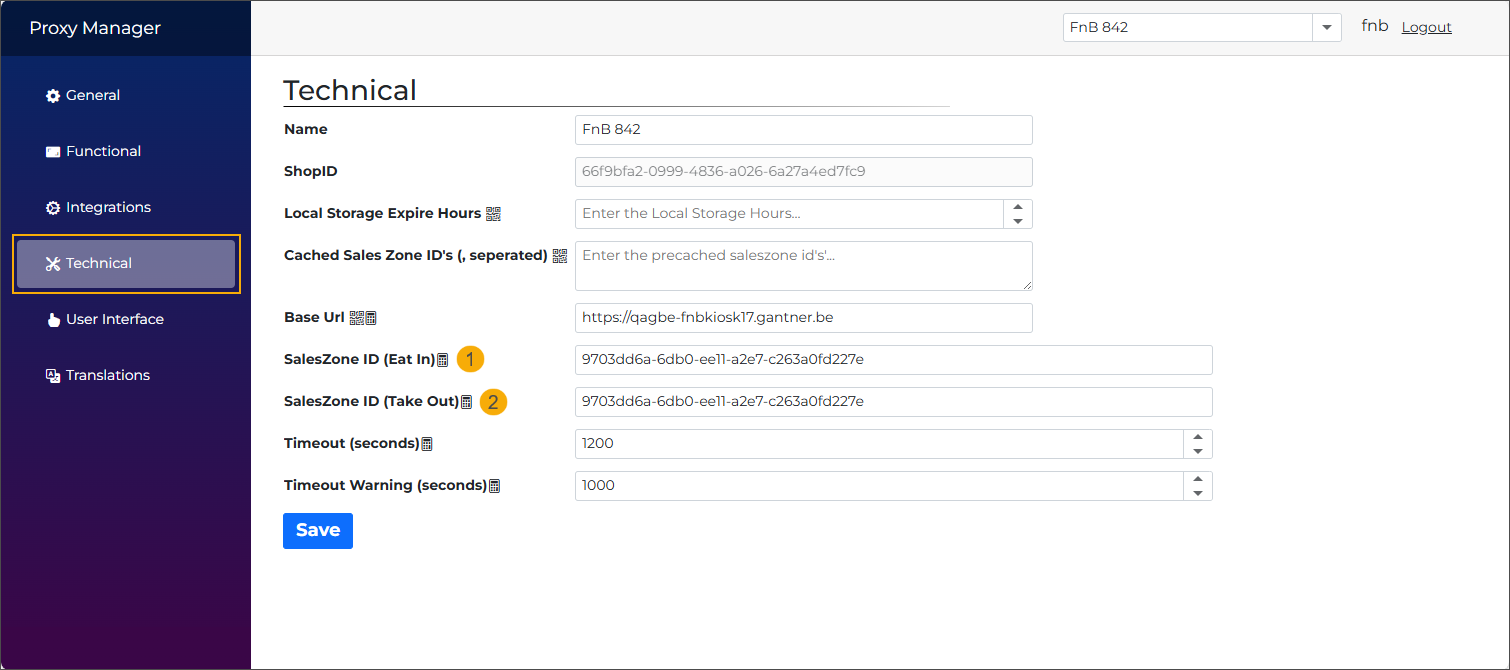
See also Sales zone ID (Eat in) and Sales zone ID (Take out) for more details on these settings.