Recreatex 8.5.1
What's new in Recreatex 8.5.1
Recreatex |
|
Webshop |
|
Timeslot ticketing |
|
Activities |
|
F&B Solution |
|
InfoPlay |
|
Recreatex - Enviso integration |
|


New versions and remarks
The Recreatex 8.5.1.0 release contains the development and internal optimisation tickets of the following applications:
Recreatex
Recreatex WSDL
Recreatex WEBSHOP
Recreatex BKO (Childcare web app)
Recreatex LLV (Course management web app)
Recreatex Self-service kiosk
Recreatex F&B Kiosk
Recreatex Driver
Recreatex Web Tasks
Recreatex Plugin Framework
Important
As of version 8.5.0.0, all Web applications follow the versioning of Recreatex backoffice, transitioning directly from the previous version 6.4.2.0 to 8.5.0.0.
Recreatex version support
Full Support: Recreatex 8.4.0.X / 6.4.0.X and higher
Minimal Support: Recreatex 8.4.1.X / 6.4.1.X, 8.4.2.X / 6.4.2.X
Important reminders
Microsoft has stopped supporting Office 2003 and Office 2007. We recommend that you update to Office 2016, which Microsoft will support until 14th October 2025.
From version 7.1.0 onwards, Recreatex requires .NET 4.7.2. We recommend that you update your systems accordingly.
The minimum required SQL Server version is now Microsoft SQL Server 2019 Standard. We recommend using Microsoft SQL Server 2022 Standard edition for optimal performance, stability, and compatibility with recent Recreatex versions.
New features
Recreatex
Activities | |||
|---|---|---|---|
Customer ticket | Description | Version | Internal reference |
The new implementation enables you to utilise the activity registration flow to trigger the functionality of the Swimming courses module, automatically creating lesson groups and allowing for progress and score tracking of participants. | 8.5.1.0 | BACKOFFICE-25816 | |
Database | |||
Customer ticket | Description | Version | Internal reference |
Limited the number of rows a stored procedure returns to GridEX to improve performance and usability. | 8.5.1.0 | BACKOFFICE-20409 | |
F&B Kiosk | |||
Customer ticket | Description | Version | Internal reference |
API: Customers can now scan their temporary digital wallets to register kiosk purchases during their stay and pay for everything at once when leaving. | 8.5.1.0 | BACKOFFICE-26251 | |
Facility bookings | |||
Customer ticket | Description | Version | Internal reference |
CD-167648 | The "Payment reference" field on the booking's Various tab now supports up to 100 characters. | 8.5.1.0; 8.4.0.X MP; 8.4.1.X MP; 8.4.2.X MP; 8.5.0.X MP | BACKOFFICE-26256 |
Framework | |||
Customer ticket | Description | Version | Internal reference |
Replaced the custom look of the application with a standard DevExpress style for a cleaner and more consistent design. | 8.5.1.0 | BACKOFFICE-25617 | |
Membership | |||
Customer ticket | Description | Version | Internal reference |
Added a setting to configure whether time-based memberships should continue counting minutes while the user temporarily leaves the access zone. | 8.5.1.0 | BACKOFFICE-25970 | |
Other | |||
Customer ticket | Description | Version | Internal reference |
Following our company’s rebranding to Vintia, we have updated the Recreatex application with a new logo, added the Vintia company logo to the application info page, and updated the helpdesk URL to point to the new Vintia support portal. | 8.5.1.0 | BACKOFFICE-26046 | |
POS | |||
Customer ticket | Description | Version | Internal reference |
Protel: Added a new counter plugin that links Recreatex memberships to Protel hotel bookings, enabling venue access and automatic transfer of expenses to the guest’s hotel invoice. | 8.5.1.0 | BACKOFFICE-25576 | |
Integrated Gurado voucher API as a counter plugin, supporting sales, redemption, and refunds via POS. | 8.5.1.0; 8.5.0.1; 8.4.2.3 | BACKOFFICE-26074 | |
Postal code can now be made mandatory per country at the POS level, allowing country-specific configuration (e.g. required for Belgium and the Netherlands, optional for others). | 8.5.1.0 | BACKOFFICE-26138 | |
Sales admin | |||
Customer ticket | Description | Version | Internal reference |
Extended the SFN webservice with a new CollectionContracts datamodel and added additional identifiers to existing datamodels for improved data lookup. | 8.5.1.0 | BACKOFFICE-25769 | |
CD-151961 | Improved the performance of closing collection periods and added a progress bar to show ongoing progress. | 8.5.2.0; 8.5.1.0 | BACKOFFICE-26060 |
Order numbers (tokens) are now linked to temporary digital wallet transactions, allowing purchases made with temporary digital wallets to enter the order processing flow. | 8.5.1.0 | BACKOFFICE-26236 | |
SydAdmin | |||
Customer ticket | Description | Version | Internal reference |
Improved translation management now allows filtering translatable texts by type and multiple languages, supports keyboard shortcuts for navigation, and generates automatic warnings when translations are too long. | 8.5.1.0 | BACKOFFICE-24057 | |
The translation form now hides components not used in the German market when German is selected, preventing unnecessary translations. | 8.5.1.0 | BACKOFFICE-26200 | |
CD-148865 | Added a new user-level field to indicate whether a user is an internal (Vintia) or external (customer) user. | 8.5.1.0 | BACKOFFICE-26206 |
Timeslot ticketing | |||
Customer ticket | Description | Version | Internal reference |
With the new batch management tool, you can now create, delete, and block exhibition periods across multiple exhibitions simultaneously. | 8.5.1.0 | BACKOFFICE-25800 | |
Configure exhibition timeslot capacity based on the availability of suitable employees. | 8.5.1.0 | BACKOFFICE-25827 | |
Availability logic enhancements: Only allow tasks of a single work type per day. | 8.5.1.0 | BACKOFFICE-25848 | |
Availability logic enhancements: Restrict availability before the first / after the last task (in hours). | 8.5.1.0 | BACKOFFICE-25849 | |
Availability logic enhancements: Define the maximum number of hours employees assigned to a specific work group can work. | 8.5.1.0 | BACKOFFICE-25850 | |
Availability logic enhancements: Enforce a minimum break after consecutive working hours. | 8.5.1.0 | BACKOFFICE-25851 | |
When timeslot capacity is based on employee availability and a customer books a timeslot, a task is now automatically created and assigned to an employee. | 8.5.1.0 | BACKOFFICE-26203 | |
Webshop | |||
Customer ticket | Description | Version | Internal reference |
API: Implemented the possibility to enable two-factor authentication when logging in to the Recreatex Webshop. | 8.5.1.0 | BACKOFFICE-25937 | |
API: Lesson memberships can now be filtered to show only the lessons that match the level of the selected person. | 8.5.1.0 | BACKOFFICE-25964 | |
API: Improved handling of national register numbers when mandatory in the web modules Bookings and Activities. | 8.5.1.0 | BACKOFFICE-25974 | |
API: Redesigned exhibition tickets and options to support images and improve the visual layout. | 8.5.2.0; 8.5.1.0 | BACKOFFICE-26033 | |
Exhibitions: Extended NMBS integration to support the webshop Exhibition module. | 8.5.1.0 | BACKOFFICE-26174 | |
Tickets: Extended NMBS integration to support the webshop Tickets module. | 8.5.1.0 | BACKOFFICE-26175 | |
Added a demo mode for NMBS integration to allow testing with mock data. | 8.5.2.0; 8.5.1.0; 8.4.0.X; 8.5.0.X; 8.4.1.11; 8.4.2.7 | BACKOFFICE-26413 | |
Webshop
Activities & Bookings | |||
|---|---|---|---|
Customer ticket | Description | Version | Internal reference |
Improved handling of national register numbers when mandatory in the web modules Bookings and Activities. | 8.5.1.0 | WEBAPP-8655 | |
Exhibitions (Timeslot ticketing) | |||
Customer ticket | Description | Version | Internal reference |
Extended NMBS integration to support webshop exhibition module. | 8.5.1.0 | WEBAPP-8749 | |
General | |||
Customer ticket | Description | Version | Internal reference |
Implemented the possibility to enable two-factor authentication when logging in to the Recreatex Webshop. | 8.5.1.0 | WEBAPP-8620 | |
Updated SameSite attributes: Most cookies are set to Lax, RequestVerificationToken remains Strict and analytics and marketing cookies are set to None. | 8.5.0.0; 8.5.1.0 | WEBAPP-8636 | |
Improved HTTP header security by updating and adding key policy settings. | 8.5.0.0; 8.5.1.0 | WEBAPP-8637 | |
It is now possible to add medication, allergies, and medical info fields to the customer profile in the webshop. | 8.5.1.0 | WEBAPP-8684 | |
It is now possible to override the default mail server configuration via the Webshop Manager and use a custom SMTP setup. | 8.5.1.0 | WEBAPP-8690 | |
Lessons (Swimming courses) | |||
Customer ticket | Description | Version | Internal reference |
Lesson group selection now only shows lesson groups where a student is currently still registered. | 8.5.0.0; 8.5.1.0 | WEBAPP-8651 | |
Lesson memberships can now be filtered to show only the lessons that match the level of the selected person. | 8.5.1.0 | WEBAPP-8685 | |
Tickets (Seated ticketing) | |||
Customer ticket | Description | Version | Internal reference |
Extended NMBS integration to support the webshop Tickets module. | 8.5.1.0 | WEBAPP-8750 | |
WSDL
Activities | |||
|---|---|---|---|
Customer ticket | Description | Version | Internal reference |
FindActivities: The method now supports filtering by desired skills and includes skill details in the response. | 8.5.1.0 | BACKOFFICE-26314 | |
Admission | |||
Customer ticket | Description | Version | Internal reference |
When an article is scanned in the Admission app and manual validation is enabled, an article-specific message can now be shown to provide additional information to the employee. | 8.5.1.0 | BACKOFFICE-25659 | |
General | |||
Customer ticket | Description | Version | Internal reference |
API: Added EmployeeNumber to the criteria and response of the FindEmployees API. | 8.5.1.0 | BACKOFFICE-25861 | |
InfoPlay | |||
Customer ticket | Description | Version | Internal reference |
Adjusted API to include membership activation logs in InfoPlay, enabling visibility of guest information previously missing from the access overview. | 8.5.1.0 | BACKOFFICE-26177 | |
mPOS | |||
Customer ticket | Description | Version | Internal reference |
CD-140466 | API: Articles with options linked to articles that have translations can now be sold in mPOS. | 8.5.1.0 | BACKOFFICE-24998 |
API: Added a new parameter to use the division of the logged-in point of sale for sales, overriding the webshop configuration. | 8.5.1.0 | BACKOFFICE-26209 | |
TaskFlow | |||
Customer ticket | Description | Version | Internal reference |
API: Optimised FindEmployeeTasks query and added ExpositionVisitInformation and VisitorsPerTicket data. | 8.5.1.0 | BACKOFFICE-26228 | |
F&B Solution
F&B Kiosk | |||
|---|---|---|---|
Customer ticket | Description | Version | Internal reference |
Added the option to cancel a digital wallet payment, returning the user to the articles screen. | 8.5.1.0 | FNB-144 | |
Customers can now scan their temporary digital wallets to register kiosk purchases during their stay and pay for everything at once when leaving. | 8.5.1.0 | FNB-277 | |
WCAG 2.1 AA compatibility: Improved accessibility of the Home page. | 8.5.1.0 | FNB-295 | |
WCAG 2.1 AA compatibility: Improved accessibility of the Eat in/Take out page. | 8.5.1.0 | FNB-296 | |
WCAG 2.1 AA compatibility: Improved accessibility of the Articles page. | 8.5.1.0 | FNB-297 | |
Improved visual alignment of the language selection bar for configurations with fewer than four languages. | 8.5.1.0 | FNB-299 | |
WCAG 2.1 AA compatibility: Improved accessibility of the Payment terminal page. | 8.5.1.0 | FNB-301 | |
WCAG 2.1 AA compatibility: Improved accessibility of the Payment selection page. | 8.5.1.0 | FNB-302 | |
WCAG 2.1 AA compatibility: Improved accessibility of the Digital wallet payment page. | 8.5.1.0 | FNB-304 | |
WCAG 2.1 AA compatibility: Improved accessibility of the Confirm page. | 8.5.1.0 | FNB-305 | |
WCAG 2.1 AA compatibility: Improved accessibility of the Buzzer page. | 8.5.1.0 | FNB-306 | |
Moved the Demo mode setting from app settings to the F&B Manager application. | 8.5.1.0 | FNB-60 | |
F&B Manager | |||
Customer ticket | Description | Version | Internal reference |
Super users can now generate a new ShopID through a simple flow with a pop-up and default settings to choose from, making the process more intuitive. | 8.5.1.0 | FNB-104 | |
Renamed the manager application for F&B Solution apps to F&B Manager. | 8.5.1.0 | FNB-137 | |
Added a log view page to support troubleshooting by showing recent error logs per ShopID, in date-descending order. | 8.5.1.0 | FNB-250 | |
Added an option to configure an Adyen client key in the Enviso pay settings. | 8.5.1.0 | FNB-254 | |
Extended Demo mode to allow configuration per kiosk and improved simulation for scanner, printer, and payment terminal flows. | 8.5.1.0 | FNB-78 | |
Reordered F&B Manager settings for a more logical configuration flow, added an Application setting to filter settings per app type, and removed obsolete settings from the UI. | 8.5.1.0 | FNB-94 | |
QR ordering app | |||
Customer ticket | Description | Version | Internal reference |
Implemented Enviso Pay as a payment method. | 8.5.1.0 | FNB-142 | |
Extended pending orders with payment and checkout status, making them available on the confirmation page and in the EnvisoPay postback. | 8.5.1.0 | FNB-156 | |
Added a language dropdown to the article page header containing the default language and shown languages from the new TranslationService, along with translations for categories, articles, options, and option values. | 8.5.1.0 | FNB-157 | |
The logo is now configurable via a setting in the F&B Manager application. | 8.5.1.0 | FNB-162 FNB-209 | |
Added a clear button "X" to the search box for quick text removal. | 8.5.1.0 | FNB-167 | |
Added a trashcan action to enable faster deletion of basket items and improved the layout of action icons. | 8.5.1.0 | FNB-175 | |
Updated the account details button to reflect the user's login status. | 8.5.1.0 | FNB-195 | |
Implemented token reuse in the EnvisoPay integration by caching login tokens to reduce redundant authentication requests. | 8.5.1.0 | FNB-208 | |
Added user action logs to track interactions throughout the session. | 8.5.1.0 | FNB-238 | |
Added detailed payment logs to trace payment activities by reference and session ID. | 8.5.1.0 | FNB-239 | |
The country list in the payment flow is now translated based on the user's selected language. | 8.5.1.0 | FNB-244 | |
Added settings to show or hide the scan option for login and discount. | 8.5.1.0 | FNB-253 | |
Implemented session info retrieval based on payment reference to fix order confirmation issues after mobile payments. | 8.5.1.0 | FNB-282 | |
WCAG 2.1 AA compatibility: Improved accessibility of the Articles page. | 8.5.1.0 | FNB-286 | |
WCAG 2.1 AA compatibility: Improved accessibility of the Account details page. | 8.5.1.0 | FNB-287 | |
WCAG 2.1 AA compatibility: Improved accessibility of the Article detail page. | 8.5.1.0 | FNB-288 | |
WCAG 2.1 AA compatibility: Improved accessibility of the Basket page. | 8.5.1.0 | FNB-289 | |
WCAG 2.1 AA compatibility: Improved accessibility of the Pay page. | 8.5.1.0 | FNB-291 | |
WCAG 2.1 AA compatibility: Improved accessibility of the Confirm page. | 8.5.1.0 | FNB-292 | |
Self-service kiosk
Customer ticket | Description | Version | Internal reference |
|---|---|---|---|
Upgraded Crystal Reports references for the Self-service kiosk to Crystal Reports 2020. | 8.5.1.0 | WEBAPP-8594 |
Interface framework
Customer ticket | Description | Version | Internal reference |
|---|---|---|---|
TradeFlow: The plugin now supports creating Recreatex memberships based on membership sales imported from Enviso. | 8.4.2.1; 8.5.1.0; 8.5.0.1 | PLUGINS-2248 | |
TradeFlow: The plugin can now include the sales point ID when importing sales from Enviso, allowing sales to be linked to the actual point of sale and, if configured, to its division for accurate tracking of the sales channel and correct application of financial settings by point of sale and division. | 8.5.1.0; 8.5.0.1 | PLUGINS-2212 | |
AVSGuestCard.dll (AVS): Updated the card listener plugin to ensure cards are only validated via external APIs during valid access or venue opening times. | 8.4.2.1; 8.5.1.0; 8.5.0.1 | PLUGINS-2221 | |
BundesMuseenCard.dll (BMC): Updated the card listener plugin to ensure cards are only validated via external APIs during valid access or venue opening times. | 8.4.2.1; 8.5.1.0; 8.5.0.1 | PLUGINS-2219 | |
OENB ActiveDirectory: Implemented configuration and logic changes to the plugin to use Recreatex membership validity and avoid unnecessary updates. | 8.4.2.1; 8.5.1.0; 8.5.0.1 | PLUGINS-2253 | |
OENB Alma: Implemented configuration and logic changes to the plugin to use Recreatex membership validity and avoid unnecessary updates. | 8.4.2.1; 8.5.1.0; 8.5.0.1 | PLUGINS-2252 | |
Protel: The newly created CardListener plugin enables the settlement of digital wallets to Protel. | 8.5.1.0 | PLUGINS-2211 | |
Protel: With the new ProtelSubscriptionSync plugin, the validity start and end dates of Protel-linked memberships can now be automatically updated to match the dates in Protel. | 8.5.1.0 | PLUGINS-2210 | |
RevenueRecognition: Extended the plugin to support period-based memberships with automated revenue distribution per day or month and configurable processing dates. | 8.5.1.0 | PLUGINS-2254 |
Detailed information
Timeslot ticketing: Configure timeslot capacity based on employee availability
You can now configure exhibition timeslot capacity based on the availability of suitable employees. This functionality ensures that a timeslot is only offered if at least one employee is available to be assigned to it.
This logic is especially useful for instructor-led activities, such as private lessons, where employee availability is a critical factor in planning and scheduling.
Key principles
A timeslot becomes available only if there are still employees who can be assigned to it.
When a timeslot is booked:
A task is automatically created
The employee is automatically assigned
The task is marked as confirmed
The availability of employees across all timeslots is recalculated immediately after each booking. As employees are assigned, remaining timeslot capacities are updated to reflect the new situation.
How employee availability is determined
Employee availability is based on a combination of existing settings and new configuration options. These can be combined to match the specific requirements of your exhibition setup and organisational needs.
|
|
Configuration
This section outlines the key configuration steps (both existing and new) needed to set up exhibitions that use employee-based timeslot availability correctly.
Exhibition-level settings
The following configuration is essential on the exhibition level.
General settings
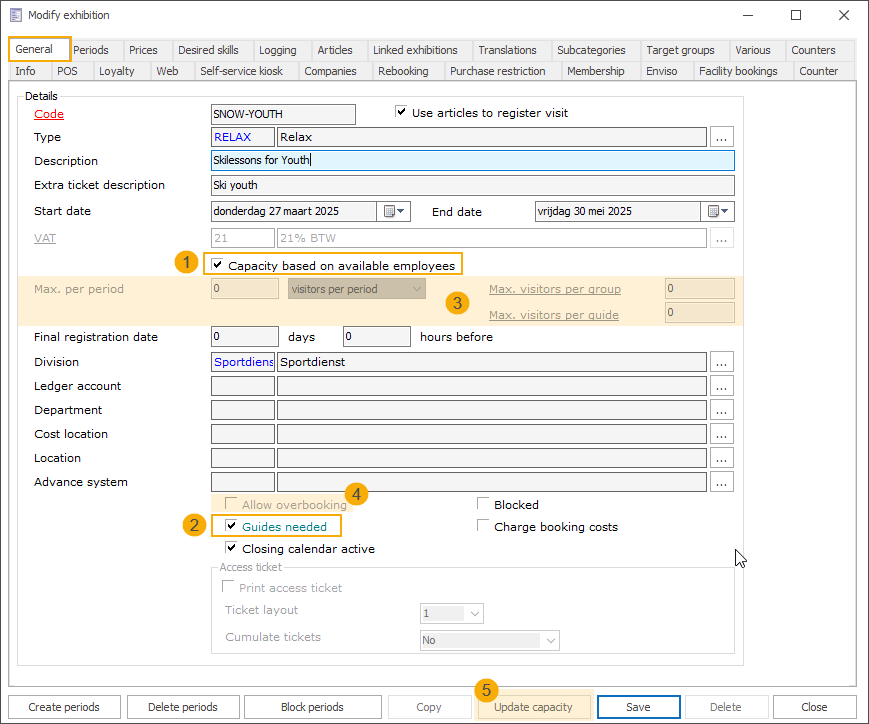
Under the tab General, enable the setting Capacity based on available employees (1).
Important
This setting must be enabled before adding any periods. Once periods are created, the setting becomes read-only and can no longer be changed.
Enabling this setting automatically impacts the following settings and functions:
The Guides needed setting is enabled and locked (2)
The following potentially conflicting settings are disabled (3):
Max. per period
Visitors per period / Groups per period
Max. visitors per group
Max. visitors per guide
The setting Allow overbooking (4) is deselected and disabled (4)
The Update capacity function is disabled (5)
Work type
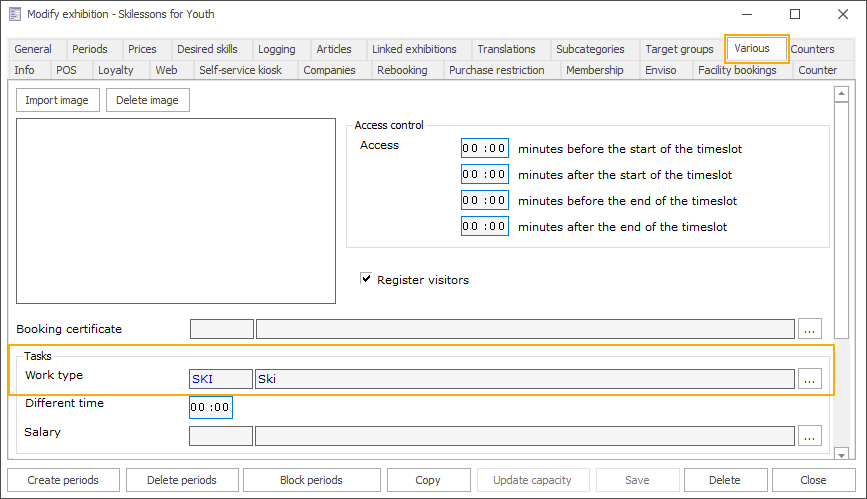
Under the tab Various, go to the Tasks section and select the Work type.
Desired skills
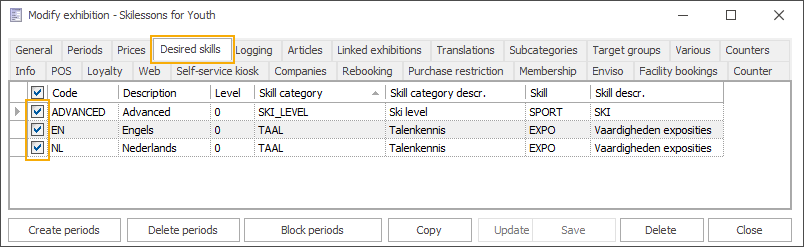
Under the tab Desired skills, select all relevant skills the instructor needs for this assignment (e.g. language, skill level, etc.).
Periods
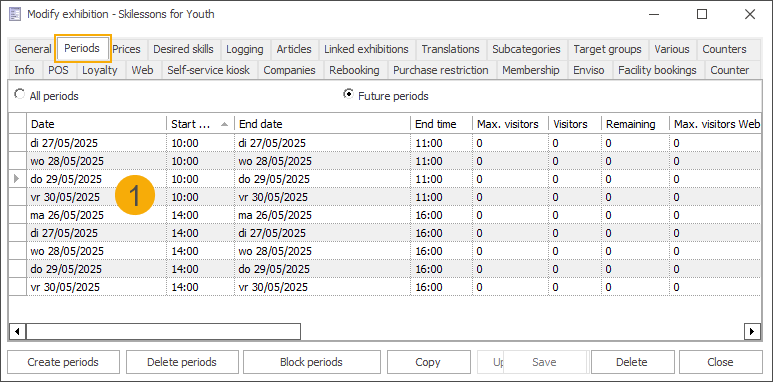
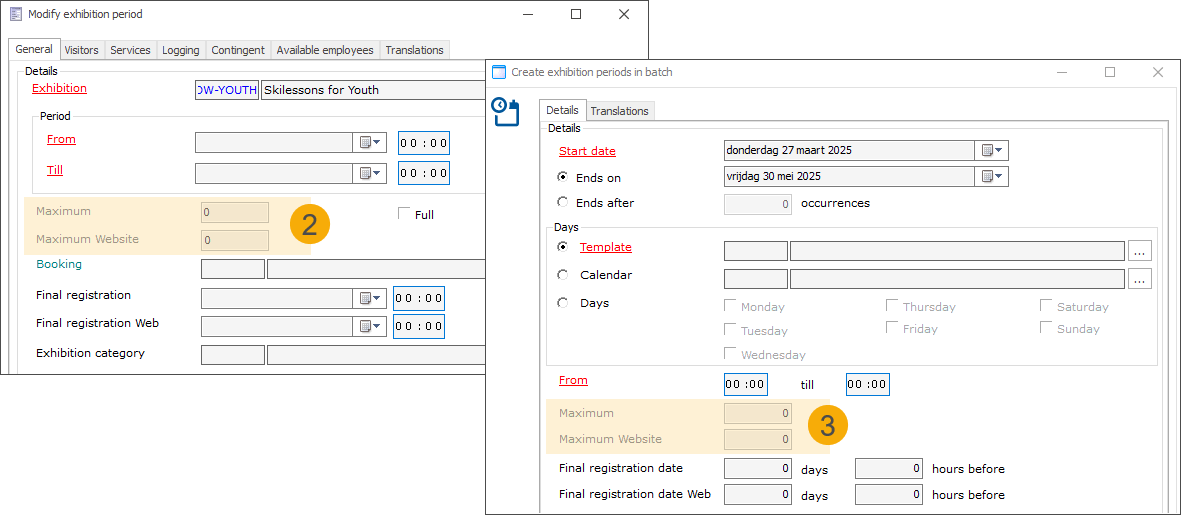
Under the tab Periods, create all relevant time slots for this exhibition. (1)
The timeslot capacity settings, Maximum and Maximum Website, are disabled when creating periods individually (2) or in batch (3).
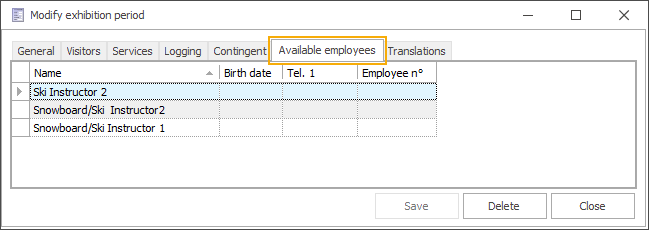
Each timeslot detail includes a new tab, Available employees, that shows all employees currently available during that period.
Prices
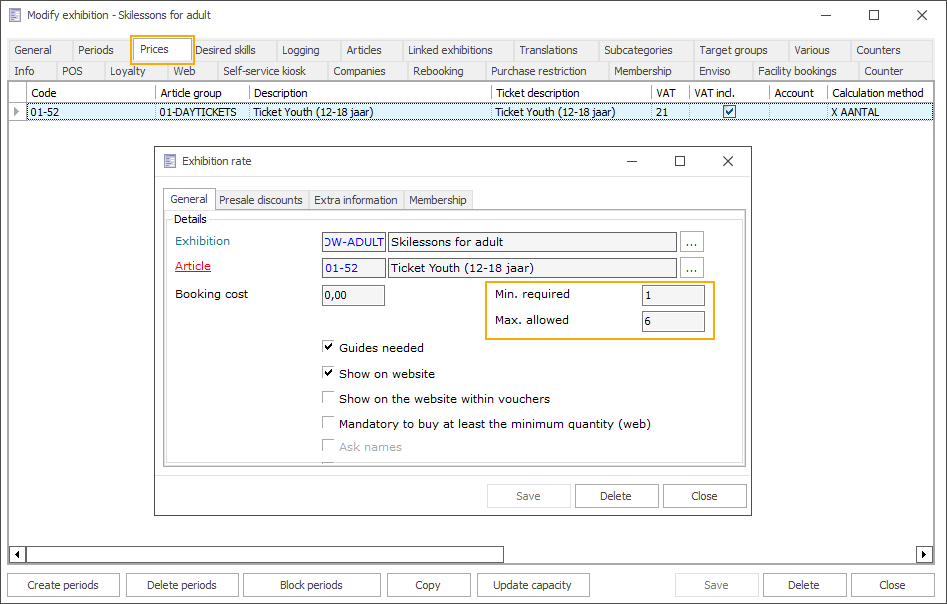
At the ticket level, you can set the minimum and maximum number of tickets that can be purchased per order. This helps ensure that the number of participants per lesson remains manageable for one instructor.
Employee-specific settings
The following existing settings are relevant at the employee level.
Work types
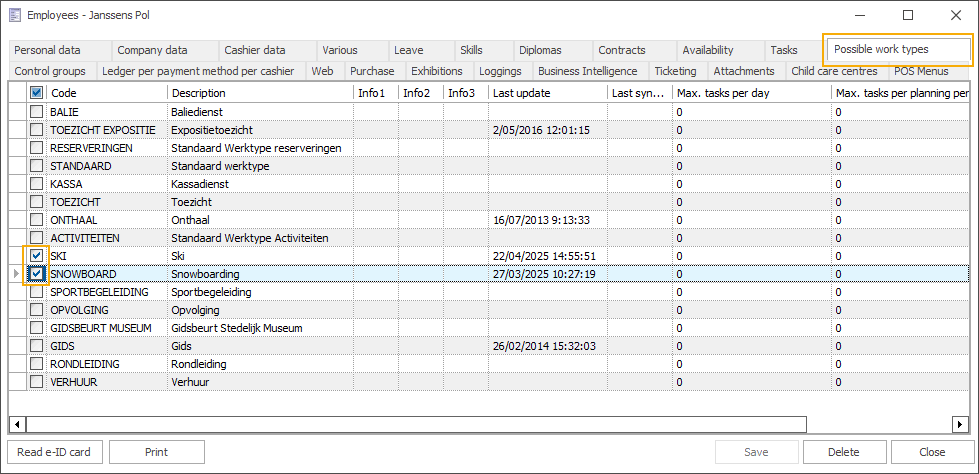
Under the tab Possible work types, select all relevant work types for the current employee.
Skills
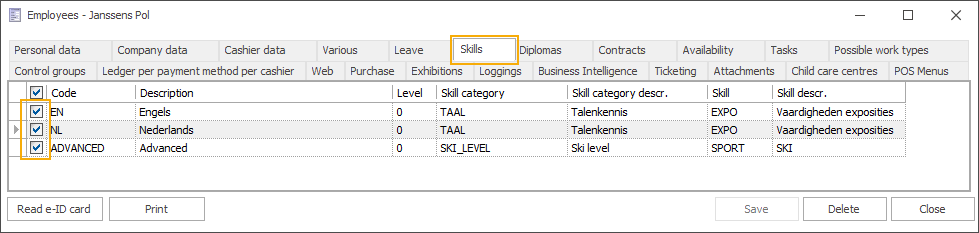
Under the tab Skills, specify all relevant skills of the current employee.
Availability
You can take into account days and hours when an employee is available.
Activate the setting Work with availability per day under the tab Company data, and configure the available days/hours under the tab Availability.
Leave
You can take into account the days when an employee is not available.
Under the tab Leave select the leave days in the calendar.
Maximum number of planning tasks per day
Define how many planning tasks each employee can take on per day. This setting can be configured on 2 levels. Go to General > Basic data > Employees > Settings:
Work types: Open the relevant work type and enter a number in the Max. planning items per day field.
Working group: Open the relevant working group and enter a number in the Max. plannings per day field.
Now go to General > Parameters > tab Employees and in the section Automatic planner, specify the Type of counting. Depending on what your work types and working groups represent in your organisation, you can choose to count the employee planning tasks:
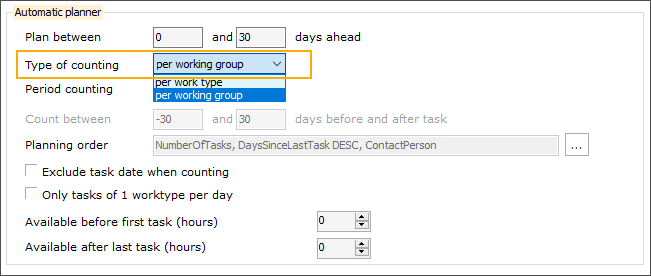
per work type (e.g. climbing or skiing)
per working group (e.g. location)
Depending on your selection, the automatic planner will apply the setting value from either the work type or the working group.
New settings and parameters affecting availability logic
Maximum hours per day
At the working group level, you can define the maximum number of hours the employees assigned to this work group can work.

Go to General > Basic data > Employees > Settings > Working groups. Open the relevant working group and enter the number of hours in the field Max. hours per day.
Link the working group to the relevant work type.
Minimum break after consecutive working hours
At the working group level, you can define rules to ensure employees receive a break after working a set number of consecutive hours. This helps avoid long, uninterrupted work periods and supports more balanced, compact schedules.
Once the maximum number of consecutive working hours is reached, the system automatically includes a break of the configured duration and only allows tasks that start after this break.
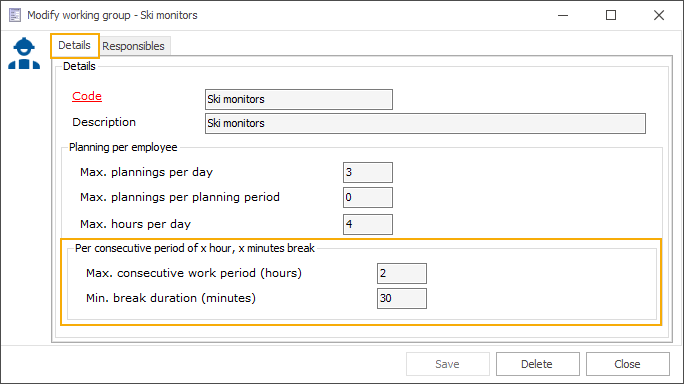
Go to General > Basic data > Employees > Settings > Working groups. Open the relevant working group and in the section Per consecutive period of x hours, x minutes break configure the following settings:
Max. consecutive work period (hours): Enter the number of hours an employee may be scheduled continuously without a break.
Min. break duration (minutes): The minimum break time that must follow the maximum consecutive work period.
Default value: Both fields are disabled (set to 0).
Link the working group to the relevant work type.
An instructor can work a maximum of 2 consecutive hours.
After reaching this limit, a minimum break of 30 minutes is required before starting a new task.
The instructor is currently scheduled for two 1-hour tasks at 13:00–14:00 and 14:00–15:00.
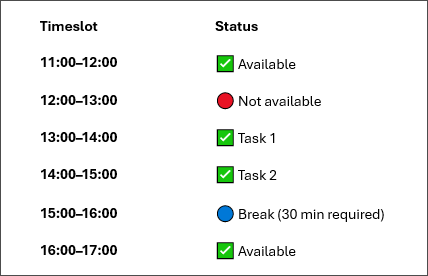
Cannot be scheduled before 13:00
This would exceed the 2-hour consecutive work limit if combined with the 2 already scheduled tasks.
Cannot be scheduled at 15:00–16:00
A 30-minute break is required after two hours of work before any new task can be scheduled.
Can be scheduled for a timeslot starting at 16:00
The required 30-minute break (15:00–15:30) is respected before a new task.
Only allow tasks of a single work type per day
At the general employee level, you can choose to allow employees to perform only one type of task per day, for example, only ski lessons or only climbing lessons, rather than a combination of both.
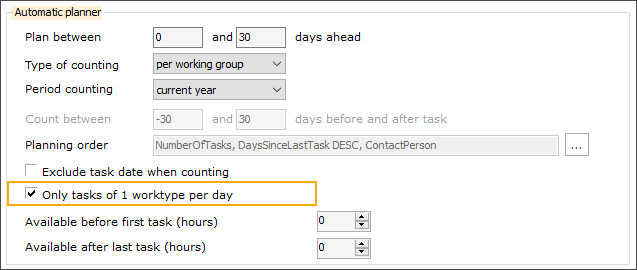
Go to General > Parameters > tab Employees and in the section Automatic planner, enable the setting Only tasks of 1 worktype per day.
Default value: disabled
Restrict additional tasks to a time window before and after scheduled tasks
The following settings at the general employee level allow you to control when additional tasks can be assigned to an employee, relative to their first and last scheduled task of the day. It helps keep work schedules compact and avoids large idle gaps, while still respecting other planning rules (e.g. maximum hours per day or facility opening hours).
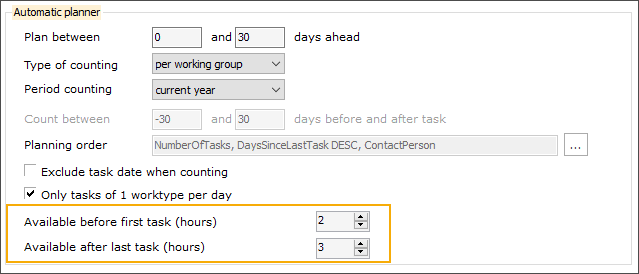
Go to General > Parameters > tab Employees and in the section Automatic planner, configure the following fields:
Available before first task (hours): defines how many hours before the first scheduled task additional tasks can be assigned
Available after last task (hours): defines how many hours after the last scheduled task additional tasks can be assigned
Default value: Both fields are disabled (set to 0).
An instructor has availability set to: 2 hours before the first scheduled task / 3 hours after the last scheduled task
When a lesson is booked at 13:00 and the instructor has availability set to 2 hours before and 3 hours after, timeslots between 11:00 and 16:00 become available for additional tasks.
If another customer then books a lesson at 11:00, the available timeslot range shifts accordingly, in this case from 9:00 to 14:00, provided other set conditions are still met (e.g. maximum working hours, breaks, facility opening hours).

This helps keep schedules compact and avoids large gaps in the instructor’s planning.
New elements in the exhibition visit booking flow
Backoffice
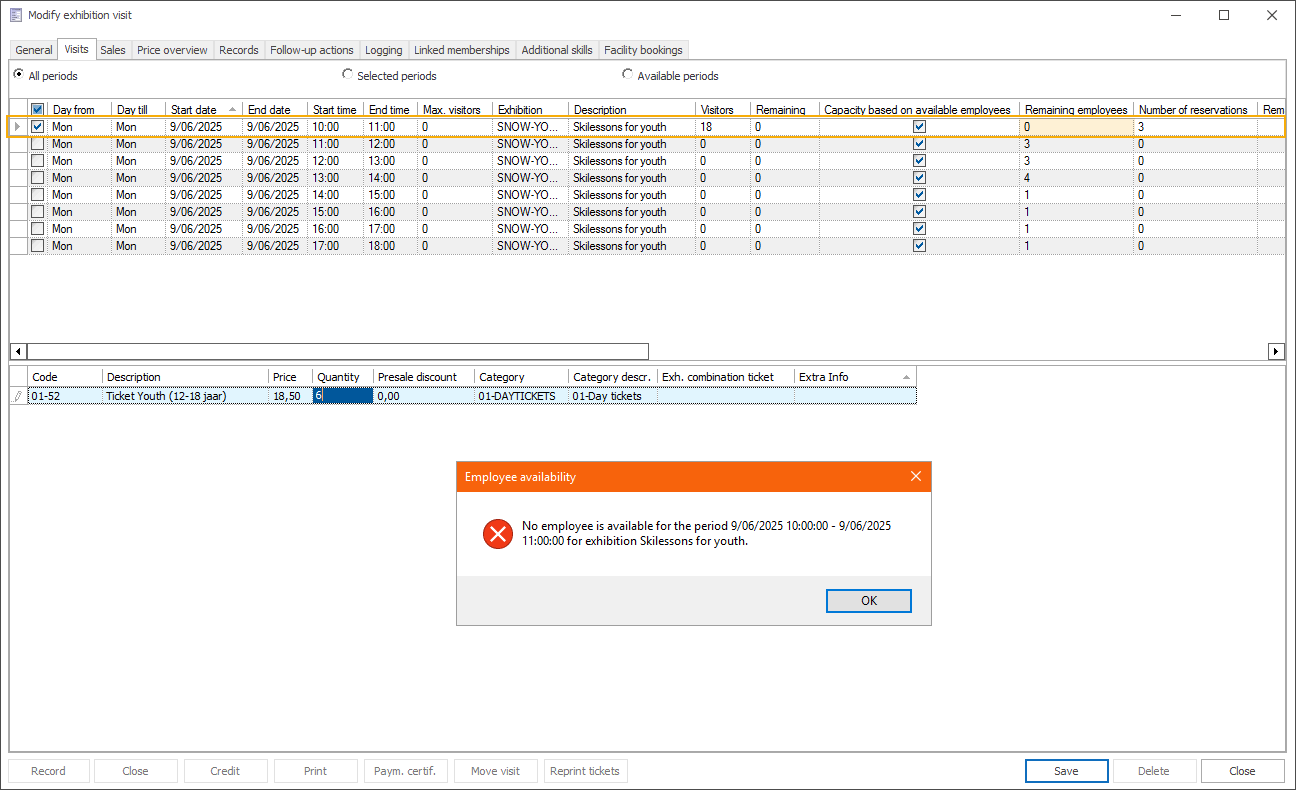
When booking an exhibition visit, two new columns (1) are now visible when selecting a timeslot under the Visits tab.
Capacity based on available employees: Indicates that the number of available employees determines the capacity of the timeslot.
Remaining employees: Shows how many employees are still available for each timeslot.
When the exhibition visit is saved, a message is shown to confirm that the relevant tasks have been created automatically (2).
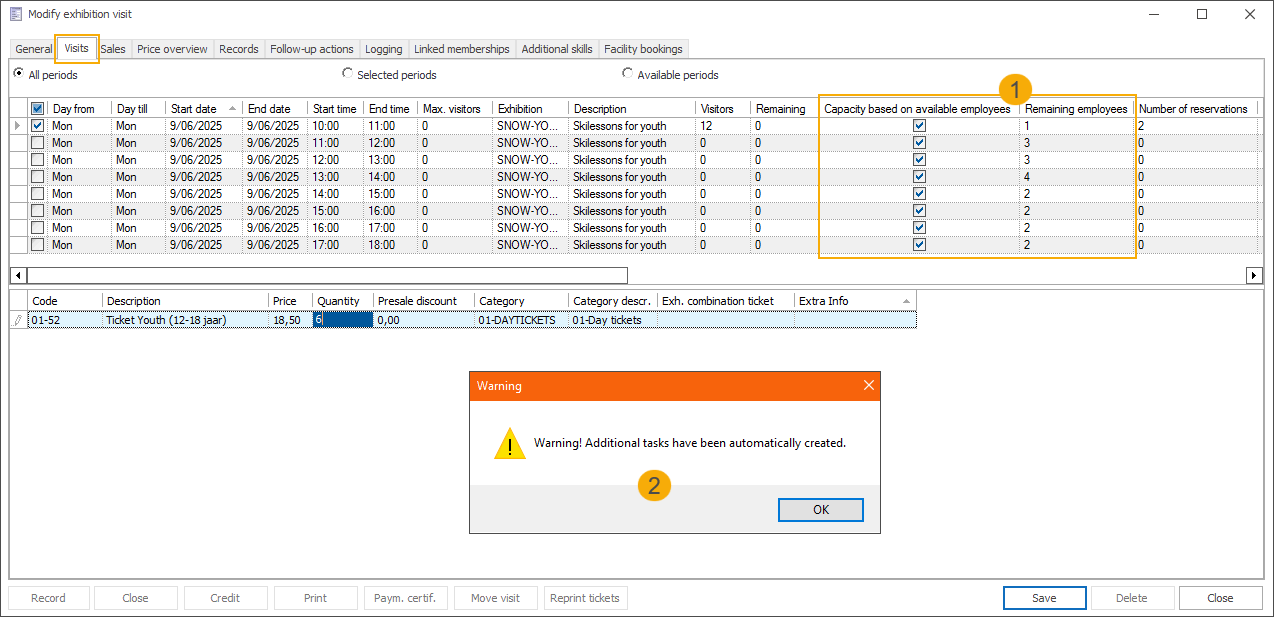
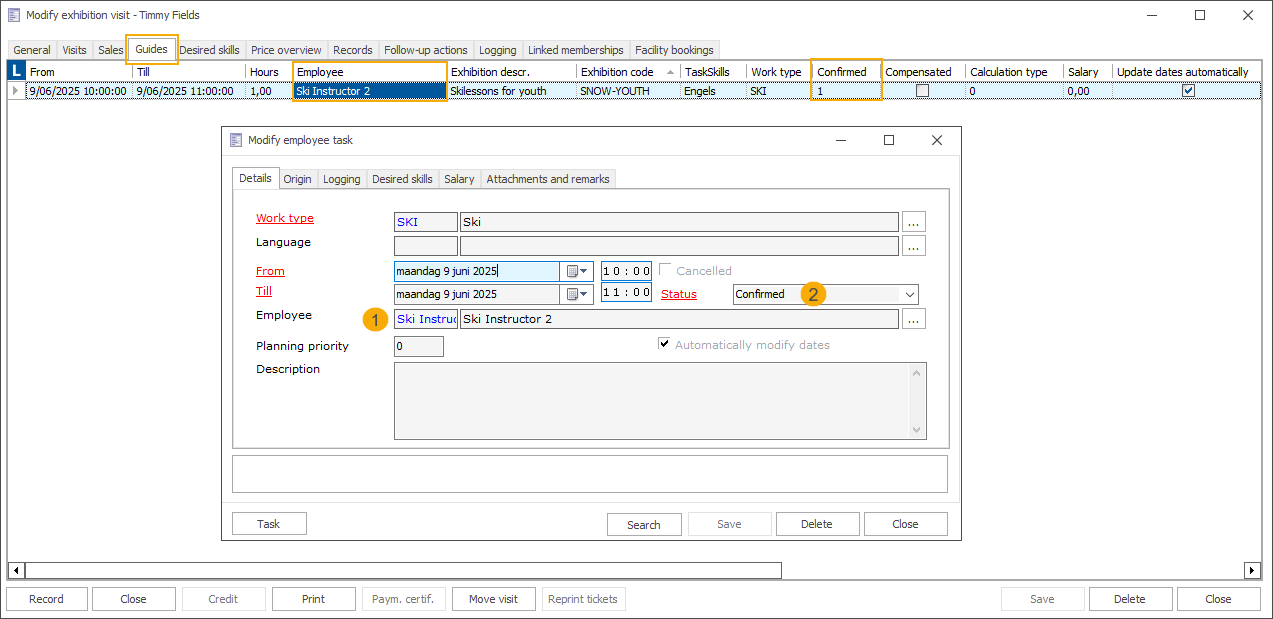
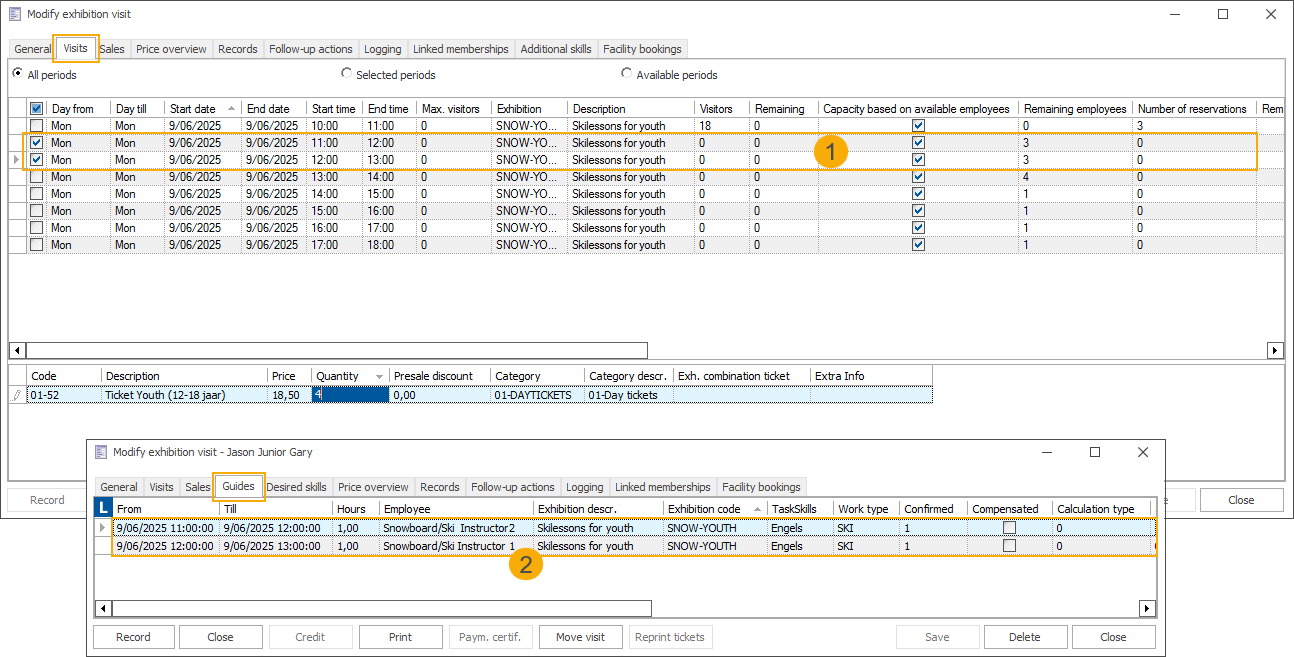
The created task is automatically assigned to a suitable employee (1) and marked as confirmed (2).
When attempting to book a timeslot with no available employees, the system displays a blocking message.
When booking multiple timeslots, a separate task is created per timeslot.
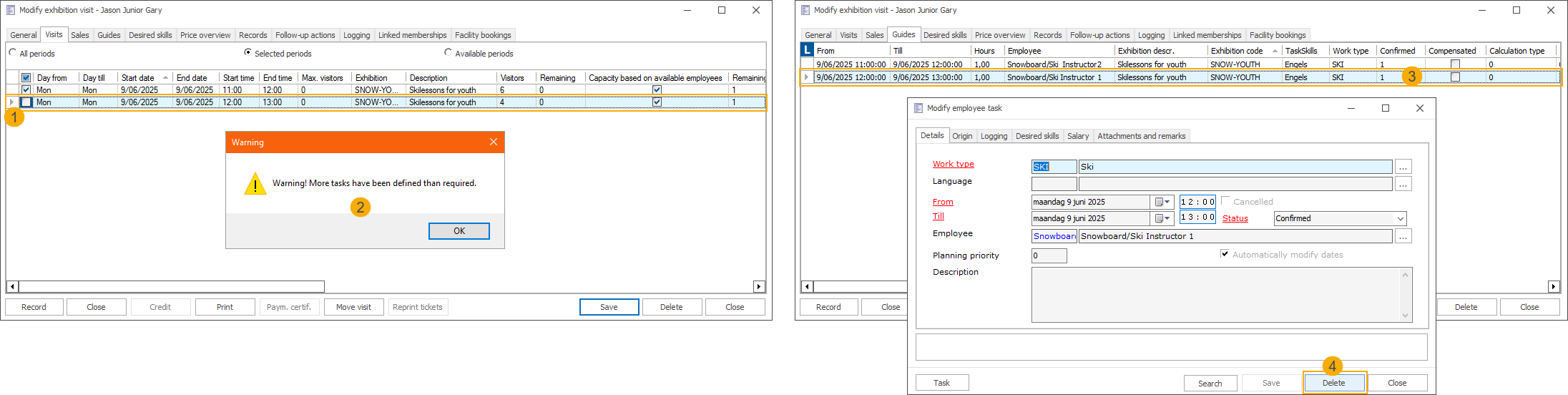
Removing a timeslot from an exhibition visit triggers a warning message indicating that there are more tasks than required. The redundant tasks, however, must be removed manually.
When moving an exhibition visit, only available timeslots (1) are shown in the calendar. The unavailable timeslots are hidden (2).
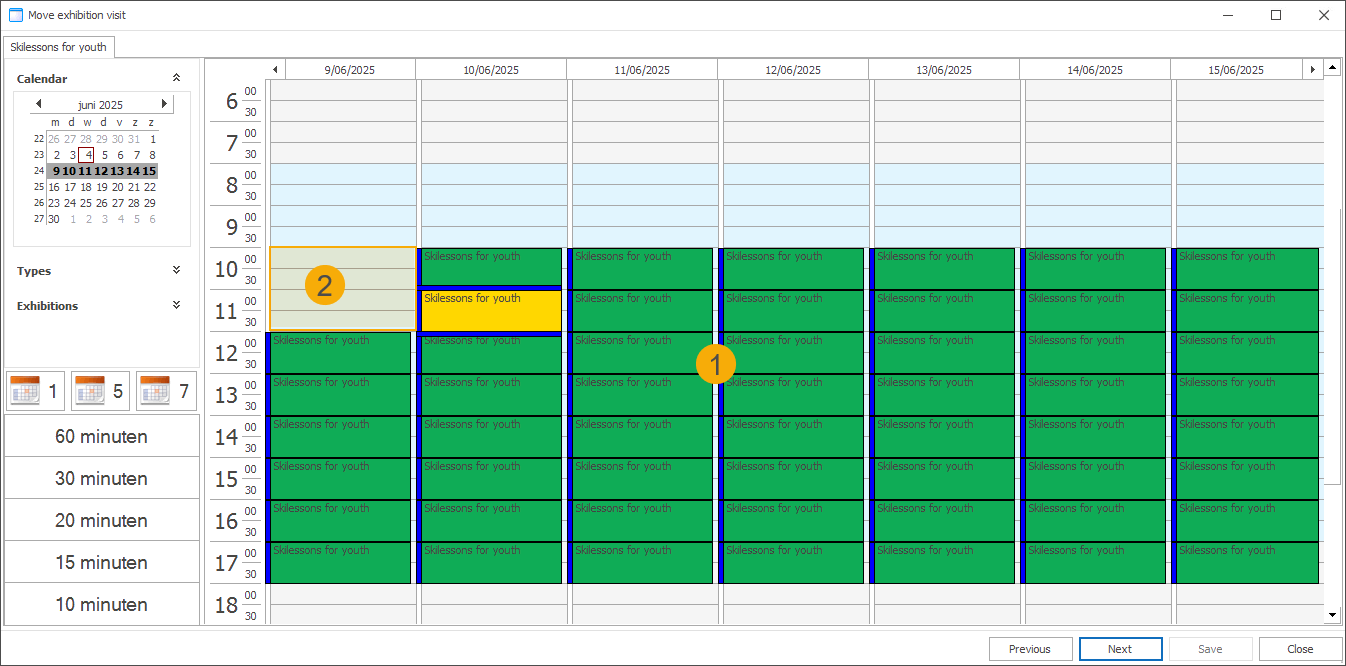
A new task is automatically created for the newly selected timeslot.
If the originally assigned employee is available for the new timeslot, they will be assigned to the new task (existing functionality).
If the originally assigned employee is not available, the new task will be created without an assigned employee (existing functionality).
When an exhibition visit is credited, the related tasks are automatically cancelled if this option is configured.
When an exhibition visit is deleted, the related tasks are cancelled automatically.
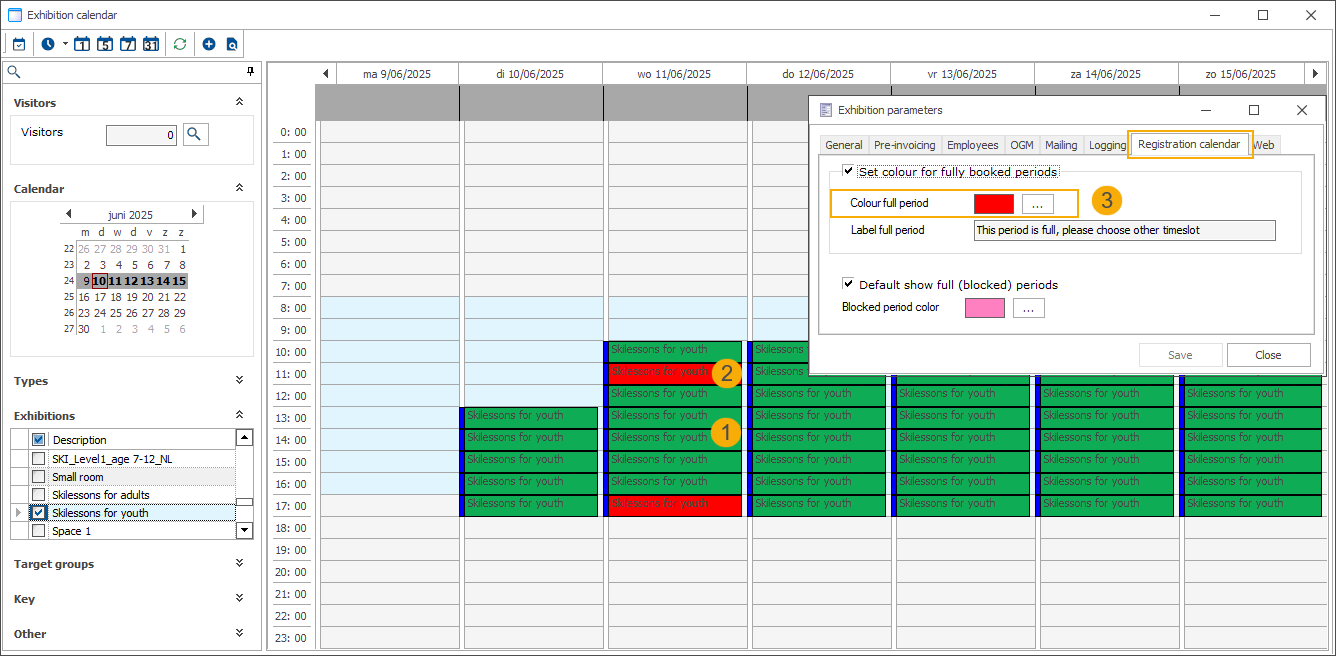
In the exhibition calendar, all timeslots are visualised (1). Timeslots that are no longer available are marked in a different colour (2), defined in the exhibition parameters (3).
Timeslot ticketing > Visualisations > Exhibition calendar
POS (cash register)
When booking an exhibition visit, only the timeslots with available employees are displayed in the calendar (1). The unavailable timeslots are hidden (2).
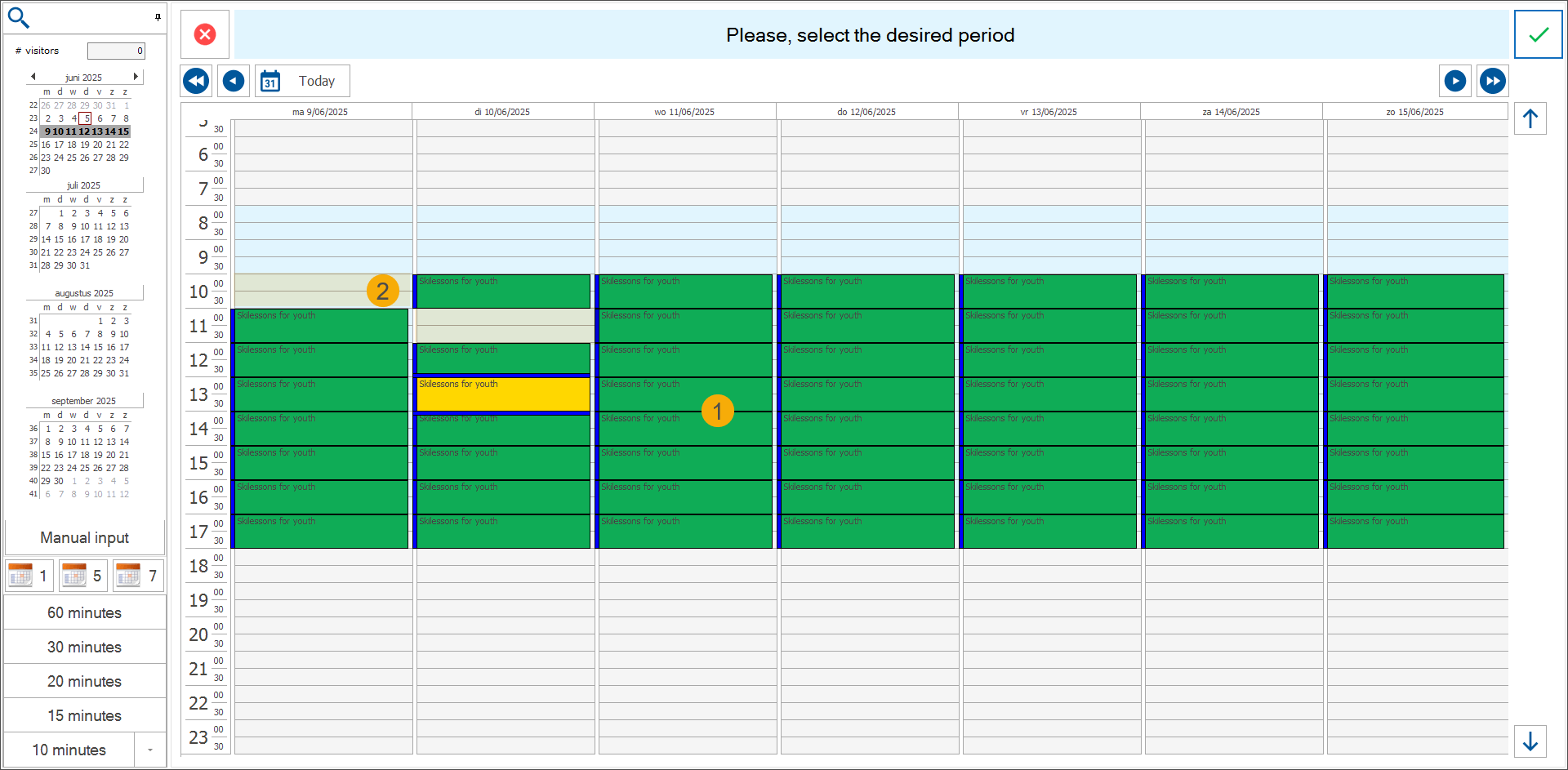
Layout POS menu: Modern
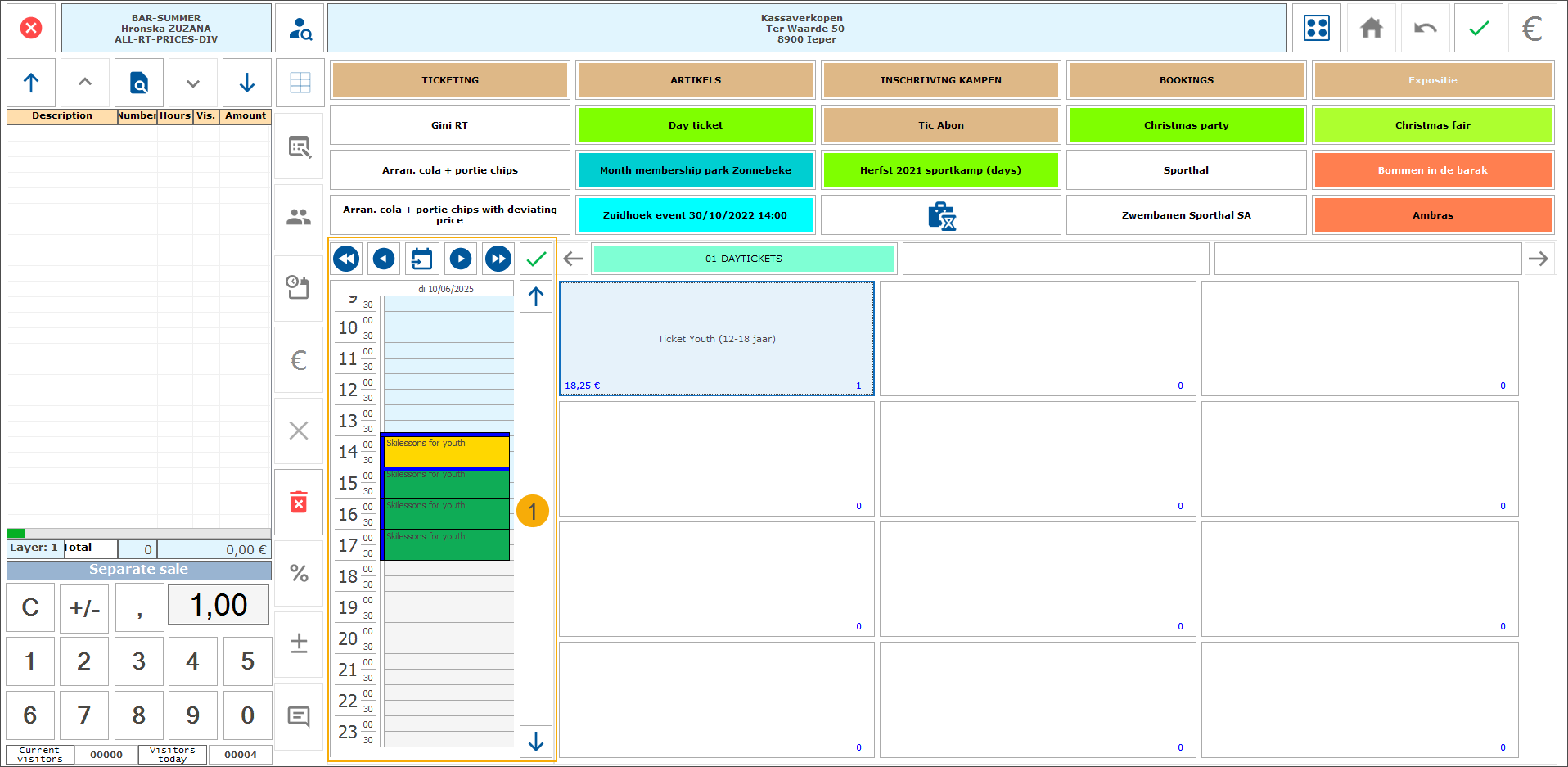
Layout POS menu: Exhibition
Customers can book multiple tickets for one or more timeslots (1). After the payment, a task is created for each booked timeslot (2), an employee is assigned (3), and the tasks are automatically confirmed (4).
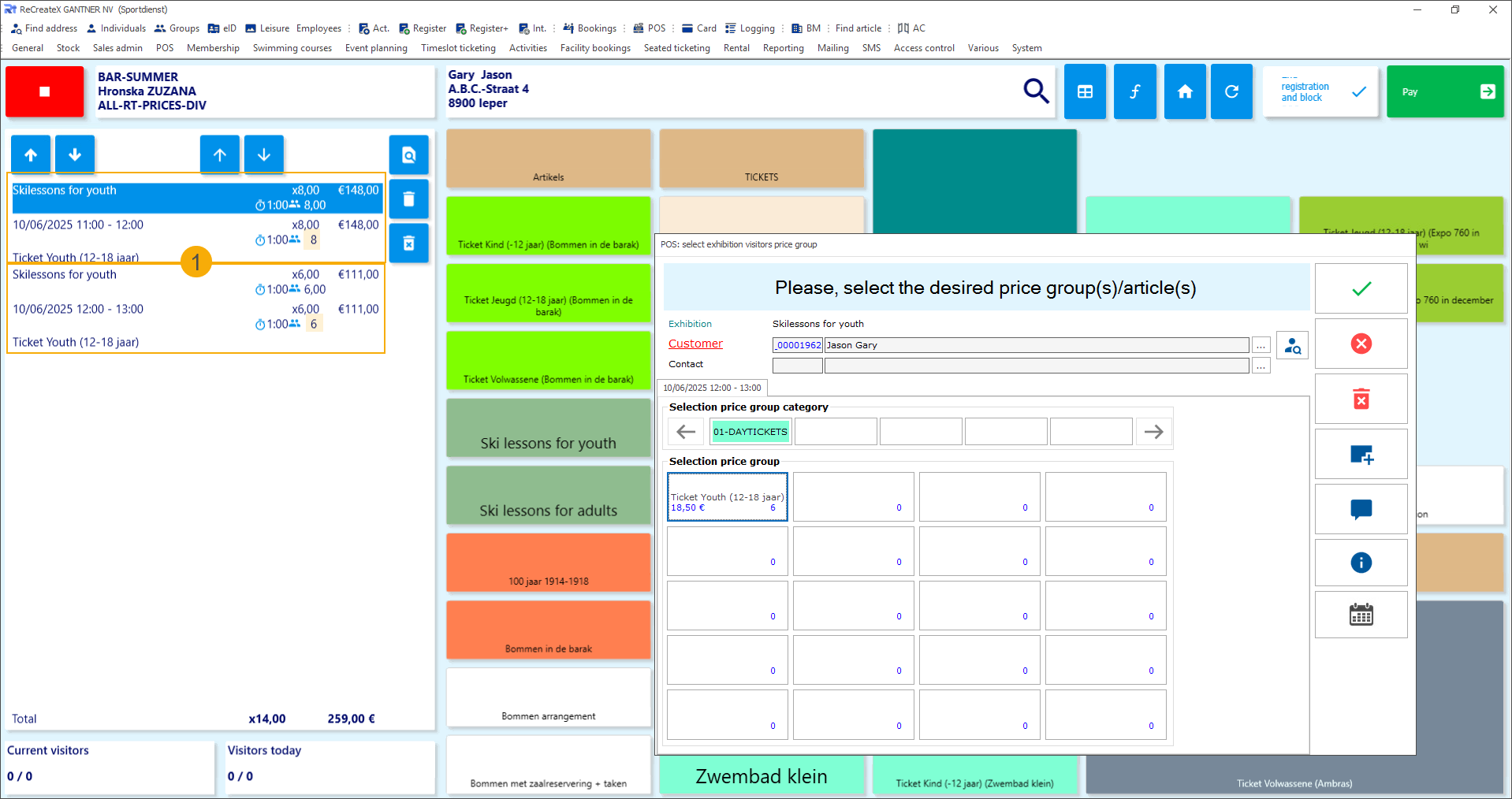
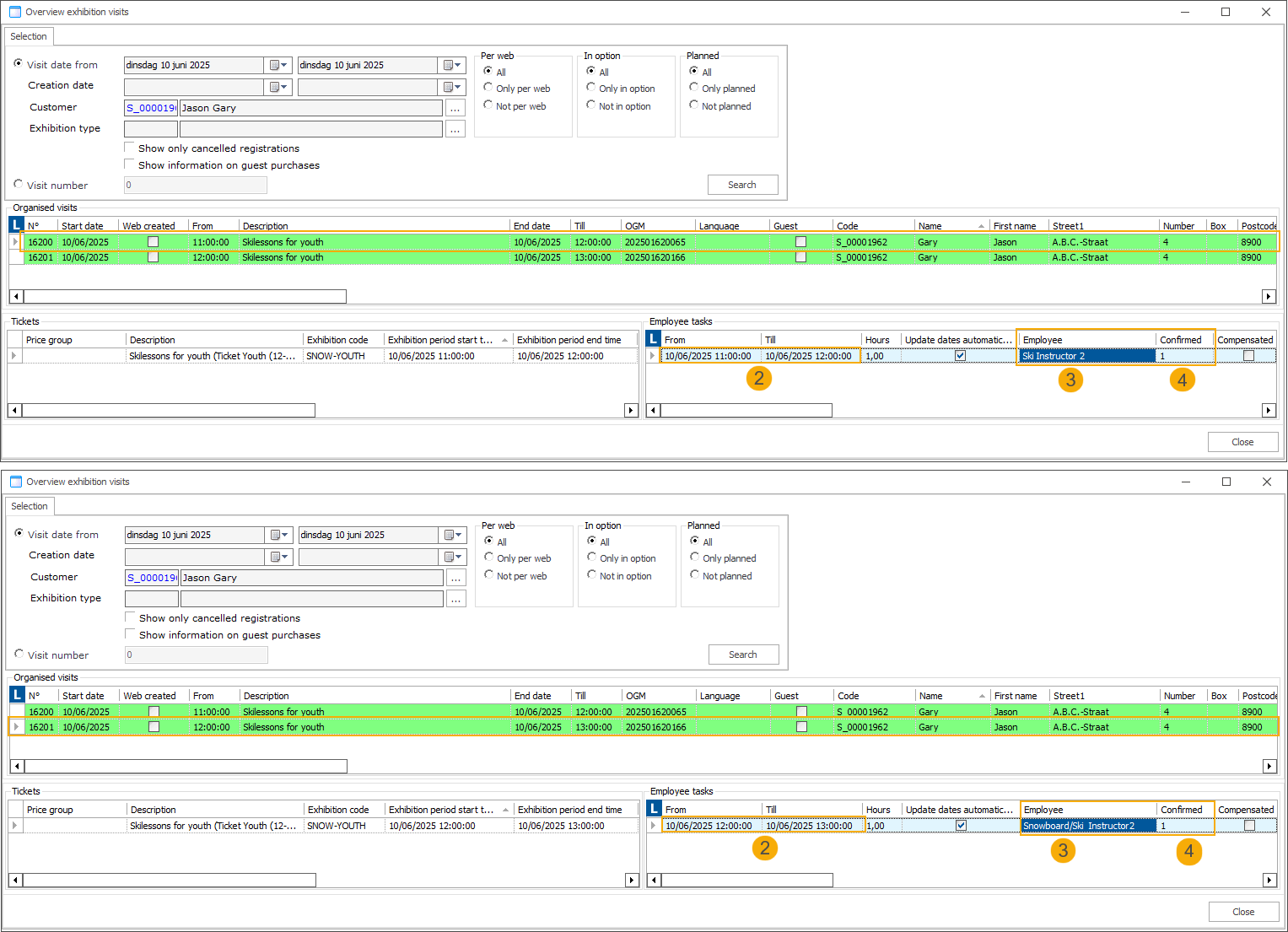
When moving an exhibition visit at the POS, only available timeslots are shown in the calendar. The unavailable timeslots are hidden.
A new task is automatically created for the newly selected timeslot.
If the originally assigned employee is available for the new timeslot, they will be assigned to the new task (existing functionality).
If the originally assigned employee is not available, the new task will be created without an assigned employee (existing functionality).
When cancelling an exhibition visit sale at the POS, the related employee task is cancelled as well.
Limitations
The following functionalities in Recreatex currently do not support timeslot capacity based on employee availability.
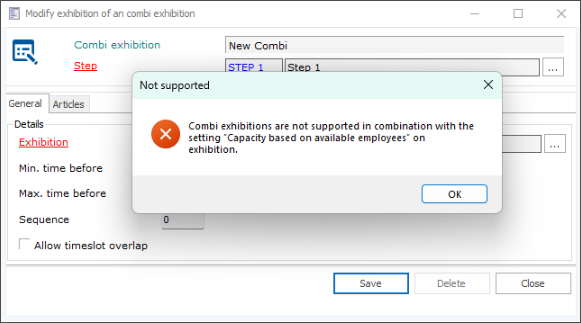
Combi exhibitions: When attempting to add an exhibition that uses employee-based capacity to a combi exhibition, an error message is displayed.
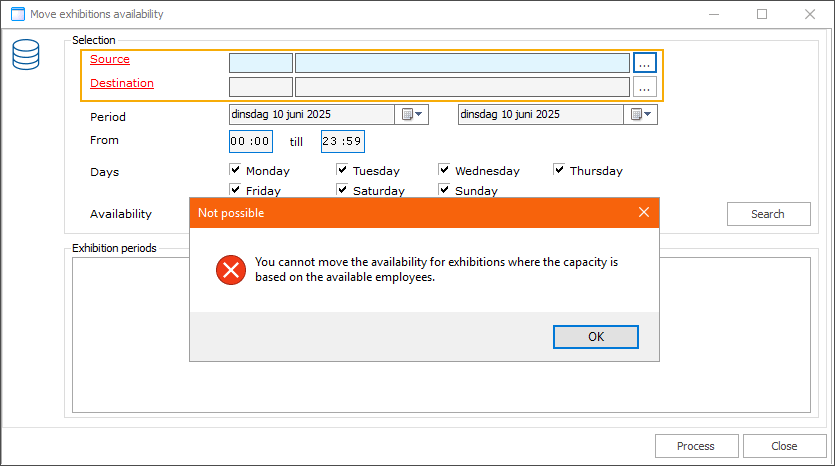
Move exhibition availability: Exhibitions with the capacity based on employee availability enabled, cannot be selected as either the source or the destination.
Allow overbooking: This option is automatically disabled when the Capacity based on available employees is enabled in the exhibition configuration.
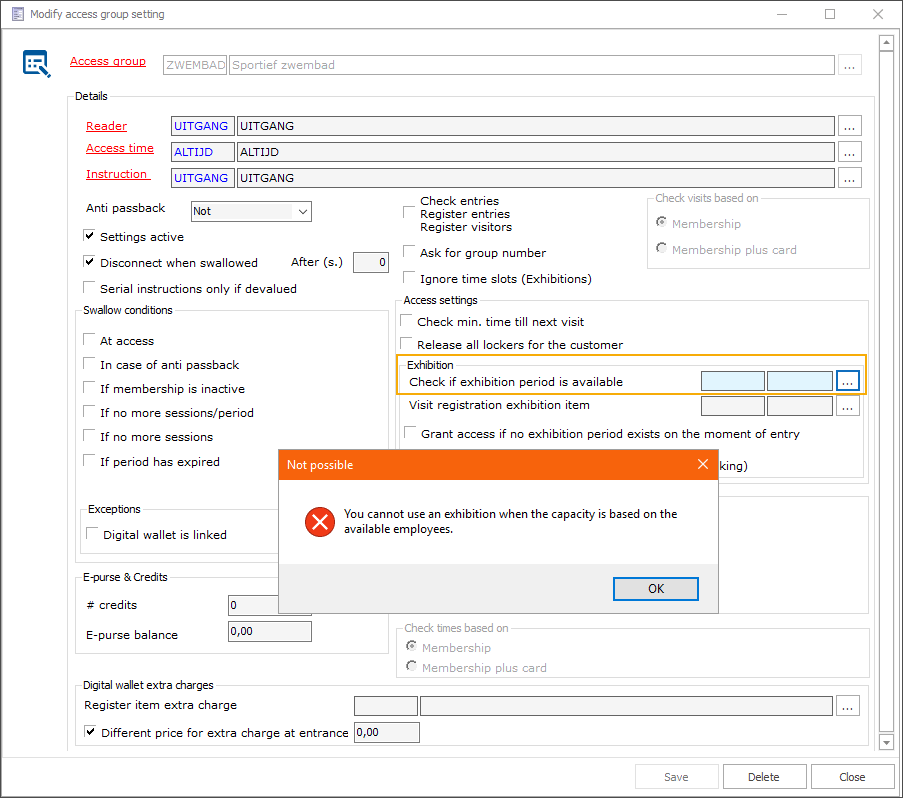
Check if the exhibition period is available (at the level of access group setting): Exhibitions with capacity based on employee availability enabled cannot be used for this check.
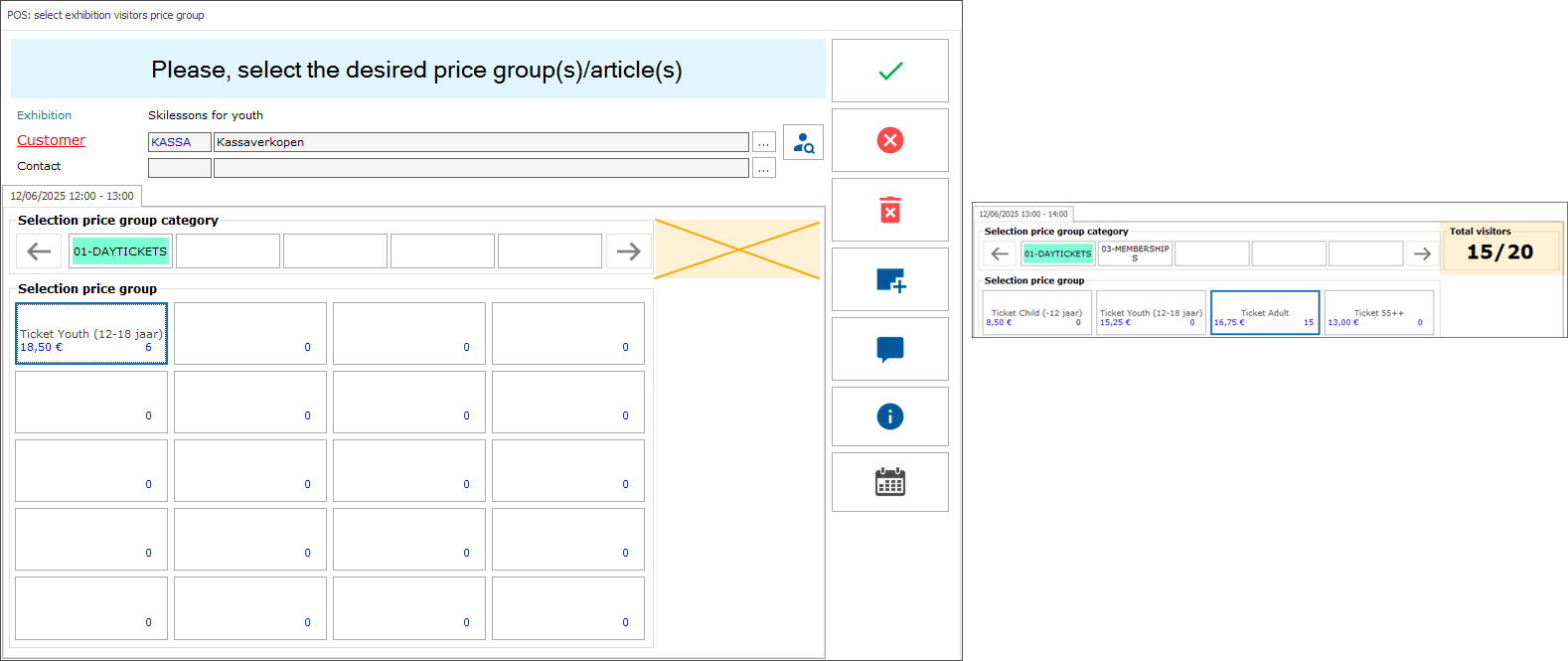
Selected and remaining visitors visualisation on the Select exhibition visitors price group screen (POS): This visualisation is not available when booking visits for exhibitions configured with capacity based on employee availability.
Webshop: Improved handling of national register numbers when mandatory
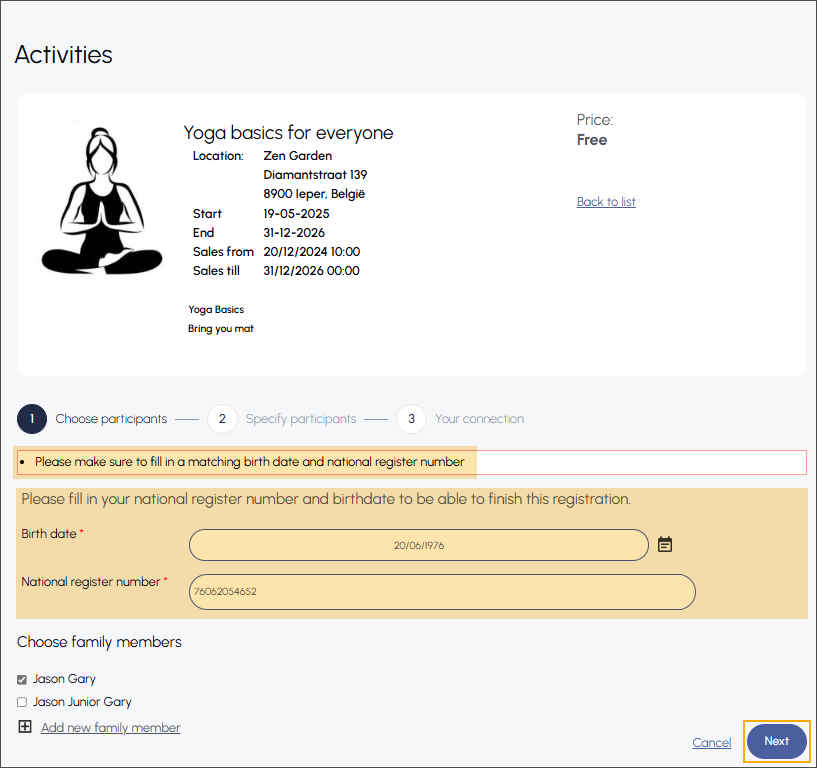
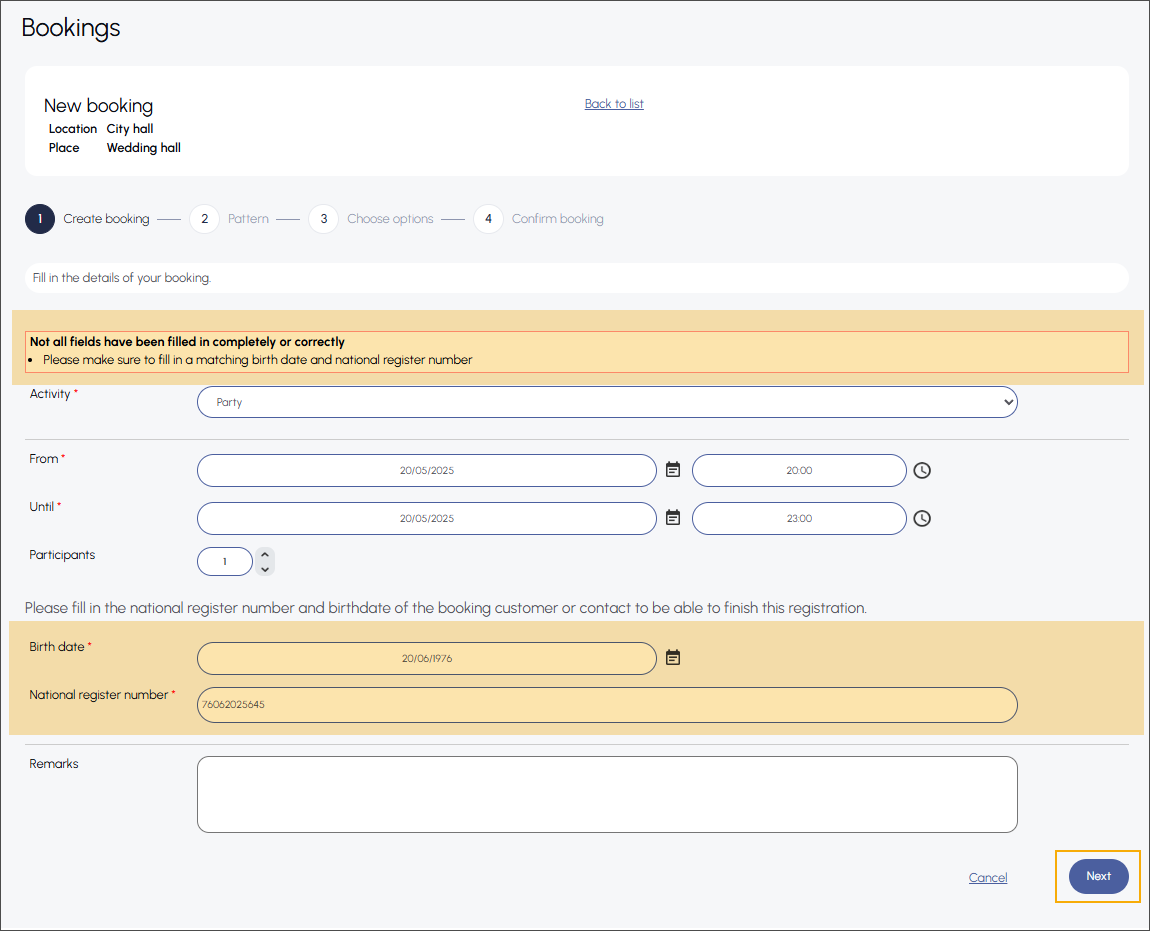
The national register number field now supports country-based validation. National register numbers are currently only validated when the login customer's country is set to Belgium. For all other countries, any input is accepted without validation, allowing customers with non-Belgian register numbers to complete the facility booking or activity registration flow without being blocked.
This improvement allows future implementations of validation rules for other countries, if requested.
The national register number validation applies to the following modules:
Facility bookings (web module Bookings)
Activities (web module Activities)
Ensure the following configuration is set in Recreatex backoffice:
Configure national register number validation on the country level (Belgium only).
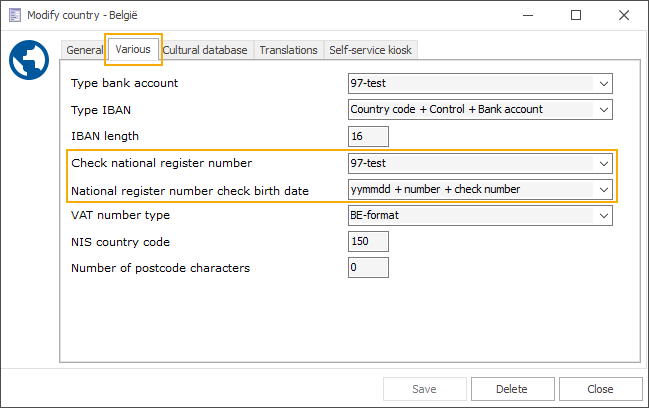
Navigate to General > Settings > Countries, open the detail of the selected country, and in the Modify country window, configure the validation settings under the tab Various.
Leave the fields empty for all other countries.
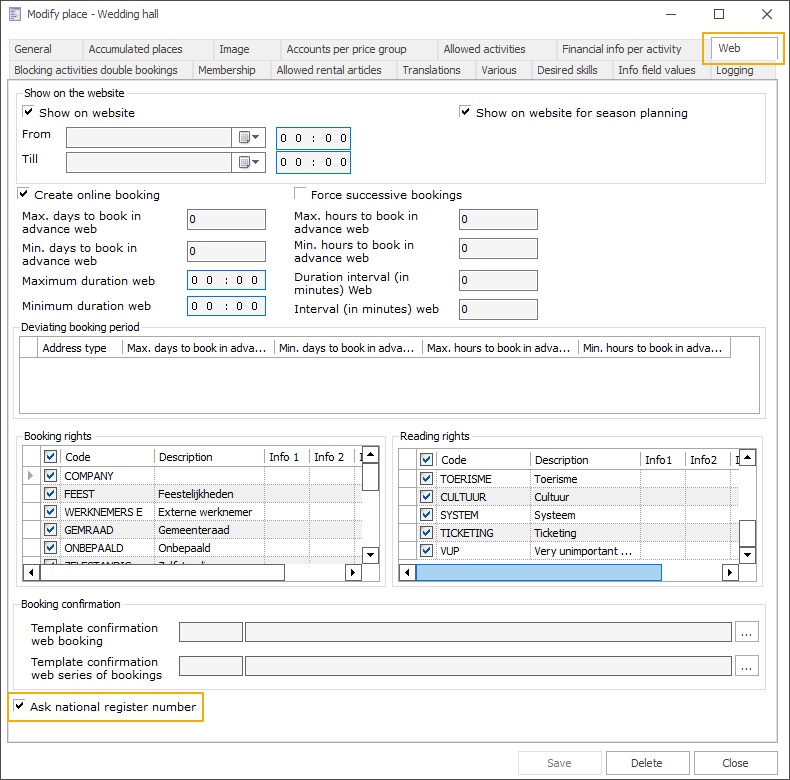
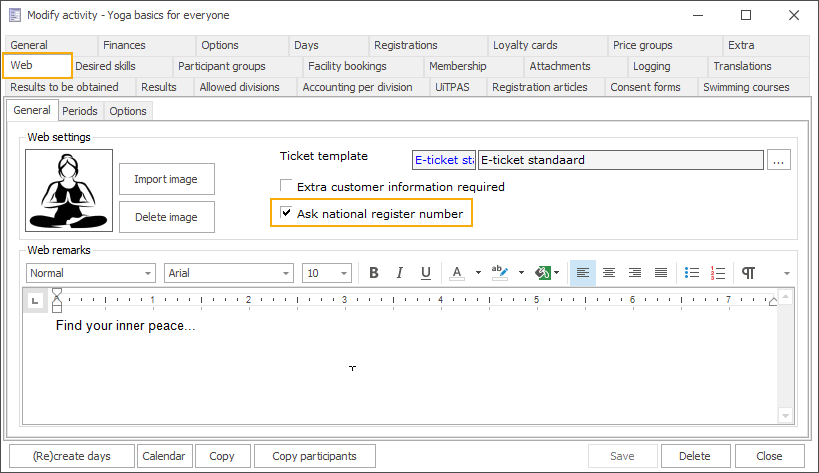
Activate the setting Ask national register number:
On the place level: Facility bookings > Settings > Places, open the detail of the selected place, and activate the setting under the tab Web.
On the activity level: Actvities > Activities > Activities, open the detail of the selected activity, and activate the setting under the tab Web.
Once activated, the national register number is always requested in the facility booking or activity registration flow.

When the customer's country is set to Belgium (BE) in their Recreatex account, validation of the Belgian national register number is triggered upon clicking Next. If the number is valid, the customer can proceed and the register number is saved in their Recreatex account.
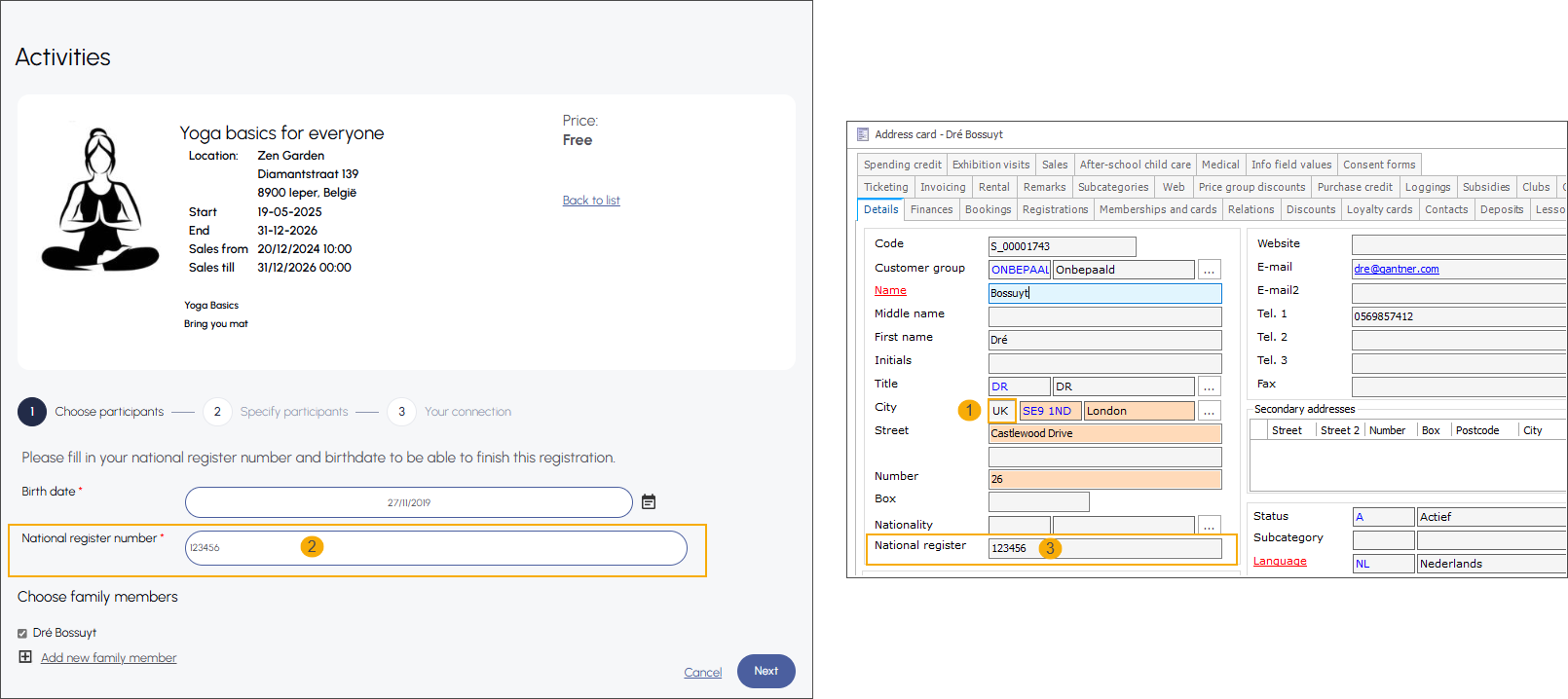
Customers whose country is set to anything other than Belgium (1) can enter any value (2) and continue without validation. The entered value is saved in the customer’s Recreatex account (3).
Webshop: Enable two-factor authentication (2FA)
To guarantee secure access to the Recreatex Webshop, we have implemented the possibility to enable two-factor authentication when logging in to the application. Two-factor authentication remains optional but is recommended for the webshop customers.
In the Webshop Manager, go to General > Settings and in the section Log in enable the setting Activate 2 Factor Authentication.

When two-factor authentication is enabled, the 2FA section on the customer address card remains inactive until the customer completes the setup.
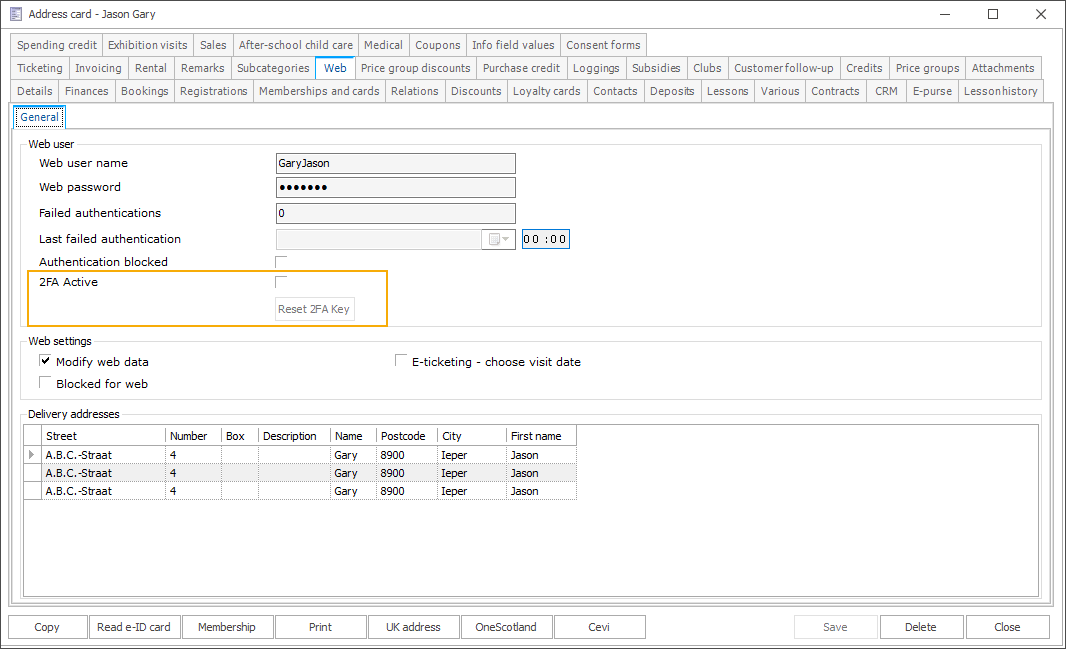
After the setup is completed, the customer's address card indicates that two-factor authentication is active for this customer.
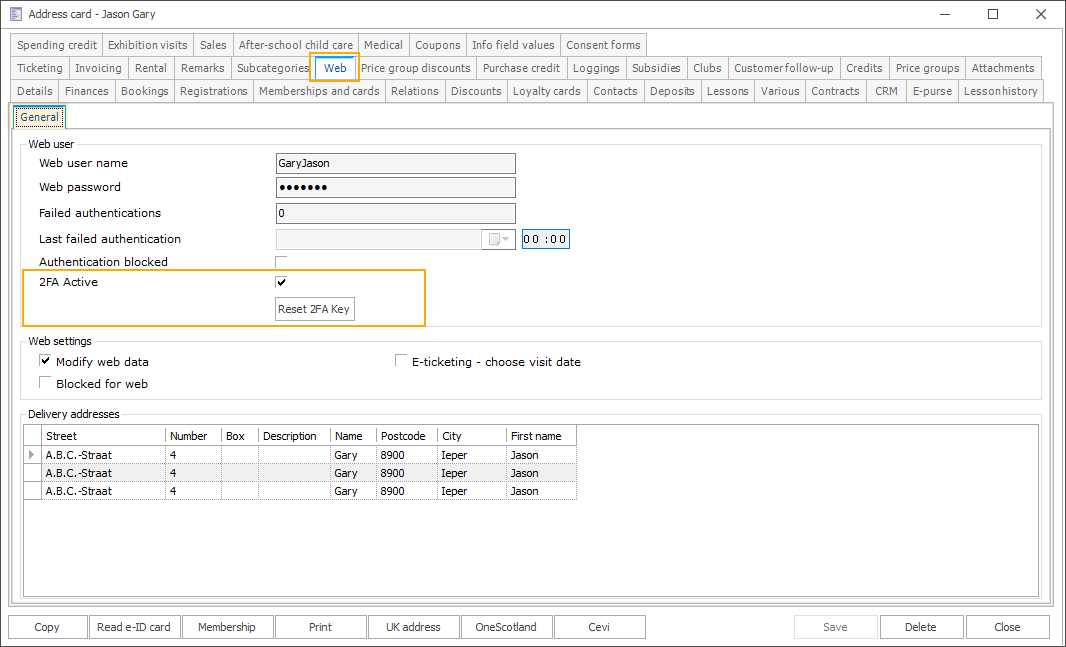
2FA Active: checkbox is enabled (read-only)
Reset 2FA Key: function is activated
Once two-factor authentication is activated, Webshop customers will see a notification after logging in, prompting them to complete the setup via their user profile.

In the Webshop, go to My profile > My data and in the Login data section, click the Activate 2 Factor Authentication button.
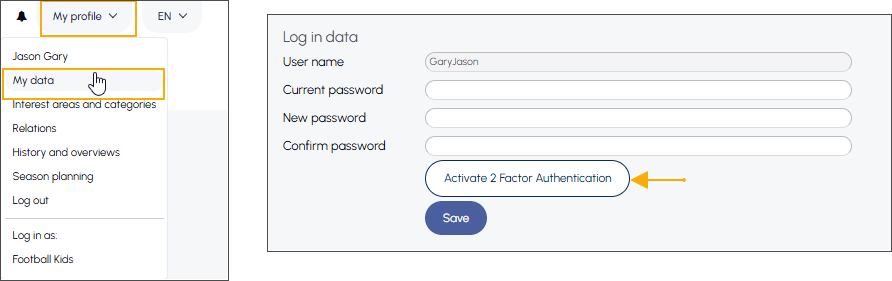
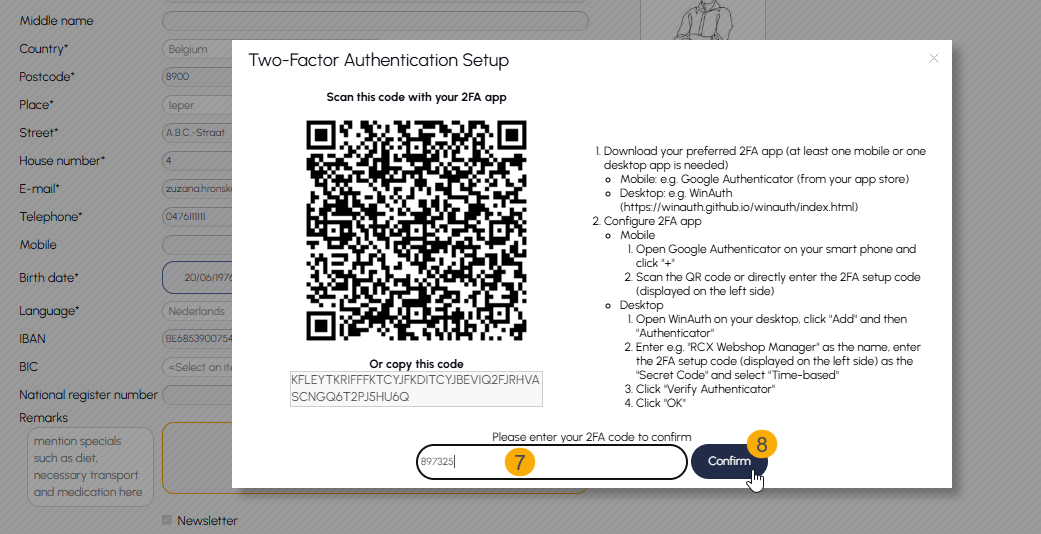
Set up the two-factor authentication (2FA) for the Webshop on a mobile or desktop device.
Install the authentication application (mobile or desktop) of your choice, following the instructions on the right side of the screen (1).
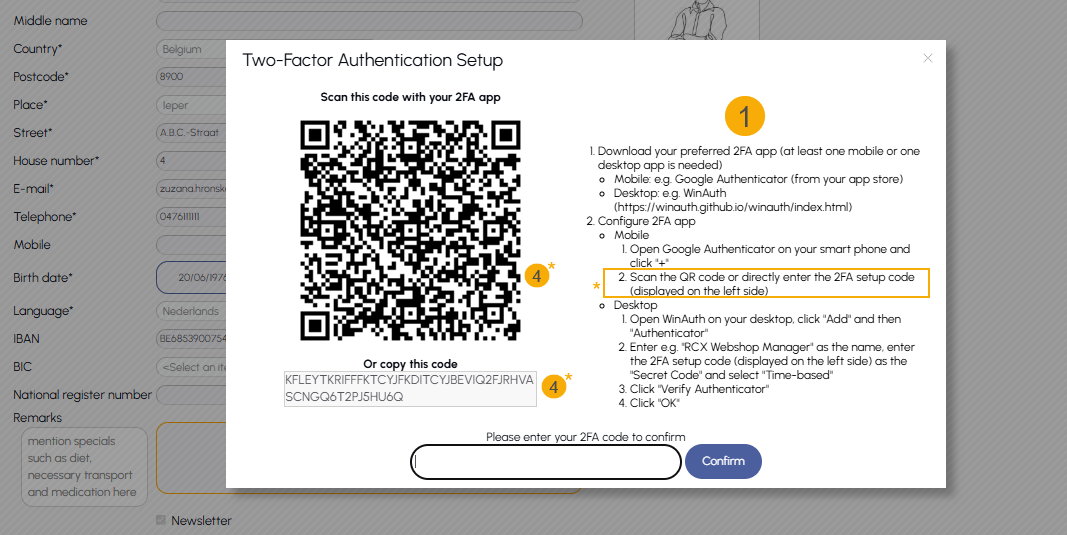
In the following example, we use the Google Authenticator application on a mobile device: Install the application from the app store on your device, open it (2) and click the "+" icon in the bottom-right corner (3). Scan the QR code on your screen or enter the code manually (4).
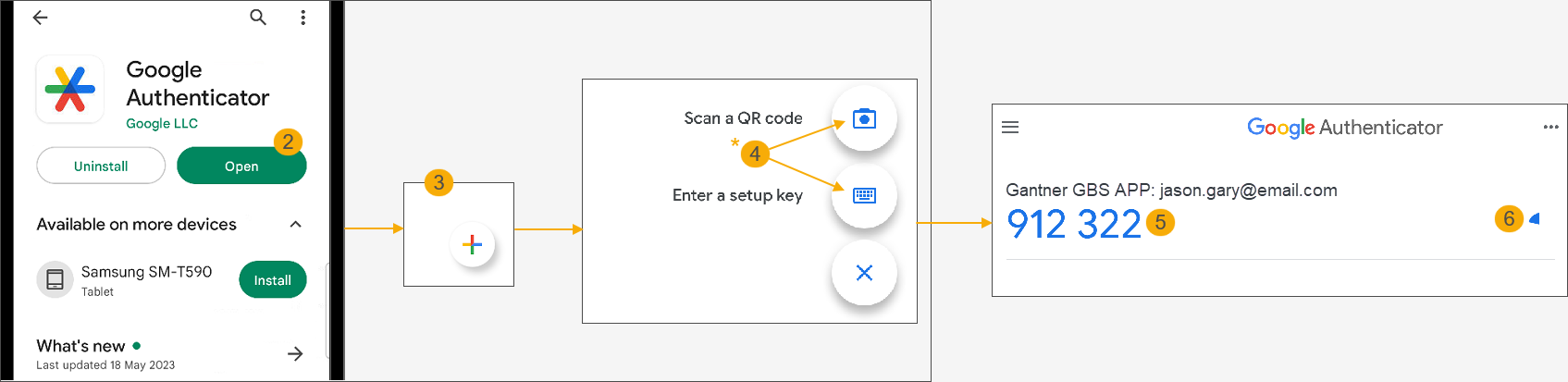
The application will generate a code (5) and start the expiration timer (6).
Return to the Webshop screen, enter the generated code (7) and click Confirm (8) to log in.
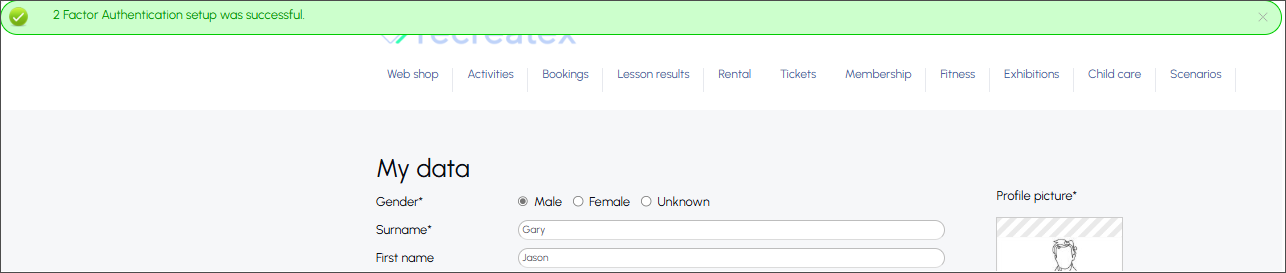
After completing the setup, a confirmation message appears at the top of the screen.
After setting up two-factor authentication, customers will be prompted to enter a verification code from their authentication app after submitting their credentials.

Two-factor authentication can be reset in two ways:
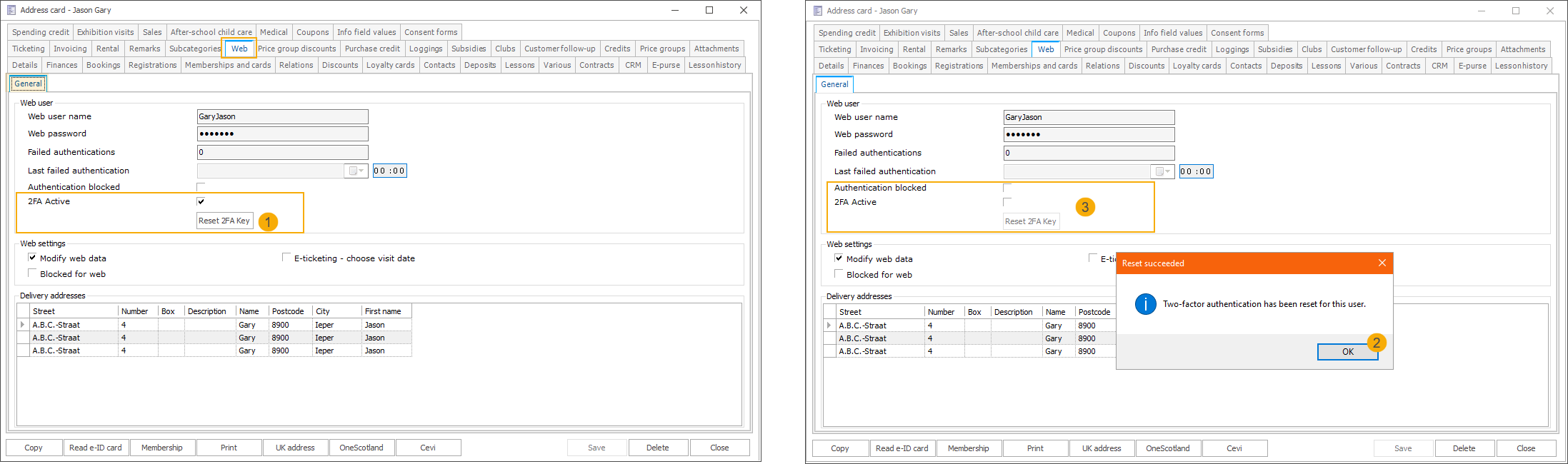
By an employee via the Backoffice
Click the Reset 2FA Key button on the customer's address card (1) and confirm the reset (2). The 2FA functionality is reset for the current customer (3).
By the customer via the Webshop
Click the Reset 2 Factor Authentication button under My profile > My data > Login data section. A confirmation will appear at the top of the screen, and the Activate 2 Factor Authentication button will become active again.
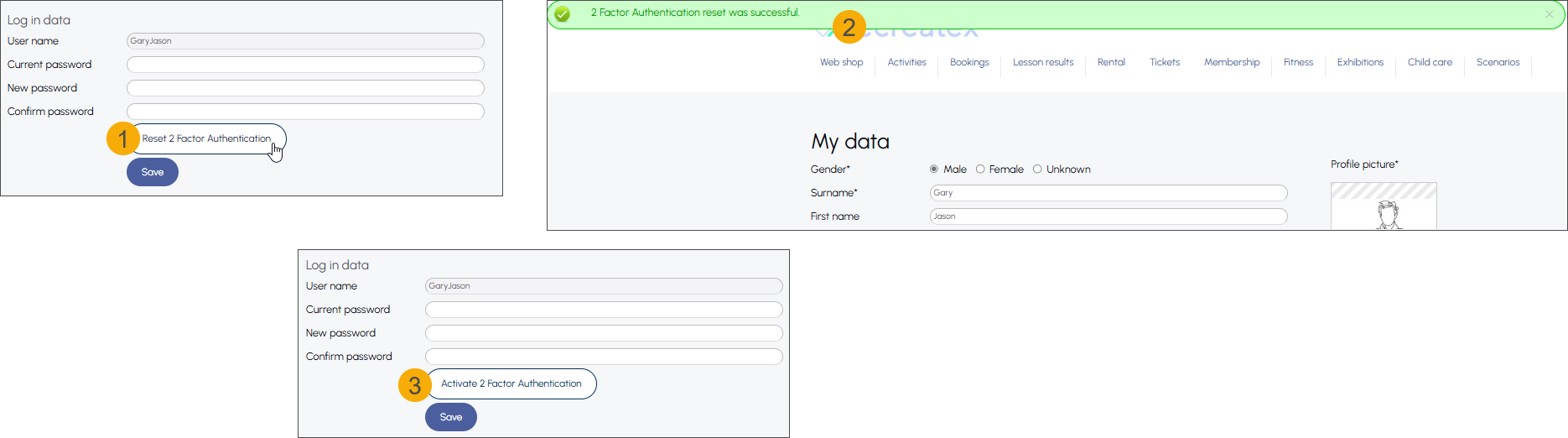
Resetting the functionality will remove the existing 2FA setup and trigger the first-time login flow for the relevant user.
Order processing for temporary digital wallet transactions
The F&B kiosk previously supported order processing only for digital wallet payments with immediate sales registration. This release introduces support for wallets using the temporary sales registration mode, where the sale is not recorded at the time of purchase but during wallet settlement.
With this enhancement, the system can now process and manage orders based on digital wallet transactions, even when no sale has been registered yet.
On the point of sale level, activate the setting Enable order functionality under the tab Various
On the digital wallet article under the tab Types, set the Sales mode to Temporary in the section Digital wallet.

When a purchase is made using a temporary digital wallet, an order number (token) is now linked to the digital wallet transaction. This allows the order to enter the order processing flow, even though the sale has not yet been registered.
Sales admin > Visualisations > Process open order
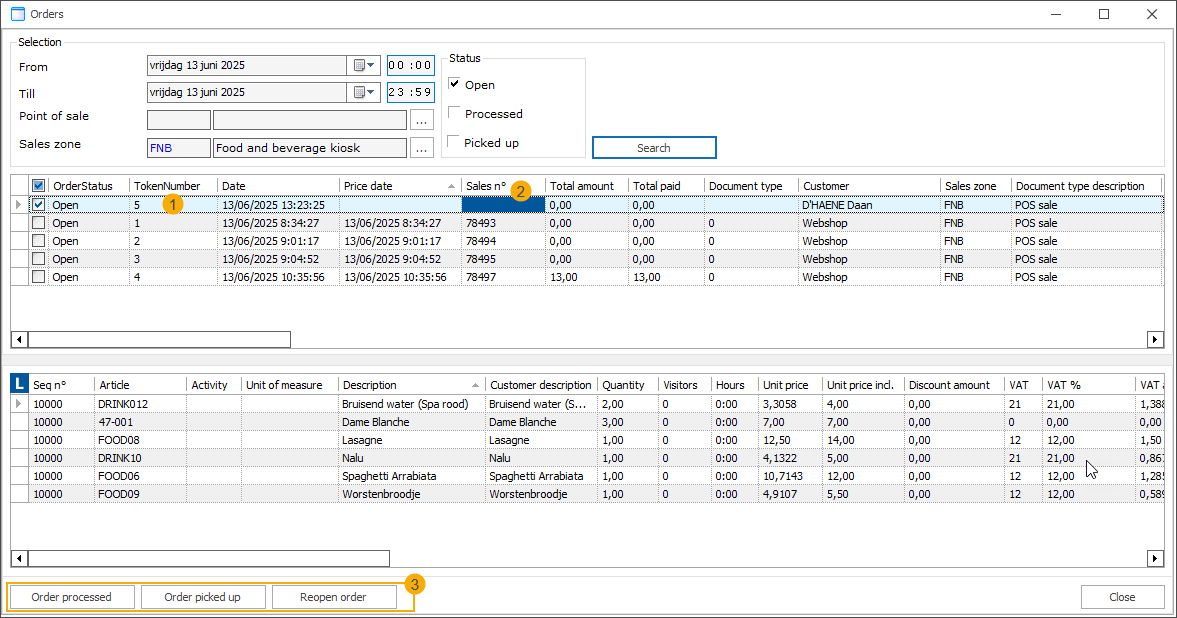
The order has been assigned a token (1) but does not yet include a sales number or price details (2), as it has not been paid. This type of order can be further processed in the same way as paid orders (3).
After the digital wallet has been settled, the order remains visible in the order processing tool.
The order number (token) enables tracking of temporary digital wallet transactions in the Process open orders tool (backoffice) and on the ODS/KDS (order and kitchen displays).
Order numbers (tokens) can also be printed on the temporary sales tickets, as well as on bar and kitchen tickets.
F&B Kiosk: Temporary digital wallet as a payment method
Customers can now scan their temporary digital wallets to register all purchases during their stay and only pay all at once when settling the digital wallet at the end of their stay.
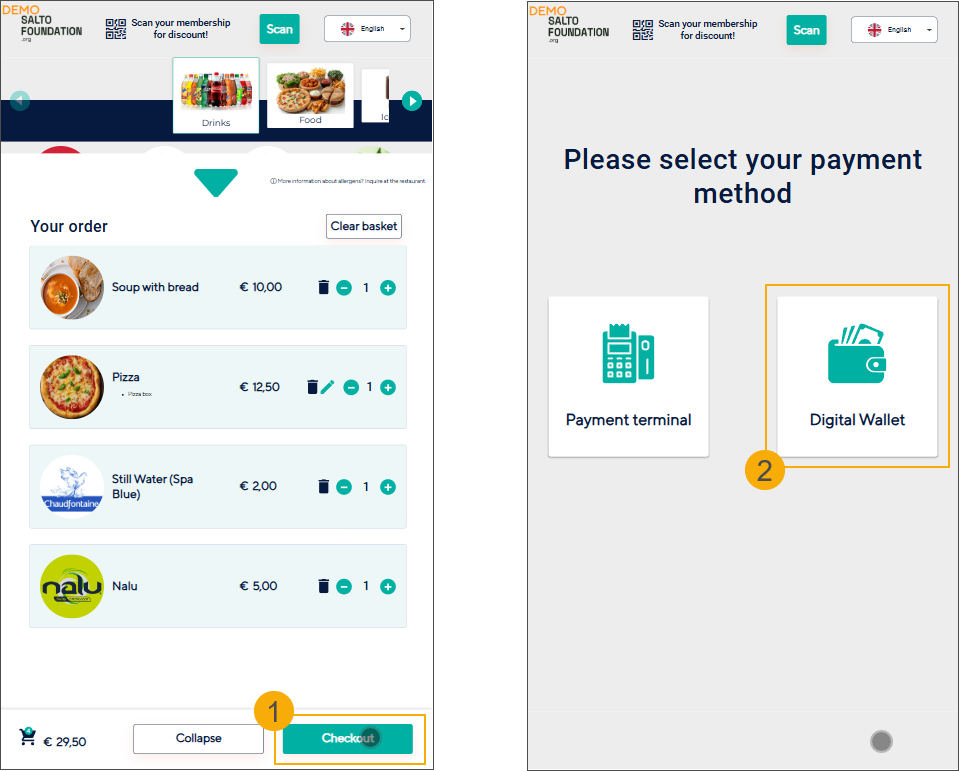
The customer selects their items and proceeds to checkout (1), where they choose Digital Wallet as the payment method (2).
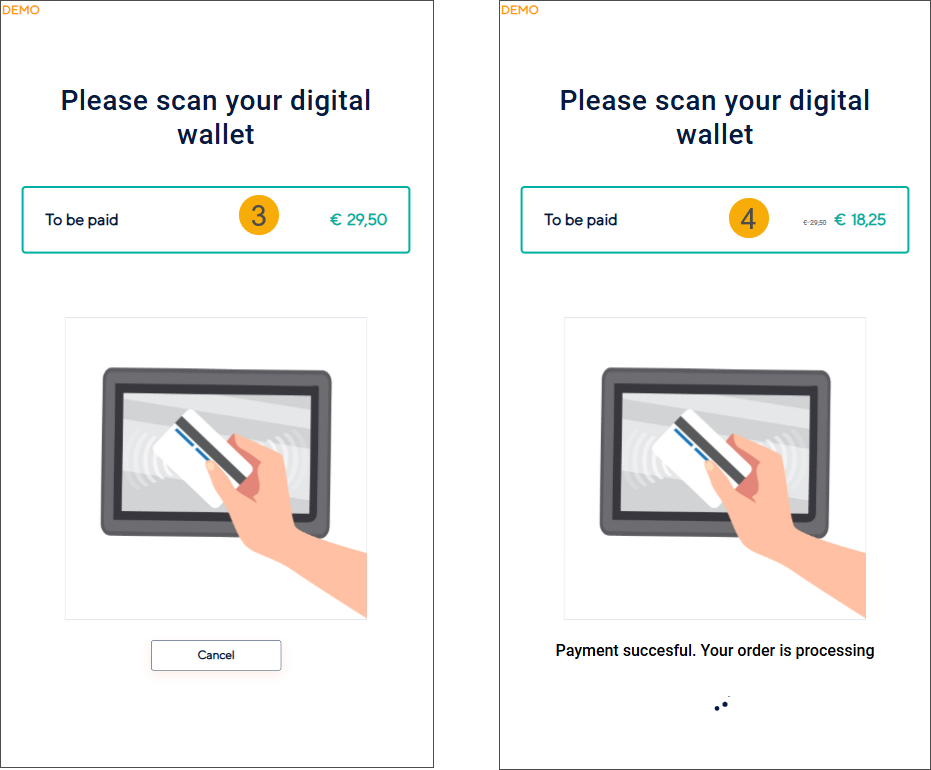
The total amount is displayed (3), and the customer is prompted to scan their digital wallet. If a discount group is configured on the wallet, it is automatically applied (4), and the payment is processed.
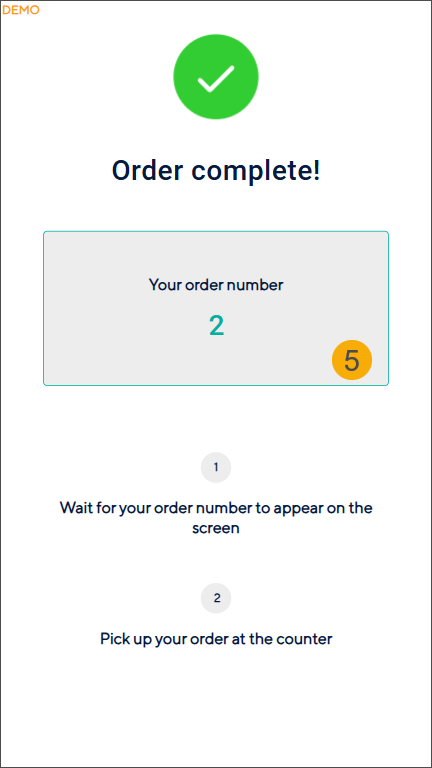
An order number (token) is shown on the screen (5), allowing the customer to track and collect their order when it’s ready. A receipt is printed with the order number and the transaction details.
In the background:
The system processes the selected items and payment using the temporary basket checkout flow.
It generates an order number (token) and a digital wallet transaction ID, which are used to track and process the order in the backoffice.
The system uses the transaction ID to fetch the receipt details and sends them to the printer.
API change log
Date | Type | Method | Summary | Internal reference |
|---|---|---|---|---|
25 Feb 2025 | Edit | FindEmployees (only to response) FindScenarioSessions FindWorkTypes GetScencarioQuestionInputValueFileGeneral GetStudentFollowScoreByLessonGroup GetStudentFollowScoreByLessonGroupAndStudent ListLessonGroupWithPaging | Criteria:
| BACKOFFICE-25861 |
05 Mar 2025 | Edit | ValidateTwoFA | Added Guid PersonId to the criteria | BACKOFFICE-25937 |
05 Mar 2025 | Add | ResetTwoFAUniqueKey |
| BACKOFFICE-25937 |
07 Mar 2025 | Edit | FindSubscriptionArticles |
| BACKOFFICE-25964 |
07 Mar 2025 | Edit | FindPerson | Add SwimmingLevelId to the response for person, childrelation and parentRelations | BACKOFFICE-25964 |
10 Mar 2025 | Add | ValidateNationalRegisterNumber |
| BACKOFFICE-25974 |
06 May 2025 | Edit | FindInfoPlayLogs |
| BACKOFFICE-26177 |
07 May 2025 | Edit | FindExpositionPeriods LockBasketItems | ExpositionPeriodSearchCriteria
ExpositionPeriodReservation
| BACKOFFICE-26203 |
14 May 2025 | Add | CheckoutTemporaryBasket | Create & stash PosSalesLines for later use | BACKOFFICE-26251 |
14 May 2025 | Add | GetTemporaryDigitalWalletTransactionReceiptForWindowsPrinter | Returns printdata of temporary digital wallet overview | BACKOFFICE-26251 |
19 May 2025 | Edit | FindActivities | Added the possibility to provide a list of skillsubcategory id’s and add the skills to the response
| BACKOFFICE-26314 |
20 May 2025 | Edit | CheckoutTemporaryBasket | Add ItemOptionValues to the criteria | BACKOFFICE-26251 |
22 May 2025 | Edit | FindEmployeeTasks | Full edit of employeetasks (separate tasks for each type) | BACKOFFICE-26228 |
22 May 2025 | Edit | SaveEmployeeTasks | In the Criteria in Employeetasks you need to give the Type, the same way as we do for basketItems. | BACKOFFICE-26343 |