3. Link the kiosk application to Google Tag Manager
To establish the connection between your kiosk setup and Google Tag Manager complete the following steps:
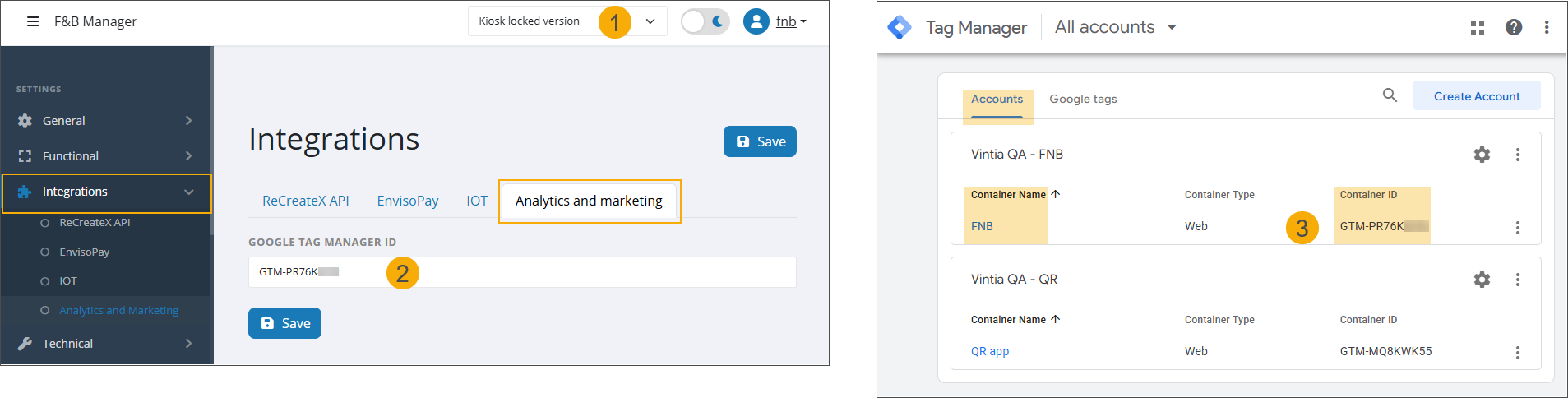
In F&B Manager, select the relevant kiosk setup (1) and go to Integrations > Analytics and marketing. Enter the container ID in the Google Tag Manager ID field (2).
The Container ID (3) can be found in your Google Tag Manager account (for example, in the container overview).
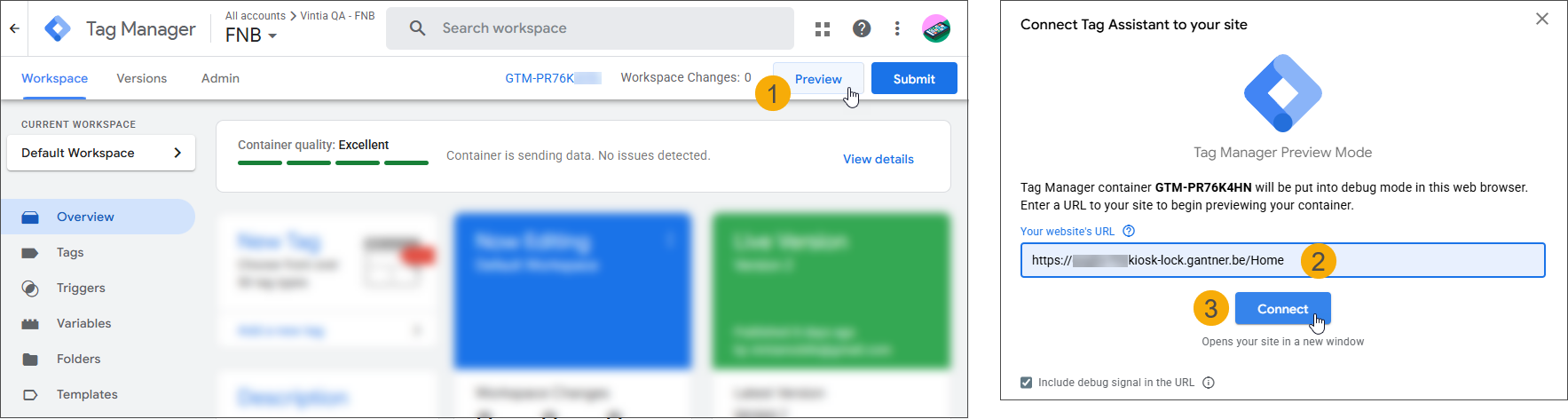
In Tag Manager, open the container and click Preview (1) in the top-right corner. Enter the URL (2) of your kiosk application and click Connect (3).
Once the connection is established, you can start interacting with the kiosk application:
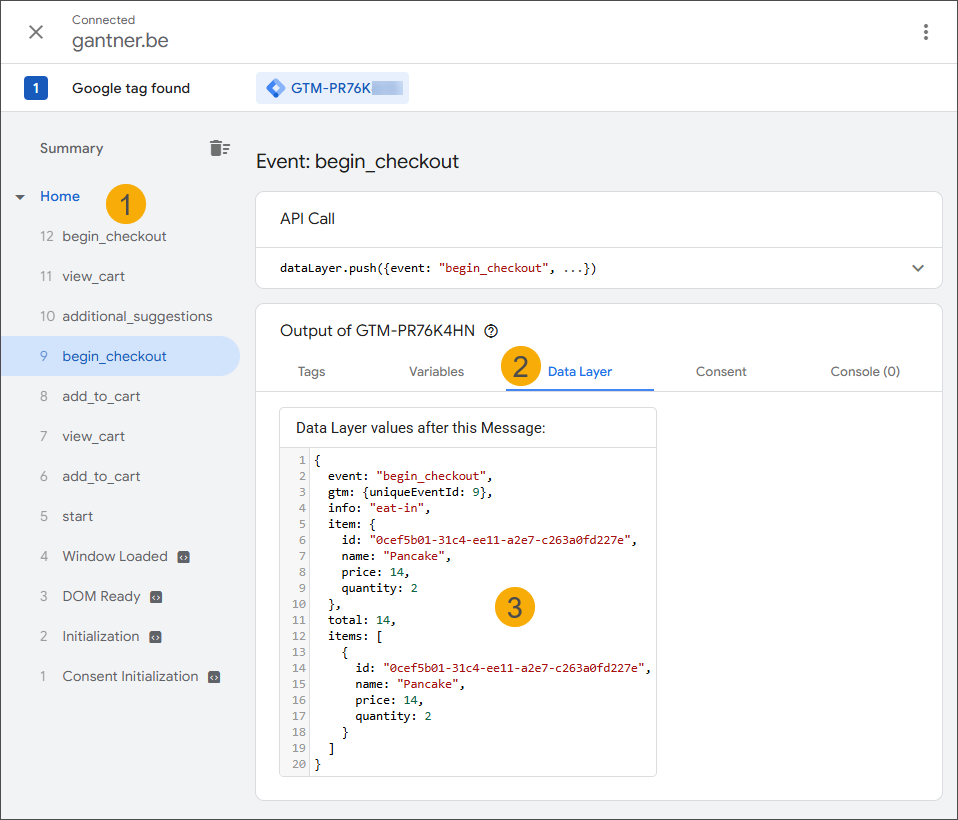
On the left side, you see all triggered events (1).
On the right side, under the Data Layer tab (2), you can view detailed information for each event, including all captured values (3).
An overview of all events and values is available in the following table.
This information can be further processed by the analytical tool of your choice to provide valuable insights into customer behaviour.
Captured events and values
Data privacy and tracking
The Google Tag Manager (GTM) integration in the Vintia Order Kiosk and Order App is designed to send only anonymous, non-personal product interaction events.
No user identifiers, device identifiers, cookie IDs or other personal data are included in any GTM event. All events are purely transactional and cannot be linked to an individual user.
Event | Properties |
|---|---|
start | Only the kiosk has extra properties
|
view_item |
|
add_to_cart |
|
remove_from_cart |
|
view_cart |
|
clear_cart |
|
begin_checkout |
|
purchase |
|