Waiting lists
To manage waiting lists, go to Swimming courses > Waiting lists.
In the overview of all waiting lists, you can choose to visualise the waiting lists of the current division only or of all divisions.
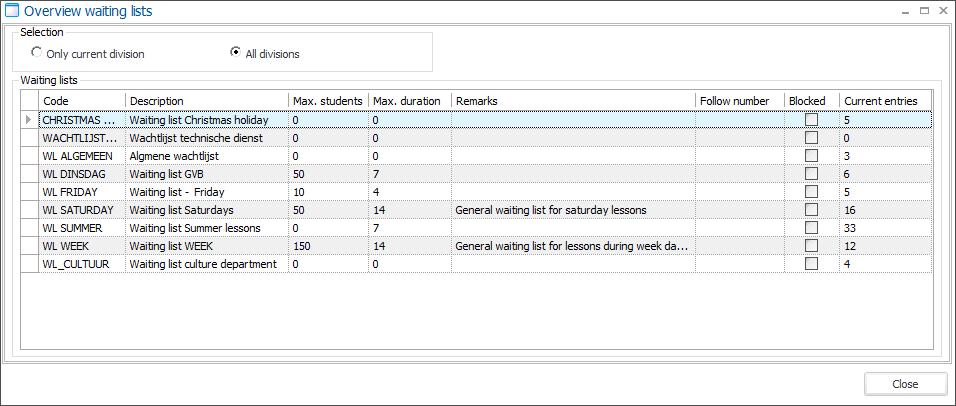
You can create, modify or delete waiting lists using the existing framework functionality.
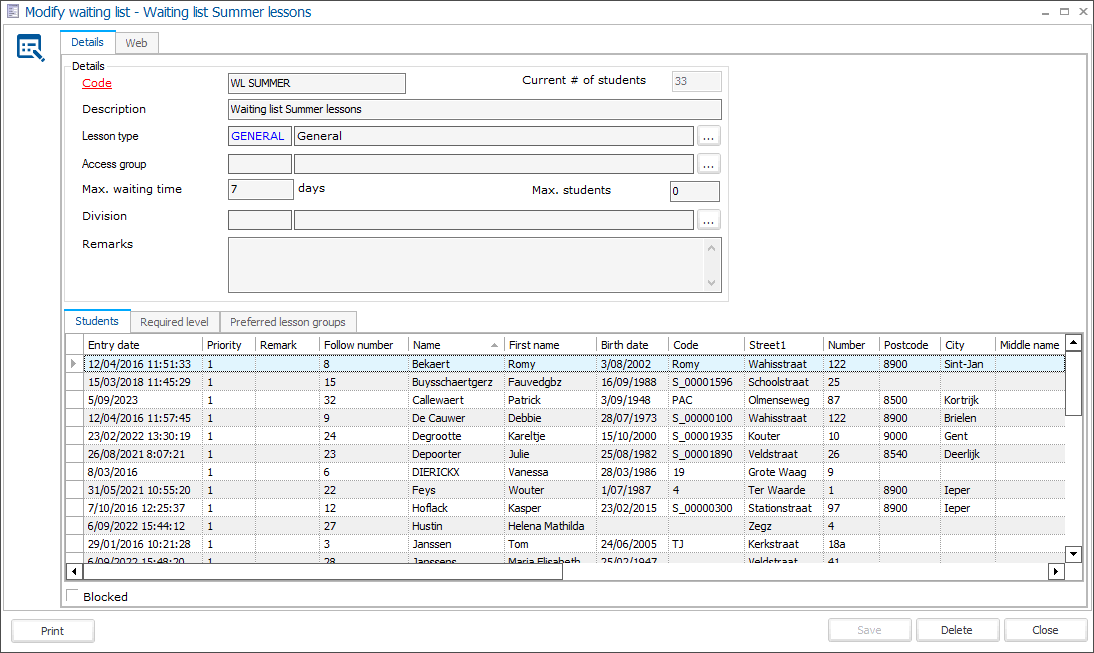
In addition to the sections Details and Web, this window also has several tabs in which you can manage all students on the waiting list, the levels required to register for the waiting list and the preferential lesson groups linked to the current waiting list.
Details
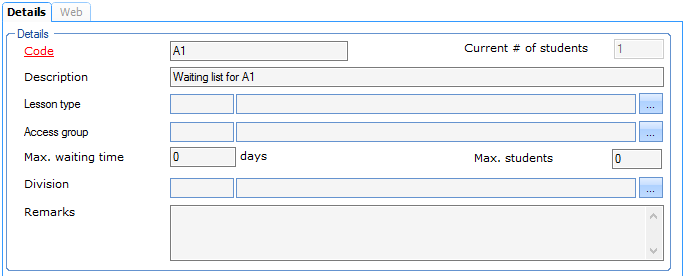 |
In the section Details, you provide the general characteristics of each waiting list.
Code | Is unique and obligatory. It is advised to choose a relevant code so that you can immediately derive from the code which waiting list is concerned. |
Description | The description of the waiting list. |
Current # of students | The current number of students on this waiting list. (informatively) |
Lesson type | The lesson type linked to the waiting list. (see also: Lesson types) |
Access group | If you work with access control, you can fill in the access group here that determines where and when access is granted to the customers registered on the waiting list. |
Max. waiting time | The maximal waiting time for this waiting list. |
Max. students | The maximum number of students allowed on this waiting list. |
Division | The division to which you want to link the current waiting list. |
Remarks | Extra information concerning the current waiting list. |
Students
The tab Students shows all customers currently registered for the waiting list.
 |
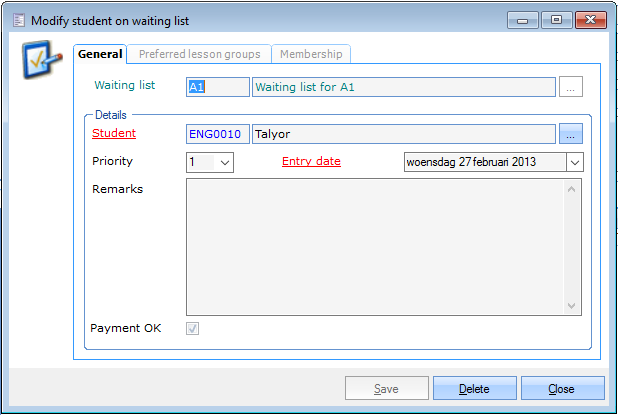
Using the available framework functionality you can always add customers to the waiting list or delete customers from the waiting list and/or modify specific data concerning the registration.
 |
Tipp
The fastest way to register customers for a waiting list is via the cash register. (see manual POS - Use)
General
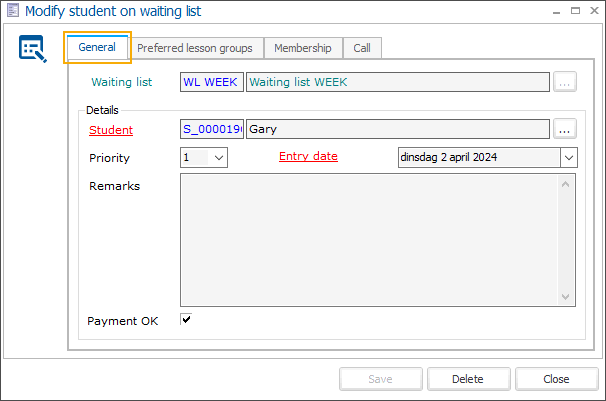
Waiting list | The waiting list on which the student is/was registered. |
Student | The student you want to register for the selected waiting list. |
Priority | The priority of the registration. (from 1 to 9, 1 being the highest priority) |
Entry date | The date when the student is/was registered on the waiting list. |
Remarks | Remarks concerning the registration of the student on this specific waiting list. When a student declines a waiting list call using the confirmation link in the waiting list call email and adds a remark, this remark will also appear in this field. 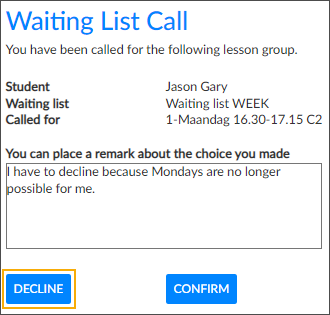 |
Preferred lesson groups
The tab Preferred lesson groups offers an overview of all lesson groups and allows you to tick the lesson group(s) the customers would prefer when being registered for or transferred to a lesson group.
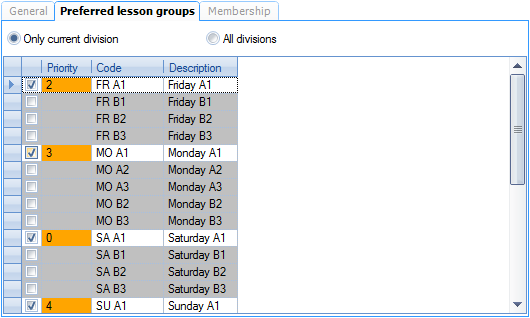 |
If you select a lesson group, the field Priority will be marked in orange. If you click in the orange field afterwards, you can select the desired priority (from 0 to 9, 0 being the highest priority).
Membership
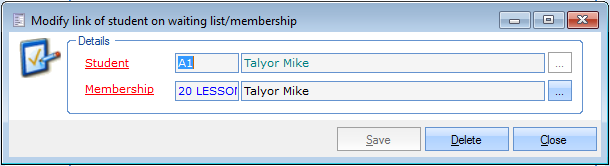
The tab Membership gives you an overview of all memberships that are linked to the registration of the customer on this waiting list and with which access is granted or not.
 |
Using the Framework functionalities you can always link memberships (already sold to the student) or disconnect memberships from the registration.
 |
Required levels
In the tab Required levels you can specify which level(s) the customer must already have obtained to be able to register for the selected waiting list.
 |
You can link a new required level to the waiting list in question or consult the levels already linked.
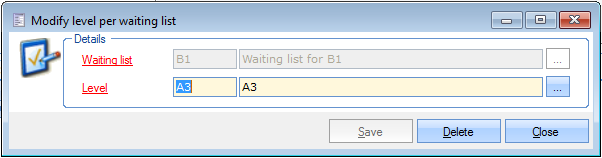 |
Waiting list | The waiting list to which you want to link the level. |
Level | The level customers must already have obtained to be able to register for the selected waiting list. |
For an explanation on how to create levels, we refer to Settings > Levels
Preferred lesson groups
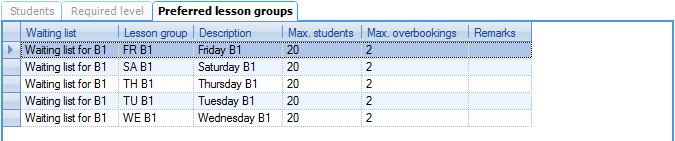
In the tab Preferred lesson groups you can link the lesson groups that the customer can select as preferences when registering for the selected waiting list.
 |
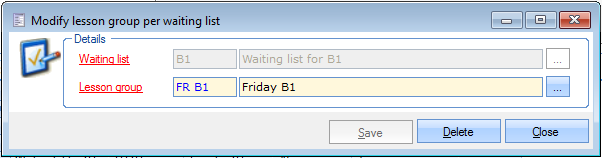 |
Waiting list | The waiting list to which you want to link the (preferred) lesson group. |
Lesson group | The lesson group you want to link to the selected waiting list as possible preferred lesson group. |
For an explanation on how to create and manage lesson groups, we refer to Lesson groups.
Web
Under the tab Web, you can define the price article for registrations made on the website.
 |
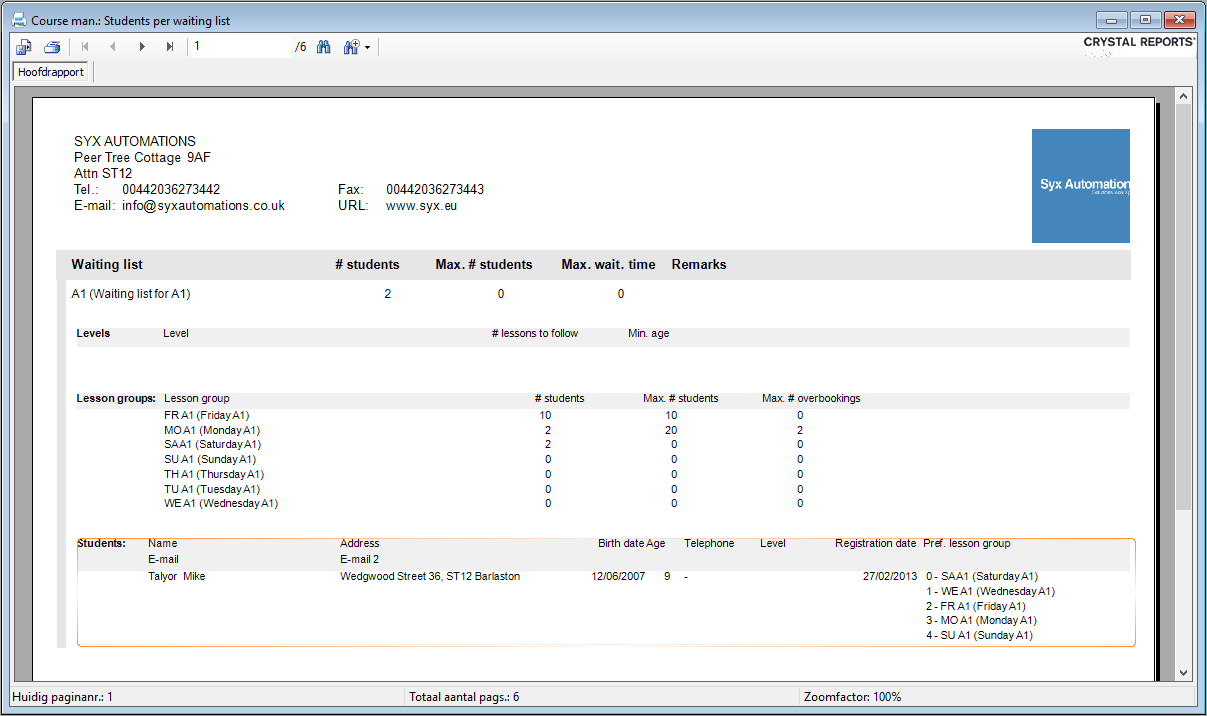
In the left lower-hand corner of the window Modify waiting list you can click the button Print to generate the report Students per waiting list.
 |