Logs
The Logs page provides a comprehensive overview of all configuration changes and recent system errors to support efficient troubleshooting. The logs are read-only and display all available entries without additional filtering options.
Setting changes
Use the Setting changes tab to review configuration updates for each application in your environment.
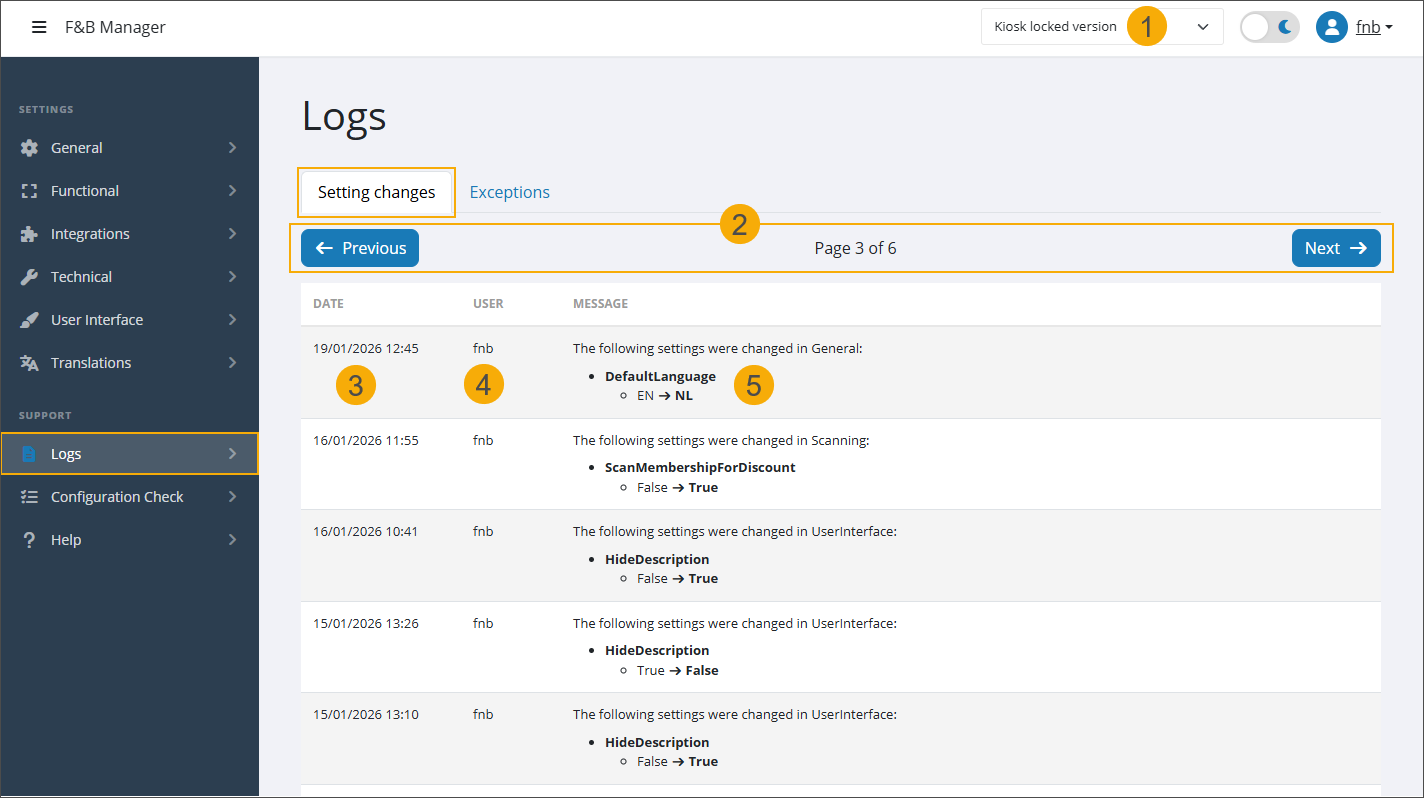
Select a Shop ID (1) to view logs for a specific kiosk configuration. Entries are filtered automatically.
Use the Next and Previous buttons (2) to navigate through pages when multiple entries are available.
Date:
Log lines are sorted in chronological order, from most recent to oldest.
Each entry shows the date and time of the change. (3)
Scroll down to view older entries.
User: Indicates which user made the configuration change. (4)
Message: Shows which setting has been adjusted, including the previous and current values. (5)
Exceptions
Use the Exceptions tab to access error information for all applications in your environment.
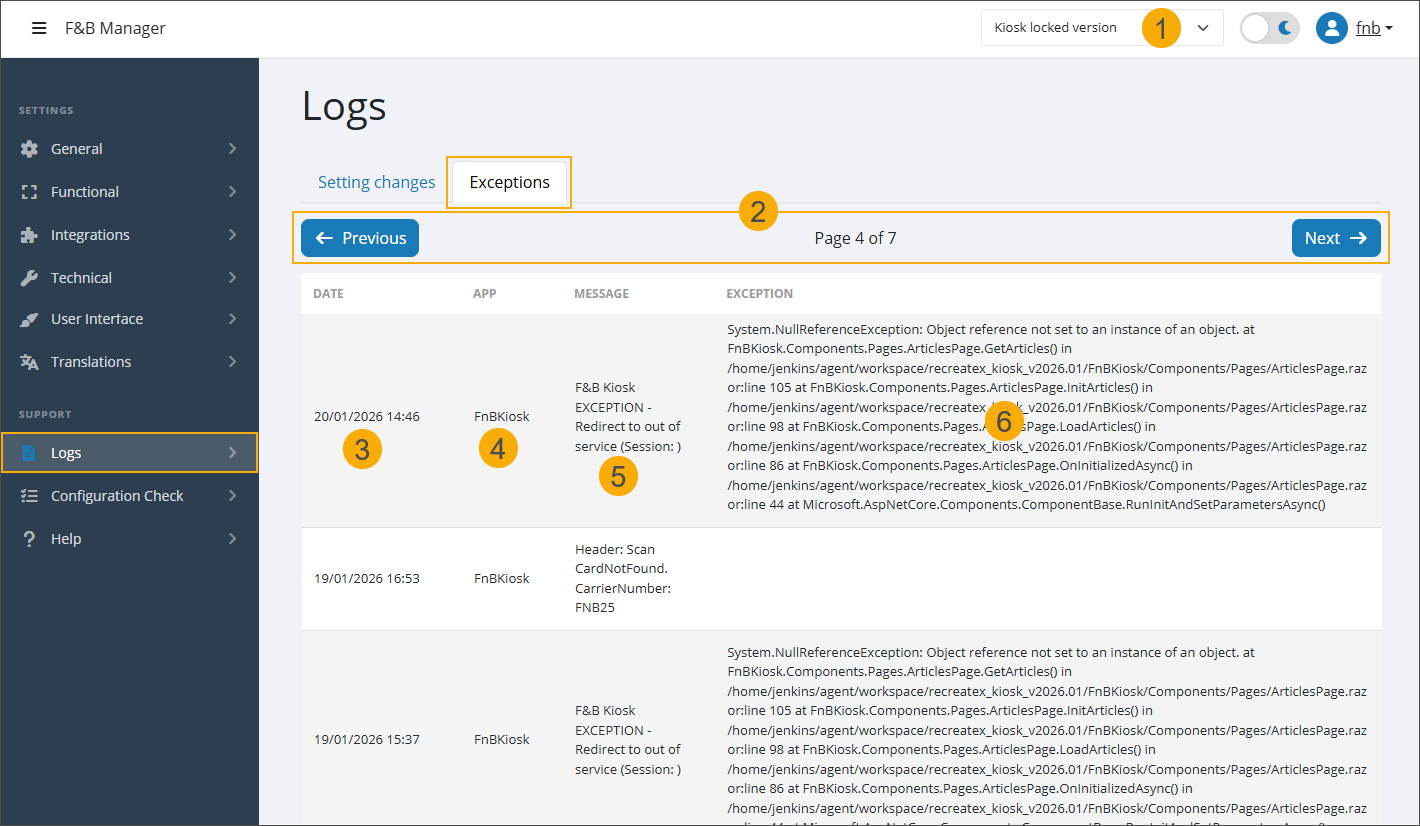
Select a Shop ID (1) to view logs for a specific kiosk configuration. Entries are filtered automatically.
Use the Next and Previous buttons (2) to navigate through pages when multiple entries are available.
Date:
Log lines are sorted in chronological order, from most recent to oldest.
Each entry shows the date and time of the error. (3)
Scroll down to view older entries.
App: The application in which the error occurred. (4)
Message: The main error message (5) indicates what type of error occurred and where.
Exception: If available, exception details (6) are provided here.