Settings
Through Swimming courses > Settings it is possible to manage different underlying lists.
Lesson types
By going to Course management > Settings > Lesson types you can manage the lesson types.
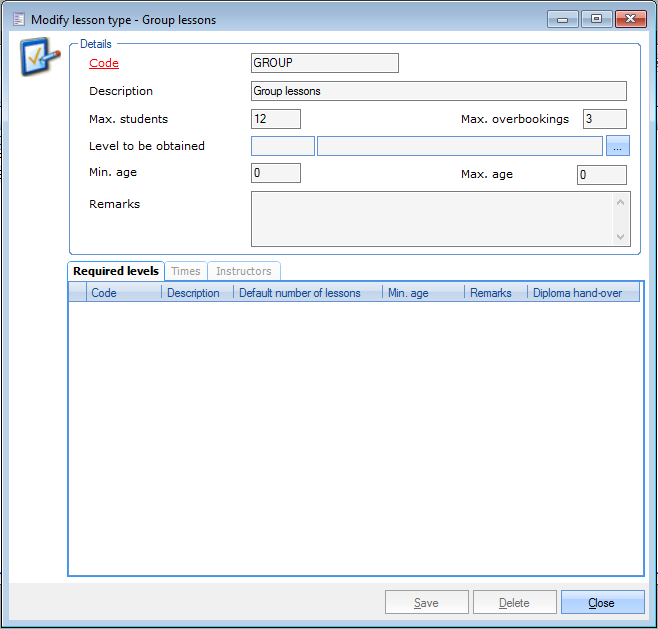 |
Lesson types allow you to categorize lesson groups. When linking a lesson type to a lesson group, some of the data of the lesson type are automatically taken over for the lesson group. Per lesson type, you can define the number of students, the allowed age and level to be obtained.
You can also link the levels that are required to be allowed into the current lesson type, the lesson times and instructors.
Diplomas
For managing the different diplomas that can be obtained by students, go to Course management > Settings > Diplomas.
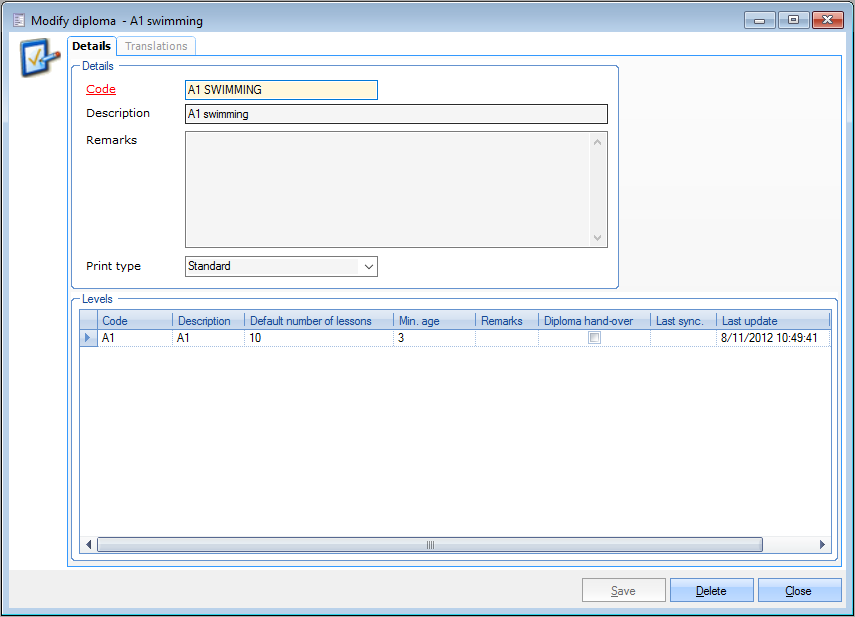 |
In this window, you can fill in some details and link the levels that have to be reached to obtain the current diploma. Under the tab Translations you can also add translations of the current diploma in several languages.
Levels
If you go to Course management > Settings > Levels, you can manage the different levels to be obtained. These levels can then be linked the diplomas.
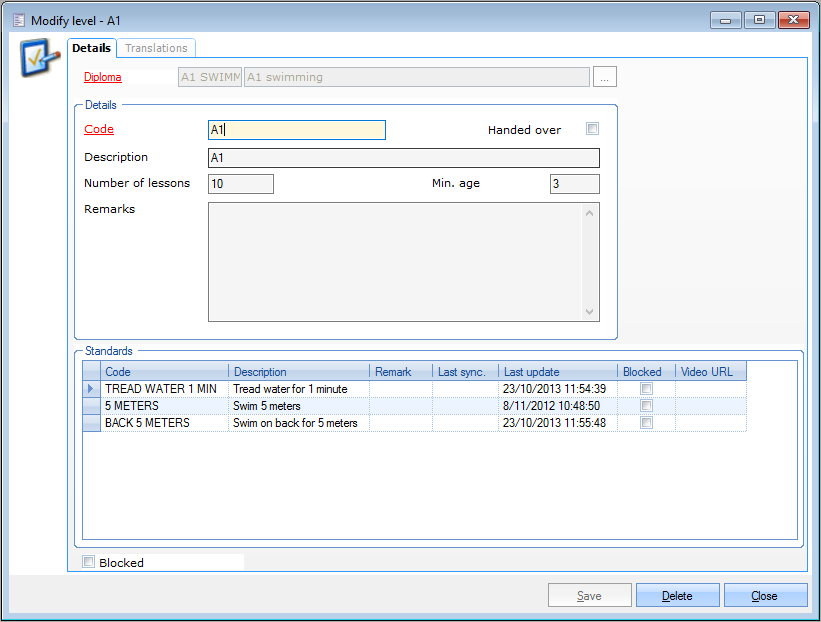 |
Under the tab Details, you have to link the level to a diploma and fill in some additional details, such as the number of lessons and the required age. You can also link the standards that have to be obtained within the current level. Under the tab Translations you can add translations of the current level in several languages.
Standards
By going to Course management > Settings > Standards, you can manage the different standards that can then be linked to the levels.
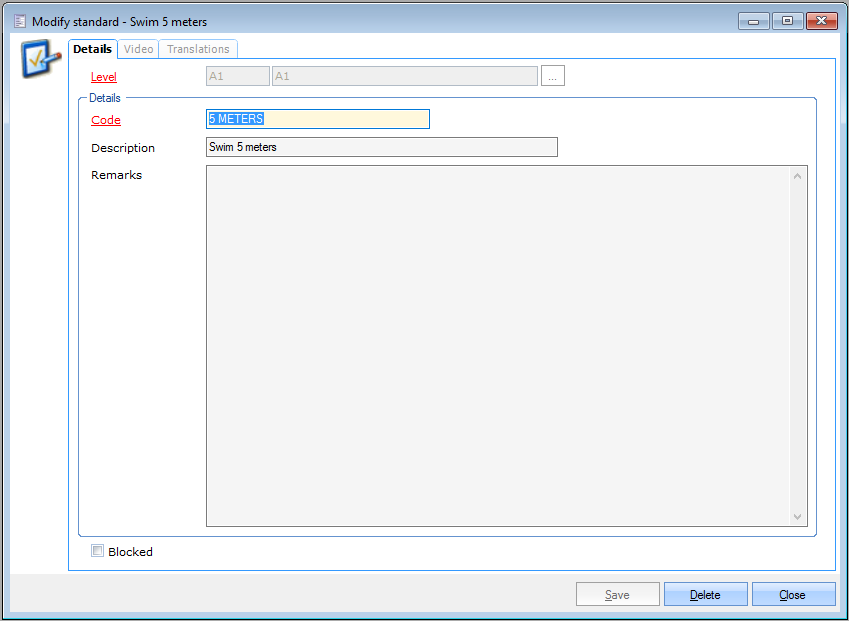 |
In the tab Details, you have to link the current standard to a level and you can add some details. Under the tab Video, you can fill in a URL that leads you to the instruction film of the standard. Finally, the tab Translations allows you to add translations of the current standard in several languages.
Stickers
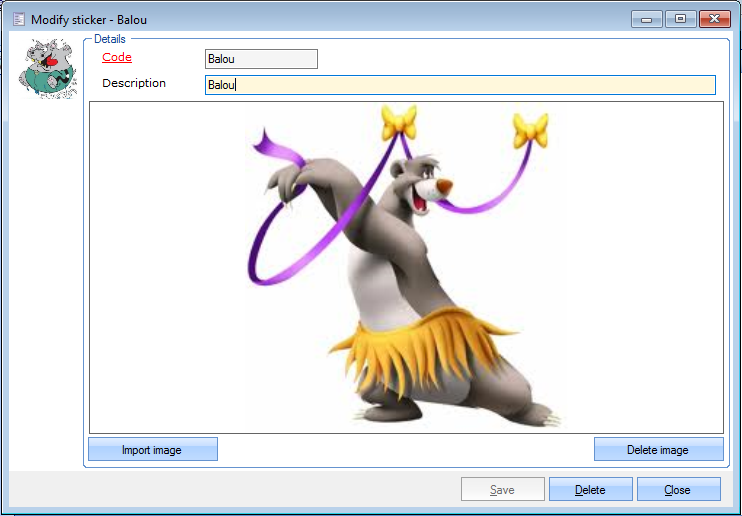
If you go to Course management > Settings > Stickers, you can manage the different stickers that are given to students per level.
 |
Rights per division
Swimming courses > Settings > Rights per division
Limit the access and visibility of lesson groups per division. To apply the rights on the current division, the parameter Use rights per division must be turned on under Swimming courses > Parameters > tab General > section Rights.
Full rights
The lesson groups are visible and can be edited
Read-only
The lesson groups are visible but cannot be edited. All editable fields are disabled and the user cannot save or delete the lesson group.
No access
The lesson groups are not visible.
Anmerkung
In a situation when a user has a screen with lesson groups open while another user has adjusted the rights, the list of lesson groups will not be adjusted automatically but when clicking on a lesson group with no access rights an error message will be shown:
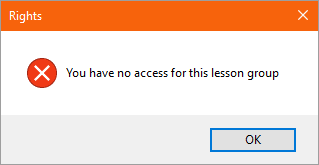
Initially, the Default rights are applied to each newly created lesson group. You can further adjust the rights per lesson group and division by clicking the corresponding tristate checkbox.
The colour coding of each right is explained in the legend.
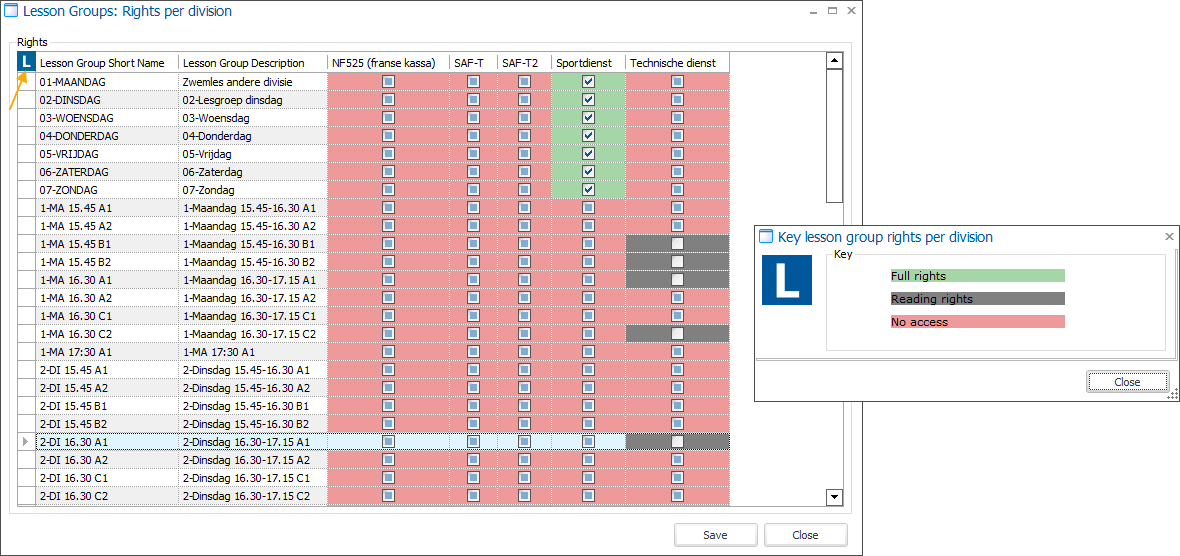
Click Save to apply the changes.
When active, the rights are applied in multiple Recreatex modules to filter out lesson groups that should not be shown.
Swimming courses: settings (call lists), waiting lists, reports, visualisations and processing tools
Anmerkung
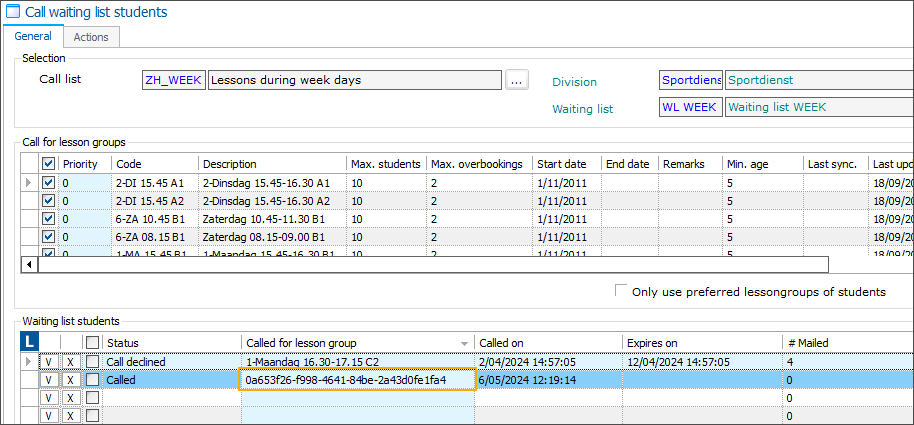
Call waiting list students (processing): in the table overview Waiting list students, the column Called for lesson group will only show a GUID instead of the actual description when a division no longer has access rights for this group.
Default lesson group (parameter): here the full list of groups remains available as this parameter is used across all divisions.
Reporting: Business intelligence (scores, attendance, participants)
General:
On the article card, the tab Lesson groups becomes available for articles of type Lesson group.
On the customer address card, the tab Lessons shows e.g. the current lesson groups of the customer.
Sales admin: Processing of direct debit interruptions
Mailing: When creating a mailing with the selection type Lesson groups
POS: When selling a lesson group article, If only 1 lesson group is found, then this one is shown. If 0 or more than 1 lesson group is available then the default lesson group is shown. There is no check for rights on the default lesson group.