Parameters
Through the parameters, you can configure the basic settings of the course management module.
The parameters can be consulted by going to Swimming courses > Parameters.
The parameters are divided into different tabs:
General
The tab General contains the general parameters of the Swimming courses module.
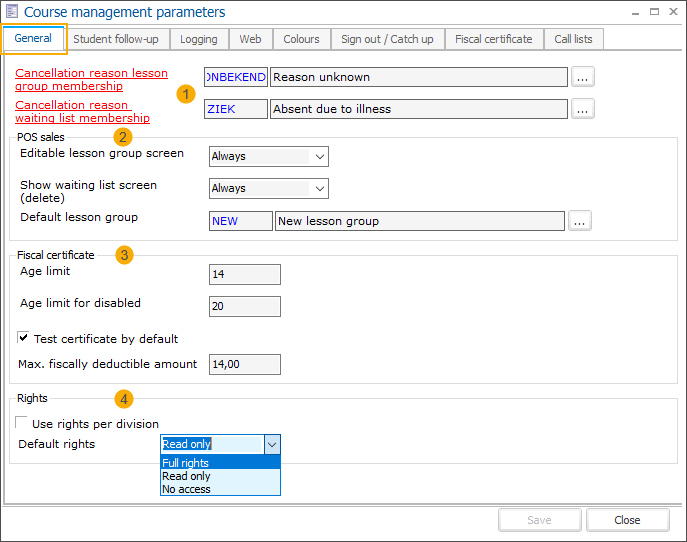
The default cancellation reasons (1) for automatically cancelled lesson group and waiting list memberships (in case the student is transferred) have to be filled in.
In the section POS sales (2) you can define some settings concerning cashier rights during POS sales.
Section Fiscal certificate (3)
Section Rights (4)
Use rights per division: This setting allows you to turn on/off the use of rights per division for the current division. By default, the setting is not active.
With the Default rights option, you specify which rights should be given to all other divisions for each new lesson group created on the current division.:
Full rights - read, edit, etc.
Read only
No access - This option is set as default.
The division on which the lesson groups are created has by default always the full rights.
To further tweak the access individually per lesson group and division, go to Swimming courses > Settings > Rights per division
Student follow-up
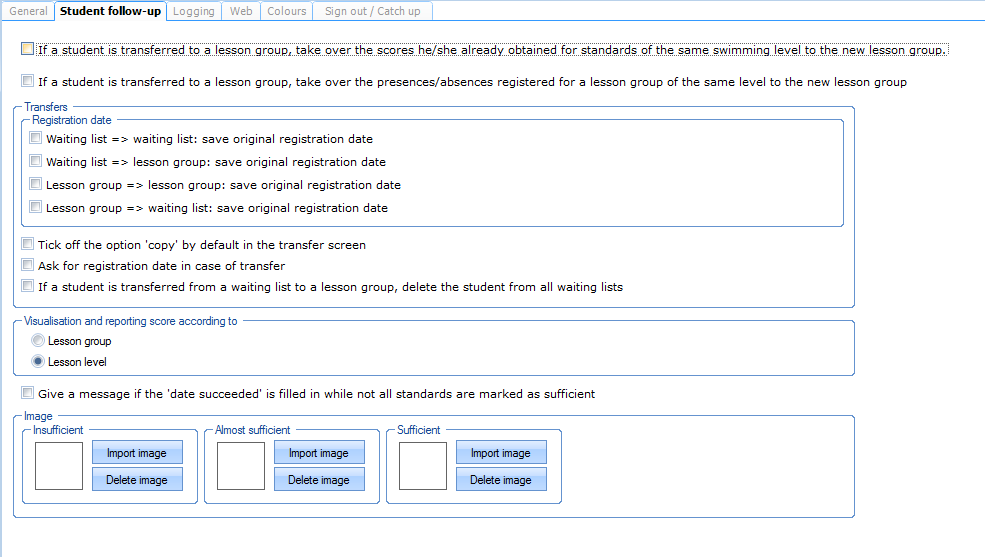
In the tab Student follow-up, you can define all parameters concerning the course management tool and transfer of students.
At the bottom of the window, you can also import the images or icons you want to show in the lesson scores
 |
Logging
In the tab Logging, all modifications to the course management parameters are logged. You can see which modification has been made, when and by whom.
 |
Web
In the tab Web, you can choose a template that will be used if a customer prints a fiscal certificate through the webshop.
 |
Colours
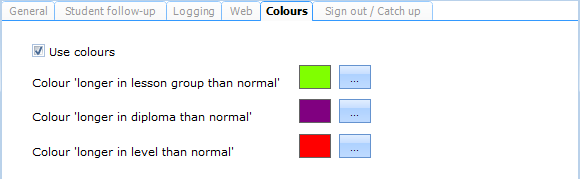
In the tab Colours, you can define the colours for marking students that are longer in a lesson group/diploma/level than normal.
 |
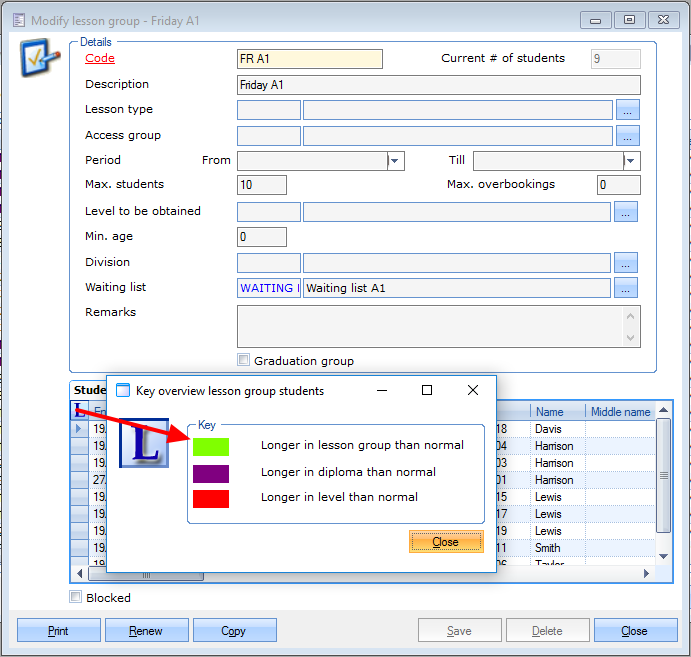
The colours you define here are then used in the overview of students within a lesson group.
 |
Sign out/Catch up
Students can unsubscribe from lesson group days. With each unsubscription they earn credits. They can then use those credits to sign up for a catch-up lesson.
In this tab, you can configure the sign out/catch-up functionality.
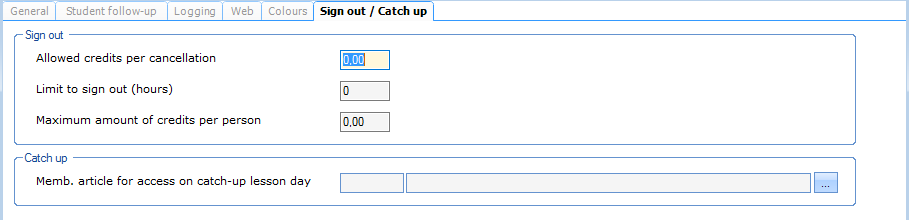 |
In this window, you can specify the amount of credits that is given to students when they sign out and the maximal amount of credits allowed per person. In addition, you can specify until when students can sign out.
In the section Catch-up, you have to select the membership article for access on the catch-up lesson day. This dummy article needs to be defined in advance.Go to General > Basic data > Articles > Articles
on tab Types tick Membership article and Lesson group article
on tab Lesson groups tick all lesson groups