Visualisations
By going to Swimming courses > Visualisations, you can quickly call up overviews of certain data within the course management module.
Course management history
This visualisation gives you an overview of the course management history within a certain period and if you want to, of a certain instructor.
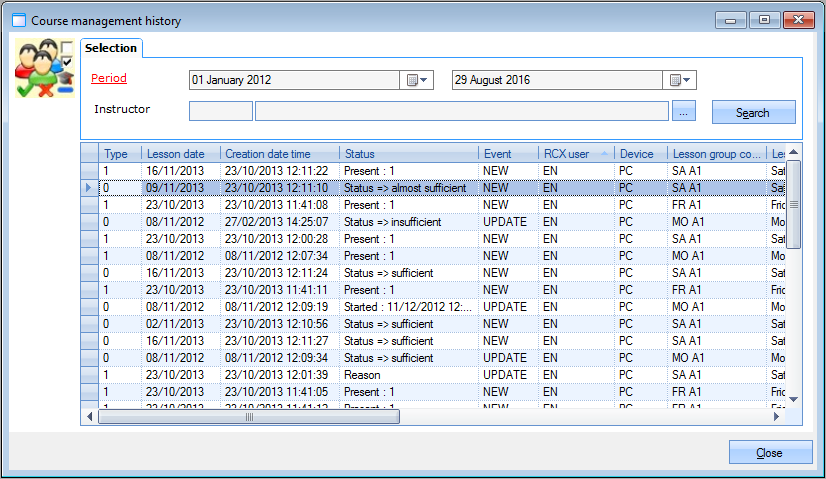 |
In this window, you can see the different records that have been created (presences, lesson scores, ...), who has created them, for which student, which lesson group, ...
Occupancy lesson groups
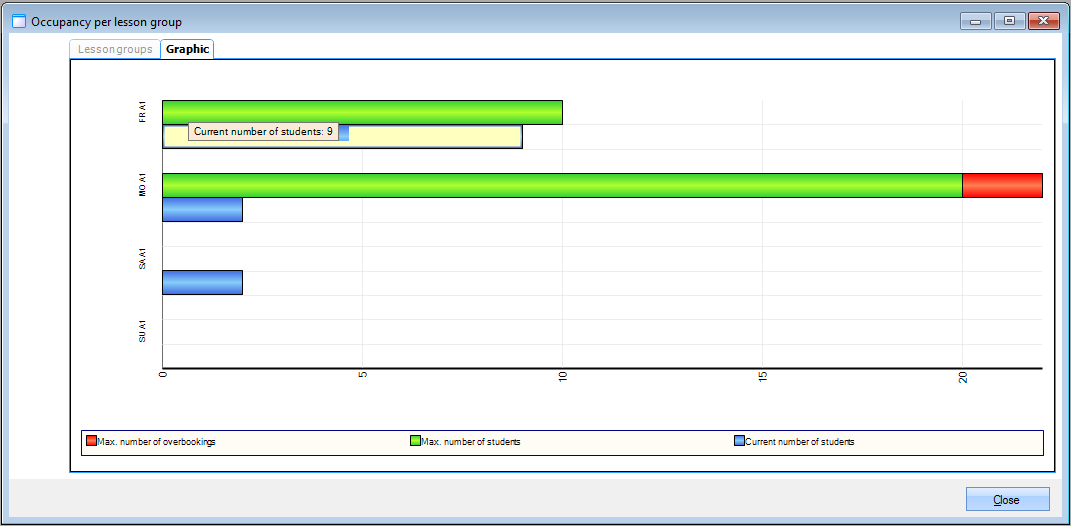
This visualisation gives you a graphic overview (diagram) of the occupancy degree per lesson group, indicating the max. number of students, the allowed number of overbookings and the current number of students.
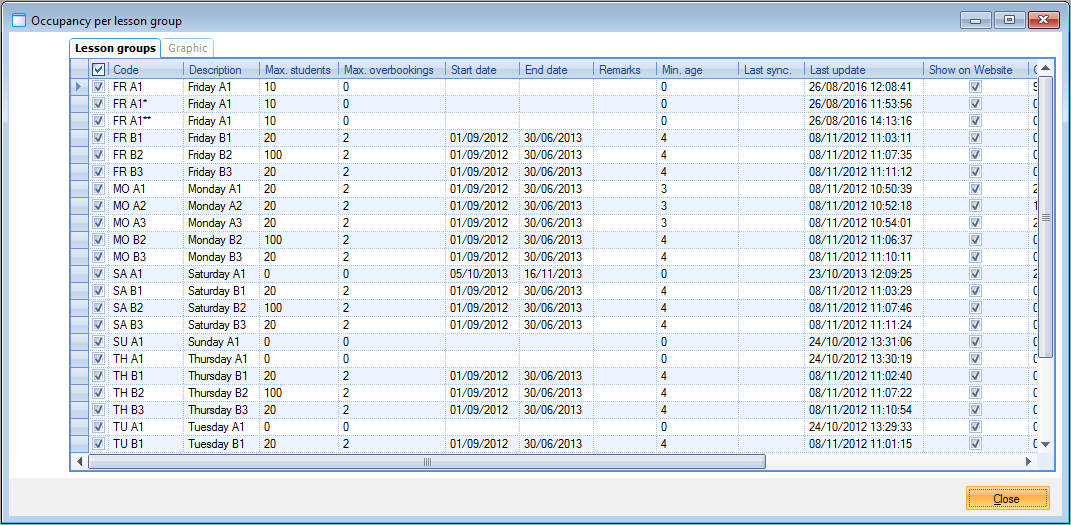 |
Select the lesson group(s) of which you want to call up the occupancy degree in the tab Lesson groups. The occupancy degree of the selected lesson groups will be visualised under the tab Graphic.
 |
Lesson groups calendar
This visualisation is in fact a calendar of all lesson times of one or several lesson groups.
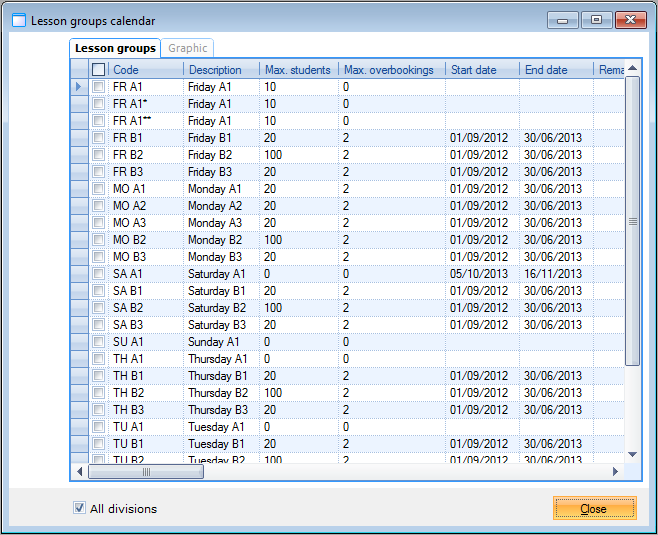 |
Select the lesson group(s) you want to include in the calendar overview in the tab Lesson groups. The calendar overview of the selected lesson group(s) will then be available under the tab Graphic.
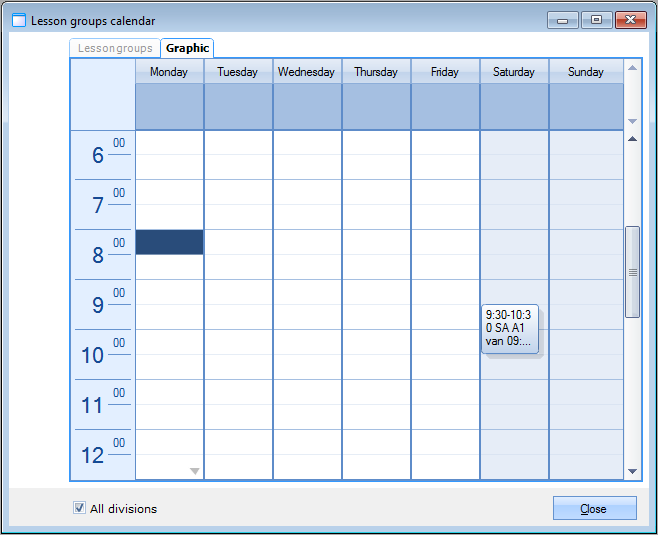 |
If you double-click on one of the lesson times of a lesson group, you can see more information on the selected lesson group.
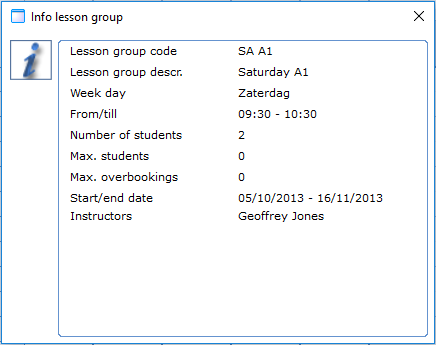 |
Student information card
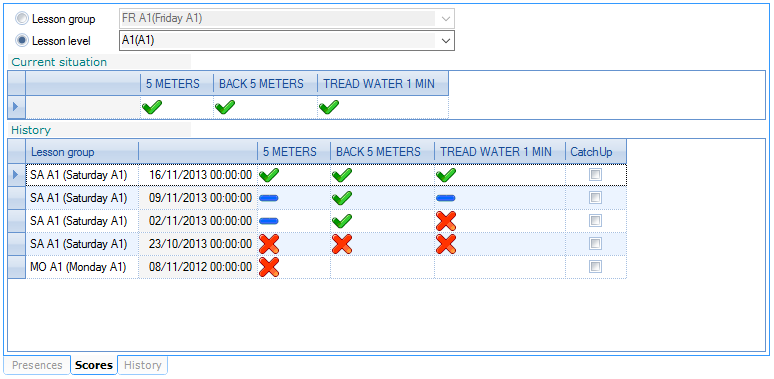
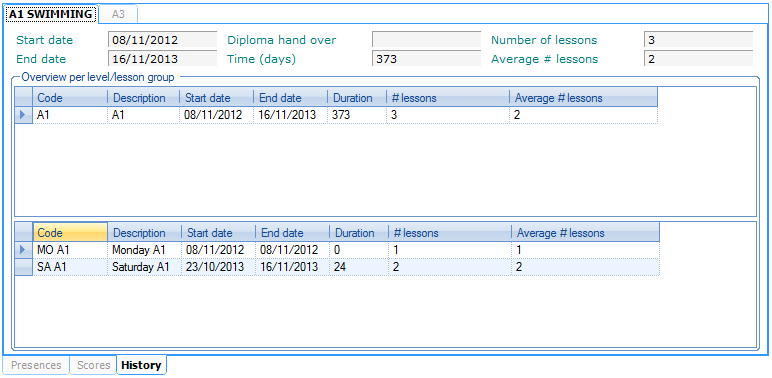
This visualisation gives you an overview of all lesson information on one specific student.
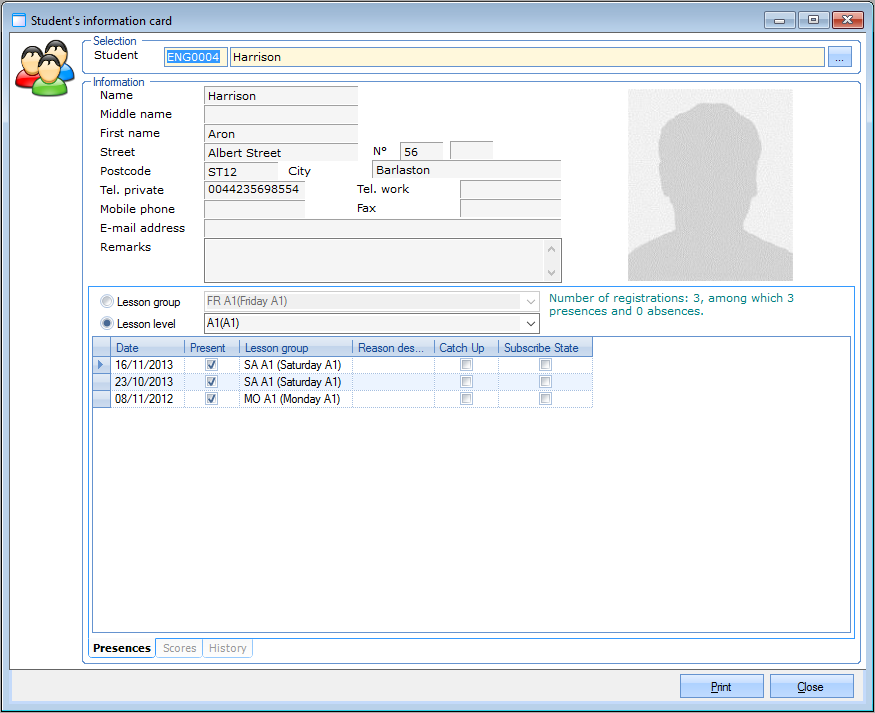 |
In the section Selection, you can choose the student of whom you want to call up the information card.
If you have selected the desired student, all information on that student will appear (taken over from the address card). You will also see all presences and all lesson scores, as well as the lesson history per lesson group in the lower part of the window.
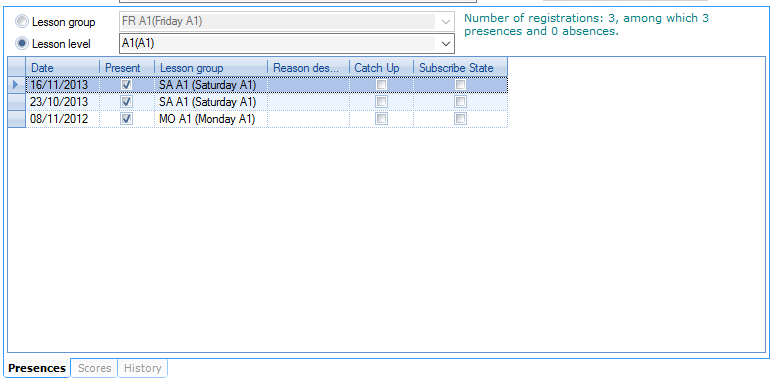 |
 |
 |
Lesson groups per instructor
This visualisation gives you an overview of all lesson groups per instructor.
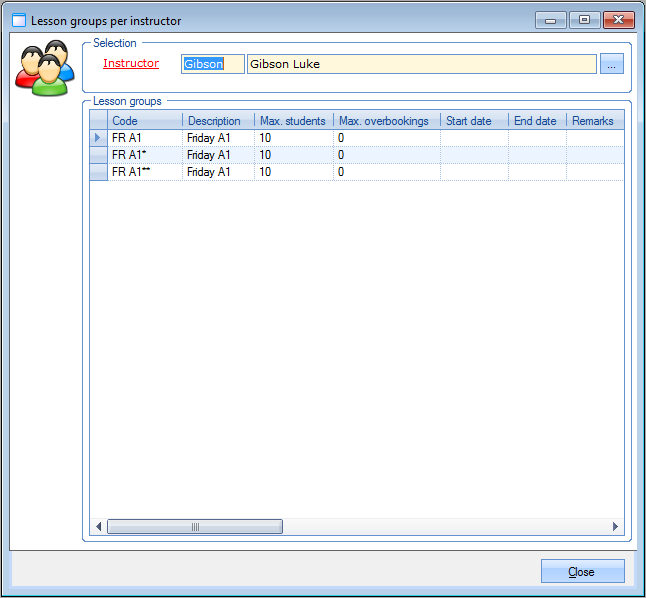 |
If you have selected the desired instructor, all lesson groups to which the selected instructor has been linked will be listed.
Pending waiting list students
This visualisation gives you an overview of all pending registrations for waiting lists that have been created through the webshop but that have not (yet) been finalised.
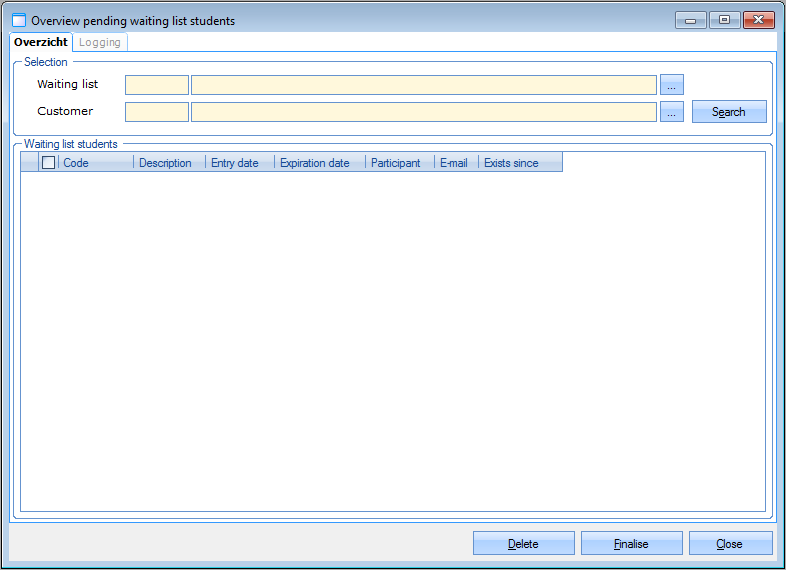 |
You can look for pending web registrations per waiting list and/or per customer.
The buttons at the bottom of the window allow you to delete these pending web registrations or to finalise them.
Sign out/catch up lesson days
This visualisation provides an overview of all sign-outs and catch-up lesson registrations in the system based on selected criteria.
To access this visualisation, go to Swimming courses > Processing > Sign out/catch up lesson days.

In the Selection section (1), define your filter criteria:
From/Till
Lesson group
Customer
Choose whether the selection should include only Current division or All divisions
Selection type (2): Filters the records based on the type of action performed
Sign out: Filters all lesson sign-outs
Registr. catch up lessons: Filters all catch-up lesson registrations
Manual registrations: Filters manual credit adjustments, where credits are assigned or deducted manually.
Click Search (3) to display the overview (4). Here you can open a detail of each record and apply the following modifications:
Add remarks to past-dated records.
Modify or delete records with a date in the future.