Configure ordering functionality
The ordering functionality triggers an additional workflow within Recreatex, allowing you to track orders as soon as they are paid, through preparation and delivery, while keeping customers and staff informed:
Vintia Order Kiosk: Customers get user-friendly order numbers, or they can enter the buzzer number used as an order number (if buzzers are activated in F&B Manager).
Recreatex: The staff can track and manage the order statuses (open/processed/picked up) using the Process open order tool (Sales admin > Visualisations).
Order Display: The customers are informed about their order progress via the Order Display application.
Kitchen Display: The kitchen staff can view incoming orders and update their status in real time via the Kitchen Display application.
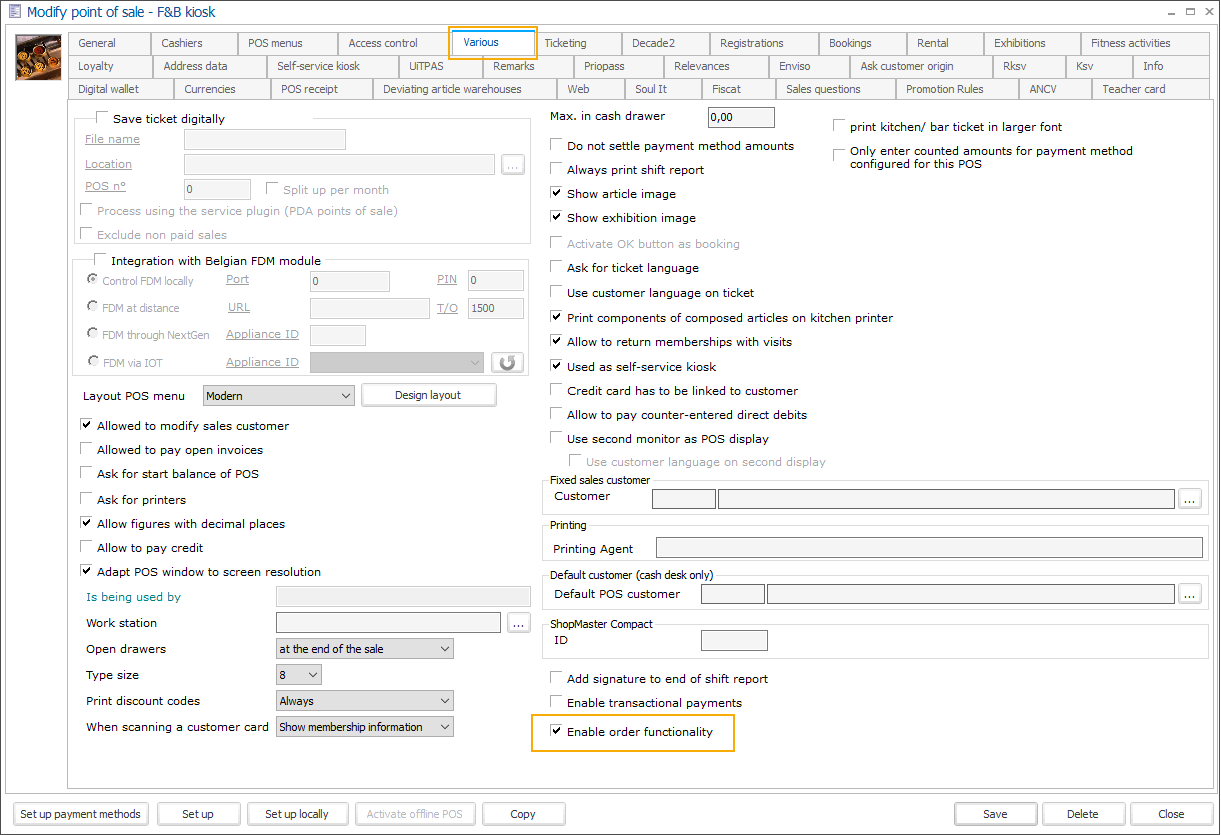
In Recreatex, go to Sales admin > Settings > Points of sale and open the point of sale relevant to your Vintia Order Kiosk. In the tab Various, activate the setting Enable order functionality.
Further, go to POS > Settings > Sales zones, open the relevant sales zones, and under the tab General configure the token creation settings.
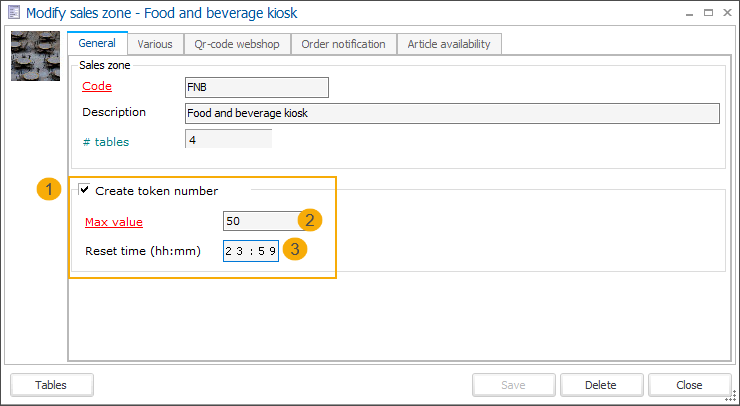
Activate the functionality (1), set the maximum and minimum order number value (2) and specify when the number sequence should be reset (3).
Max value: The highest possible order number.
Min value: The starting point for order numbering.
Reset timer (hh:mm): The time at which the order numbering resets, typically at the end of the day.
If the reset time has not yet been reached and the maximum order number is reached, numbering will restart from the minimum value.