Translations
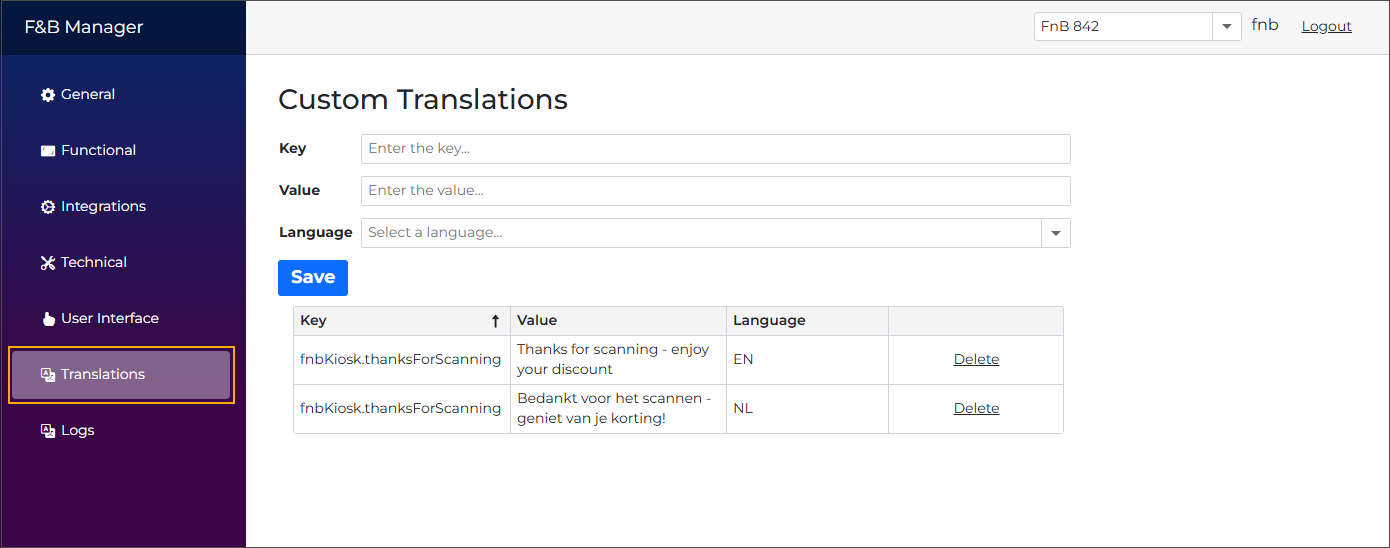
To configure custom translations, first select the relevant kiosk setup (1). Then complete the following fields:
Key
Search for the relevant translation key (2):
Type the translation key (e.g., fnbKiosk.confirmClearBasket) or the translation text displayed in your kiosk application in any of the configured languages. The list will automatically filter as you type.
Scroll through the full list of available keys and select the one you need.
Language
The system automatically displays the default language (3) configured for the selected kiosk setup.
Changing the language does not affect key search. You can search using any language, regardless of the language selected here.
Choose the language for which you want to add a custom translation.
Once you select a language manually (e.g. FR), it stays active while you add translations, so you can keep selecting keys and entering translations without the language reverting to the default.
Translation
Each translatable UI element has a default value (4) per language, which you can override. This default value is always shown as a placeholder for reference.
Enter your custom translation and click Save (5).
Each new custom translation will be added to the table overview in the lower part of the screen.
To modify an existing custom translation, find the translation key and enter a new custom translation. Click Save. If a custom translation already exists, it will be overwritten in the table overview.
To remove a custom translation, click Delete (6) next to the translation.