Recreatex 8.6.1
Mar 16, 2026
Neue Versionen und Anmerkungen
Das Recreatex 8.4.2.0 Release enthält die Entwicklungs- und internen Optimierungstickets der folgenden Anwendungen und ihrer jeweiligen Versionen:
|
|
Wichtig
As of version 8.5.0.0, all Web applications follow the versioning of Recreatex backoffice, transitioning directly from the previous version 6.4.2.0 to 8.5.0.0.
As of version 8.5.3.0, the Vintia Order Kiosk and Vintia Order App use their own versioning scheme.
Recreatex version support
Volle Unterstützung: Recreatex 8.4.0.X / 6.4.0.X und höher
Detailed version support information is available at Unterstützung der Recreatex-Version.
Important reminders
Microsoft hat den Support für Office 2003 und Office 2007 eingestellt. Wir empfehlen Ihnen, auf Office 2016 zu aktualisieren, das von Microsoft bis zum 14. Oktober 2025 unterstützt wird.
Ab Version 7.1.0 benötigt Recreatex .NET 4.7.2. Wir empfehlen Ihnen, Ihre Systeme entsprechend zu aktualisieren.
Die Mindestanforderung für die SQL Server-Software ist jetzt SQL Server 2016. Wir haben unsere Mindest- und empfohlenen Anforderungen für die SQL Server-Software aktualisiert, um optimale Leistung, Stabilität, Funktionalität und Sicherheit zu gewährleisten. Falls Sie dies noch nicht getan haben, empfehlen wir Ihnen, auf SQL Server 2016 oder höher zu aktualisieren, um neuere Versionen von Recreatex auszuführen.
Release highlights
General (Employees)
Employee-based task planning visualisation & new configuration options
In addition to the existing view per working group, you can now visualise tasks per employee in an Outlook-like layout for a more intuitive experience. We have also introduced enhancements and additional configuration options that apply to both visualisation types.
Hinweis
If a configuration or condition applies to both views, per working group & per employee, the information is marked with an asterisk *
Visualise per employee
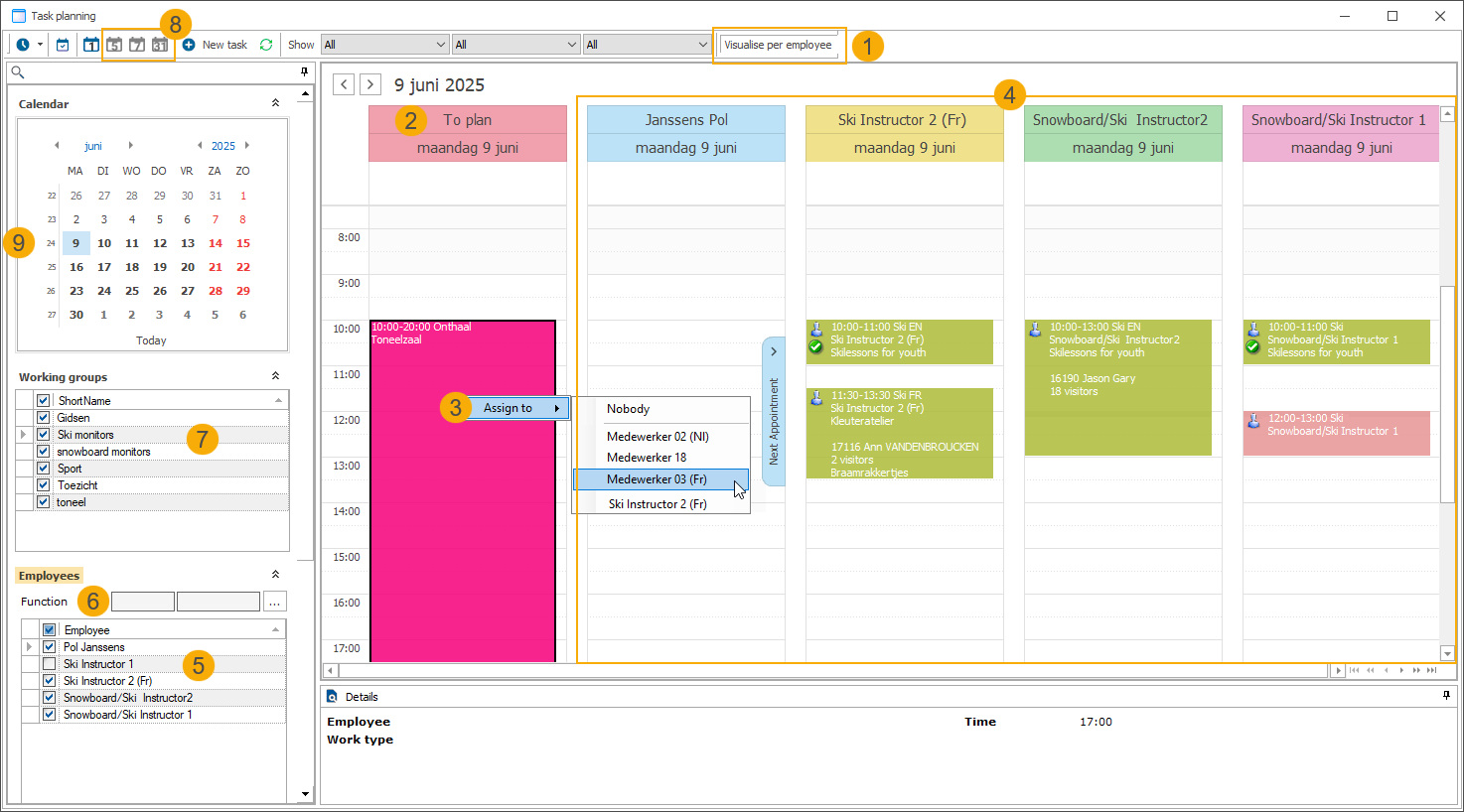
Switch to an Outlook-style calendar view by clicking the new toolbar button. (1)
*Save last calendar state: Use this general setting to let the system remember your preferred view. The complete selection, including employees and working groups, will be loaded automatically the next time you access task planning.
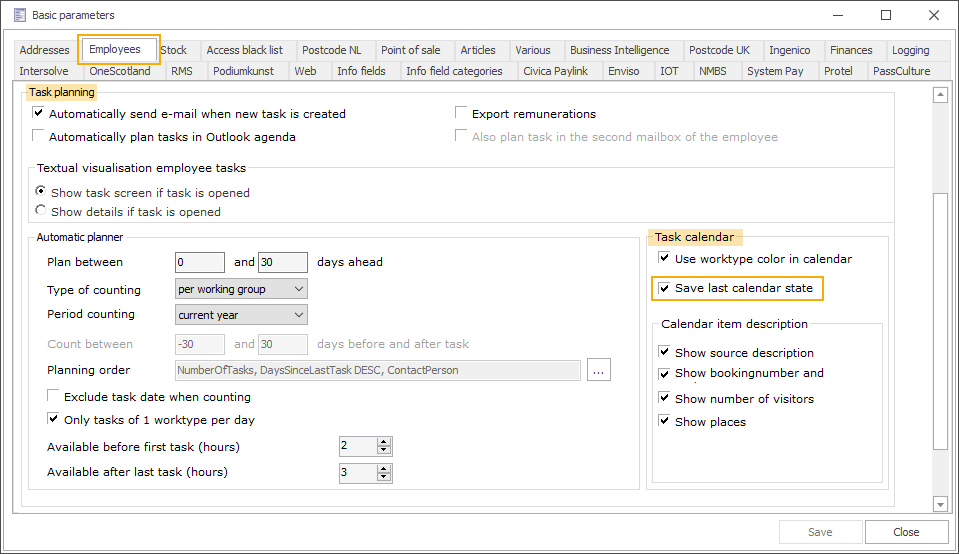
General > Parameters > tab Employees > section Task planning > Task calendar > Save last calendar state
Column To plan (2)
This column is displayed as first and shows all unassigned tasks.
The column header text can be customised in SydAdmin under Management > Messages
Assign tasks from this column:
Right-click the task and choose an employee from the Assign to context menu. (3)
Drag and drop the task to the relevant employee column. This action is allowed under certain conditions and has some limitations:
The task is not cancelled.
The task is not yet compensated (tab Salary > option Paid is not checked).
The task cannot be moved to a different time (changing the time requires editing the task).
The employee has the required skills for the task.
Employee columns (4)
Each employee is displayed in a separate column.
Select/deselect employees: In the left-side panel, we have implemented a new Employees selection list (5) and an optional lookup box to filter employees in the list by function (6).
Working group selection list (7) remains available but acts as an additional filter for employee tasks (unlike the view per working group, which shows a tab for each selected working group).
Task display
Tasks are shown for one day only in this view.
Switching to workweek, week, and month view is disabled in the top bar. (8)
It is not possible to select multiple days in the calendar (left-side panel). (9)
*Minimum timeslot: 5 minutes
Visualisation per 4/3/2/1 minute is no longer supported due to the implementation of a new scheduling component.
*Task colours: Tasks appear as coloured blocks on the calendar. With the new configuration option, you can now display the task blocks in colours defined at the work type level.
Modify the relevant work types and choose a Calendar item colour (1), then activate the general parameter Use work type colour in calendar (2)
Disabled (default): Task blocks are shown in non-configurable colours based on the Recreatex module where the employee task was created.
The legend text displayed next to the colours is now based on messages that can be customised in SydAdmin under Management > Messages.
Enabled: Task blocks are shown in the colour configured for the work type associated with the employee task.
The legend text displayed next to the colours is the work type description.
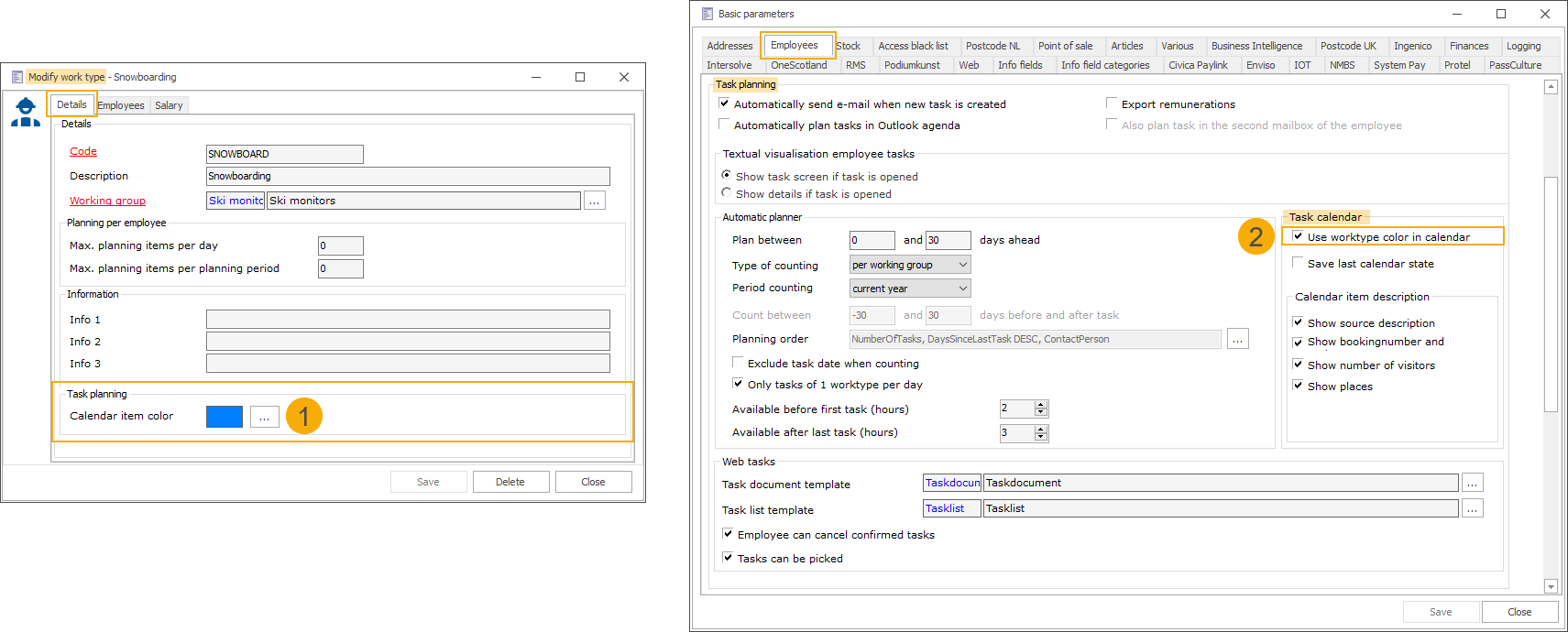
General > Basic data > Employees > Settings > Work types > Modify work type > tab Details: setting Calendar item colour
General > Parameters > tab Employees > section Task planning > Task calendar: parameter Use work type colour in calendar
*Info shown on task blocks:
Always shown info (1): start time, end time, work type, language and employee name
Configurable info (2): Four new parameters are now available in the general Employees configuration.
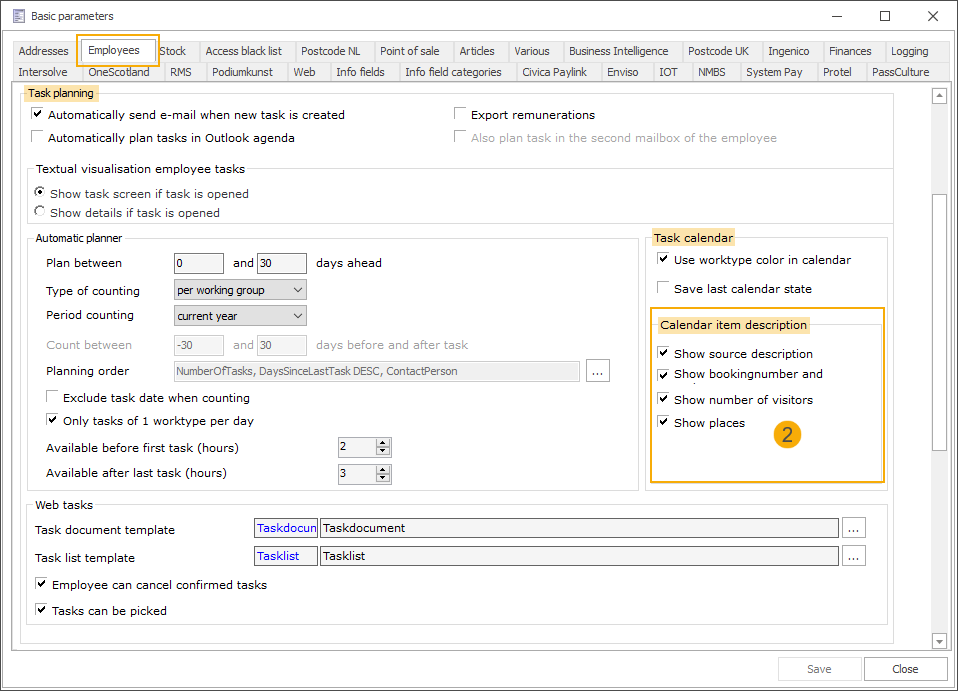
General > Parameters > tab Employees > section Task planning > Calendar item descriptions
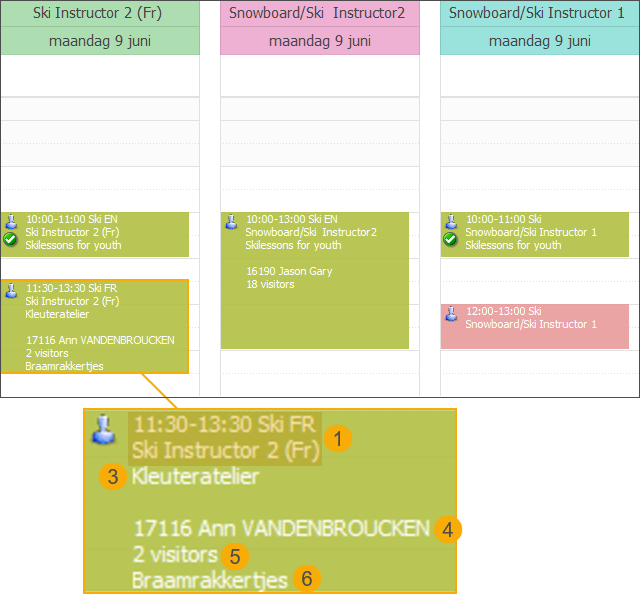
Show source description (3): Shows a description based on the Recreatex module where the employee task was created (facility booking, exhibition visit, event file activity or other tasks (not module-related)). You can find this information in the tab Origin on the task detail.
Show booking number and customer (4): If available, the booking number is displayed together with the customer's name.
This applies to tasks originating from facility booking, exhibition visit or event file activity.
Show number of visitors (5): When relevant, the visitor count is displayed as “X visitors” on the task block.
This applies to tasks originating from facility booking, exhibition visit or event file activity.
Show places (6): If a place or location is linked to the task, it is displayed on the task block.
This applies to tasks originating from facility booking, exhibition visit or event file activity.
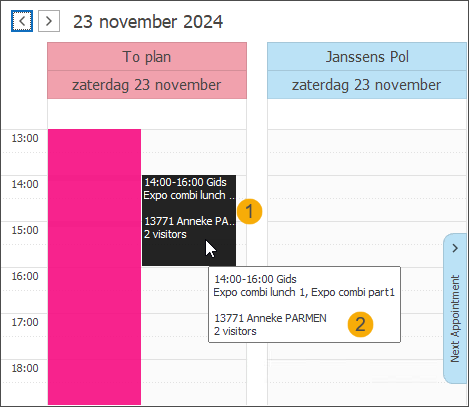
*If the text on the task block exceeds the available space, an ellipsis (…) (1) is displayed. When hovering over the block, a tooltip (2) appears showing the full information.
Timeslot ticketing
Release capacity of the current timeslot when visitors leave
For exhibitions with long timeslots, where visitors may stay longer but can also leave earlier, you can now reuse capacity dynamically. When visitors leave before the end time of the timeslot, their place is automatically released and becomes available for additional visitors who want to enter during the same timeslot.
This configuration option allows for more efficient use of your available capacity and higher occupancy, while you remain fully in control of the maximum capacity per timeslot.
What you configure
Keep the following in mind when using this configuration:
The exhibition must be configured as visitors per period, not groups per period.
The feature is only triggered for the currently active timeslot of the exhibition.
To configure the capacity release feature, open the relevant exhibition and go to the tab POS.
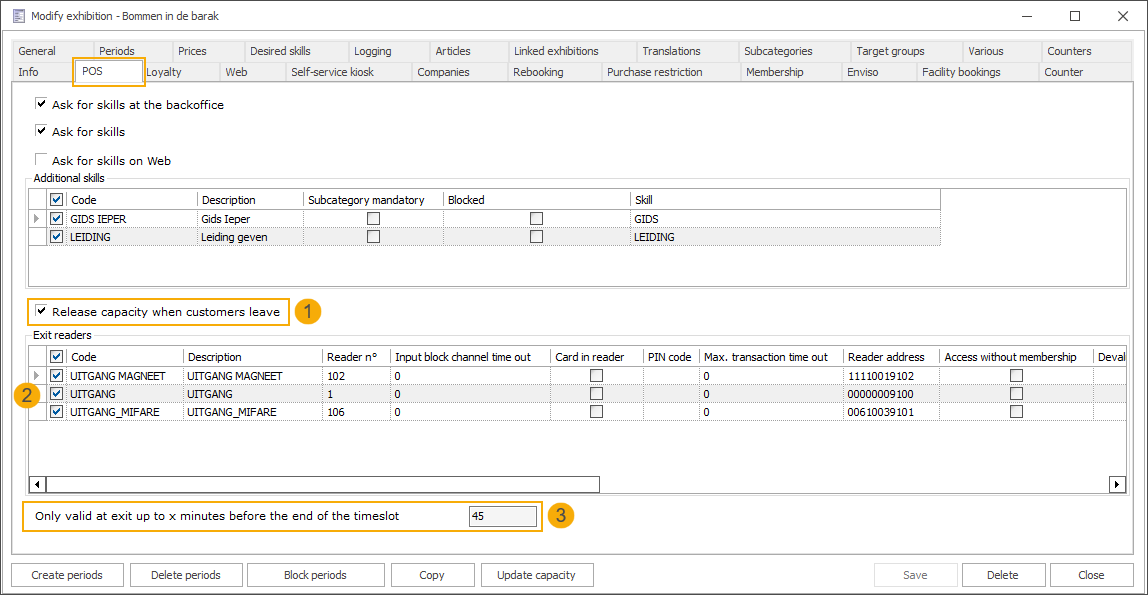
Enable the setting Release capacity when customers leave
Enabled: Each time a visitor exits via a configured exit reader, their spot becomes available again in the current timeslot.
Disabled (existing behaviour): Once a timeslot is full, no extra bookings are allowed at the POS, even if visitors leave early.
Select the relevant exit readers
Select the readers that should act as exit readers for this exhibition.
Places can only be released if visitors leave via a configured exit reader.
Specify the time limitation Only valid at exit up to x minutes before the end of the timeslot
Enter how many minutes before the end of the timeslot an exit can still release capacity (X minutes).
How it works
Visitors buy tickets:
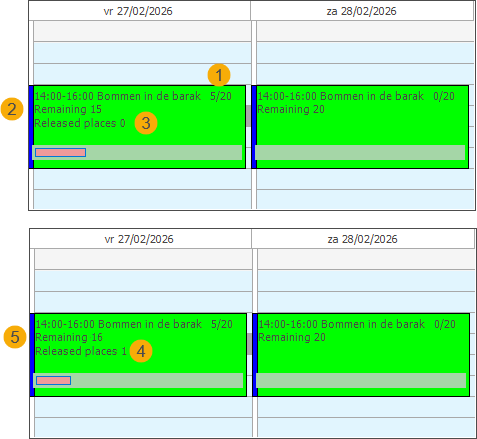
Each purchased ticket counts towards the capacity of the current timeslot. (1)
Remainig: capacity is decreased. (2)
Released places: this field becomes visible when the feature is active. The initial value is 0, as no visitors have left yet. (3)
Visitors enter the facility by scanning their tickets at the entrance reader.
A visitor leaves early:
The visitor scans their ticket (membership) at the exit reader.
If the exit is registered no later than X minutes before the end of the timeslot:
Released places: a place is released, and the value is increased by 1. (4)
The progress bar takes released places into account.
Remaining: capacity is increased by 1 (the released place). (5)
If the exit is registered later than X minutes before the end of the timeslot:
No place is released.
Released places and Remaining capacity do not change.
Place becomes available again:
Any place that is released for the current timeslot can be sold again at the POS.
When a new ticket is sold:
Remaining: capacity is decreased
Released places: the value does not change, as it only counts how many visitors left early. The released capacity is always reflected in the Remaining value, which adjusts dynamically as tickets are sold and places are released.
Webshop
Automatically offer Pay by invoice when basket total reaches the configured threshold
Offer Pay by invoice payment option only for larger orders by setting a minimum basket total. This reduces abandonment of high-value orders and gives customers a flexible way to complete expensive registrations without immediate online payment.
What you configure
In Webshop Manager, go to General > Shopping cart > tab General > section Payment methods
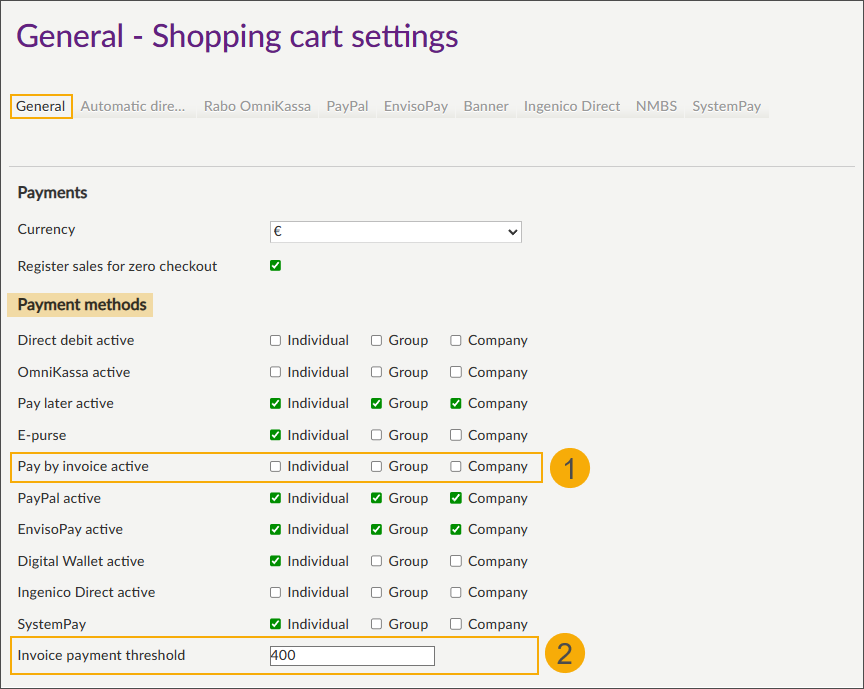
Pay by invoice active: disable the setting for all customer types.
Invoice payment threshold: enter the basket total amount from which Pay by invoice becomes available automatically.
The field accepts decimal numbers (max. 2 digits after the decimal point).
If the value is invalid, the setting is treated as empty, and the threshold logic is turned off.
How it works
When the basket total is lower than the configured threshold, Pay by invoice is not shown as a possible payment method at checkout.
When the basket total is equal to or higher than the threshold, Pay by invoice is shown at checkout as a possible payment method, even if Pay by invoice active is disabled in the Manager.
Integrations
Storecove
E‑invoicing for Germany, Austria and Switzerland
Storecove is a global e-invoicing and e-delivery platform that helps businesses, governments, and software providers send, receive, and process electronic invoices (e-invoices) in compliance with international standards and networks.
We already offer Storecove e‑invoicing in several countries (such as the Netherlands, Belgium and France). With this release, the Storecove integration has been extended and is now available for Germany (DE), Austria (AT), and Switzerland (CH), with support across all invoicing components in Recreatex.
What was already possible
Storecove e‑invoicing for selected countries (NL, BE, FR).
Electronic invoices sent via Storecove to companies and public administrations where e‑invoicing was already supported or required.
What is new in this release
Storecove e‑invoicing support has been extended to Germany (DE), Austria (AT), and Switzerland (CH).
The integration has been updated to follow the country‑specific e‑invoicing rules for these markets.
The Storecove integration is designed to make e-invoicing possible for all Recreatex components that can generate invoices (cash desk, event, booking, etc.).
Background
Germany is introducing a legal obligation for domestic B2B e‑invoicing from 2025 onwards.
Austria and Switzerland already require e‑invoicing in the B2G segment and are aligning further with European standards.
The goal is to ensure that customers in DE/AT/CH can send compliant e‑invoices via Storecove in line with local rules.
Impact for customers
Customers in Germany, Austria and Switzerland can now use Storecove to send e‑invoices, similar to customers in our already supported countries.
Existing Storecove countries (NL, BE, FR) remain supported.
It is still possible to combine e‑invoices and traditional invoices (such as paper), depending on legal requirements and your own processes.
Oracle Opera 5
Limit POS item sales per booking based on guest count
Oracle Opera is a hotel property management system used to handle bookings, room charges, and guest profiles. We have already integrated Opera with POS for guest lookup and “Charge on room” payments, and have now extended this integration to limit sales of selected POS items per day, based on the number of guests in the linked Opera booking.
What was already possible
Look up and visualise guest information from Opera via an extra function button on the POS screen.
Pay for a purchase using the Charge on room payment method, and send the sale to Opera.
What is new in this release
The plugin can now control how many of the configured membership articles can be sold at the POS:
The maximum number of sold articles is limited to the number of guests linked to the Opera booking
The limit applies per booking per day
The limit is enforced across multiple sales on the same day for the same booking
Configuration
OracleOpera counter plugin: In the plugin configuration, you can now add the membership articles that will trigger the Opera flow at the POS when selected.
Visualisation
When a configured membership article is selected at the POS, the Oracle Opera popup opens automatically, showing the following additional elements:
Table overview: Displays the items already purchased for the current booking, including received date, quantity and item (article type).
Today / All filter (default: Today): Allows you to filter the information displayed in the grid.
Quantity selector (X/Y) including :
Plus and minus buttons +/- to adjust the quantity.
X : Quantity selected in the current sale.
Y: Remaining number of items allowed for the current booking on that day.
How it works
The plugin tracks previously sold membership articles for the same booking and day, calculates how many items are still allowed, and blocks any sale that would exceed the daily limit.
Limitation: The limit is applied only to the total number of guests on the booking. Since Opera does not provide age information, the system cannot verify whether the correct ticket type was sold and can enforce only the overall quantity.
If the cashier changes the quantity in the current sale, the Opera flow is re-triggered, ensuring the limit check and X/Y indicator always reflect the latest quantity and already sold items.
API Change log
Date | Type | Method | Summary | Internal reference |
|---|---|---|---|---|
07 Nov 2025 | Add |
|
| BACKOFFICE-27260 |
08 Jan 2026 | Edit |
|
| WEBAPP-9142 |
08 Jan 2026 | Edit |
|
| BACKOFFICE-27577 |
02 Nov 2026 | Add |
|
| BACKOFFICE-27670 |