Using the LLV Instructor website
After logging in to the LLV Instructor Website, you can register presences, enter scores and make transfers.
Logging in
The start page of the Course management Instructor Website is the log-in window.
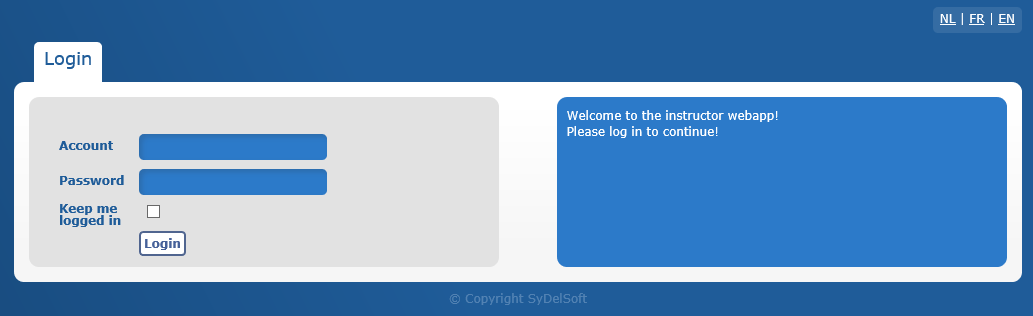 |
Here you have to fill in the instructor's log-in data (employee in Recreatex), and you can choose to stay logged in after which you will not have to log in each time you navigate to the Course management Instructor Website on the same appliance.
If you are logged in, the website will automatically navigate to the tab Presences
Scores
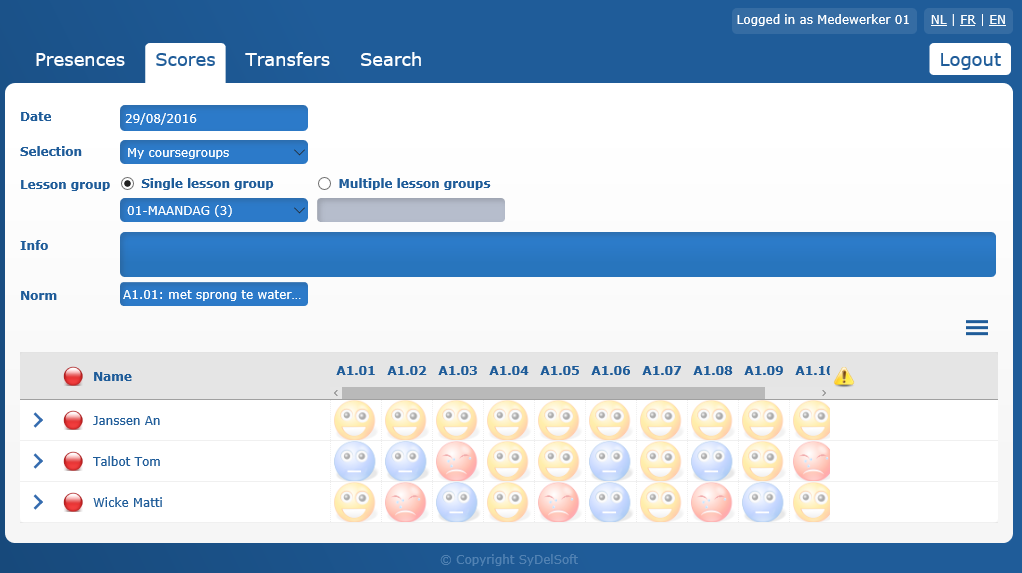
The tab Scores allows you to evaluate the students' performances. This is done in a similar way as in the Course management tool in Recreatex itself.
As in the tab Presences, you can select the date and the correct lesson group in the upper part of the page, after which the students in question will appear.
 |
Giving scores to students can be done on the basis of the selected (ticked) norm(s) (standard) or not.
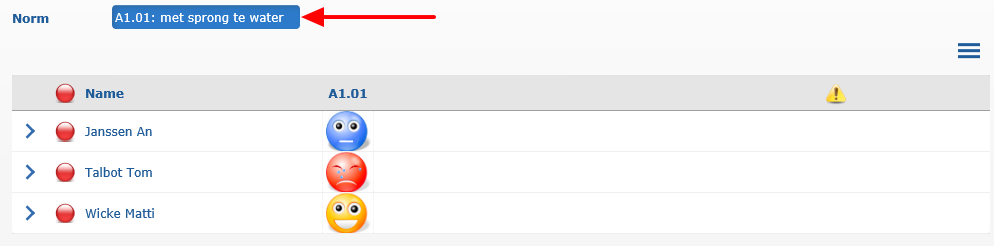 |
A score column per selected norm will appear next to the students and a score can be entered for each student for the current norm. There are three possible scores, i.e. Insufficient, Almost sufficient and Sufficient, respectively indicated by means of a specific icon (here: smiley). The design and the colour of the icon also depend on the current design (skin) of the Course management Instructor Website.
If you want to change the score, you have to click in the score column until the desired icon is selected.
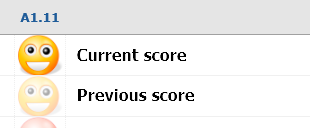
The previous score (if applicable) is shown by default in a paler colour.
 |
Transfers
In the transfer tab it is possible to transfer one or several students from one lesson group to another.
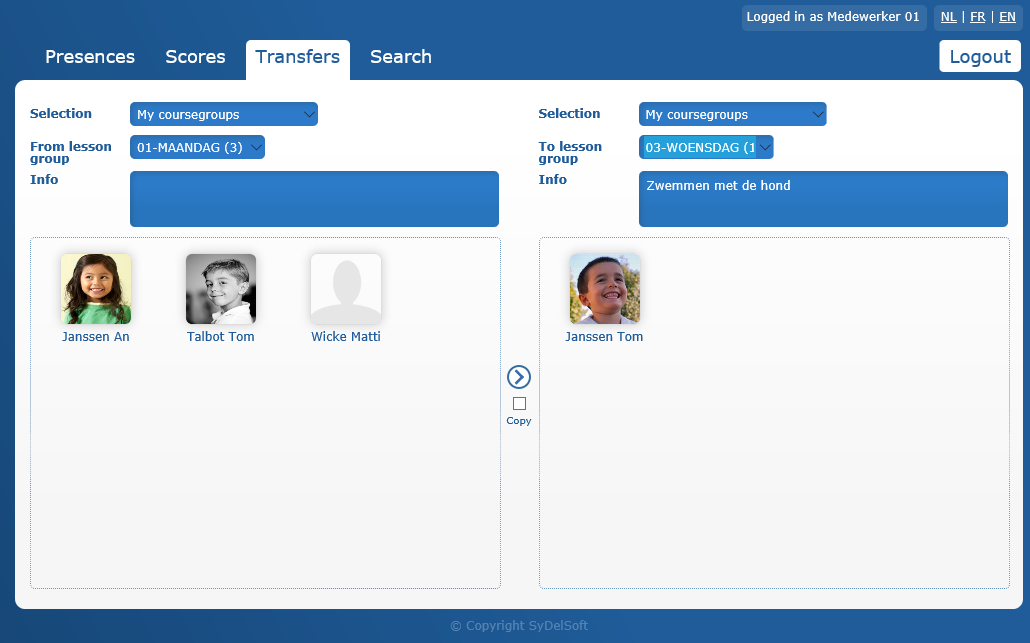 |
A transfer is always done from the left to the right. Select the lesson group of the student that needs to be transferred in the left part of the window and select the lesson group to which the student has to be transferred in the right part.
Then, there are two ways to make the transfer.
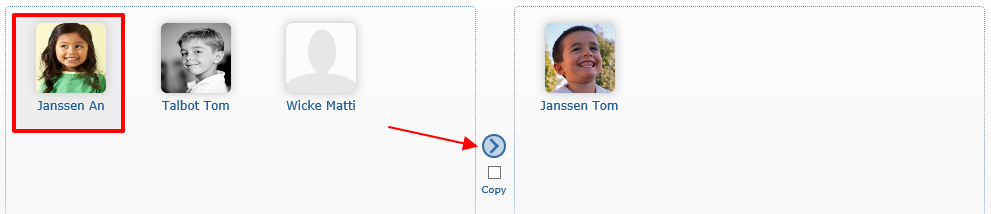
By selecting the student in question and clicking on the arrow between the two partial windows.
 |
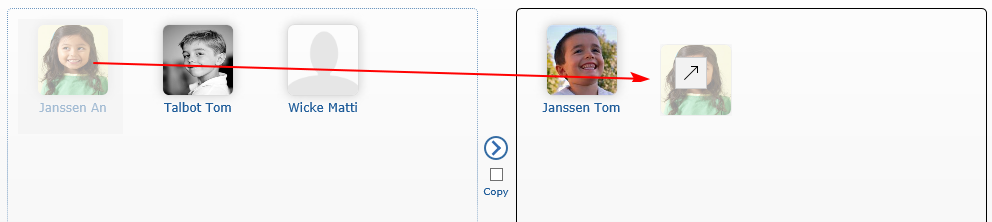
By clicking on the student in question and dragging him/her towards the right part.
 |
If you tick the box Copy, the selected student will not simply be transferred but copied to the lesson group, meaning the student will be in both lesson groups.
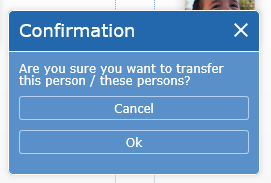
A question for confirmation will appear before the transfer will effectively be executed.
 |
Search
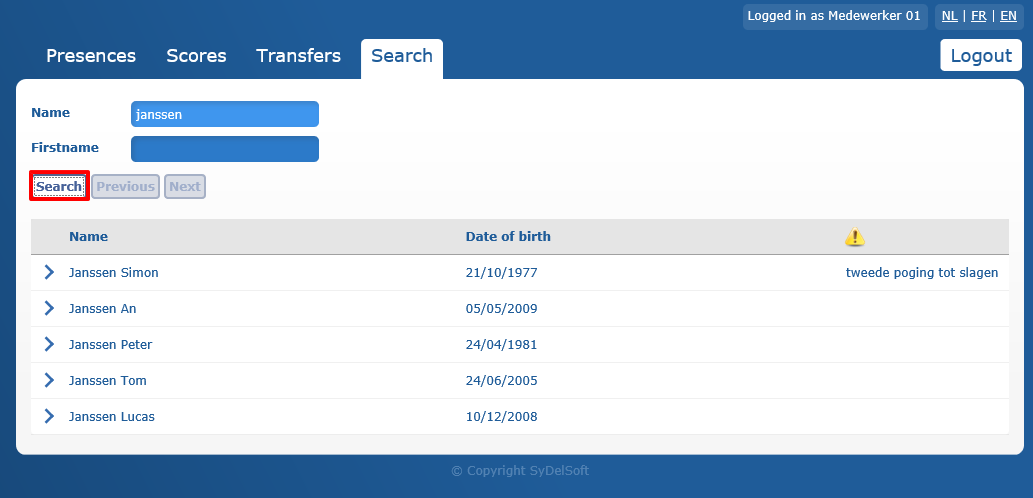
The tab Search allows you to quickly find a student in the system on the basis of his/her surname and/or first name. If you click Search all students that meet the query will appear.
 |
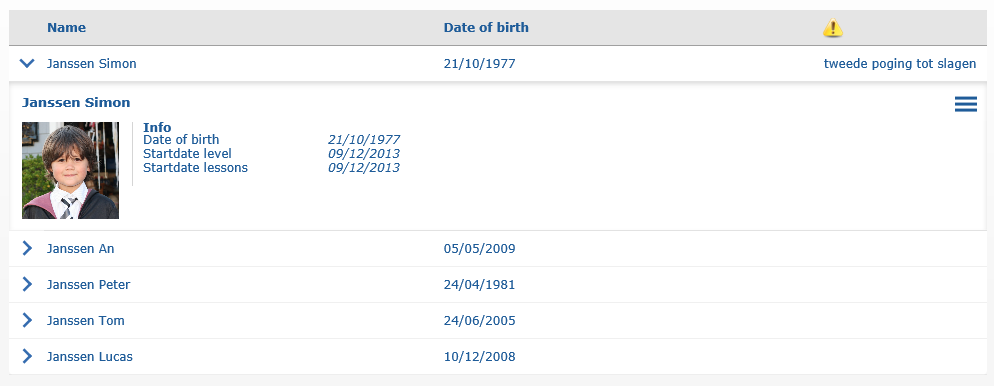
If a student is selected, additional info will appear, such as the linked photo and lesson groups for which he/she is registered.
 |
Identify students signed out and registered for catch-up lesson
Students who unsubscribed from a lesson group day or students who subscribed for a catch-up lesson can now also be displayed in the LLV instructor application.
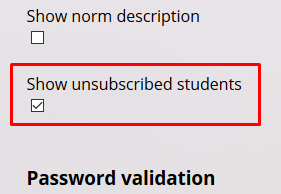
By default, unsubscribed students are not displayed. To change this, go to the LLV Manager page > Settings > User preferences and tick the check box Show unsubscribed students and press Save.
 |
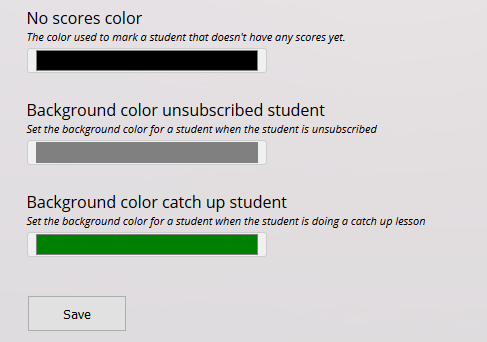
Two new default background colours have been introduced in the Presences tab and the Scores tab:
When a student has unsubscribed from the lesson group, the record will get a gray background.
When a student has subscribed for a catch-up lesson, the record will get a green background.
 |
 |
These background colours can be changed by going to the LLV Manager page > Settings > User interface. Press on the colour and a new window will open where you can choose another colour.
 |
Anmerkung
Unsubscribed students are included for reference only. Their records cannot be modified, and scores cannot be assigned.
Log out
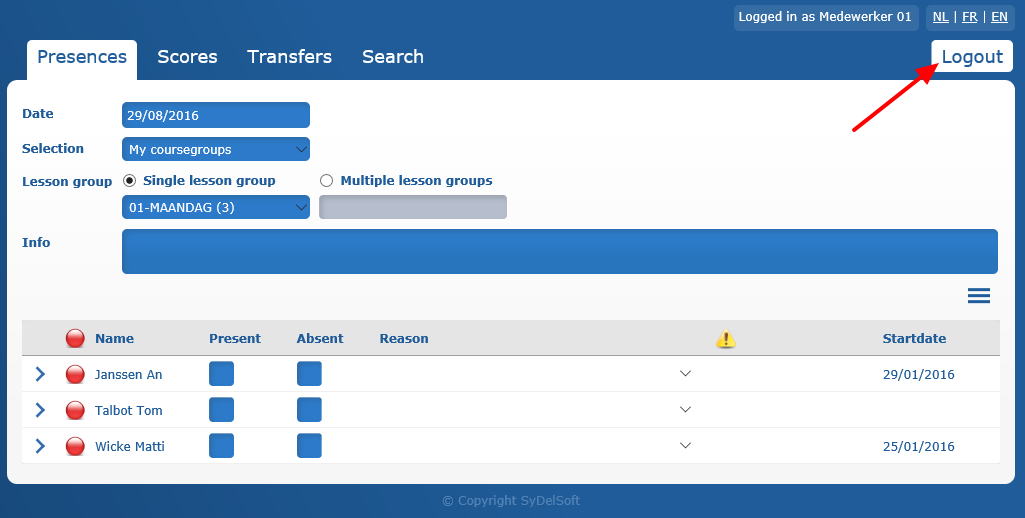
You can log out of the Course management Instructor Website by clicking on the button in question, in the right upper-hand corner of the page.
 |