Reports
By going to Swimming courses > Reports it is possible to generate different documents and reports from within the course management module.
Students per waiting list
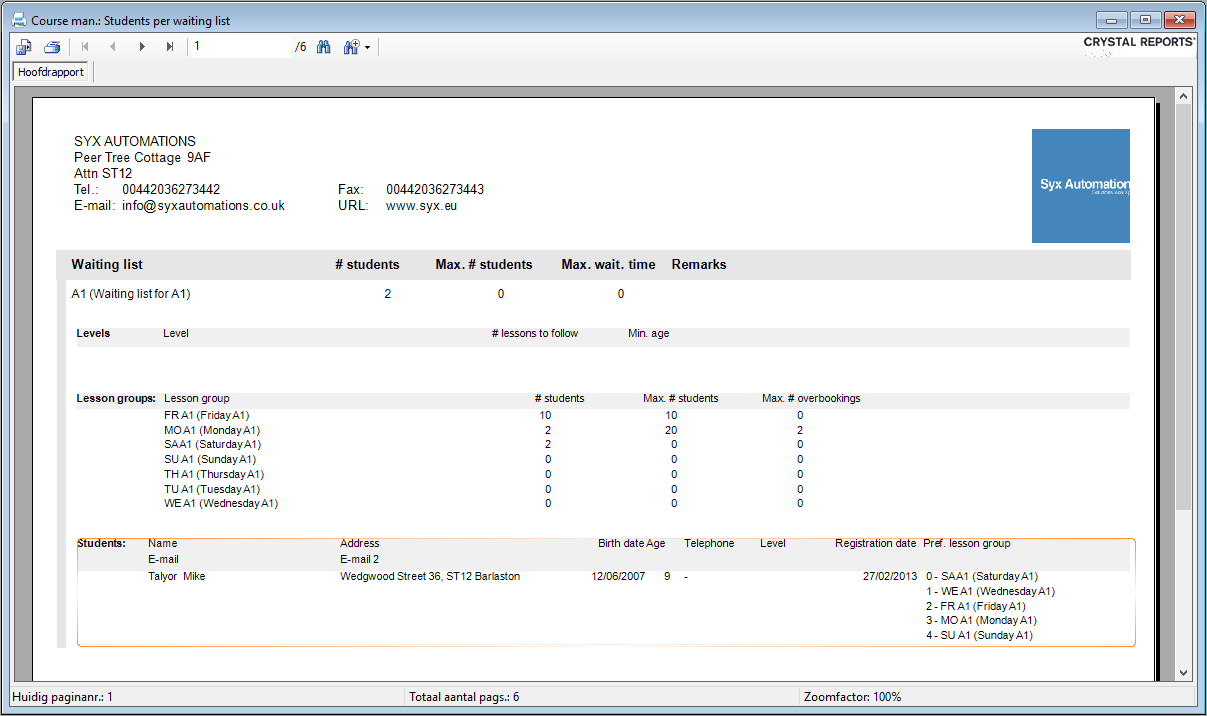
The report Students per waiting list offers an overview of all persons per waiting list (with possible preferential lesson groups per waiting list and remarks and effective preferential lesson groups per registered student) based on the selection criteria you have filled in.
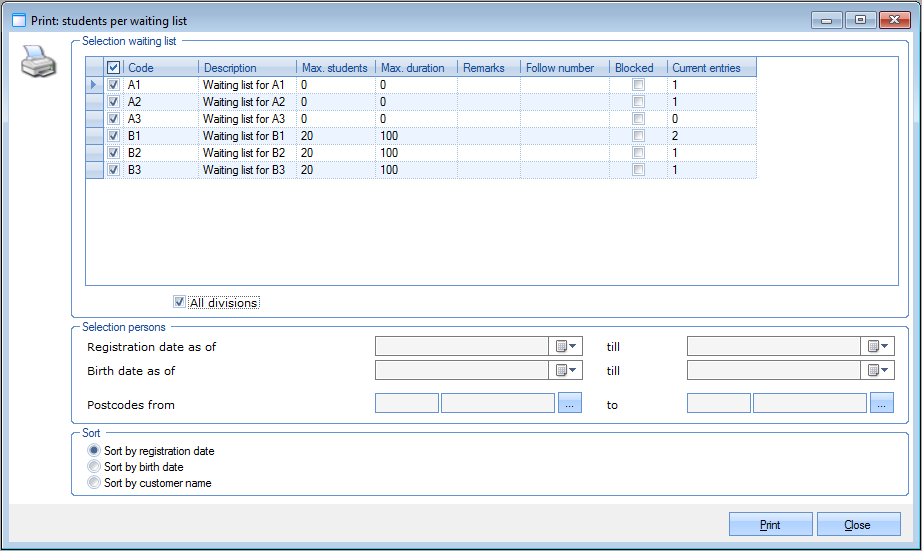 |
You can select the waiting lists you want to see in the report and specify some details concerning the persons to be included. You can also choose a sorting order.
If you have filled in all required selection criteria, click Print to generate the report.
 |
Students per lesson group
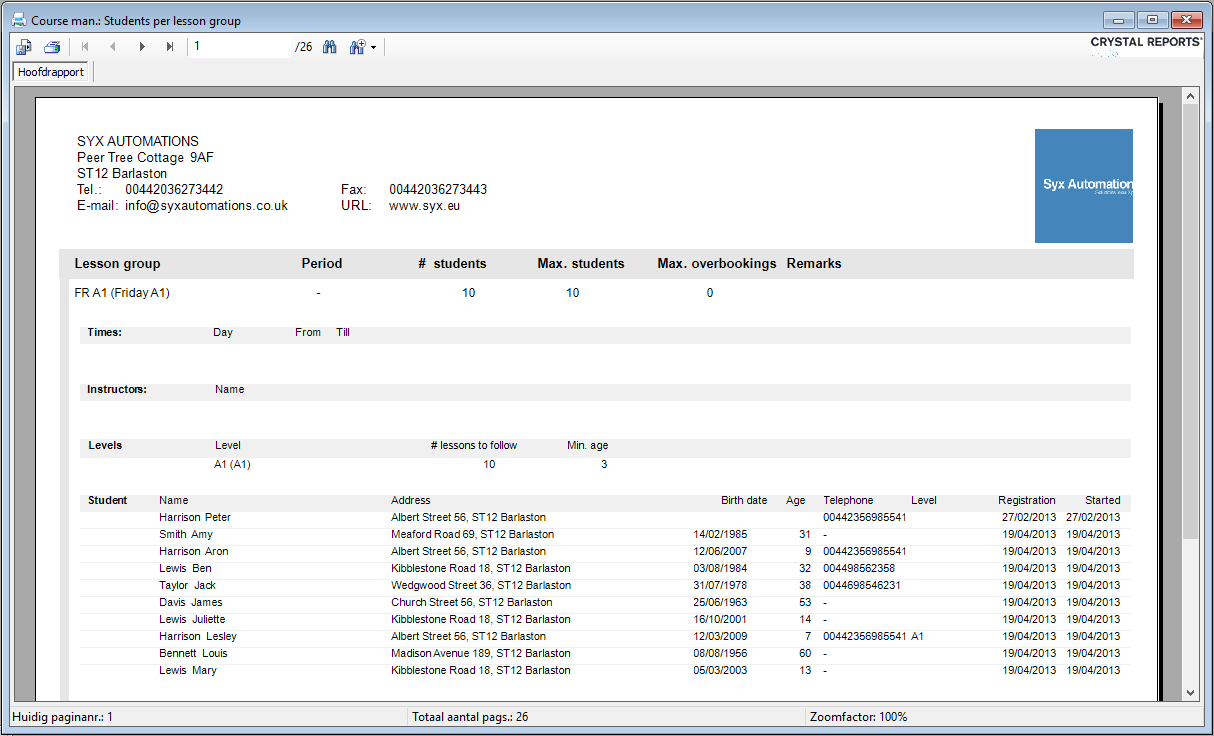
The report Students per lesson group offers an overview of all persons per lesson group (with all lesson times and instructors per lesson group and remarks per student) based on the selection criteria you have filled in.
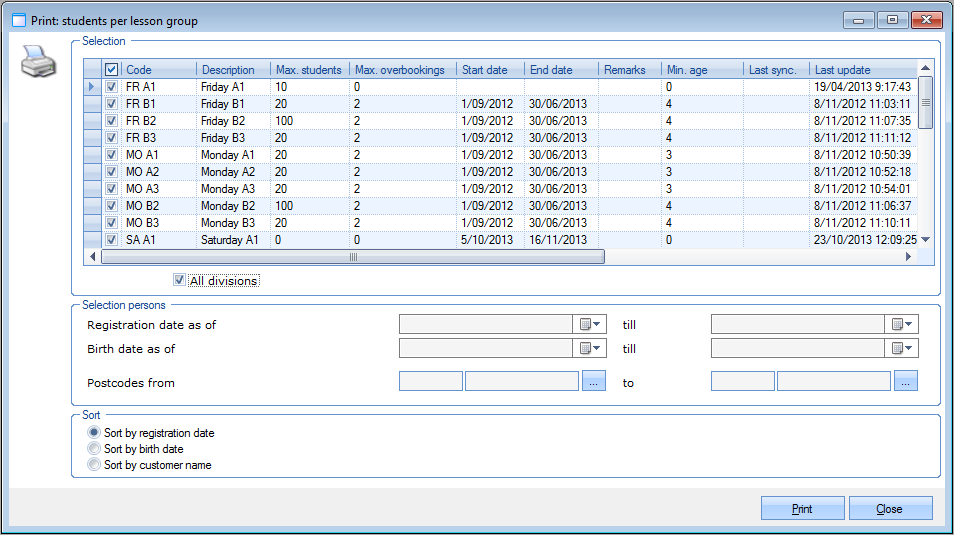 |
You can select the lesson groups you want to see in the report and specify some details concerning the persons to be included. You can also choose a sorting order.
If you have filled in all required selection criteria, click Print to generate the report.
 |
Course management list
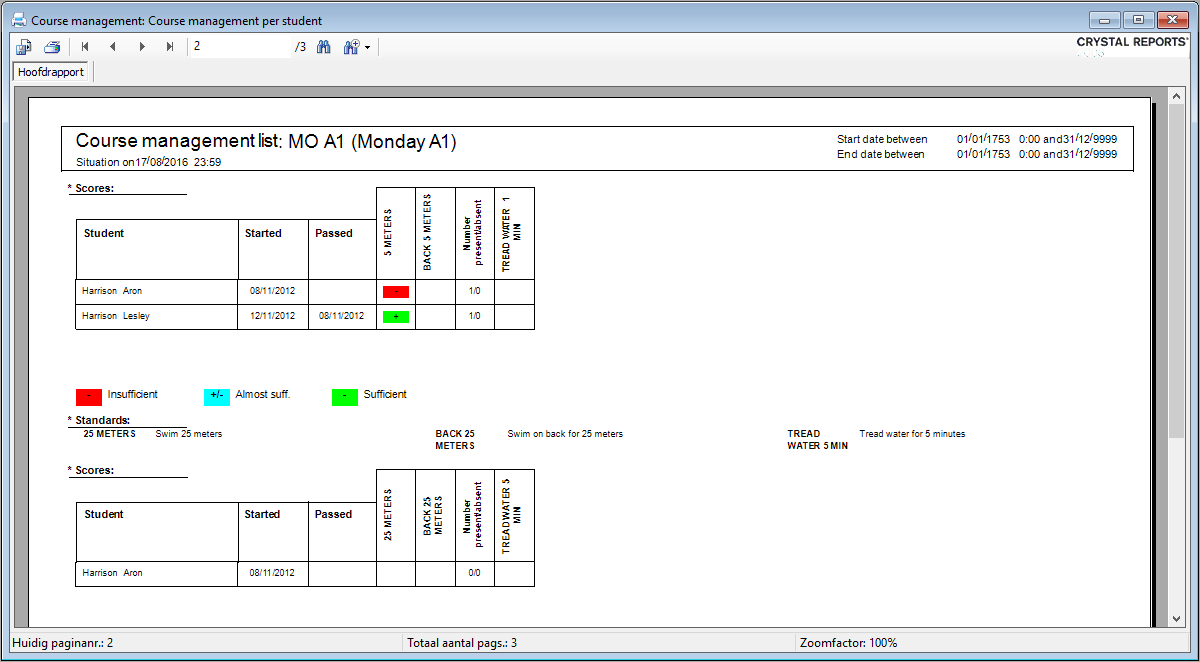
The report Course management list offers an overview of all lesson scores based on the selection criteria you have filled in.
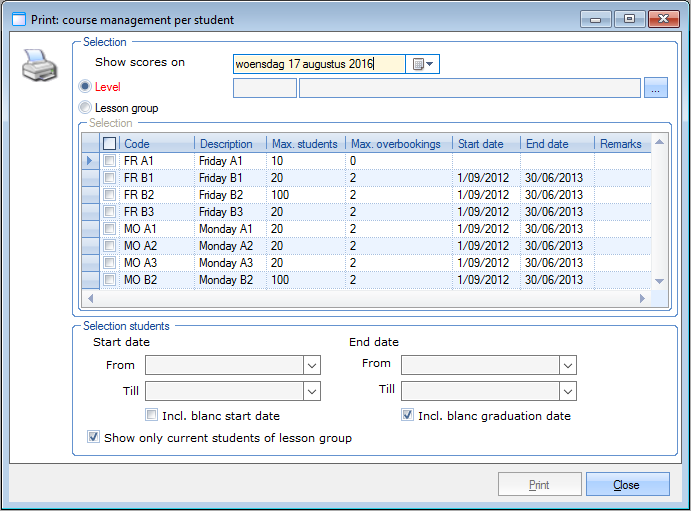 |
You can choose to call up the report for a specific level or for one or several specific lesson groups. Moreover, you can specify some details concerning the data to be visualised.
If you have filled in all required selection criteria, click Print to generate the report.
 |
Students present
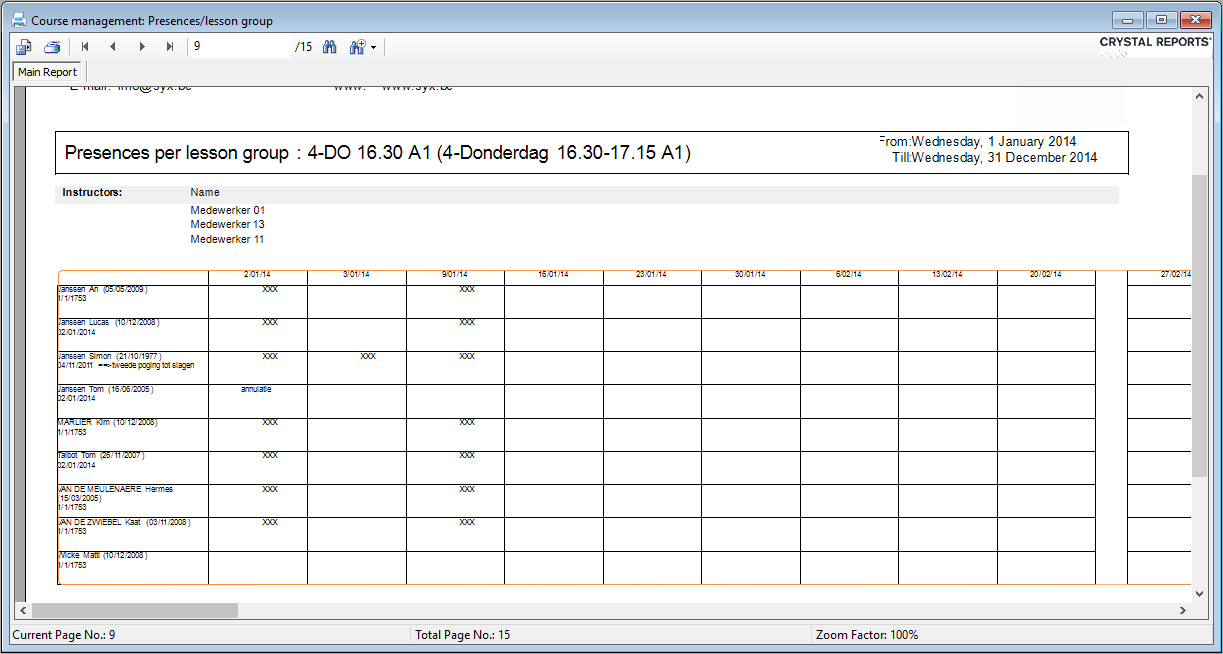
The report Students present offers an overview of all presences for one or several selected lesson groups within a certain period.
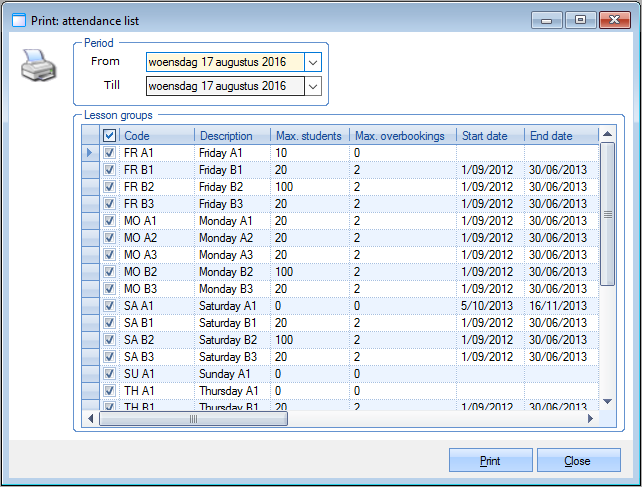 |
If you have filled in all required selection criteria, click Print to generate the report.
 |
Students absent
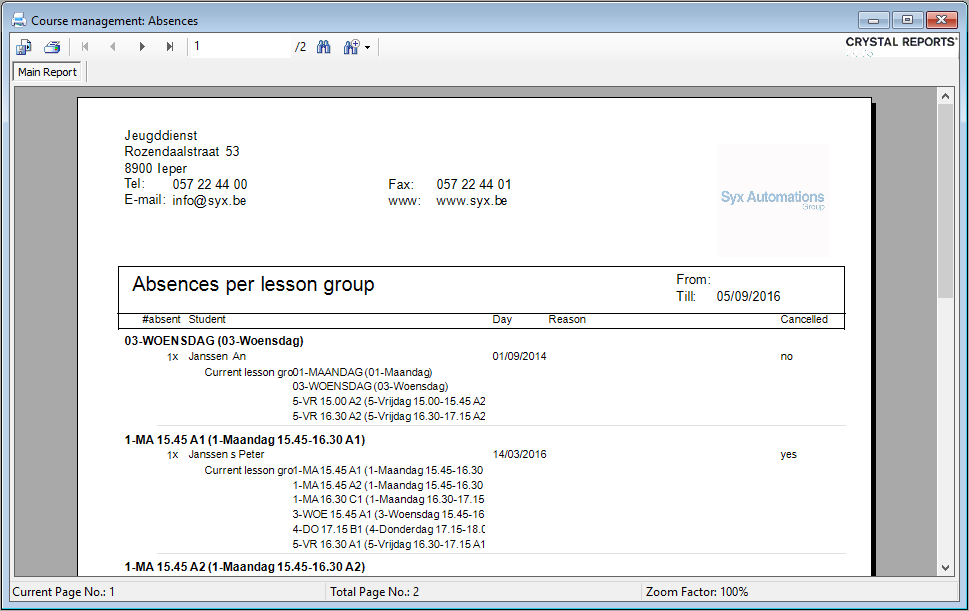
The report Students absent offers an overview of all absences for one or several selected lesson groups within a certain period.
Go to Course management > Reports > Students absent.
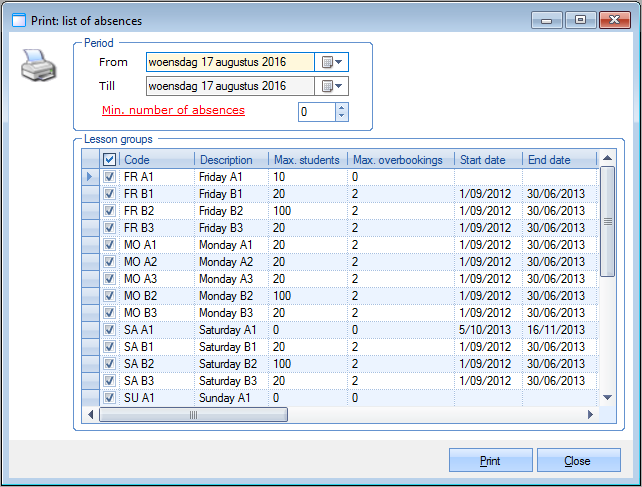 |
If you have filled in all required selection criteria, click Print to generate the report.
 |
Performances per student
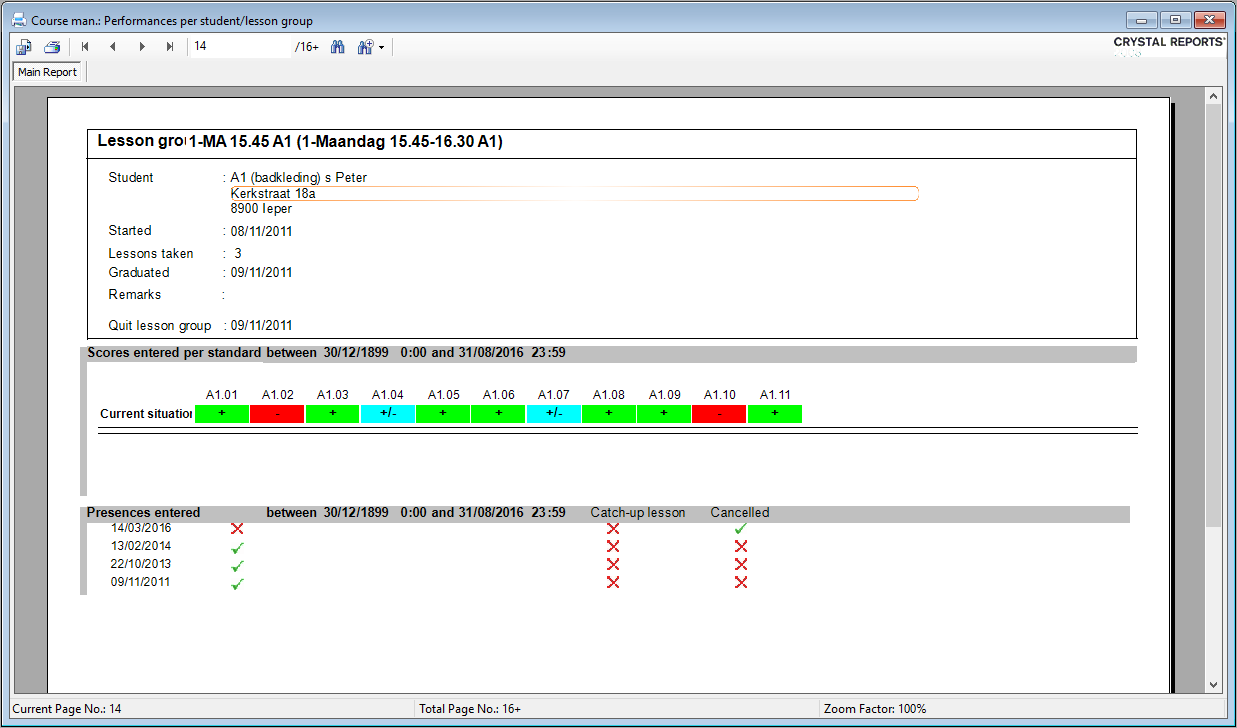
The report Performances per student offers an overview of all performances per student or per lesson group, based on the selection criteria you have filled in.
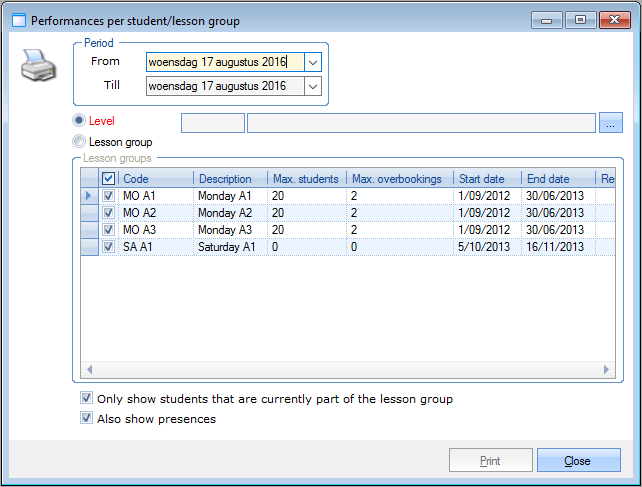 |
You can define the period and choose the level or lesson group(s) of which you want to see the performances. Moreover, you can choose to include only those students that are currently part of the lesson group and to show presences.
If you have filled in all required selection criteria, click Print to generate the report.
 |
Diplomas
The report Diplomas allows you to print all the diplomas of one or all students that obtained the given diploma within a certain period.
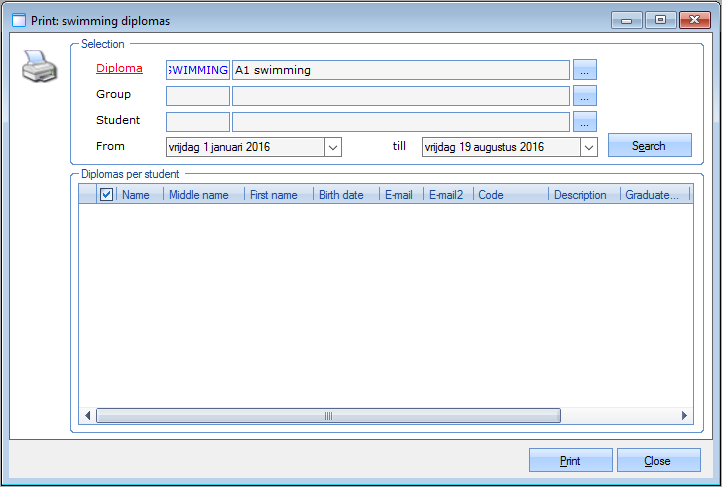 |
In addition to the diploma – that is obligatory – you can also specify the lesson group, student and period of which you want to call up the diplomas. If you have filled in all required selection criteria, you have to click the button Search after which all students that meet the given selection criteria will be listed in the section Diplomas per student.
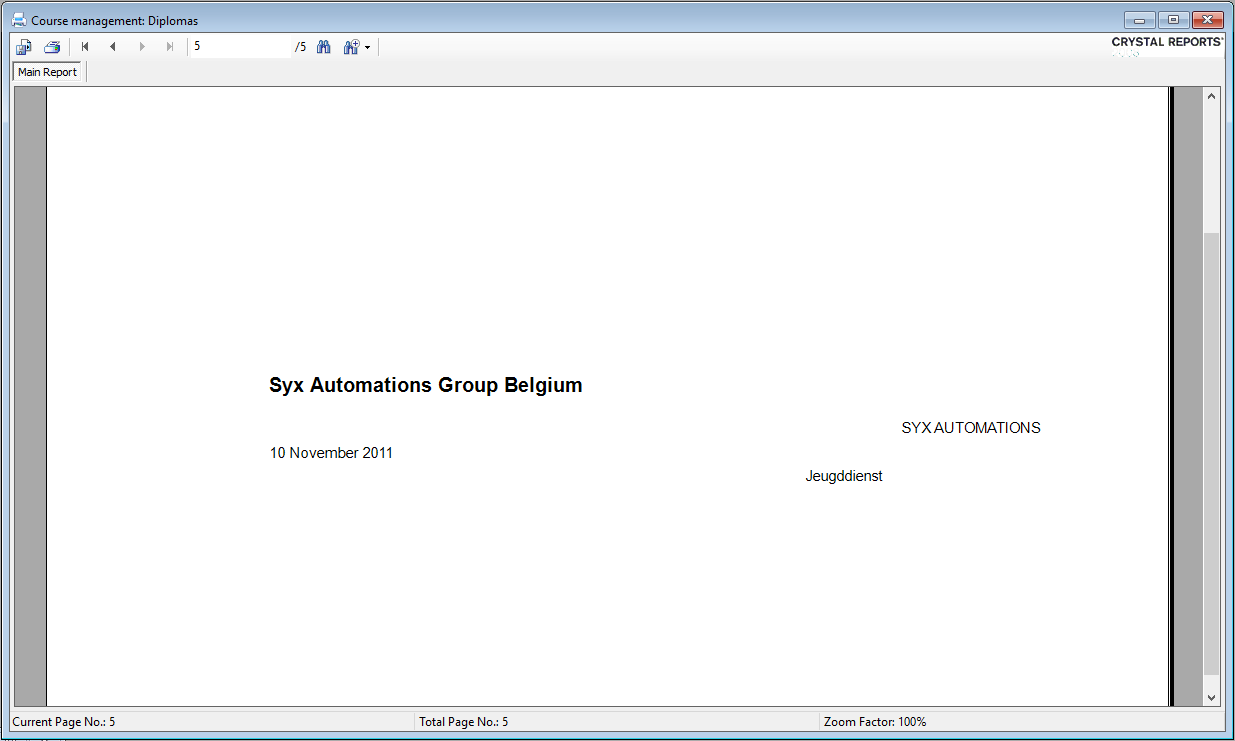
Select the diplomas you want to print and click Print to generate the desired diplomas.
 |
Warnung
The report shown is only a template that you can modify according to the diploma forms used.
Course management per level
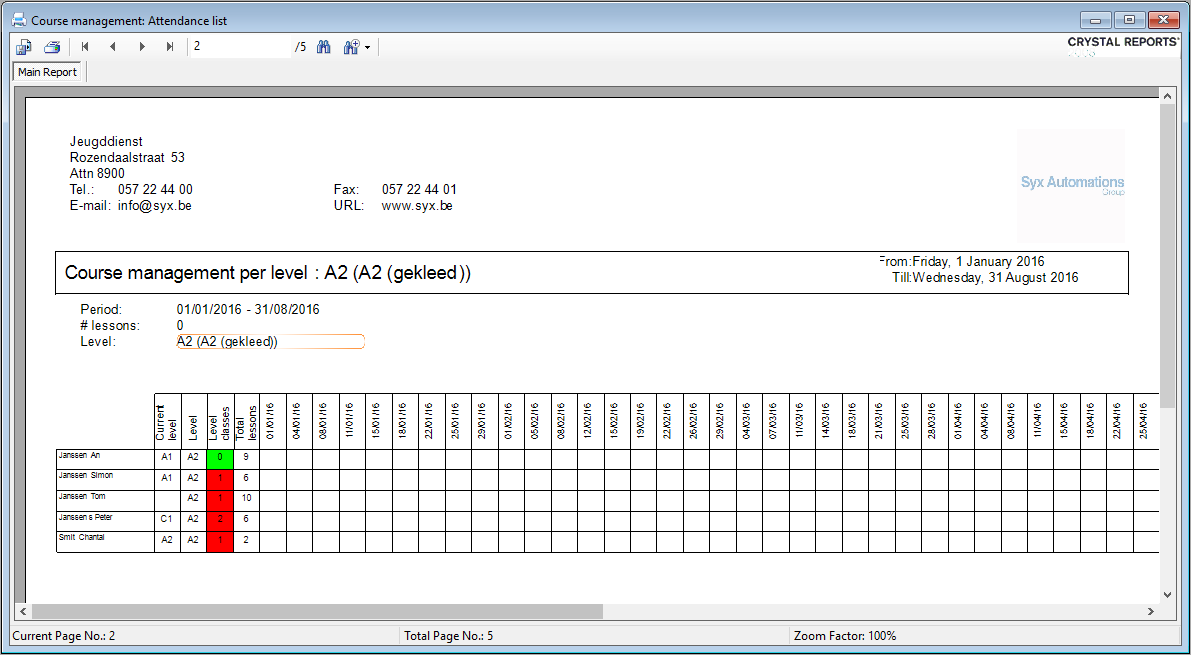
The report Course management per level offers an overview of the current level, the number of lessons per level, the total number of lessons and the presences per student per level for one or several selected levels within a certain period.
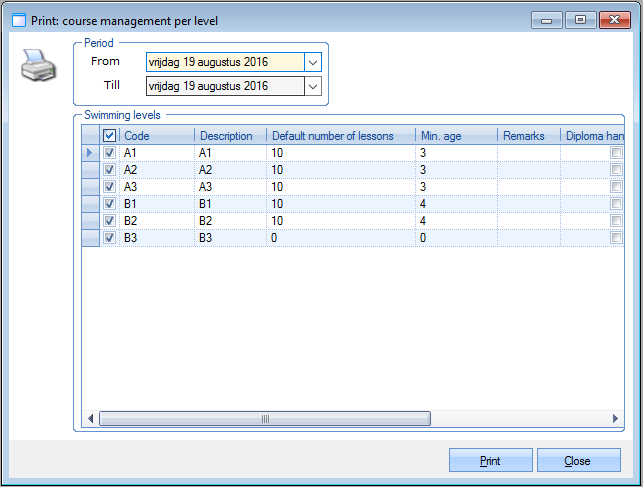 |
If you have chosen the period and selected the levels of which you want the consult the course management list, click Print to generate the report.
 |
Anmerkung
The red or green colour indicates if the student has exceeded the preset number of lessons for the current level or not.
Course management history
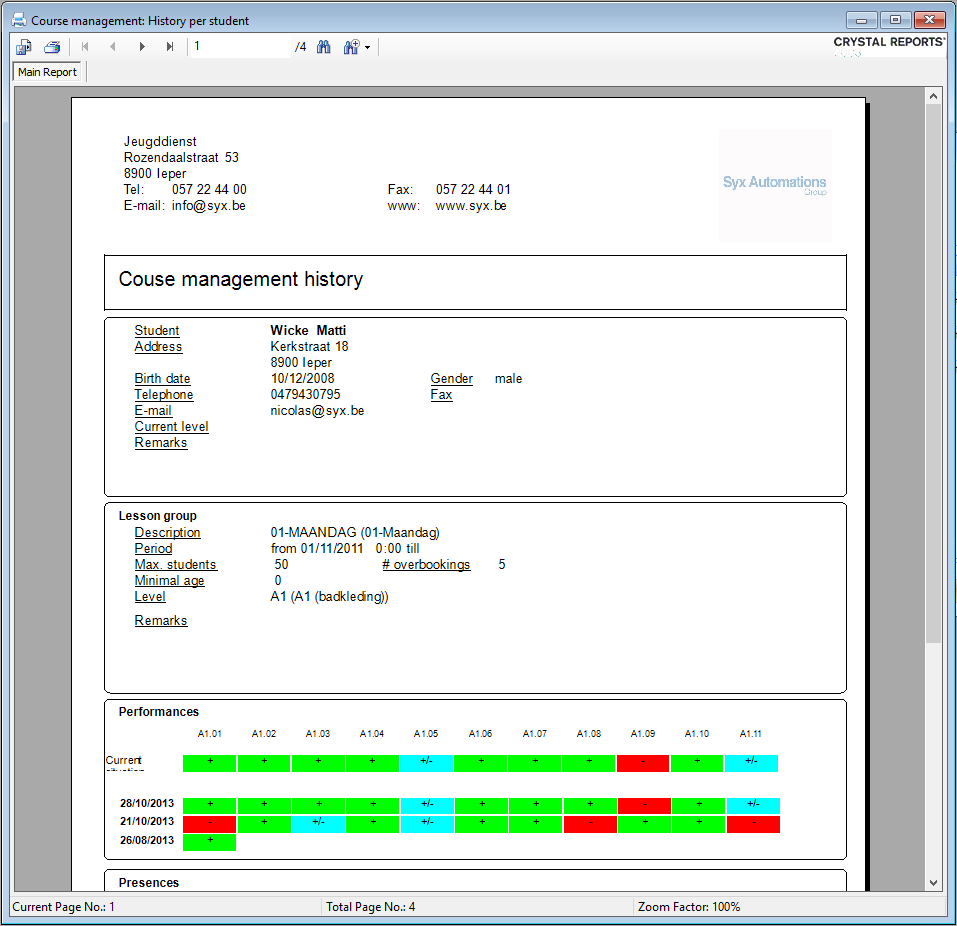
The report Course management history offers an overview of all course management information (student info, lesson info, performances and presences) for one specific student, based on the selection criteria you have filled in.
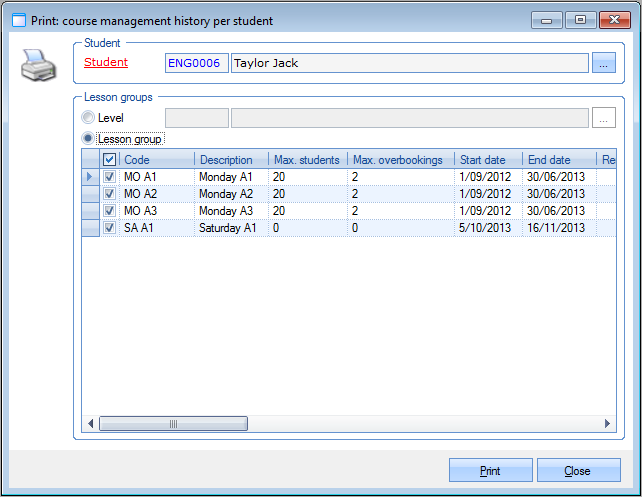 |
Select the student and the level or lesson group(s) of which you want to call up the course management history and click Print to generate the report.
 |
Anmerkung
The lesson scores are visualised in the colours green (sufficient), blue (almost sufficient) and red (insufficient).
Longer in lesson group than intended
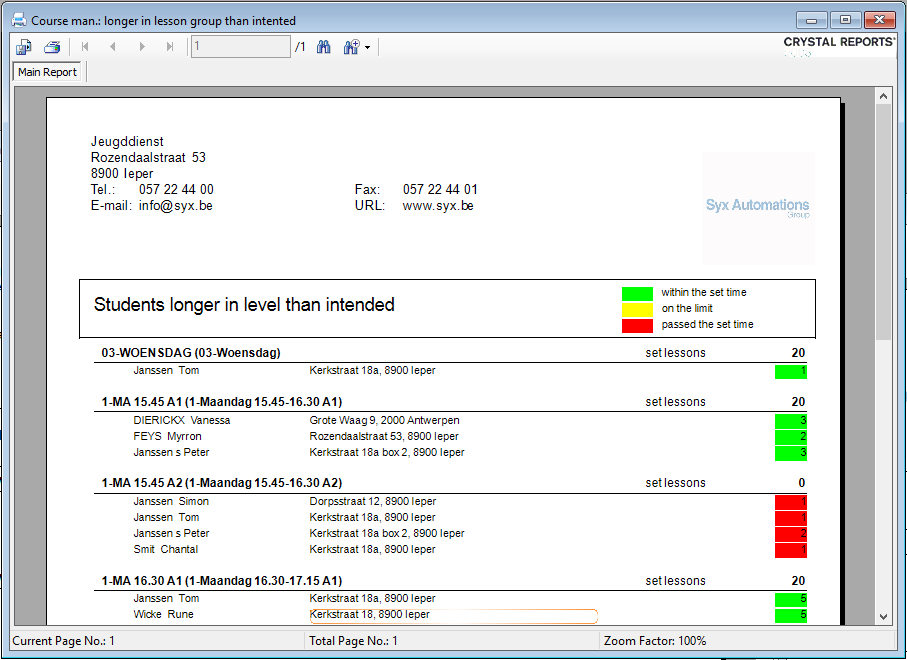
The report Longer in lesson group than intended offers an overview of all students per lesson group that took more lessons than initially intended, based on the selection criteria you have filled in
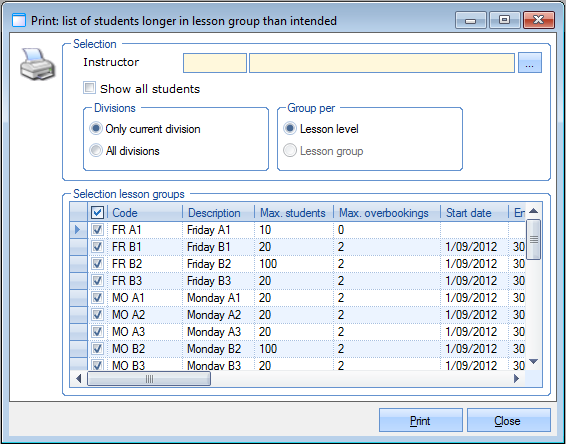 |
You can call up the list for a specific instructor, for the current division only or for all divisions and indicate which lesson groups you want to include in the report. Moreover, you can choose to group the list per level or per lesson group. If you have filled in all required selection criteria, click Print to generate the report.
 |
Lesson group articles sold per student
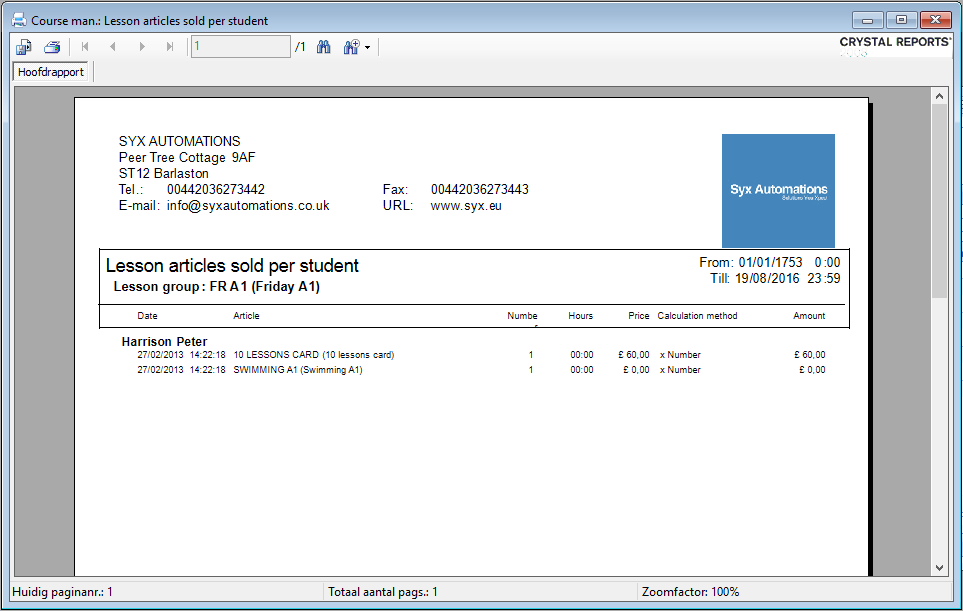
The report Lesson group articles sold per student offers an overview of all lesson group articles sold/renewed to students of a certain lesson group within a certain period.
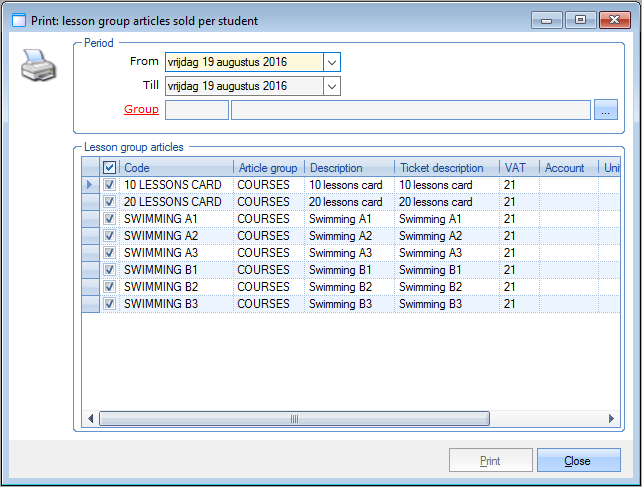 |
Fill in the period and lesson group of which you want to call up the articles sold and indicate which lesson group articles you want to include in the report. If you have filled in all required selection criteria, click Print to generate the report.
 |
Students per level
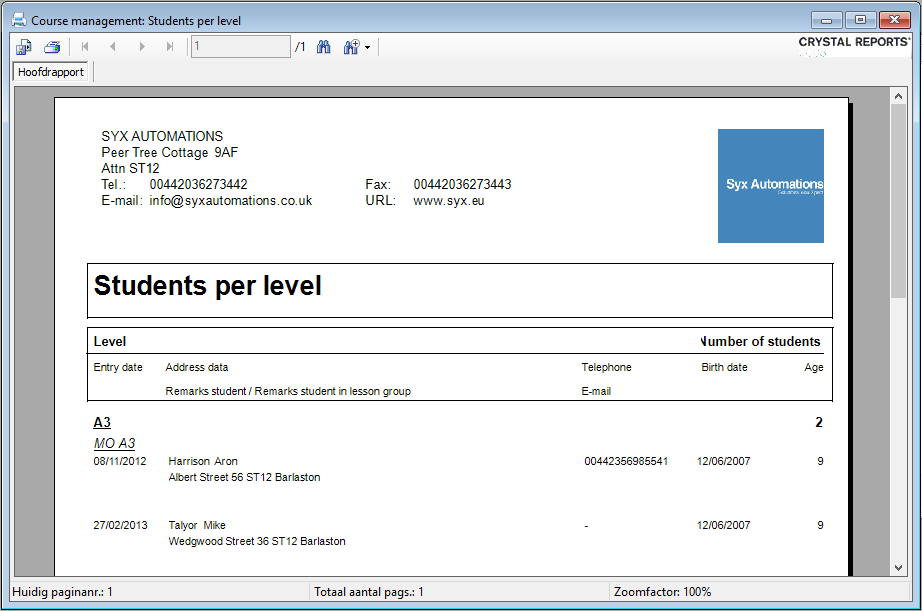
The report Students per level offers an overview of the number of students of a certain level.
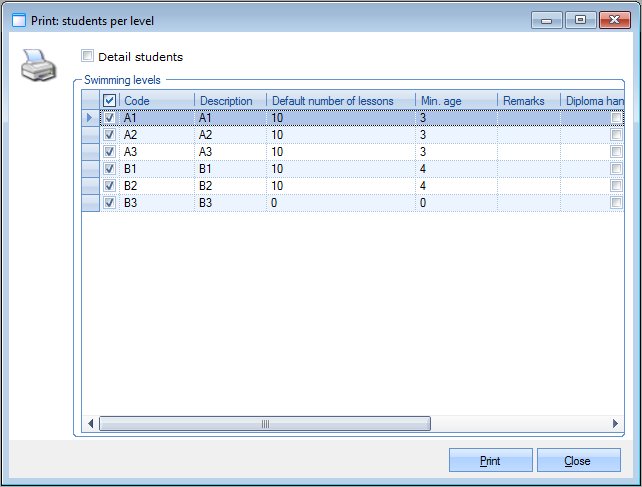 |
Tick the swimming levels of which you want to see the number of students and indicate if you want to include the details of the students or not. If you have filled in all required selection criteria, click Print to generate the report.
 |
Registration certificates
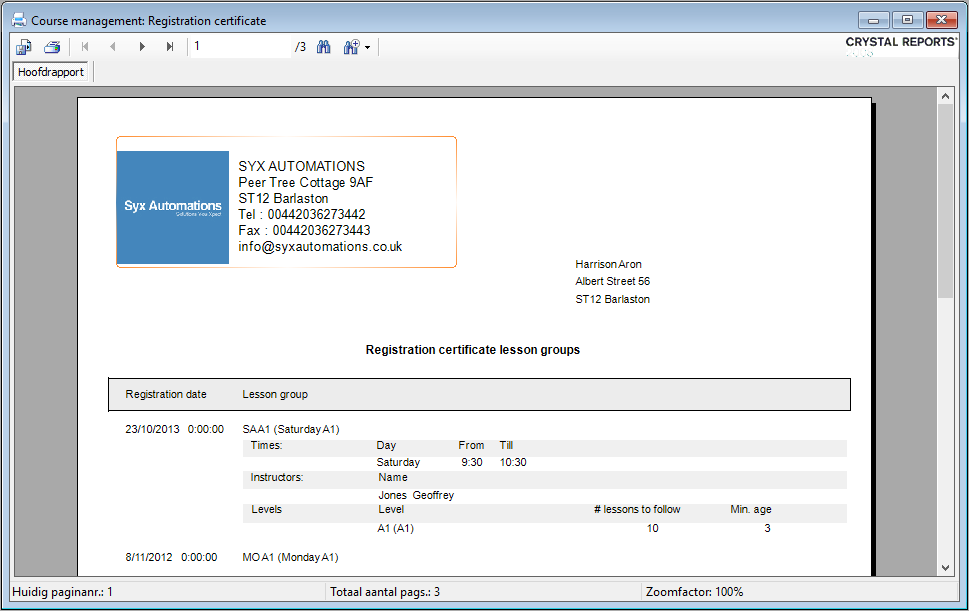
It is possible to print all registration certificates of all students that are registered for a certain lesson group.
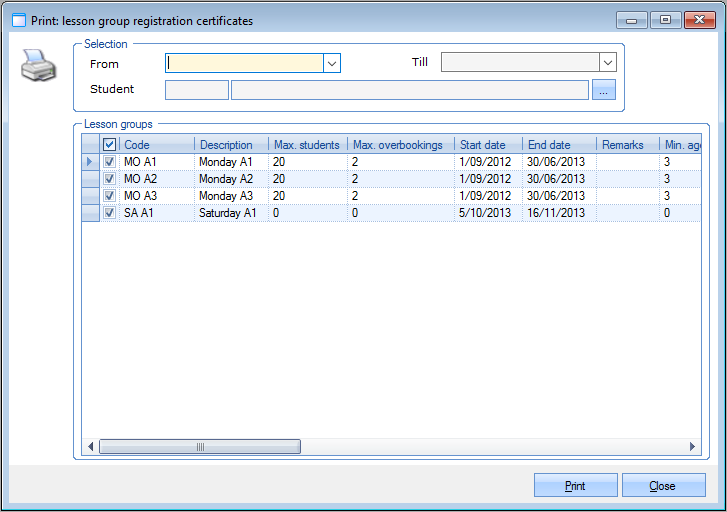 |
You can select the period, the student and the lesson group(s) of which you want to generate registration certificates.
If you have filled in all required selection criteria, click Print to generate the certificates.
 |
Preferred lesson groups
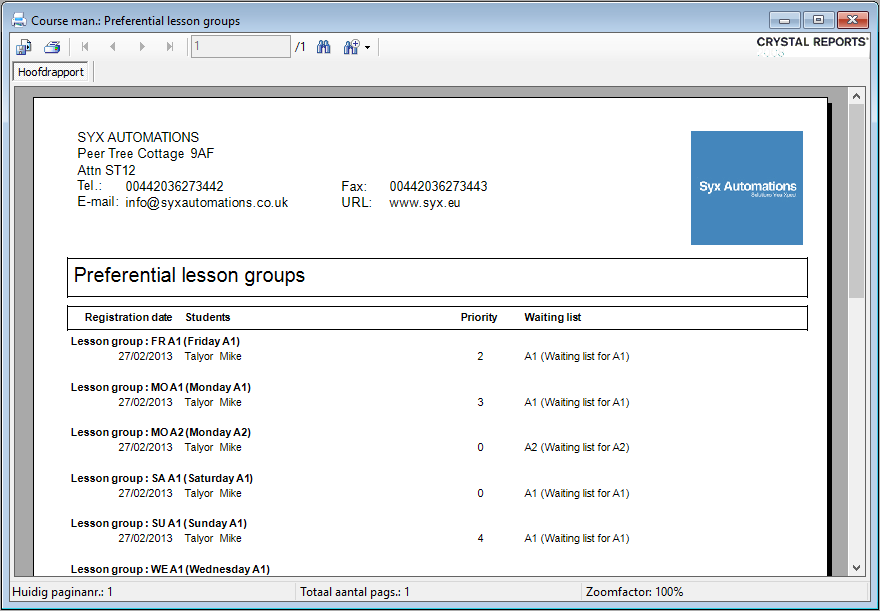
The report Preferred lesson groups allows you to call up a list of preferred lesson groups, based on the selection criteria you have filled in.
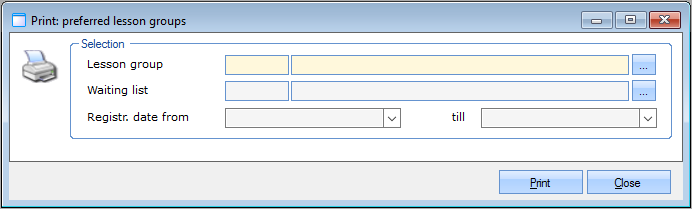 |
You can choose the lesson group, waiting list and registration period of which you want to see the list of preferred lesson groups. If you have filled in all required selection criteria, click Print to generate the report.
 |
Lesson time per diploma
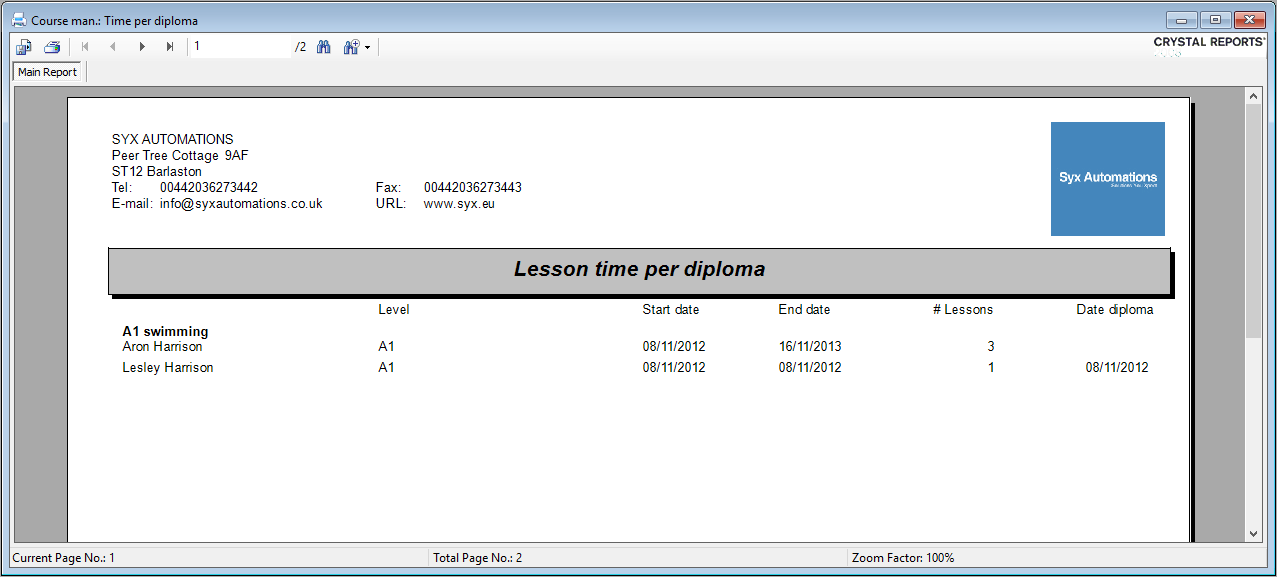
The report Lesson time per diploma gives you an overview of the lesson times per diploma, based on the selection criteria you have filled in.
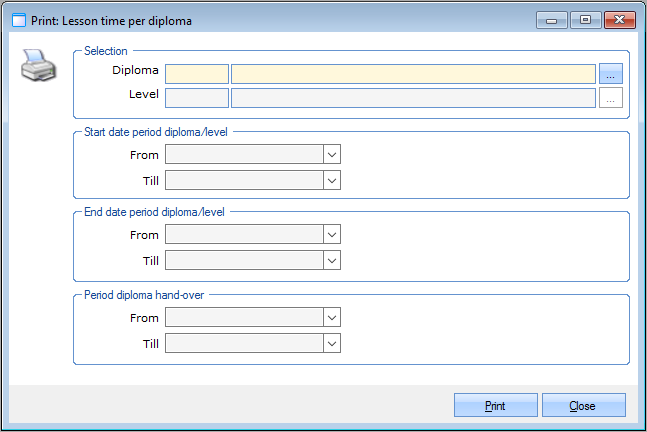 |
You can choose the diploma and level of which you want to see the lesson times, a period of which you want to see the lesson times and a period during which the diploma was handed over.
If you have filled in all required selection criteria, click the button Print to generate the report.
 |