Finding and managing settings
The F&B Manager provides two quick ways to locate and adjust settings without navigating through the full menu structure: the Search bar and the AI assistant.
Search bar
The search bar is available in the top bar of the F&B Manager. Use it to quickly find any setting by name instead of browsing through the setting categories manually.
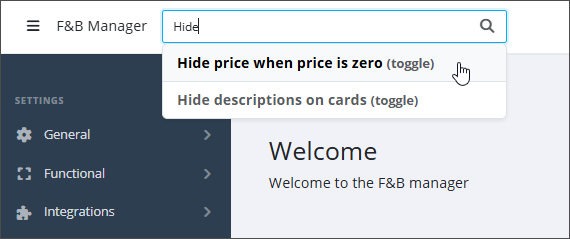
Click the relevant setting in the results to navigate directly to that setting's page.
The search looks for setting labels only (the names you see on screen), not internal or database values.
Search results are filtered based on the application type you are currently managing. For example:
When working on an Order Kiosk application, only kiosk-related settings appear in the results.
When working on an Order App, only the app-related settings are shown.
This ensures you only see settings that are relevant to the application you are configuring.
The search bar is only available on tablet-sized screens and larger. On mobile devices, use the AI assistant to find and manage settings instead.
Support assistant
The F&B Manager includes a built-in support assistant that lets you quickly find and update settings directly from the home screen, without navigating through multiple pages.
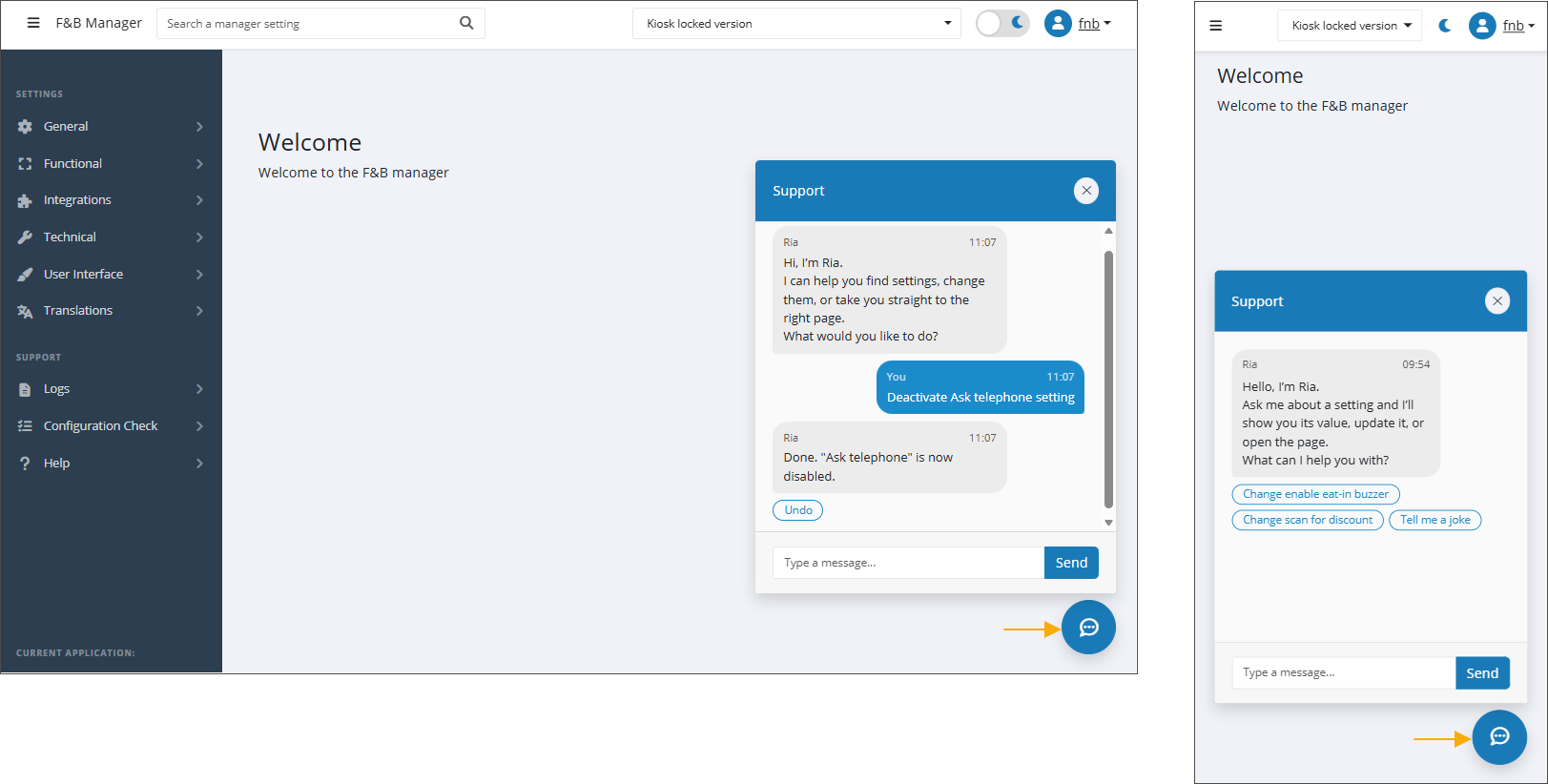
Open the chat from any page by clicking the chat icon in the bottom-right corner.
Ask questions in natural language:
Search for specific settings
Enable or disable settings.
Undo changes you have just made through the chatbot.
The assistant works within the context of the currently selected application type (Kiosk or App), just like the search bar.
All changes made through the assistant are logged under Logs > Settings changed, allowing you to review and track modifications at any time.
The assistant is available on all screen sizes, including mobile devices.