Release highlights
General (Employees)
Task planning and follow-up
Graphic overview of tasks: Visualise employee availability
The Graphic task overview now includes employee availability information, ensuring planners always have an up-to-date view of staff availability during task scheduling.
General > Basic data > Employees > Visualisations > Graphic overview of tasks
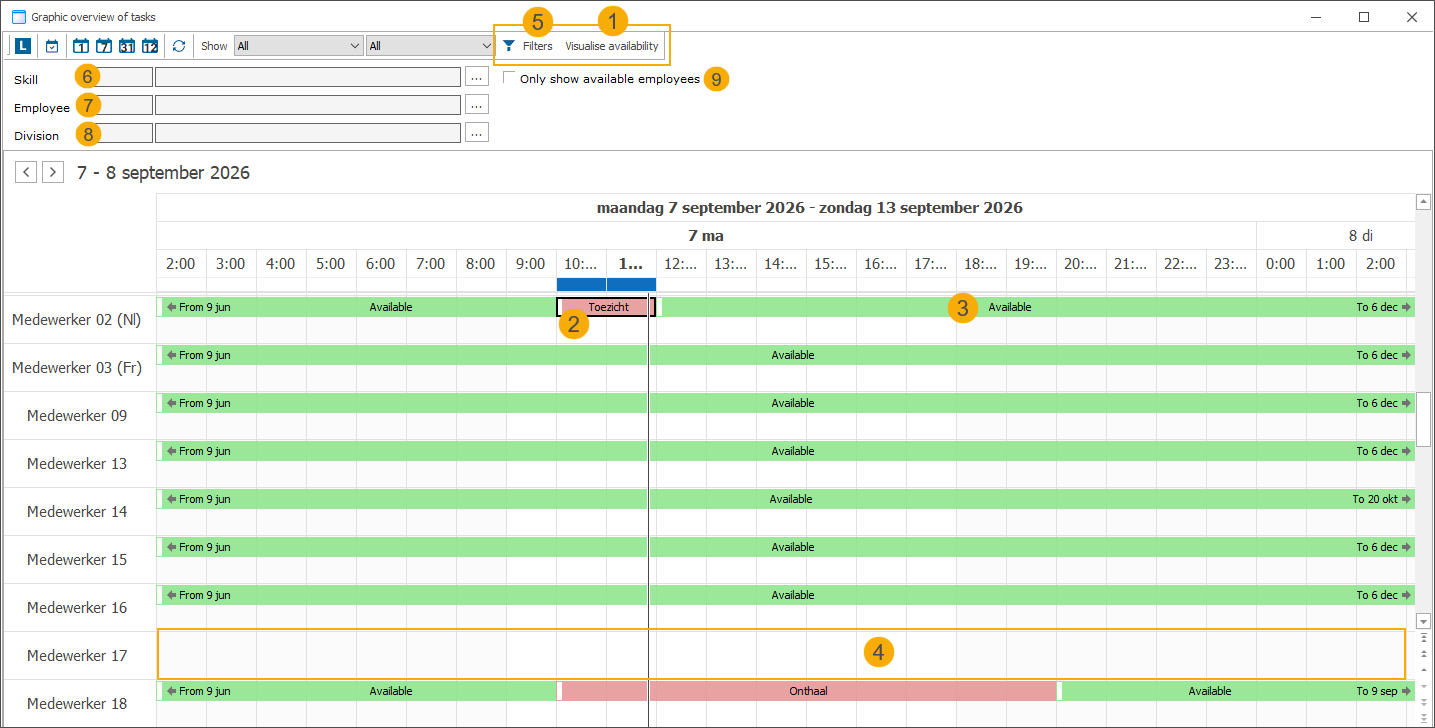
Added as a toggle button in the top toolbar. (1)
When enabled:
Planned tasks are displayed as red blocks showing the work type description. (2)
Available periods are displayed as green blocks, calculated dynamically based on employees' availability days, leave and work group/work type configuration. (3)
Unavailable periods remain blank. (4)
The toggle state is automatically saved in user settings for future sessions.
The filters panel is toggled via the toolbar (5)
Skill: Filter only employees with the selected skill. (6)
Employee: Filter for a specific employee. (7)
Division: Filter tasks by division of origin (activities, facility bookings, exhibition visits & periods, event file activities, seated ticketing events, rental orders). (8)
Only show available employees: Checkbox to show only employees with at least one available (green) period within the period selected in the overview. (9)
The Only show available employees setting is saved per user. Active filter selections are cleared when the screen is reopened.
Textual overview of tasks: Enhanced task visualisation and extended filtering
The Textual overview of tasks now includes a separate Detail panel showing information about the original record from which the task was created, with the option to open that record directly. Additional filtering capabilities also help planners find and manage tasks more efficiently.
General > Basic data > Employees > Visualisations > Textual overview of tasks
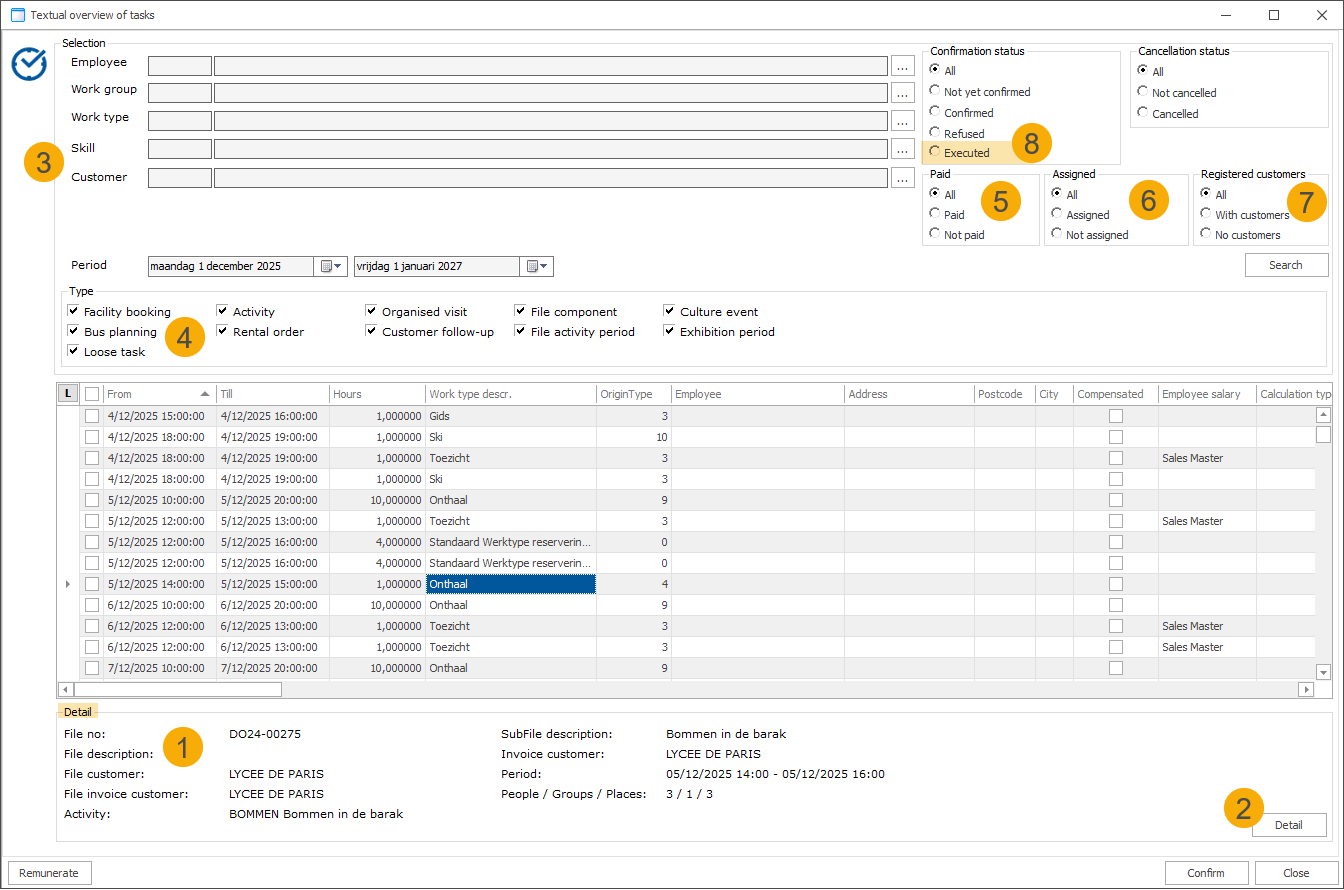
When you select a task in the overview, a new Detail panel (1) displays key information about the source record from which the task was created (facility booking, rental order, file component, activity day, exhibition visit, etc.).
You can open the related record directly using the Detail button (2) on the panel.
Skill and Customer look-up boxes (3): Filter tasks by required skill or associated customer.
Type (4): Filter tasks by the type of record the task was created for, such as a facility booking, rental order, exhibition visit, etc.
Additional task status filters
Paid (5), Assigned (6), Registered customers (7): Filter tasks by payment status, assignment status, and customer registration status. By default, all tasks are displayed, allowing you to narrow the results to matching tasks only.
The Executed (8) status has been added to the Confirmation status filter, ensuring all available confirmation statuses can be included in the results.
Task planning: Combine tasks from selected workgroups into a single overview
Previously, each selected workgroup appeared on a separate tab. With the new Overlay workgroups option, you can switch between the traditional tab-based view and a single Outlook-style timeline that combines tasks from all selected workgroups.
General > Basic Data > Employees > Visualisations > Task planning
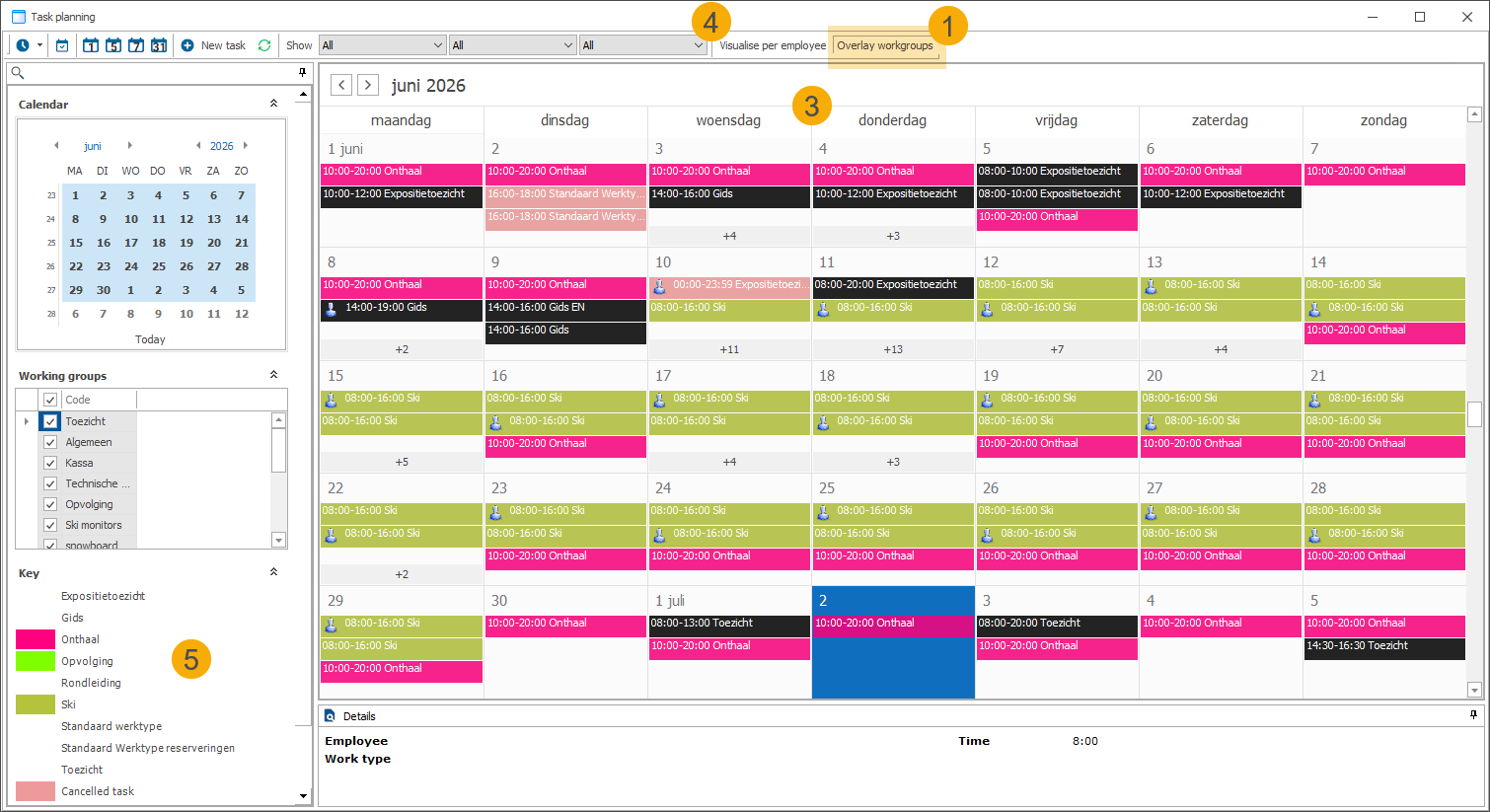
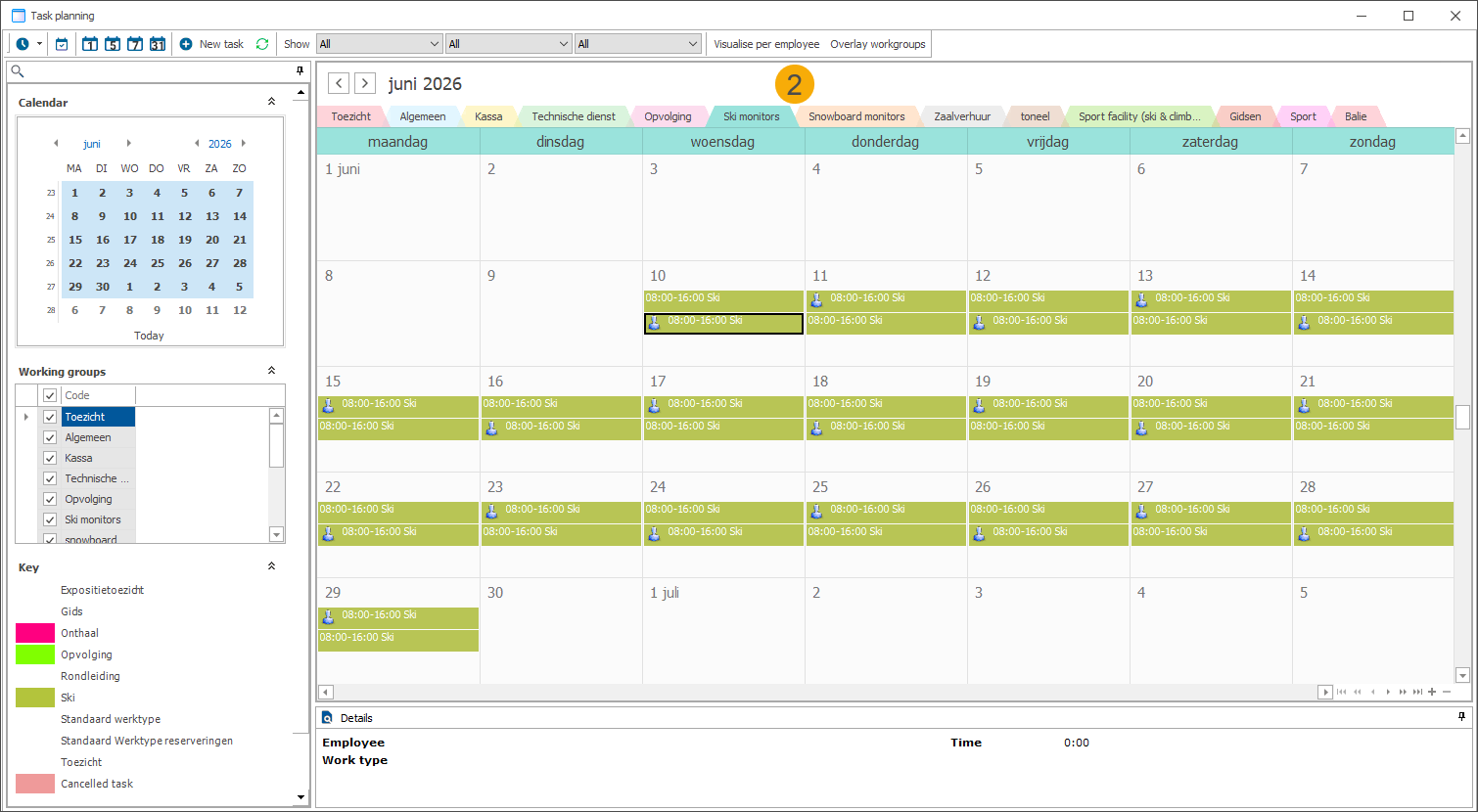
Use the new Overlay workgroups toolbar button (1) to switch between the original tab-based view (2) and a single timeline showing tasks from all selected workgroups (3).
Only available when Visualise per employee is disabled. (4)
Your preference is automatically saved and restored the next time you open the screen.
Colours used in overlay mode can be defined in General > Parameters > tab Employees. In the section Task calendar, choose which colour scheme is used to display tasks:
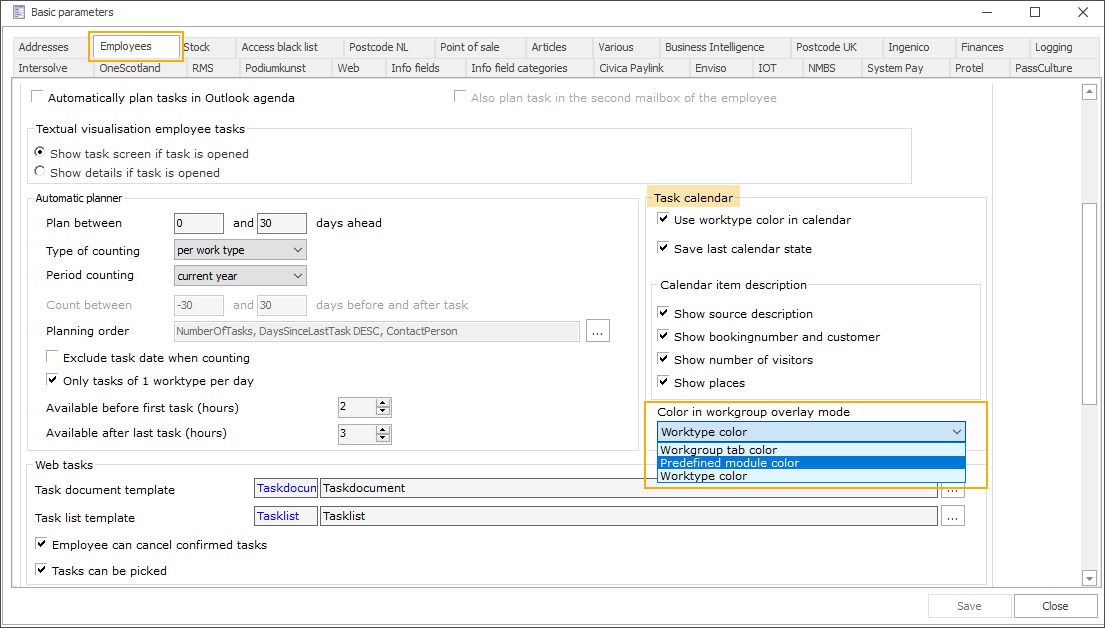
Workgroup tab colour: Uses the colour assigned to the corresponding workgroup tab.
Predefined module colour: Uses the predefined colours assigned to tasks based on their originating module.
Work type colour: Uses the colour configured for the task's work type.
The on-screen legend automatically reflects the selected colour mode. (5)
Web (TaskFlow)
Hide unavailable activities from Webshop while keeping them in TaskFlow
A new Webshop Manager setting automatically hides activities from the Webshop overview once registrations or sales are no longer possible, ensuring customers only see activities they can still book. The activities remain available in TaskFlow, allowing assigned instructors to track attendance and follow up on tasks.
New setting in Webshop Manager Show only activities for which the final subscription date has not yet passed under Activities > Settings > Overview settings section (disabled by default).
Activities are automatically hidden from the Webshop overview once any of the following conditions are met:
the activity has ended (End date)
the online sales period has ended (Web sales till)
the registration deadline has passed (Ultimate reg. date)
TaskFlow: Activities remain available, allowing assigned teachers to track attendance and follow up on tasks.
API: Visualise employee's phone number in TaskFlow
TaskFlow can now retrieve and display employee information directly from the employee record, including the primary phone number, making it easier to contact assigned employees when needed.
The employee's primary phone number is displayed alongside their name, with visibility controlled through the TaskFlow settings.
Employee details are retrieved directly from the employee record in Recreatex.
Additional employee information can be added in the future with minimal development effort.