Processing
Course management tool
This tool lets instructors track attendance, update lesson scores, and reschedule students within lesson groups.
To access the tool, go to Swimming courses > Processing > Course management tool.

In the Selection section at the top of the screen, choose the relevant criteria, such as lesson group, student, instructor, and date.
The system automatically displays all students who match your selection.
Under the tabs Enter scores and Overview of obtained scores, you can view and manage student attendance and lesson scores.
The Sign-out and Catch-up functionality allows you to sign out students from a lesson day and reschedule them for another day.
Manage attendance and lesson scores
Instructors can track attendance and record lesson scores per individual student for each lesson day. This functionality provides an overview of progress, attendance history, and graduation status.
Go to Swimming courses > Processing > Course management tool and select the tab Enter scores;

Current situation (1)
Displays the most recently entered lesson scores for the selected student.
Visit registration (2)
A coloured circle icon on the left indicates whether a visit was registered: green (visit registered after passing the Recreatex access control) or red (no visit registered).
Started (3)
Shows the date when the student was first registered for a waiting list or lesson group.
Present (4)
Allows the instructor to mark attendance.
Reason (5)
If a student is absent, the instructor can select a reason from a predefined list. These reasons are configured in Recreatex, under General > Settings > Reasons.
Lesson score per standard (6)
The instructor can enter scores for each student and for each standard required for students to obtain the target level. Available score types (7) include: Insufficient, Almost sufficient and Sufficient and are displayed as icons for easier visual interpretation.
Graduated (8)
When a student obtains a sufficient score for all required standards and a graduation date is entered, their current level will automatically update to the level of the lesson group.
Go to Swimming courses > Processing > Course management tool and select the tab Overview obtained scores to consult previous lesson scores.

Sign out and reschedule students for lesson days
The Course management tool provides an integrated functionality that allows students and instructors to manage lesson attendance and rescheduling across multiple Recreatex components: Recreatex Backoffice, Recreatex Webshop, and Recreatex LLV Instructor website
The functionality supports the following actions:
Unsubscribe from lessons and register for catch-up lessons.
Automatically assign credits to students when they unsubscribe from the lesson.
Use credits to register for another day in a lesson group of the same level.
Check lesson group capacity when registering for a catch-up lesson.
The next chapters are dedicated to the Backoffice part of this functionality.
Configuration
If your students need to pass through access control to enter the facility, create a dummy membership article for catch-up lessons with the following configuration:
Navigate to General > Basic data > Articles > Articles, then open the detail of the relevant article or create a new one for this purpose.
Under the tab Types set this article as both a Membership article and a Lesson group article.
Under the tab Lesson groups, select all relevant lesson groups.
Link this article in the Course management parameters as described in step 2.
Link this article as described in step 2.
Navigate to Swimming courses > Parameters and under the tab Sign out / Catch up define the following parameter

Section Sign out (1)
Allowed credits per cancellation
Limit to sign out (hours)
Maximum amount of credits per person
Section Catch up (2)
Membership article for access on catch-up lesson
Select the article you created in step 1. When students sign up for a catch-up lesson, a one-time access membership based on this article will be generated and added to their existing card, giving them access on the day of the catch-up lesson.
Wichtig
When this article is configured, the system also checks whether the student has a valid physical card where the membership can be added.
Sign out students from lessons
To sign out a student from a lesson day, go to Swimming courses > Processing > Course management tool. Then click Sign out at the bottom of the screen.

The Sign out / catch up lesson group screen opens:

Registration: Displays the system-generated date and time stamp of the sign-out. This value cannot be modified.
Action: The Sign-out action type is preselected.
Customer and Sign out lesson grp: Select the customer and the relevant lesson group. The Total # credits field displays the customer’s current credit balance.
Anmerkung
If you have selected the student and lesson group in the Course management tool screen, these fields will be prefilled.
Sign out lesson day: Choose the day for which you want to unsubscribe the selected student.
Optionally, select a Reason from the available list and provide additional explanation in the Remark text field.
Click Save to confirm the sign-out and then Close to return to the Course management tool screen.
Credits are automatically applied when the change meets the predefined parameters, and the unsubscribed student appears in light grey in the Course management tool.

Register students for catch-up lessons
To register for a catch-up lesson, the following conditions must be met:
Sufficient credits available: Credits are granted when students unsubscribe from lessons on time. The sign-out deadline and the number of credits granted are defined in Sign out/Catch up parameters.
The selected catch-up lesson must take place on a future date.
The selected catch-up lesson must have the same swimming level as the student's regular lesson group.
There must be enough availability in the selected catch-up lesson.
The selected lesson date must match the times/periods of the selected lesson group
The customer must have a valid membership for the selected day.
To register for a catch-up lesson, go to Swimming courses > Processing > Course management tool. Then click Catch up at the bottom of the screen.

The Sign out / catch up lesson group screen opens:

Registration: Displays the system-generated date and time stamp of the catch-up registration. This value cannot be modified.
Action: The Catch-up action type is preselected.
Customer: Select the customer. The Total # credits field displays the customer’s current credit balance.
Anmerkung
If you have selected the student in the Course management tool screen, this field will be prefilled.
Catch up lesson day: Choose the day for which you want to subscribe the selected student.
Catch up lesson grp: Only lesson groups that match the selected date and meet the above specified conditions are available for selection.
Optionally, provide additional explanation in the Remark text field.
Click Save to confirm the catch-up lesson registration and then Close to return to the Course management tool screen.
Credits are automatically deducted and the catch-up lesson access membership is added to the student's card. The subscribed student appears in green in the Course management tool (2).


Follow-up and overviews
Use the following options in Recreatex to view and follow up on lesson sign-outs and catch-up lesson registrations.
Course management tool: In the tab Enter scores, colour-coded lines highlight customers who have been signed out (light grey) and those registered for a catch-up lesson (green).
Under Swimming courses > Visualisations, you can access two views that provide follow-up information:
In this visualisation, instructors can follow up on sign-outs and catch-up lesson registrations. The available options include:
Filter sign-outs and catch-up lessons registration, and refine the selection by date, lesson group, or individual student.
Add remarks to past-dated records.
Modify or delete records with a date in the future
In this visualisation, you can look up information for an individual student. Under the Presences tab, you can see for which lesson day the student unsubscribed (including the provided reason) and whether they attended a catch-up lesson.
Under General > Basic data > Customers, you can view relevant information for each student in their customer card.
Customer address card: In the Lessons tab, under the Sign out / Catch up subtab, you can do the following:
View sign-outs and catch-up lesson registrations for this student.
Create new records or delete existing ones.
Sign out the student from lessons, register them for a catch-up lesson, or delete records.
Recreatex provides several related reporting options under Swimming courses > Reports, including reports:
Students present
Students absent
Transfers
The transfer window allows you to transfer/move one or several customers from a waiting list/lesson group to another waiting list/lesson group.
Go to Swimming courses > Processing > Transfers.
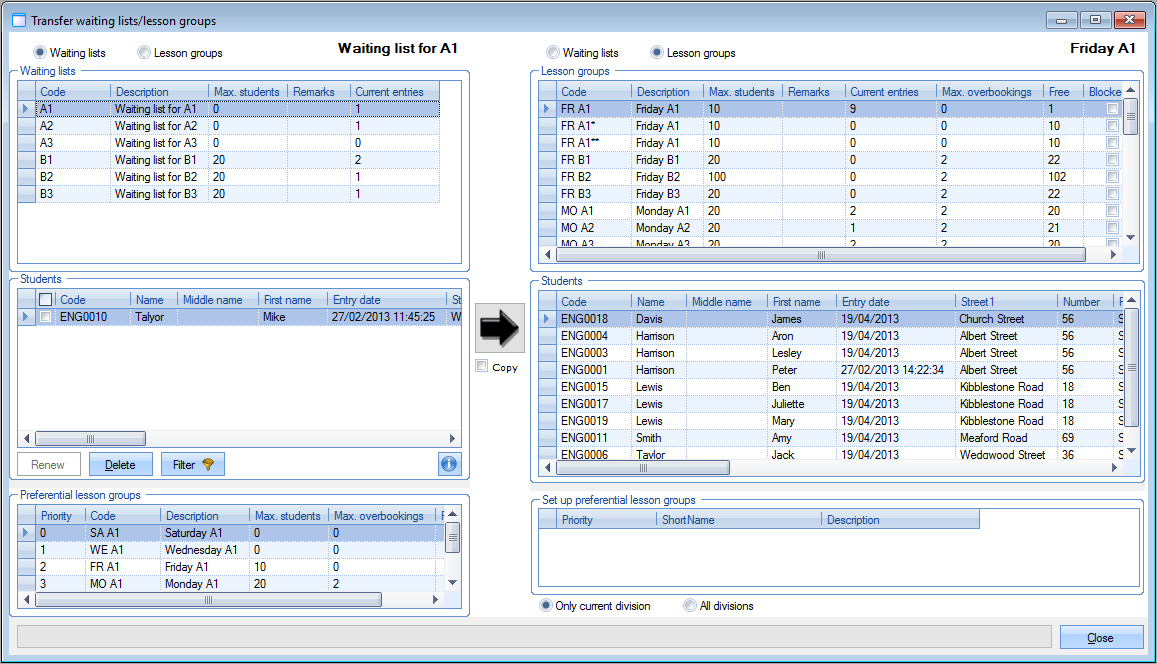 |
In the left part of the window you can:
determine if you want to call up the customers on a waiting list or the participants of a lesson group.
if you select a waiting list, you will see all customers on that waiting list in the section Students and all preferred lesson groups and linked priority of the selected customer on the waiting list in the section Preferred lesson groups.
if you select a lesson group, you will see all participants of the lesson group in the section students.
Since transferring students is always done from the left to the right half, the right half only allows you to:
determine if you want to call up the customers on a waiting list or the participants of a lesson group.
consult all customers on a waiting list in the section Students after selecting the waiting list in question.
consult all participants of a lesson group in the section Students after selecting the lesson group in question.
If you want to move customers, you have to select the desired waiting list/lesson group customer(s) in the left part of the window, while you select the waiting list/lesson group to which the customer(s) has/have to be transferred in the right part of the window. Finally, click on  to effectively move the customer(s).
Warnung
Moving customers/students is always done from the waiting list/lesson group in the left part of the window to the waiting list/lesson group in the right part.
In order to find, transfer and manage lesson group customers more quickly, you can use the following possibilities:
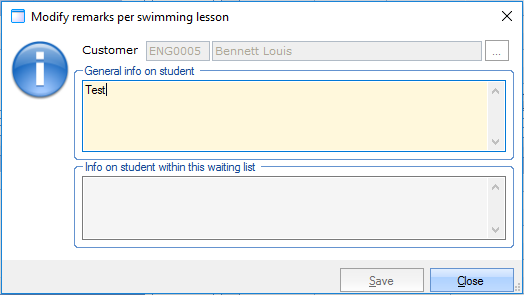
Remark: All students for which waiting list and/or lesson group remarks have already been filled in, are marked in blue.
 |
The waiting list and/or lesson group remarks can always be consulted/modified by selecting the desired customer and clicking on
 .
.
 |
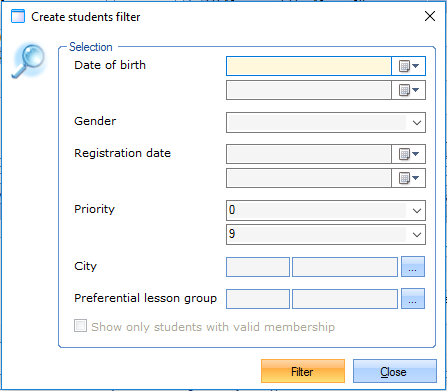
Filter: If you click on the button Filter, you can define a filter using one or several criteria for the customers on a waiting list or participants of a lesson group. If you click on
 you can delete a filter you have applied.
 |
Renew: The button Renew allows you to renew all lesson group memberships, linked to the students in this lesson group, in one go. (see 'Lesson groups > Renew')
Delete: The button Delete allows you to delete all selected (ticked) students in the current waiting list/lesson group.
Anmerkung
Calling up lesson group customers at the cash register is also done using this window, since all required information (preferences, telephone, ...) can be found in this window. When calling up students it is useful to immediately transfer the students to the correct lesson group. In this way, the first lesson card sold is automatically linked to the correct lesson group. (see manual 'POS - Use')
Warnung
If customers that are called up are not immediately transferred to the correct lesson group, you will not only have to indicate the correct lesson group when/after selling the first lesson card, but you will also have to delete the customer from the waiting list. Customers are in fact never automatically deleted from a waiting list when selling a lesson card!
Stickers per student
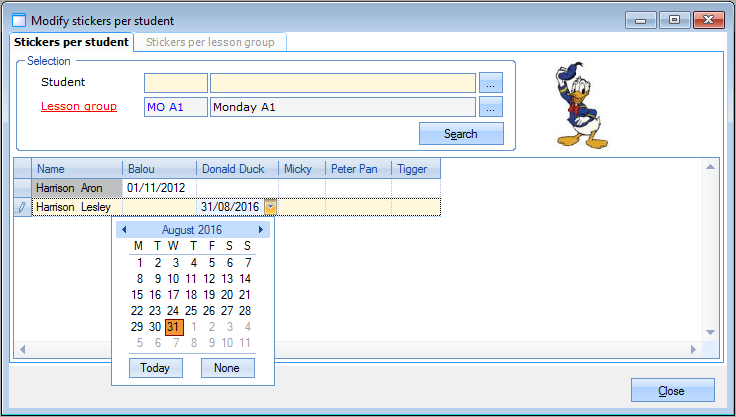
This processing possibility allows you to give one or more stickers to one or more students of a certain lesson group.
Go to Swimming courses> Processing > Stickers per student.
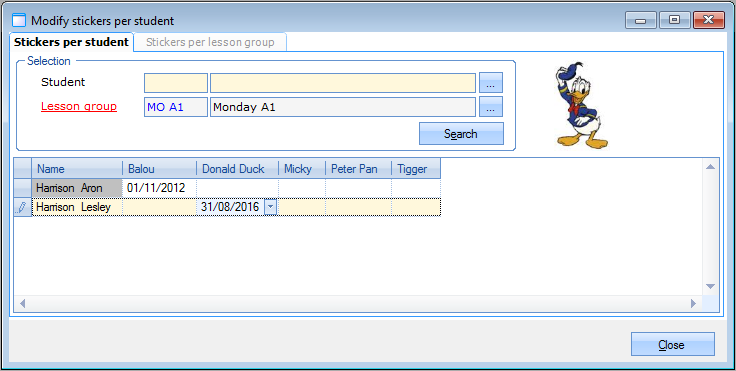 |
In the tab Stickers per student you can attribute/manage individual stickers per student in a certain lesson group. Choose the lesson group and possibly the student of which you want to manage the stickers, then click the button Search. All students that meet the given selection criteria will appear.
You can attribute stickers by clicking on  next to the desired student and the sticker to be attributed and by selecting the date on which the sticker is attributed.
 |
In the tab Stickers per lesson group you can give a certain sticker to several (or all of the) students within a certain lesson group.
Choose the lesson group to which a sticker has to be attributed as well as the type of sticker you want to attribute, then click the button Search. All students that meet the given selection criteria will appear. If you want to, you can also choose a date.
You can effectively attribute the sticker to the desired students by selecting those students and clicking on Apply.
Pre-invoicing
Under Pre-invoicing you can prepare all registrations for waiting lists that have not immediately been recorded for invoicing. All these registrations are in other words recorded as invoice, after which you can effectively invoice the pre-invoiced registrations for waiting lists later using the module Invoicing(see manual 'INVOICING').
Go to Swimming courses > Processing > Pre-invoicing.
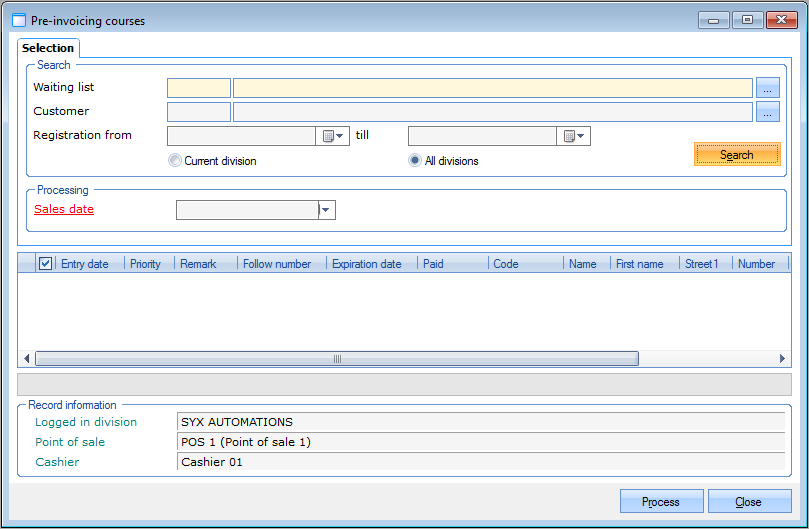 |
In this window, you can call up the registrations for waiting lists to be pre-invoiced by filling in some criteria and clicking on the button Search.
Fill in the sales date, tick the registrations you want to prepare for invoicing and click the button Process. All selected registrations will automatically be pre-invoiced, in other words prepared for effective invoicing by means of Sales > Invoicing > Invoicing.
Sign out/catch up lesson days in batch
This batch processing tool simplifies the management of lesson credits by allowing lesson coordinators to assign or adjust credits for students across multiple lesson groups in a single operation. It reduces administrative overhead and helps maintain accurate, transparent credit handling within Recreatex.
To access the functionality, go to Swimming courses > Processing > Sign out/catch up lesson days in batch

Choose which selection of lesson groups you want to display.
Only current division
All divisions
Specify the relevant lesson groups for the credit assignment.
Click Search to display the list of students in the selected lesson groups.
Use the checkboxes to select all or only specific students who should receive the credit(s).
Enter the credit amount to assign to each selected student for each chosen lesson group. In the field Number of credits, you can enter a positive or negative number:
A positive value will add credits to the students' accounts.
A negative value will deduct credits from the students' accounts.
If a student is signed up for several of the selected lesson groups, credits will be assigned for each group.
Comment: Optionally, provide a comment to clarify the reason for the credit assignment.
Click Assign, then select Yes to confirm and complete the batch credit assignment.
You can view credit adjustments in the following places:
Per student
Open the student's address card and navigate to the Lessons tab. Under Sign out / Catch up you will find all credit changes applied to this particular student.

Per selection
Use the Sign out / catch up lesson days tool available under Swimming courses > Visualisations to filter manual credit adjustments using the filter option Manual registrations.
