Integrations
This page contains several tabs, each corresponding to a different integration.
Recreatex API
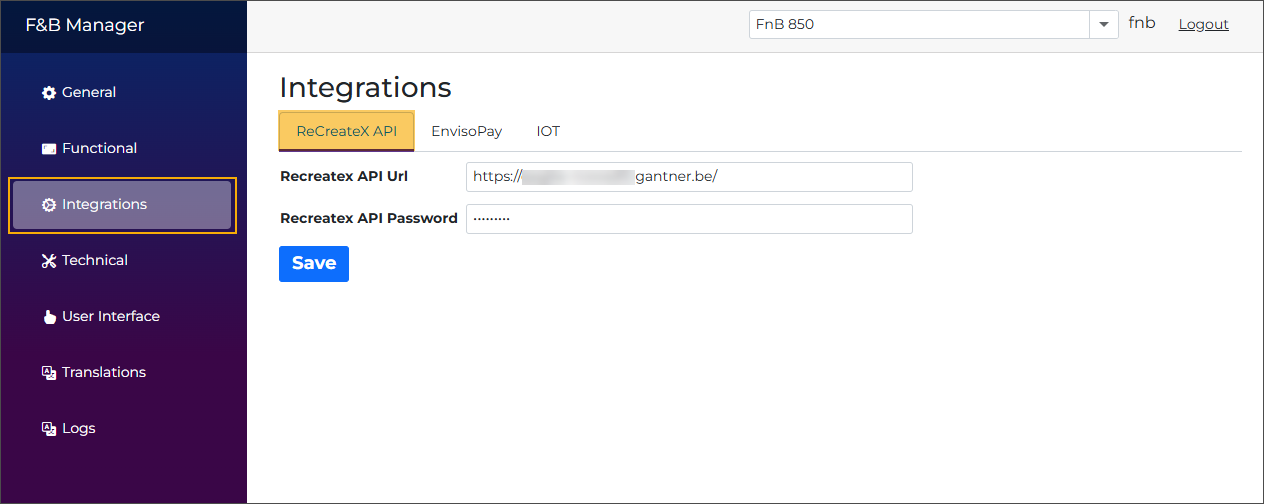
Recreatex API URL
The base URL of the RCX API, ending with a / (e.g., https://localhost:44310/).
Recreatex API Password
The password must match your ShopID.
Enviso Pay
This functionality does not apply to the configuration of Vintia Order Kiosk.
IOT
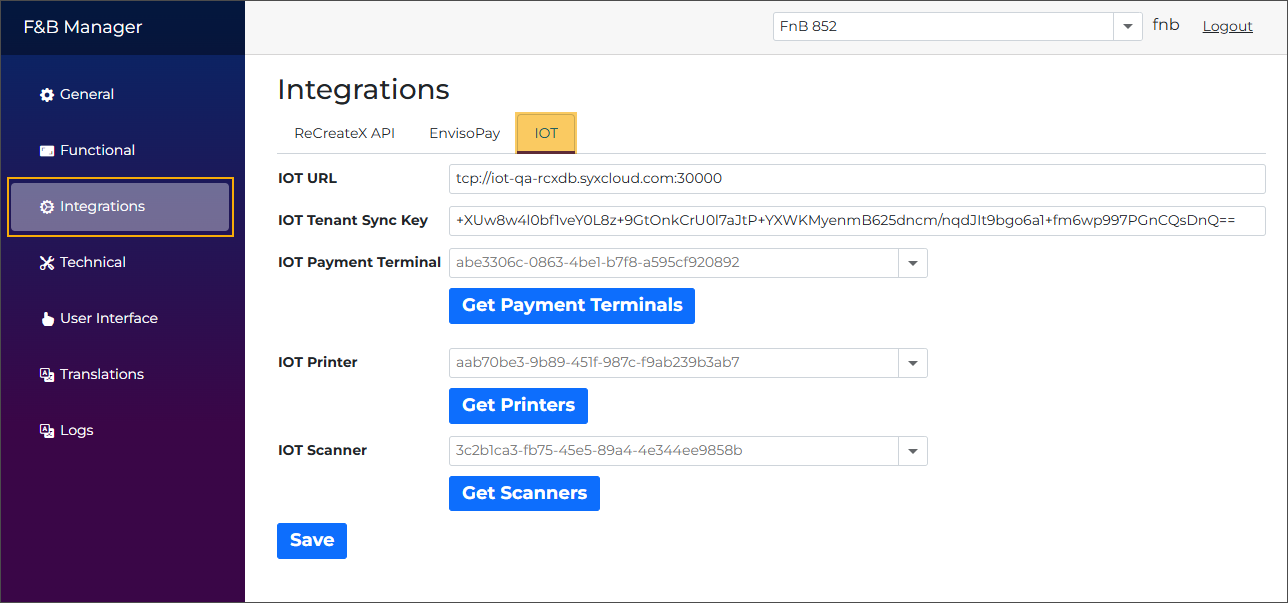
IOT URL
The URL of the Edge platform must include a TCP prefix and a port to function correctly - for example, tcp://iot-qa-rcxdb.syxcloud.com:30000.
IOT Tenant Sync Key
You can find the secret tenant key on the Edge platform under your tenant.
IOT Payment terminal
ID of the discovered payment resource.
Wichtig
If multiple devices are available, ensure you select the one that matches the current kiosk configuration.
Error handling: When the terminal encounters an error (for example, being powered off), the kiosk shows the out‑of‑service page with a clear reason indicating the issue.
IOT Printer
ID of the discovered printer resource.
Wichtig
If multiple devices are available, ensure you select the one that matches the current kiosk configuration.
Error handling: When the printer encounters an error (for example, low or out of paper), the kiosk shows a warning on the payment confirmation page for recoverable issues; for non‑recoverable printer failures, a default printer error is shown on the out‑of‑service page, while the exact error is recorded in the exception logs.
IOT Scanner
ID of the discovered scanner resource.
Wichtig
If multiple devices are available, ensure you select the one that matches the current kiosk configuration.
Error handling: When the scanner encounters an error (for example, being disconnected or unresponsive), the kiosk shows the out‑of‑service page with a clear reason indicating the scanner issue.
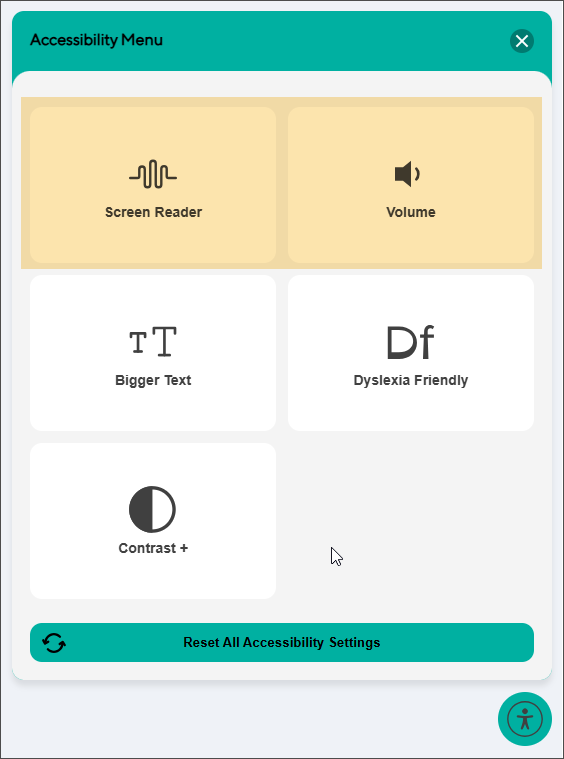
IOT Screen reader
Select a configured screen reader plugin to enable the screen reader and volume control functionality in the kiosk accessibility menu.
Analytics and marketing
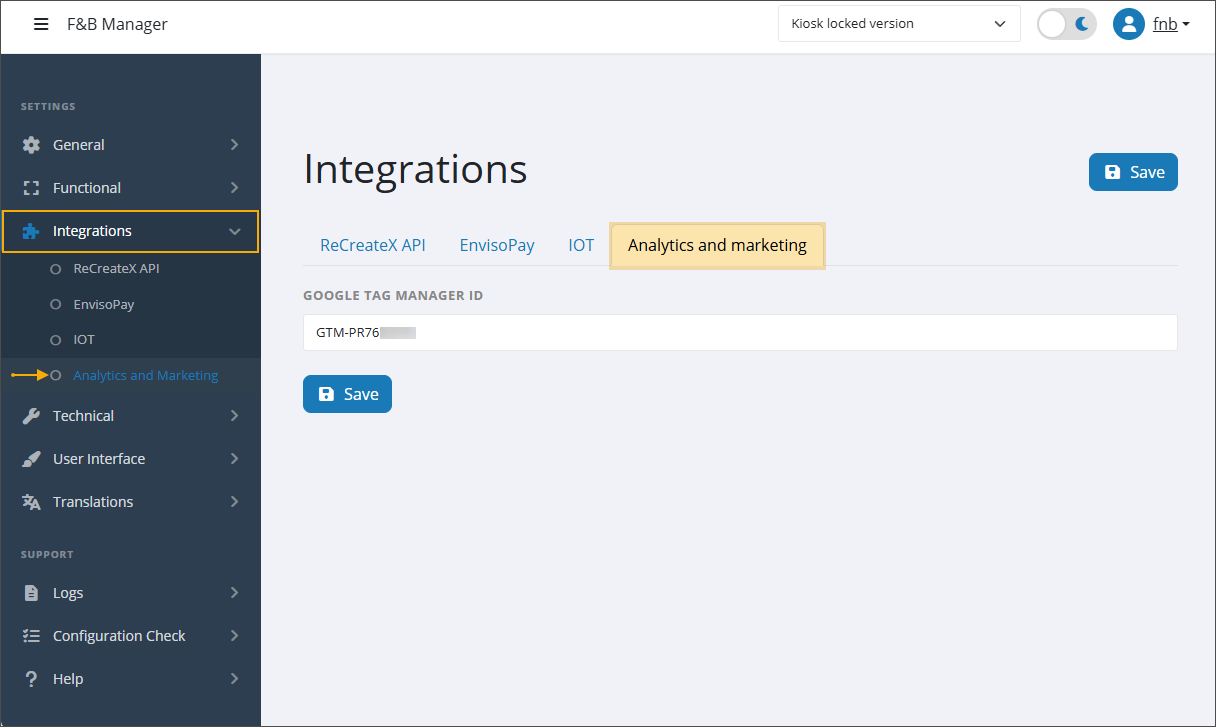
Google Tag Manager ID
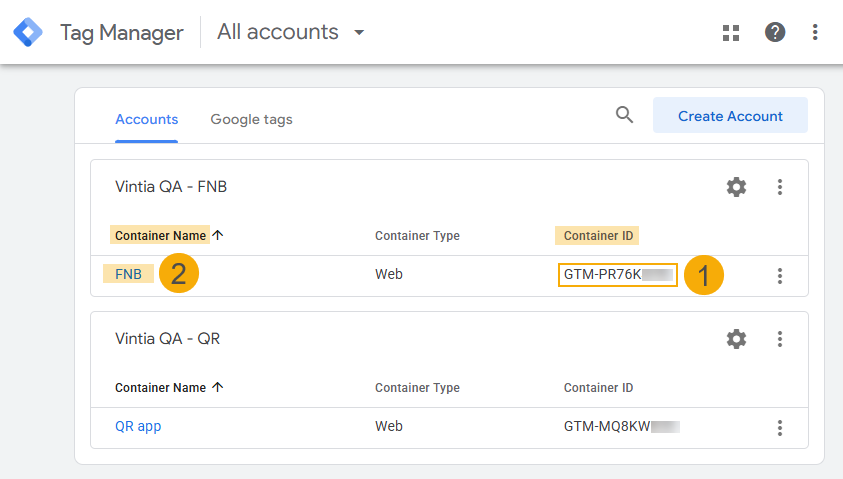
To link your kiosk application with Google Tag Manager, enter the Container ID (1) of the GTM container (2) you created for your kiosk setup. The Container ID (GTM-XXXXXXX) can be found in your Google Tag Manager account. Once entered, a GTM container script URL is automatically added to the header of the kiosk application.
To complete the Google Tag Manager setup, refer to Google Tag Manager (GTM).