Visualisations
By using the visualisations you can quickly call up certain overviews of the registrations and activities present in the system.
Go to Registrations > Visualisations. A comprehensive menu will appear.
The following visualisations are available:
Registrations overview
This visualisation gives you an overview of all registrations, including a participants overview and linked records.
Go to Registrations > Visualisations > Registrations overview.
The window below will appear:
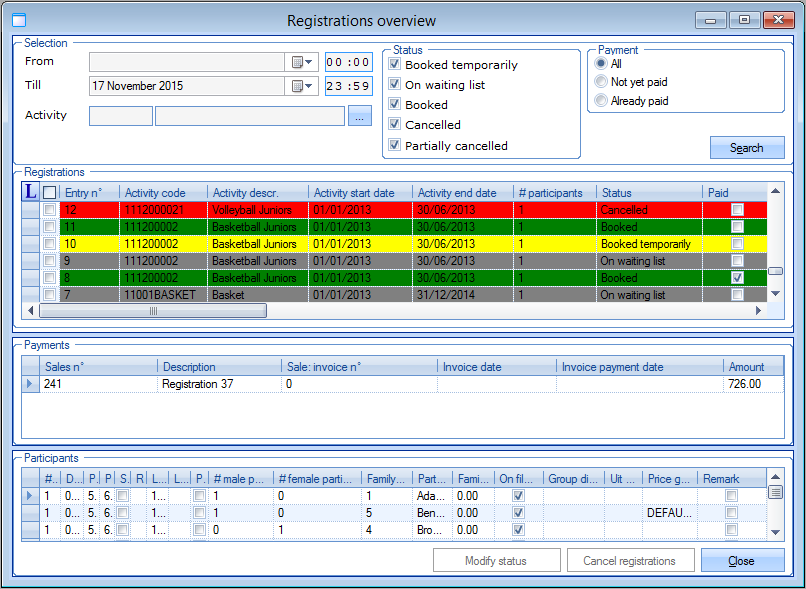 |
The data of the current day are called up by default, but if you want to you can specify the period, the activity, the registration and payment status of the registrations you want to call up in the section Selection.
 |
If you click on Search all registrations that meet the selection criteria will be listed.
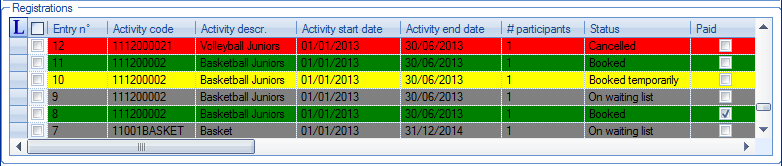 |
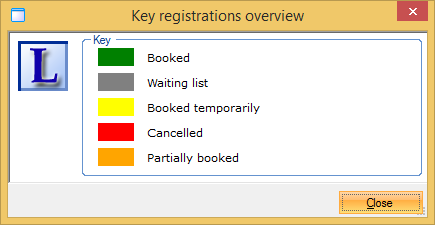
In the section Registrations all registrations are marked in a colour that depends on the status of the registration. If you want to you can consult the colour key by clicking on  .
.
 |
If you click on a registration in the section Registrations, the payment information of the chosen registration will appear in the section Payments.
 |
The section Participants will show you a list of all participants of the selected registration.
 |
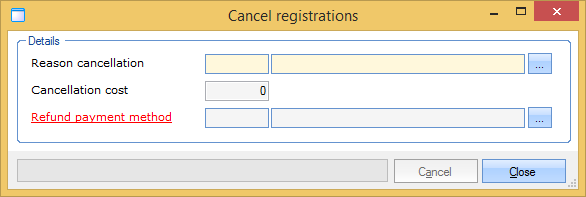
The registrations overview also allows you to cancel one or several participants in one go. For this purpose you first have to select the registrations to be cancelled in the section Registrations and then click on Cancel registrations.
The window below will appear, in which you can fill in the cancellation reason, the possible cancellation cost and the payment method for refund:
 |
Warning
If you cancel NON-recorded registrations, the possible cancellation cost still has to be recorded separately on the level of the registration in question ( Record in the window Modify registration). In case recorded registrations are cancelled, the cancellation cost is deducted from the amount to be refunded.
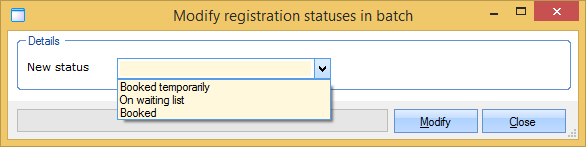
Finally, the registrations overview also allows you to modify the status of one or several registrations in one go. For this purpose you first have to select the desired registrations in the section Registrations and then click on Modify status.
The window below will appear, in which you can fill in the desired new status. If you click on Modify the modifications will be executed.
 |
Loyalty cards
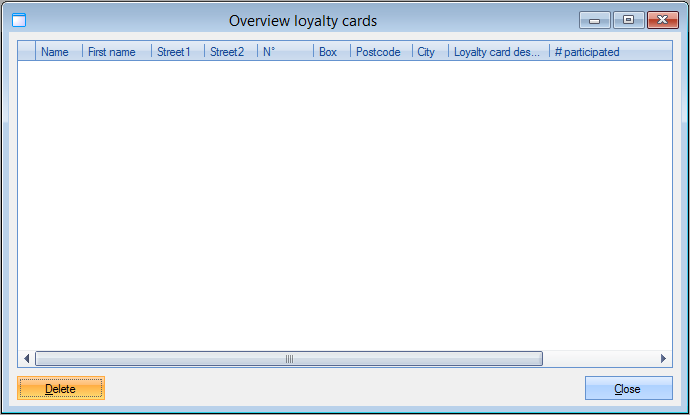
This visualisation offers an overview of all full loyalty cards of persons that participated to various activities with registration of participation (see Registrations - Managementmanual 'REGISTRATIONS - Management'). If required, you can reset these loyalty cards.
Go to Registrations > Visualisations > Loyalty cards.
The window below will appear:
 |
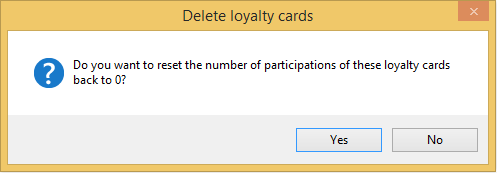
If you want to reset the number of participations of all loyalty cards, you have to click on Delete and then confirm your choice by clicking on Yes.
 |
Late payers
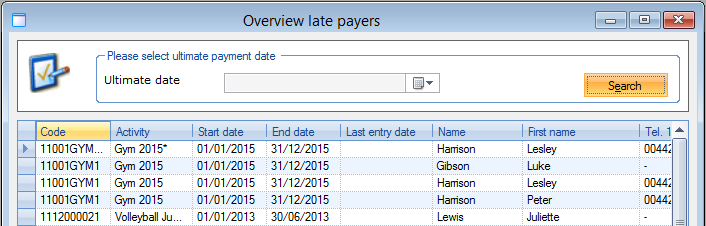
This visualisation offers an overview of all registrations that have not been paid at the ultimate payment date of the activity.
Go to Registrations > Visualisations > Late payers.
The window below will appear:
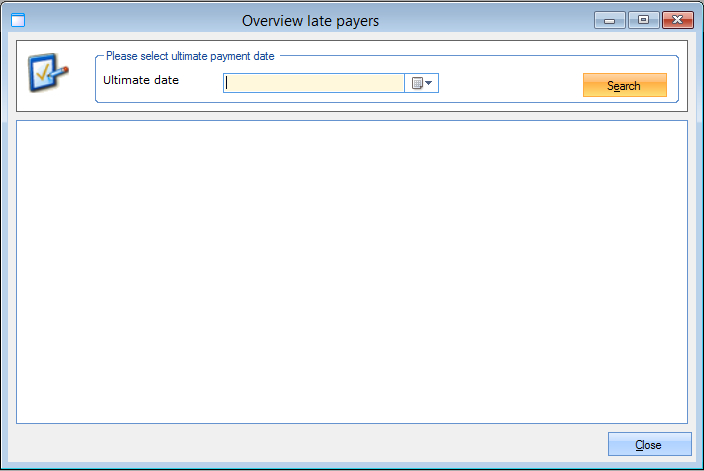 |
You can determine the final payment date and then click on Search. An overview will appear of all registrations that have not been paid before the selected date.
 |
Stand-by list activities
This visualisation offers an overview of all registrations per activity, with available places and registrations on the waiting list or not.
Go to Registrations > Visualisations > Stand-by list activities.
The window below will appear:
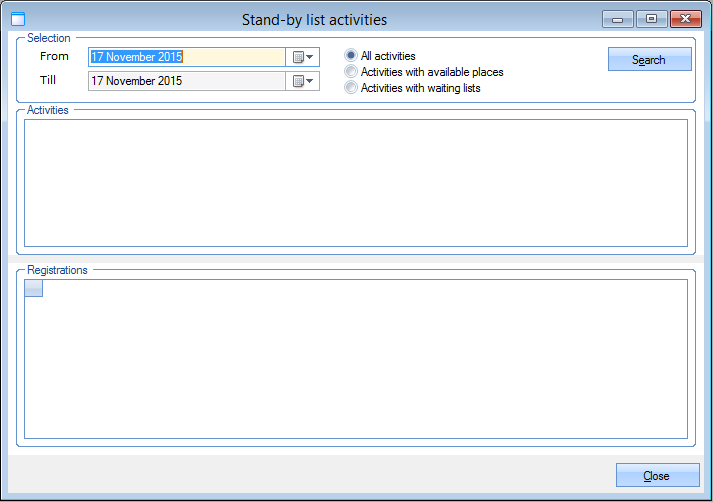 |
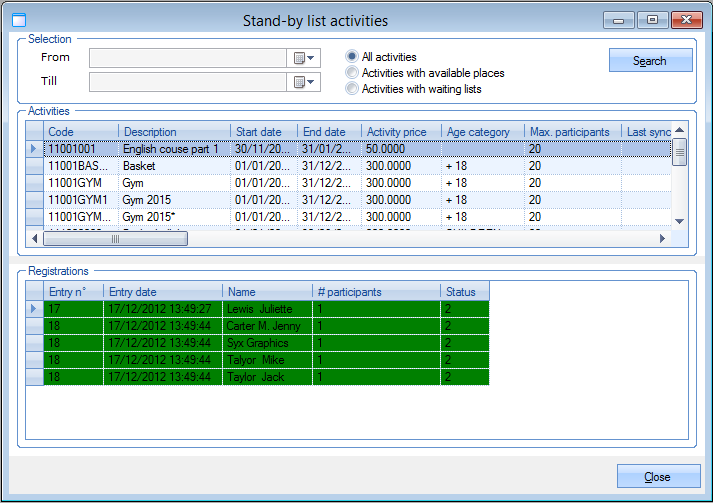
In the section Selection you can determine the activities you want to look for. You can choose the period in which the activity takes place and indicate if you want to see all activities, only the activities with available places, or only the activities that already have a waiting list.
If you click on Search, the section Activities will show you all activities that meet the selection criteria and the section Registrations will show you all registrations for the selected activities.
 |
Graphic activities overview
This visualisation offers a graphic calendar overview of all activities within a certain period.
Go to Registrations > Visualisations > Graphic activities overview.
The window below will appear:
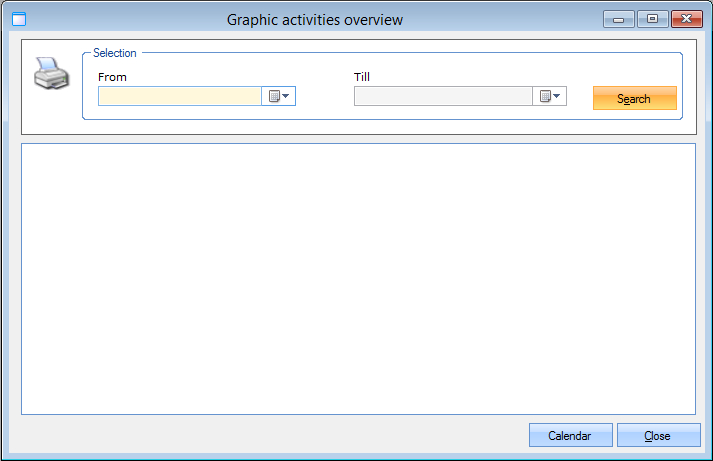 |
In the section Selection you can determine the period in which you want to find all activities.
If you click on Search an overview will appear of all activities that take place within the selected period.
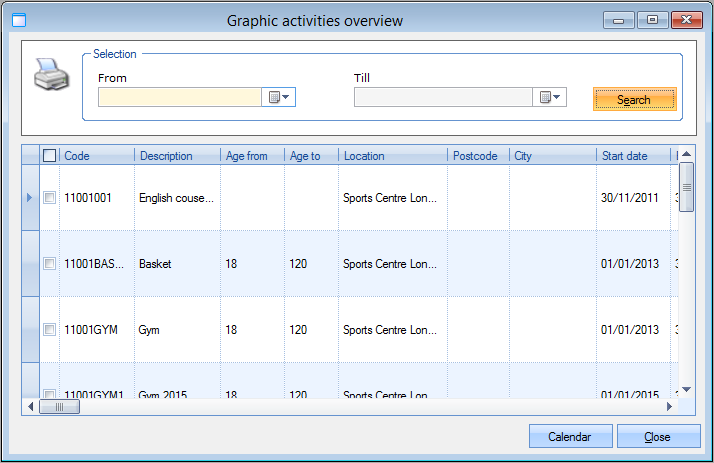 |
Tick off the activities in the list that you want to see on the graphic activities overview.
Then, click on Calendar after which the calendar overview will be shown.
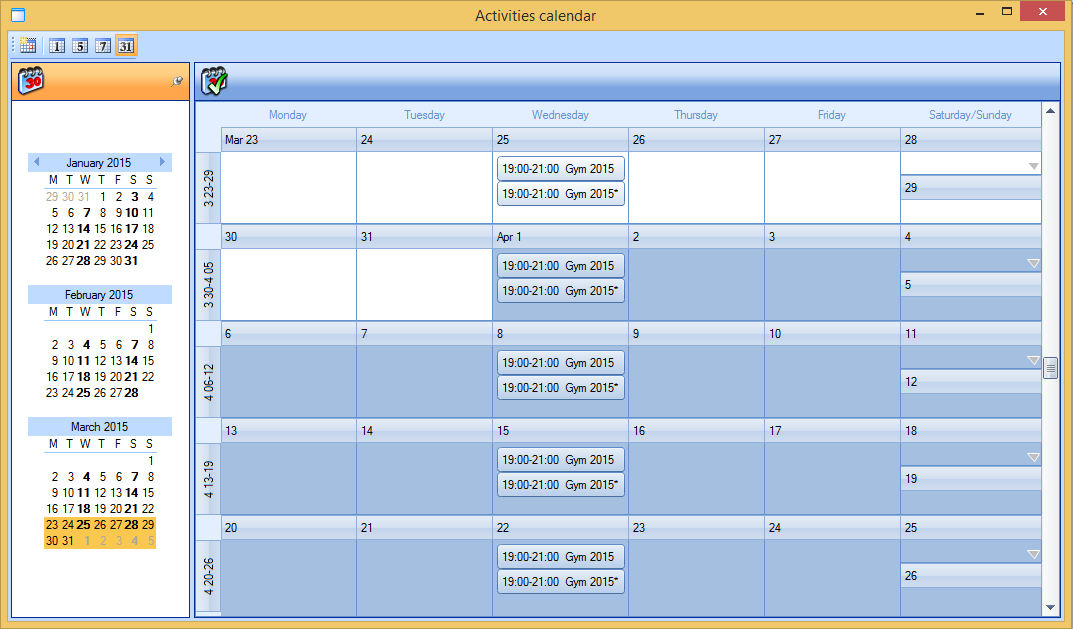 |
In this calendar overview you can select the desired period yourself by choosing the desired frequency on top and/or the desired days on the left.
Presences per activity
This visualisation allows you to visualise and/or modify the presences of a certain activity.
Go to Registrations > Visualisations > Presences per activity.
The window below will appear:
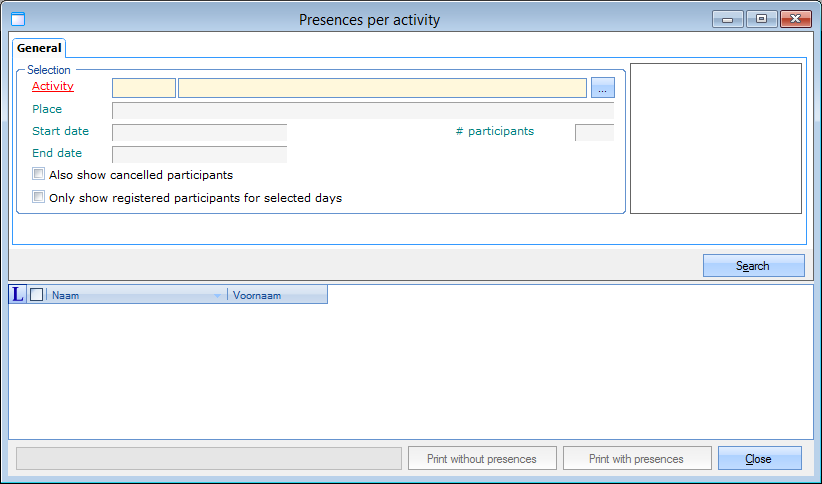 |
Under the tab General you can select the desired activity and, if you want to, opt to show cancelled participants as well in the participants list and/or include only the registered participants for the selected date in the print. After selecting the activity, the place, start date and end date and the number of participants will be shown informatively.
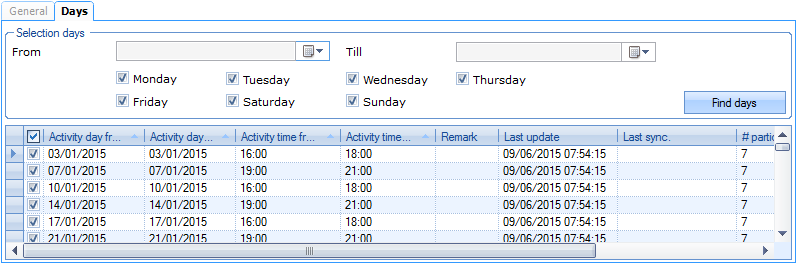
If the activity continues over several days and if you only want to see the presences of certain days, you can select the desired day(s) under the tab Days.
 |
If you click on Search the list of all participants with their respective presence will appear.
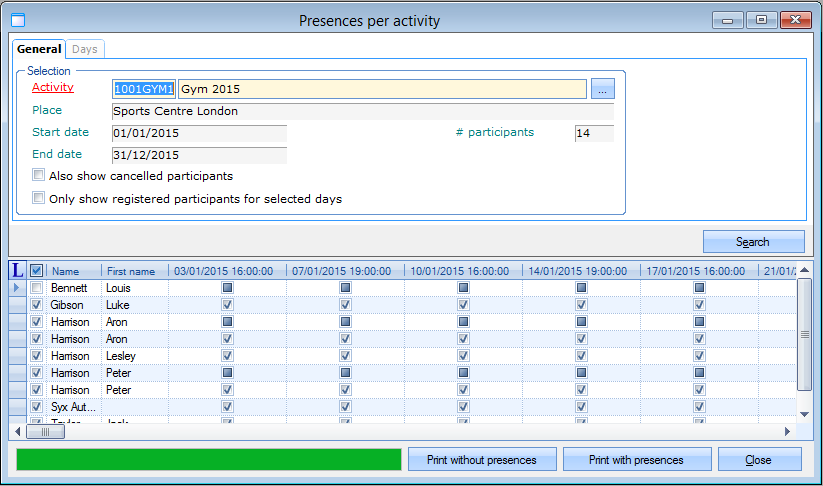 |
If you want to, you can select or deselect specific presences in this list in function of printing the presences list.
At the bottom of the window there are some buttons that allow you to print the selected participants, including presences or not.
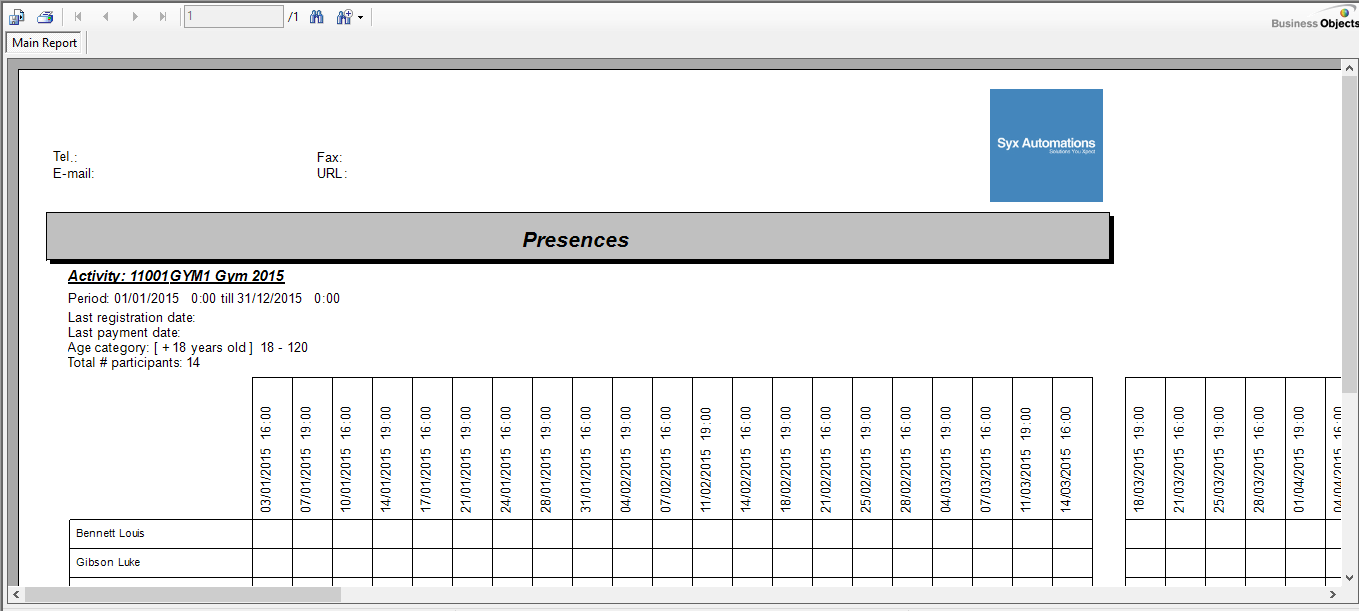
If you click on Print without presences the report below will appear, in which all participants of the selected activity are listed, without the presence being indicated, however. Such a list can for example be useful to tick off the presences manually on the printed list.
 |
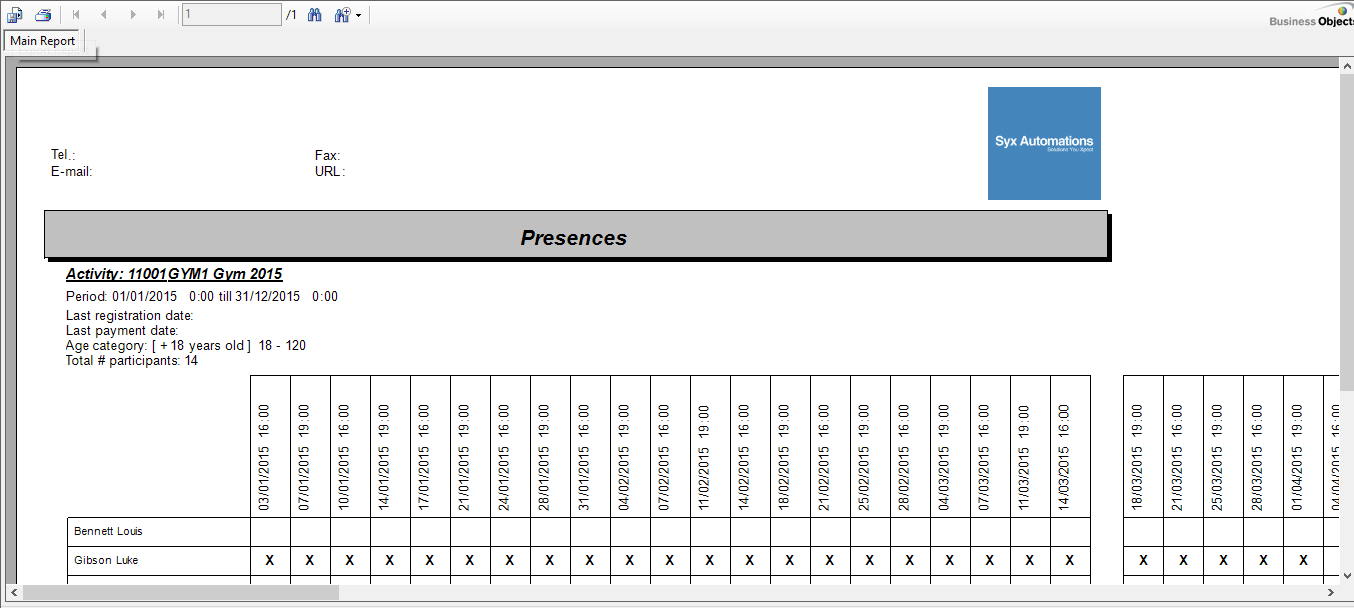
If you, however, choose for Print without presences the report below will appear, in which the presences are marked.
 |
'Pending' web registrations
A "pending" web registration is a registration that was started online by a customer, but of which the procedure/registration has not been completely finalised. Such registrations temporarily take up free places in Recreatex until the customer finalises the registration online, or until it is finalised manually or deleted.
Go to Registrations > Visualisations > 'Pending' web registrations.
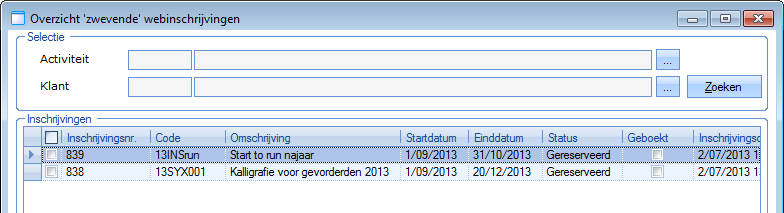
The following window will appear, in which all currently "pending" registrations are immediately shown by default:
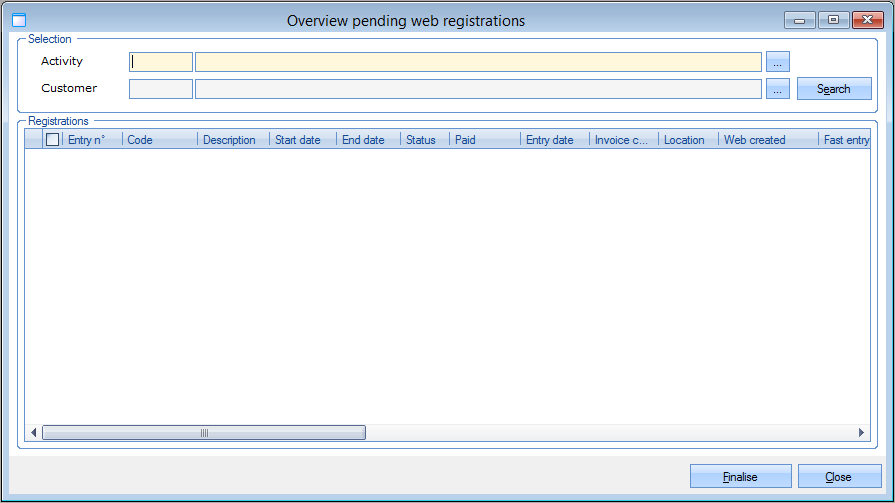 |
If you want to, you can search the pending registrations in a more detailed way by specifying the activity and/or the customer and clicking on Search.
 |
In order to finalise pending registrations, you first have to tick off the registrations in question and then click on Finalise.
The message below will appear:
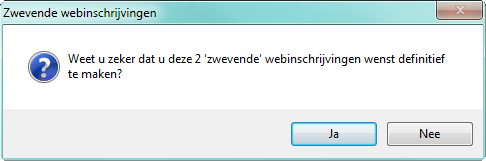 |
After confirmation, the selected pending registrations will effectively be registered in Recreatex.
Note
In order to delete a pending registration (for example after you have checked that the customer has not yet paid and the registration does not have to be finalised), you have to open the registration in question. See also chapter 'Registrations', paragraph 'Delete a registration'.