Create a cross-sell rule
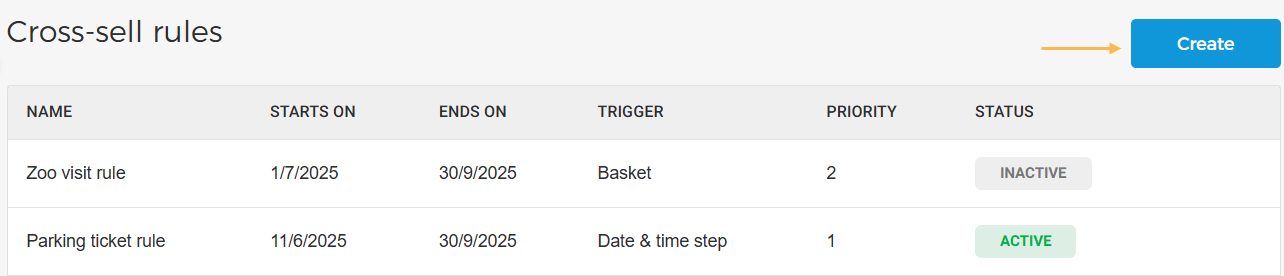
From the top-right corner of the Cross-sell rules page, click Create.
 |
In the resulting Create cross-sell rule page, enter the details under the tabs General, Condition, and Link sales points.
General
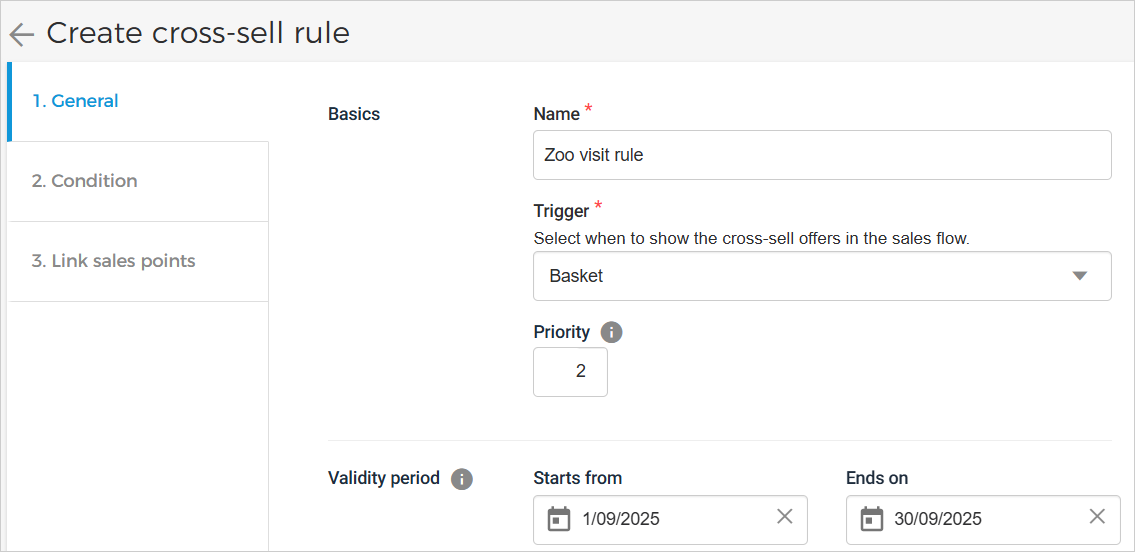 |
Basics
Name | Enter the name of the cross-sell rule that helps you recognise the rule. |
Trigger | Allows you to select when to show the cross-sell offer(s) in the sales flow. You can choose to display the cross-sell offer(s) on either the basket step or the date & time selection step. Once a cross-sell rule is saved, the Trigger selection cannot be edited. |
Priority | This sets the priority for the cross-sell rule. The price rules will apply based on the priority ranking. 1 stands for the highest priority, and 99 stands for the lowest priority. The priority must be unique for each cross-sell rule. |
Validity period | Allows you to define the period for which the cross-sell rule will be shown. NoteThe cross-sell rule applies if today is within the validity period. It is not based on the visit date. |
Condition
Hide cross-sell items after adding to basket
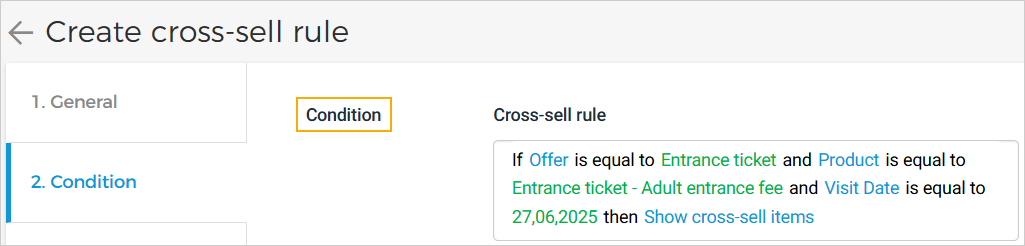
Condition | You can optionally define when the cross-sell item should be displayed by setting specific conditions based on offer or product selection, offer category, date, or other criteria. This helps control the visibility of the cross-sell offer.
NoteFor Order date and Visit date/day conditions, ensure they fall within the defined rule validity period. When creating a cross-sell rule with a date & time trigger, it is currently possible to select Total Offers, Membership Offers, and Voucher Offers as cross-sell conditions. However, these offer types do not include a date & time selection step. As a result, cross-sell offers for these offer types will never be displayed to the visitor. | |||||||
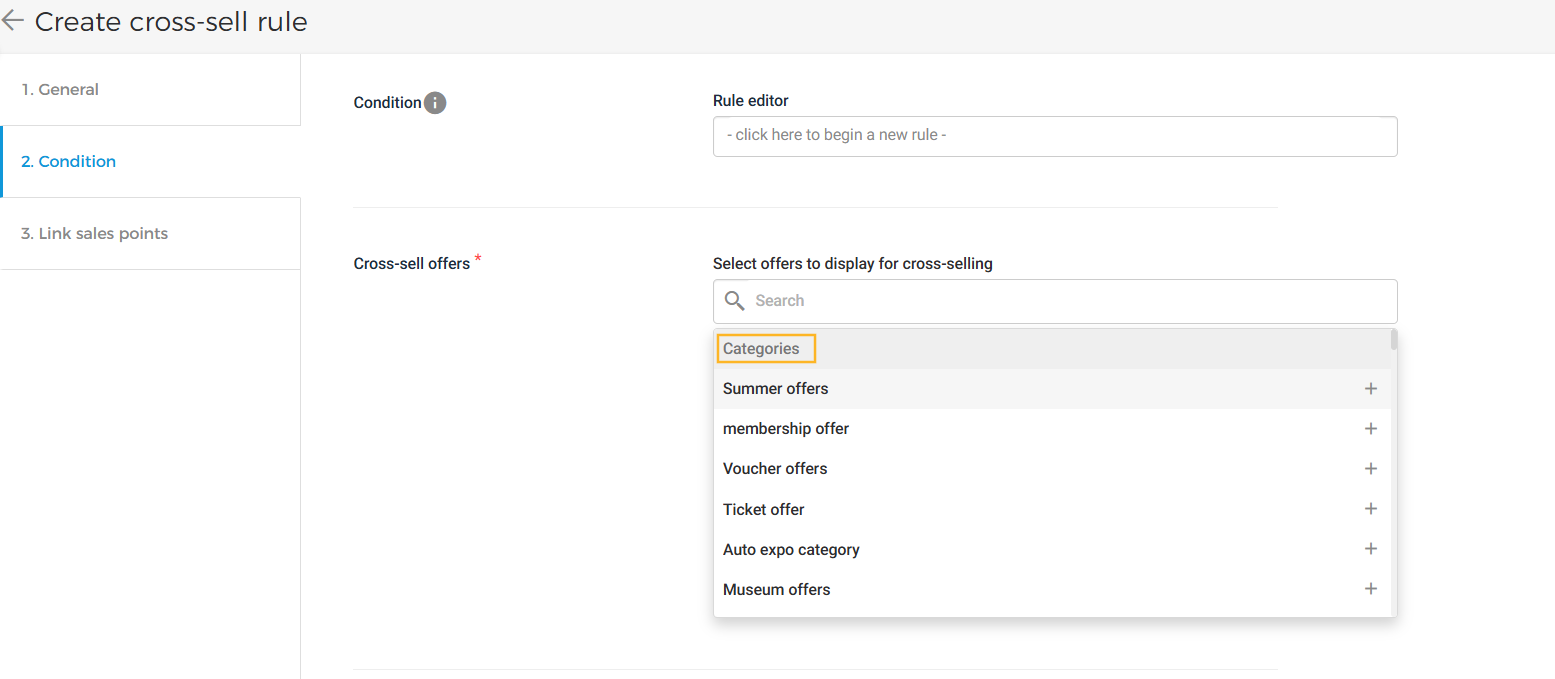
Cross-sell offers | Allows you to select which offers will display for cross-selling. Ticket offers and voucher offers can be selected.
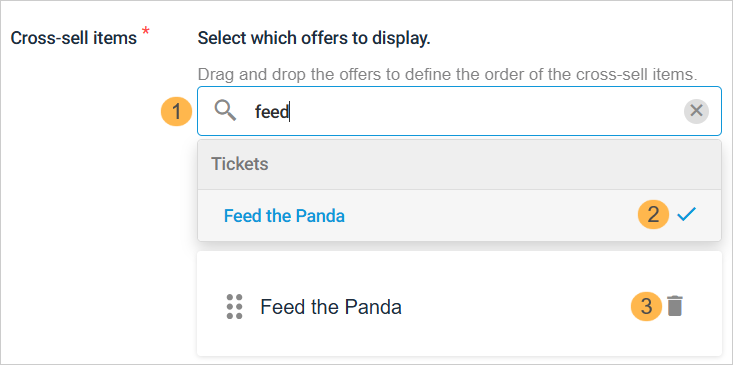
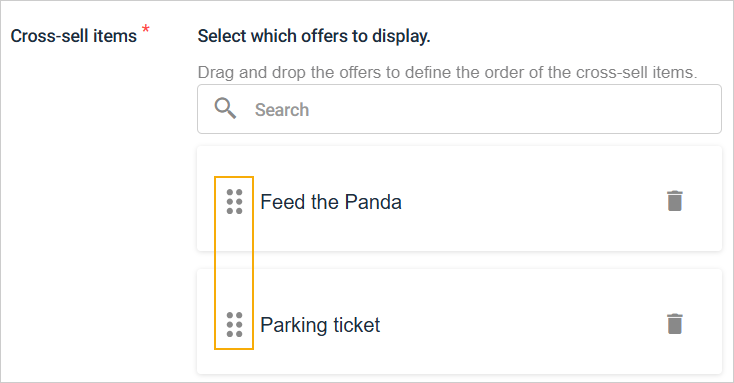
(1) Search for the offer you wish to display for cross-selling. (2) From the list of offers, click on the blue tick to select the offer for cross-selling. (3) Click on the delete icon if you wish to remove a selected offer. After adding the cross-sell offers, you can change the sequence in which the offers will be displayed.
Apply cross-sell rule to offer category If the feature to use offer categories is enabled for your venue, you will be able to select one or more offer categories for the cross-sell rule. Cross-sell rule will be applied to all offers within the selected category.
| |||||||
Required Cross-sell Offers | It is now possible to mark a cross-sell offer as required, making it mandatory for visitors to purchase alongside the main offer. When a cross-sell offer is set as required, visitors will not be able to complete the checkout without adding the required cross-sell offer to their basket. The required status of a cross-sell rule is reflected in both the cross-sell rules overview page and the individual rule details panel, making it easy to identify which rules are configured as mandatory.
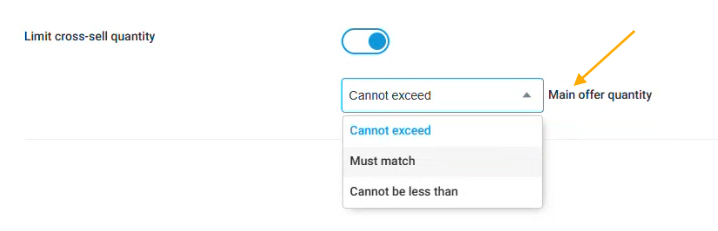
Limit Cross-sell quantity
NoteWhen a cross-sell offer is marked as required, visitors will be prompted to add it to the basket before proceeding to checkout. It is not possible to complete the order without purchasing the required cross-sell offer alongside the main offer. | |||||||
Hide cross-sell items after adding to basket | When disabled, cross-sell offers remain visible even after being added to the basket, allowing visitors to purchase offers for multiple days. | |||||||
Display based on capacity | If the Trigger in the General tab is defined as Date selection, you can choose to display cross-sell offers based on their capacity. Enabled: The cross-sell offer will not be displayed when it is sold out. Disabled: The cross-sell offer will still be shown, even if it is sold out.
| |||||||
Auto-selection | If the Trigger in the General tab is defined as Date selection, you can choose to auto-select date and/or products for the cross-sell offer. Select date automatically: When enabled, the cross-sell offer will use the same visit date as the main offer. The visitor can change it if needed. When disabled, the visitor will need to manually select a visit date for the cross-sell offer. Select products automatically: When enabled, the cross-sell offer will match the products and quantities of the main offer. The visitor can adjust quantities or remove products if desired. When disabled, the visitor will need to manually add products and define their quantity for the cross-sell offer. | |||||||
Cross-sell time slot limits (relative to main offer) | If the Trigger in the General tab is defined as Date selection, you will have the option to configure cross-sell time slot limits relative to main offer from the tab Condition.
If the Cross-sell time slot limits option is enabled, you can define the bookable time window (from and to). You can also specify whether this bookable window applies before/after the start time or before/after the visit end time. It is possible to add multiple bookable time slot limits using the + icon. Example: The bookable time slot limit is set from 3 hours up to 2 hours before the visit start time. This means that if the main offer's time slot is 11am to 12pm, the visitor can book the cross-sell offer linked to the main offer from 8am to 9am on the same day. |


Link sales points
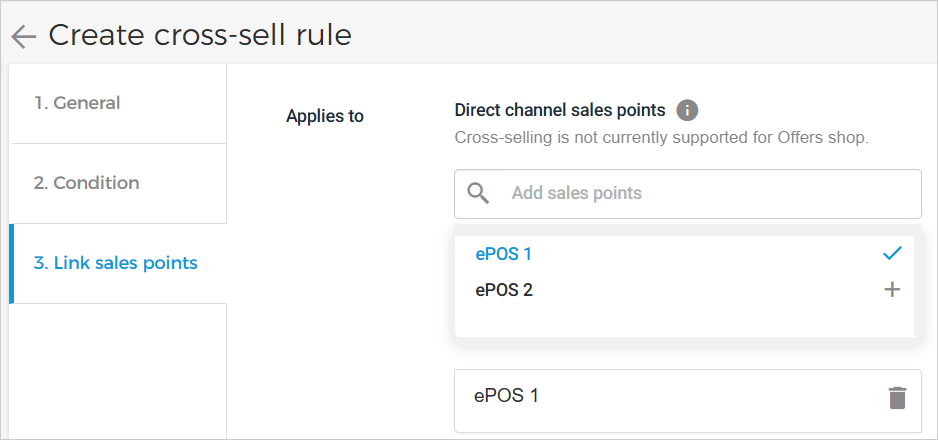
Applies to | Direct channel sales points You can add the direct channel sales points where the cross-sell offer will apply. If no direct channel sales points are selected, the configured cross-sell rule will automatically apply to all direct channel sales points. Click the '+' button next to a sales point to add it. To remove an added sales point, click on the bin icon.
If a cross-sell rule is linked to the Enviso Ticketing widget, the Activate cross-selling setting must be enabled from Admin > Settings > Widget tab. NoteCross-selling is currently not supported for the Offers shop. |