Consult passes
Note
The possibility to consult the Passes page is available only to specific venues. You can request Vintia support to enable this feature for your venue.
Refresh the passes page
Click the refresh icon in the top-right corner of the Passes page to retrieve the latest pass data.

Search passes
Using the search icon, you can search for passes based on pass ID, visitor email, order number or visitor name.
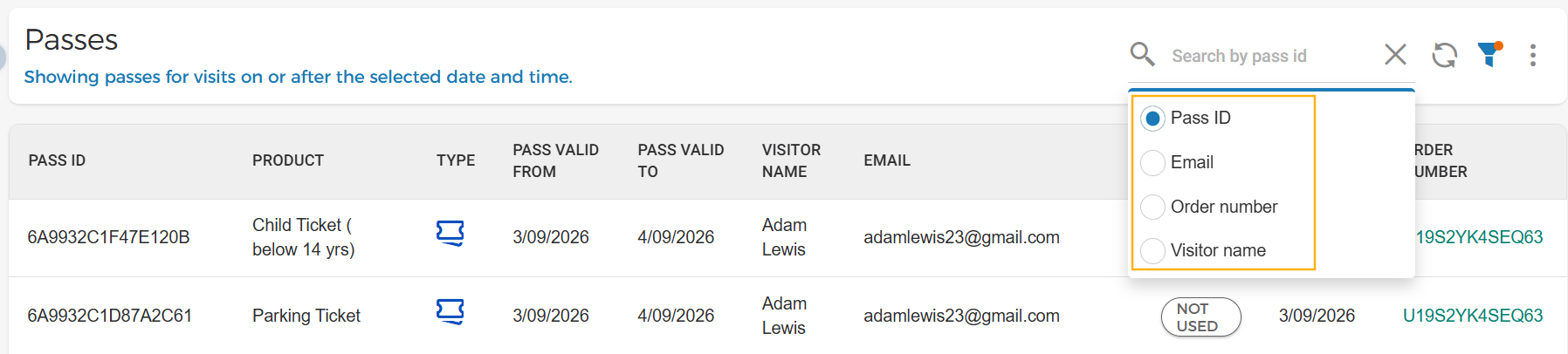
Filter passes
You can filter the pass list by period, pass status, product type, and offer name.
Period
You can filter passes based on either their visit period or order period.
For the visit period, you can select Upcoming 7 days, Upcoming 30 days, or a custom period within any month.
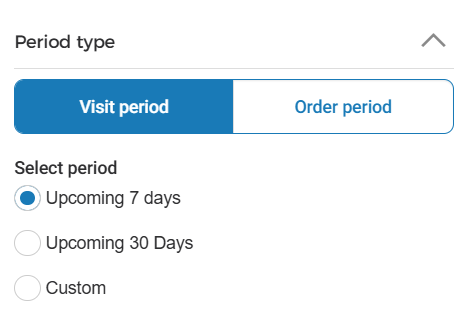 |
For the order period, you can select Last 7 days, Last 30 days, or a custom period within any month.
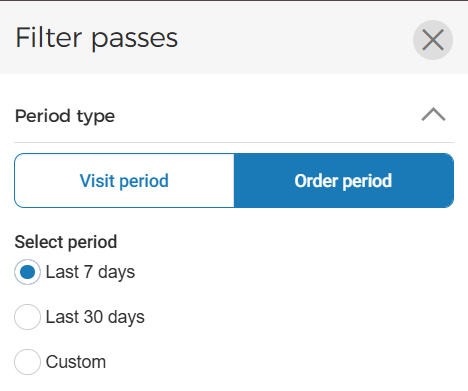 |
You can also enable Show passes with an indefinite visit period option to include passes that do not have a defined visit period.
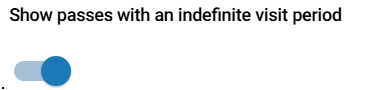 |
Status
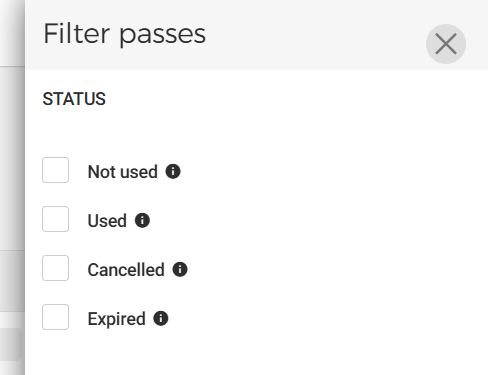 |
Not used: Pass is neither scanned nor redeemed.
Used: Pass is either scanned or redeemed.
Cancelled: The pass has been cancelled.
Expired: The visit end date has passed.
Product type
If you want to view passes related to a specific product type, the pass list will be filtered by the selected product type(s).
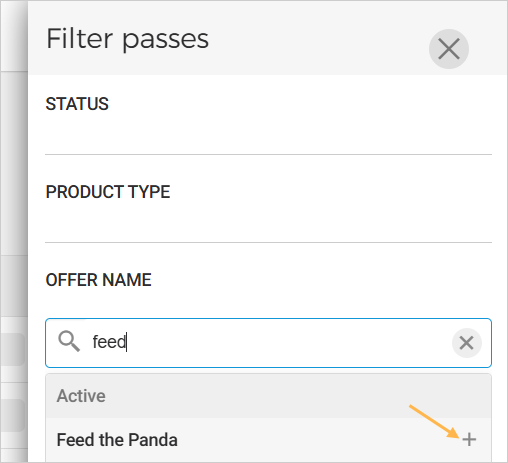
Offer name
Add one or more offer names to filter the pass list view accordingly.
 |
Click Reset in the pass filter panel to resort to the default filter settings.
Export passes
Click  in the top right corner of the Passes page and select Export .
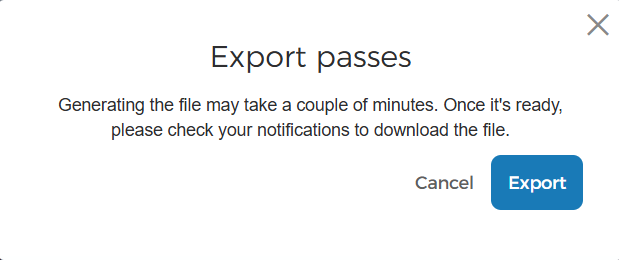
In the confirmation pop-up , click confirm Export to generate the CSV file containing the passes based on the selected filters.
 |
Note
If the export contains a large volume of data, it will be split into multiple files.
Pass details
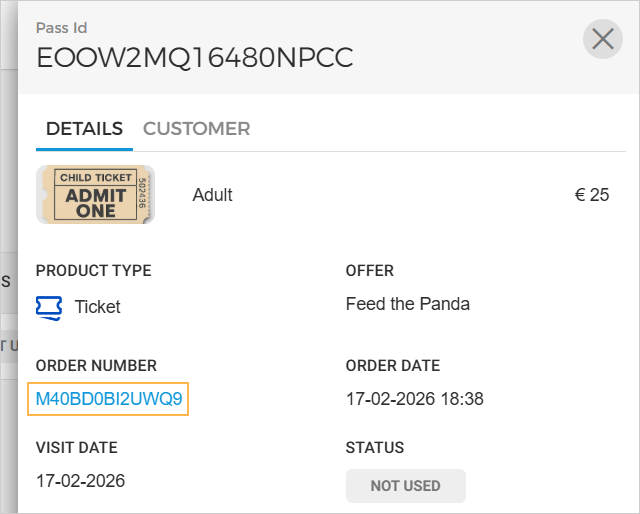
Click on a pass record to view the pass details. The Pass details are grouped under the tabs Details and Customer.
Details
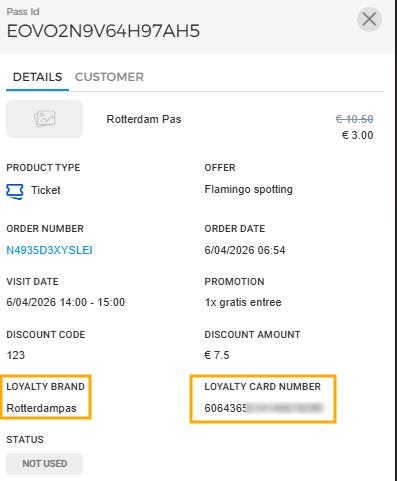
The tab Details contain various information regarding the pass such as the offer, order date, visit date, pass status and more. Clicking on the Order number will navigate you to that order on the Orders page.
 |
Loyalty card details in Pass overview
The loyalty brand name and card number used for loyalty products are now visible in the pass details view. This information is also included in the exported pass CSV file.
 |
Customer
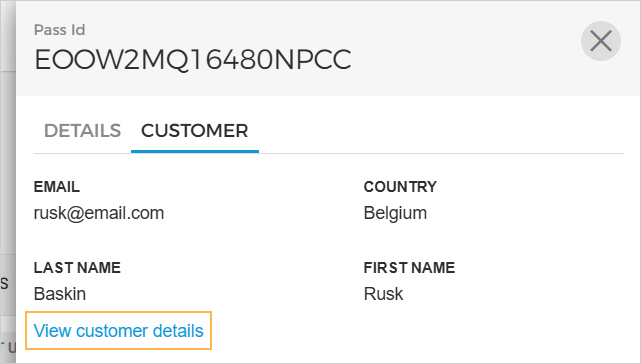
The tab Customer contains customer related information that was filled up at the time of checkout. The link View customer details will navigate you to the customer's record on the Customers page.
 |