Fee configuration
Note
The possibility to use the Fee configuration feature is available only to specific venues. You can request Vintia support to enable this feature for your venue.
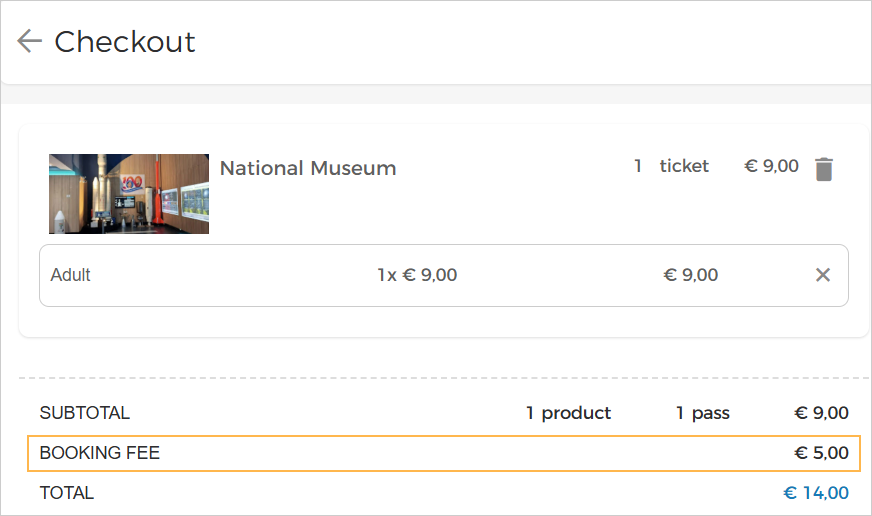
On the Fee configuration page you can consult, create, edit and delete fee configurations. Configured fees are automatically added to the basket total at checkout.
 |
Important to know:
You can create multiple fee configurations. Please note that when you create multiple fee configurations, the total amount of all configured fees will apply to offers that are not excluded while configuring the fees.
For example, if you create two fee configurations with an amount of €5 each and do not select any offers as excluded offers for either fee configuration, an additional booking fee of €10 will apply to all offers at the checkout.
The booking fee is charged only once per basket if the basket contains one or more offers to which the fee applies, regardless of the number of applicable offers in the basket.
When an order is cancelled, the booking fee amount cannot be refunded. The fee will not apply when rebooking an order.
You can consult the applied fee in order details on the Orders page as well. Moreover, you can send the fee to the visitors by configuring the field 'Booking fee' in the email and product templates from the Admin app.
Create fee
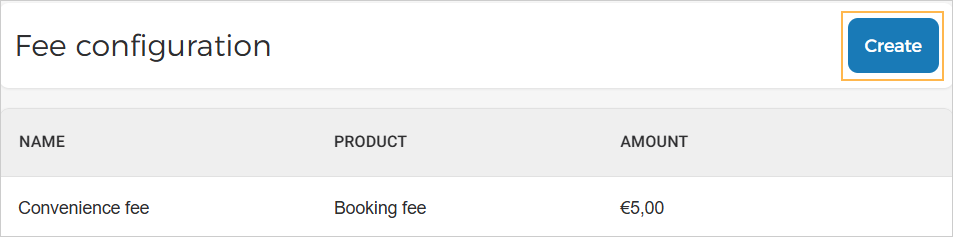
On the Fee configuration page, click Create.
 |
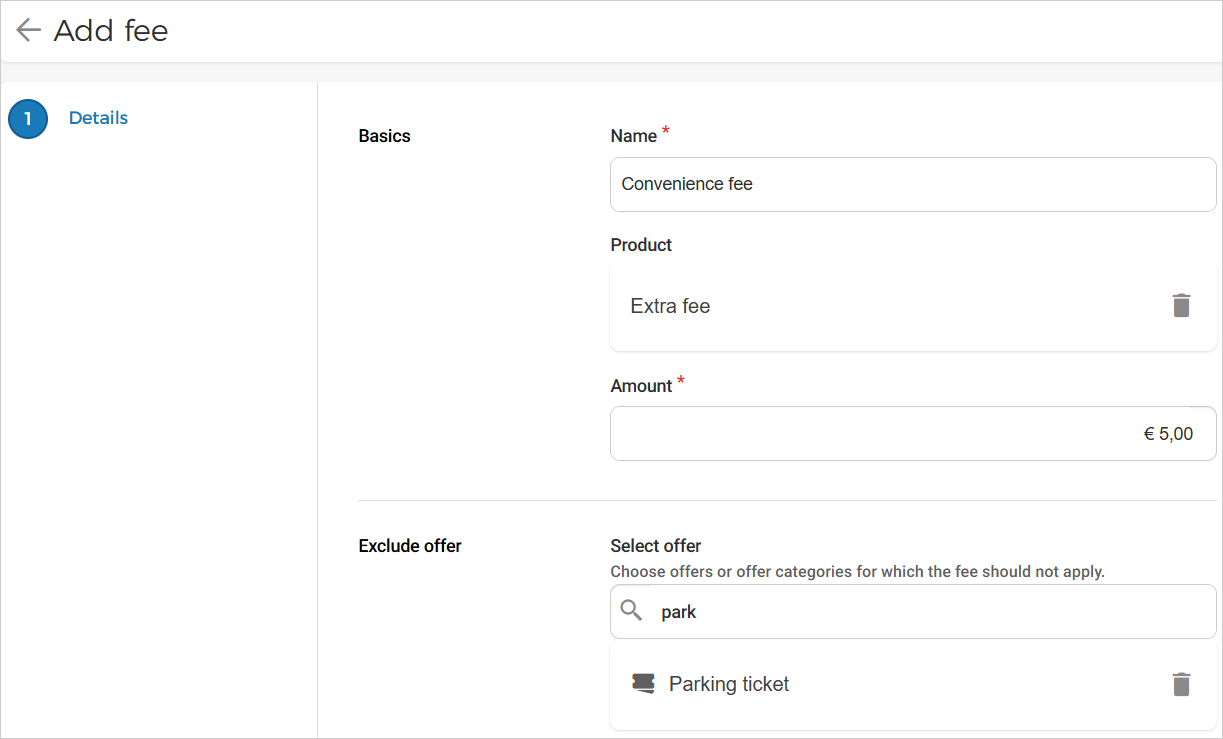
On the Add fee page, enter the fee configuration parameters.
 |
Basics
Name | Enter a name to identify the fee configuration. This name will not be displayed at checkout. At checkout, the fee amount will be displayed as 'Booking fee'. |
Select product | Click to select a product. On the Select product page, only products with the Fee type are displayed. |
Amount | Enter the amount to be charged as the booking fee at checkout. |
Exclude offer
Select offer | Select one or more offers or offer categories to exclude them from the booking fee. The booking fee will not be charged for the selected offers or offer categories. |
Edit/delete fee configuration
On the Fee configuration page, click the more options button for a fee to edit or delete the configuration.
When editing a fee configuration, you cannot change or delete the linked fee product. All other details can be edited.