Start Windows service
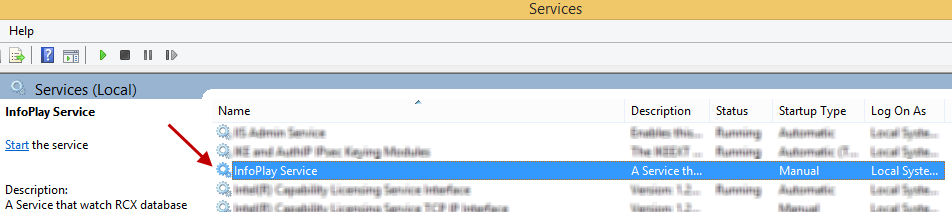
Go to InfoPlay Service
To do so, press <Win+R>. Open services.msc.
On the Services window look for InfoPlay Service.
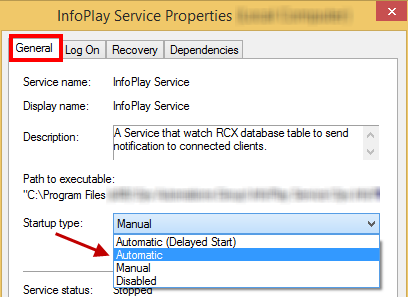
Define Startup type as Automatic.
For this purpose, right-click on InfoPlay Service and select Properties.
Under the tab General, select Startup type as Automatic.
Click OK to save the changes.
Note
If the Startup type is defined as Automatic, the InfoPlay services will be automatically started whenever the server is restarted. If this option is defined as Manual, additional action is required to restart the InfoPlay service each time the server is restarted.
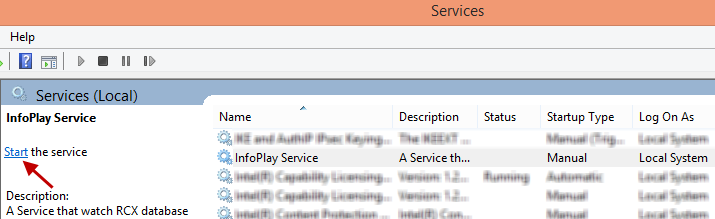
Click Start to start the InfoPlay service.
Warning
If the Recreatex database has been updated, the InfoPlay service must be restarted to reflect the updated database.
Successful server setup ends the setup procedure for Infoplay mobile application. Next, install the Infoplay mobile app on ELO device. See Install Infoplay mobile.
Warning
In case any object is updated in Recreatex database then InfoPlay service is required to be restarted.
Install Infoplay mobile
Go to the private app store available on GANTNER Portal (https://portal.gantner.be/).
Download Infoplay APK and place it on the device using a USB stick.
Alternatively, you can download and install TeamViewer Host on the device. This will enable you to do the file transfer through TeamViewer.
Note
Use a USB mouse to control the screen if touch is difficult to reach.
Warning
Currently, it is not possible to remotely control the ELO screen – only file transfer with Teamviewer Host.