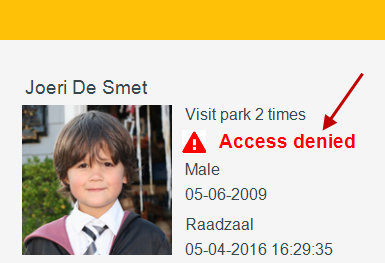
Display settings
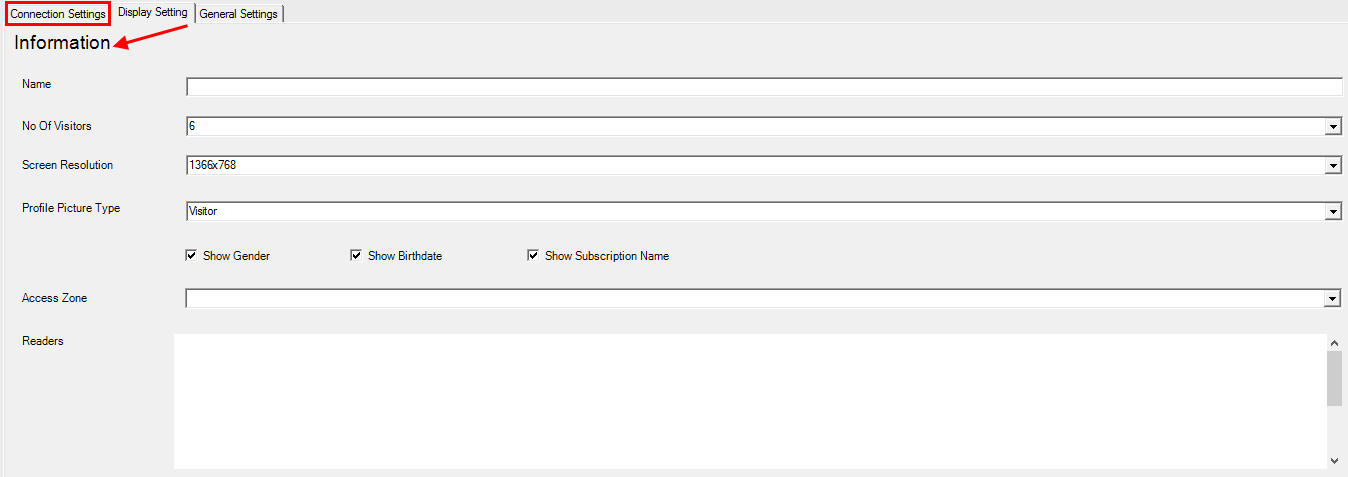
Information display settings
It is possible to configure by editing the display client parameters in the Settings XML file with appropriate values.
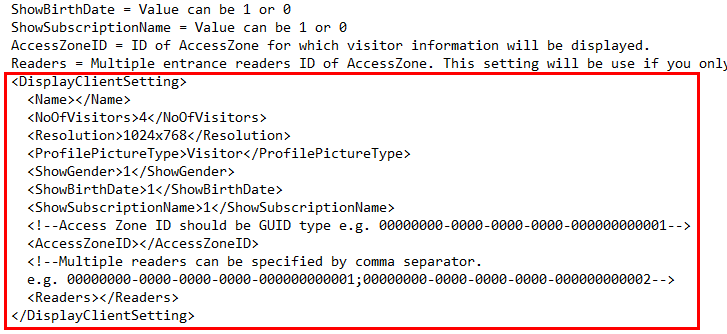
Alternatively, the parameters can be configured by using the Infoplay configuration tool.
Note
The parameter Name does not affect the setup of Infoplay desktop application 1.1.0.1.
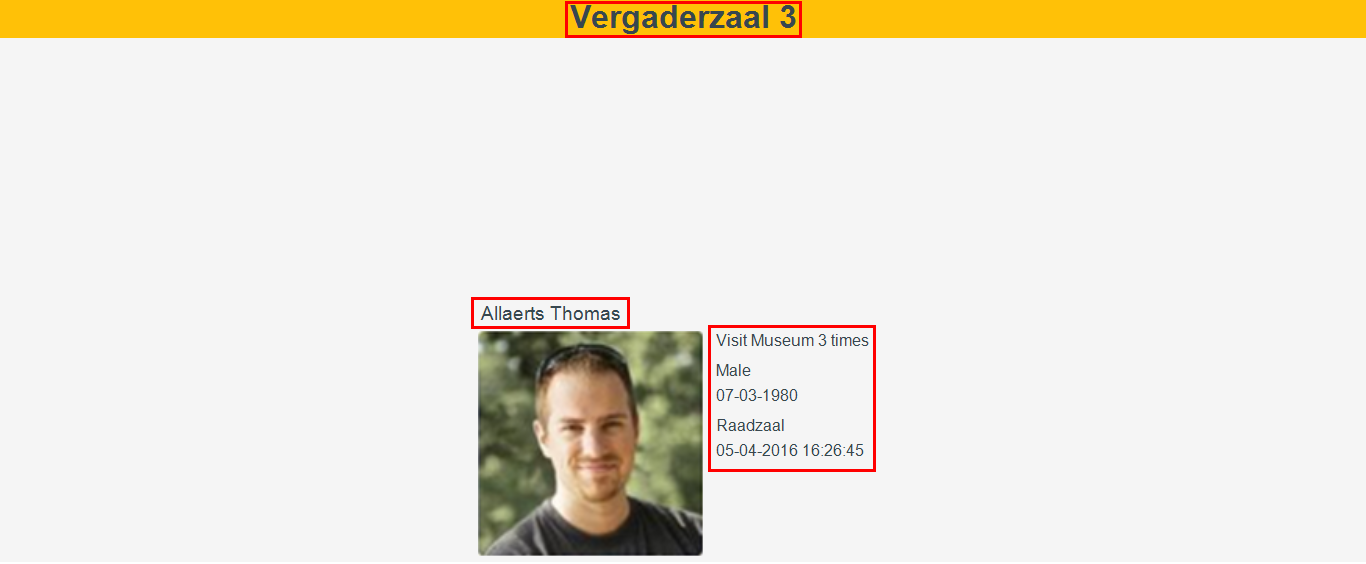
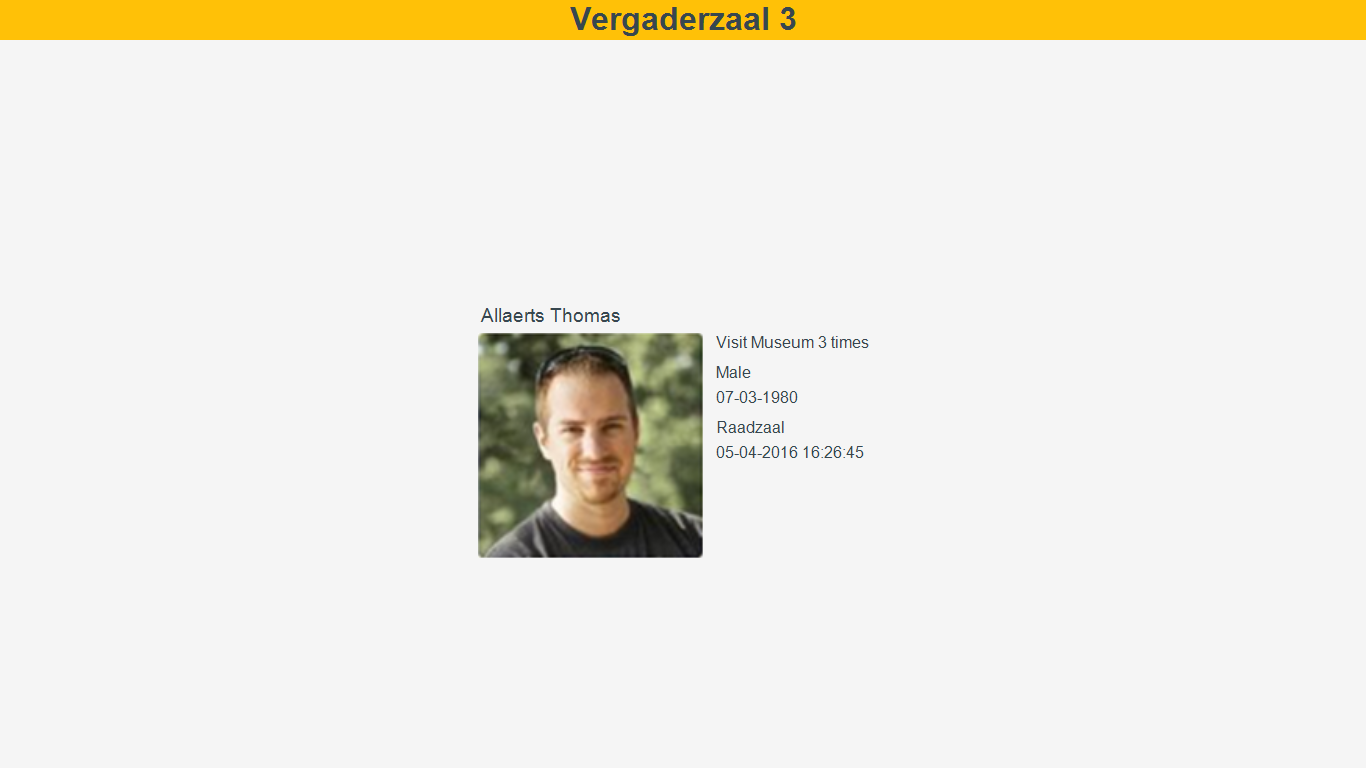
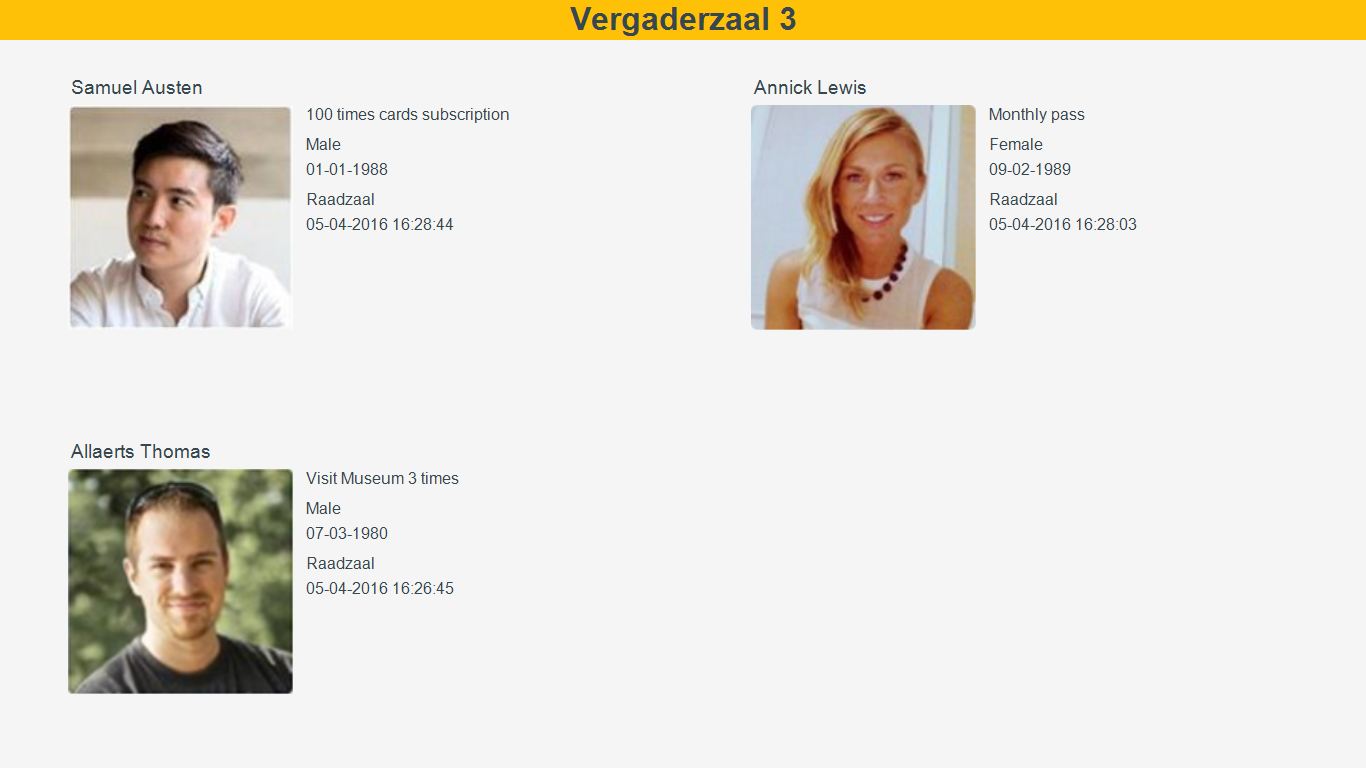
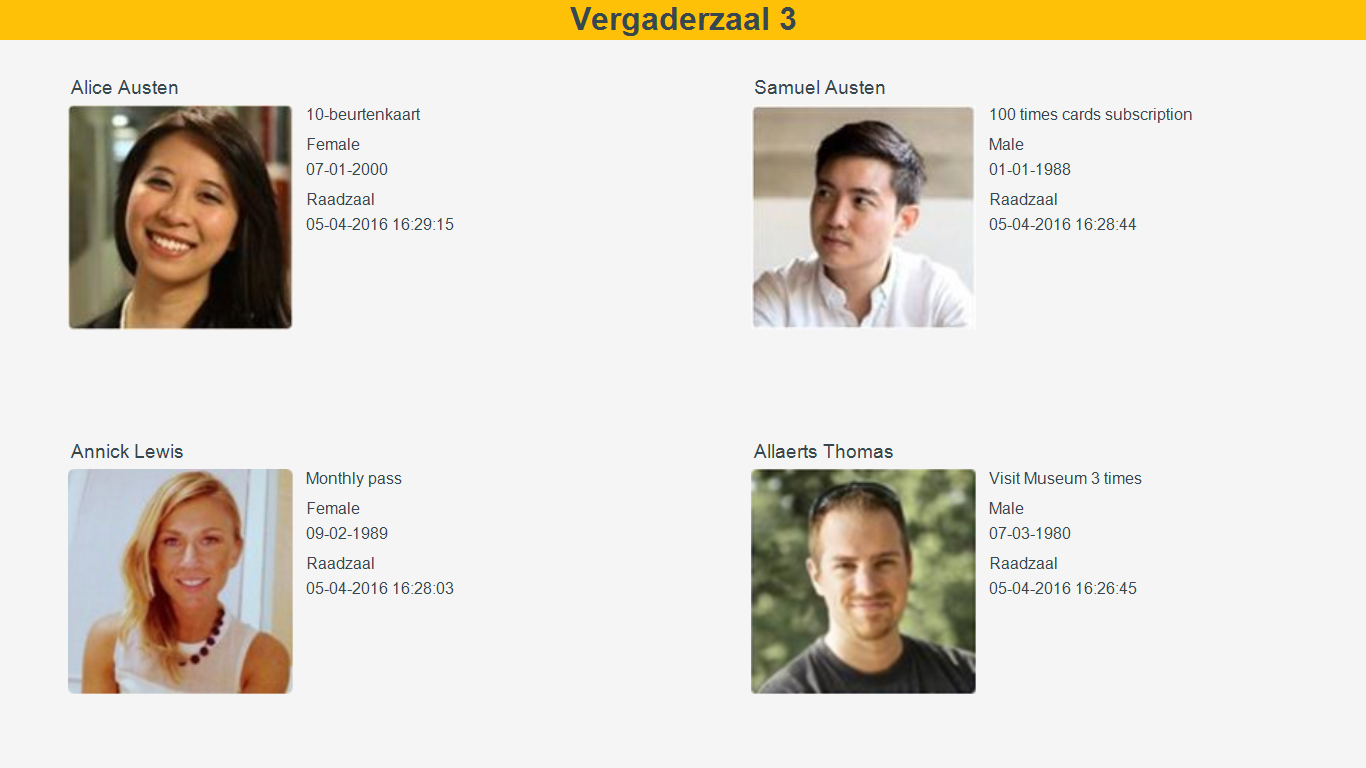
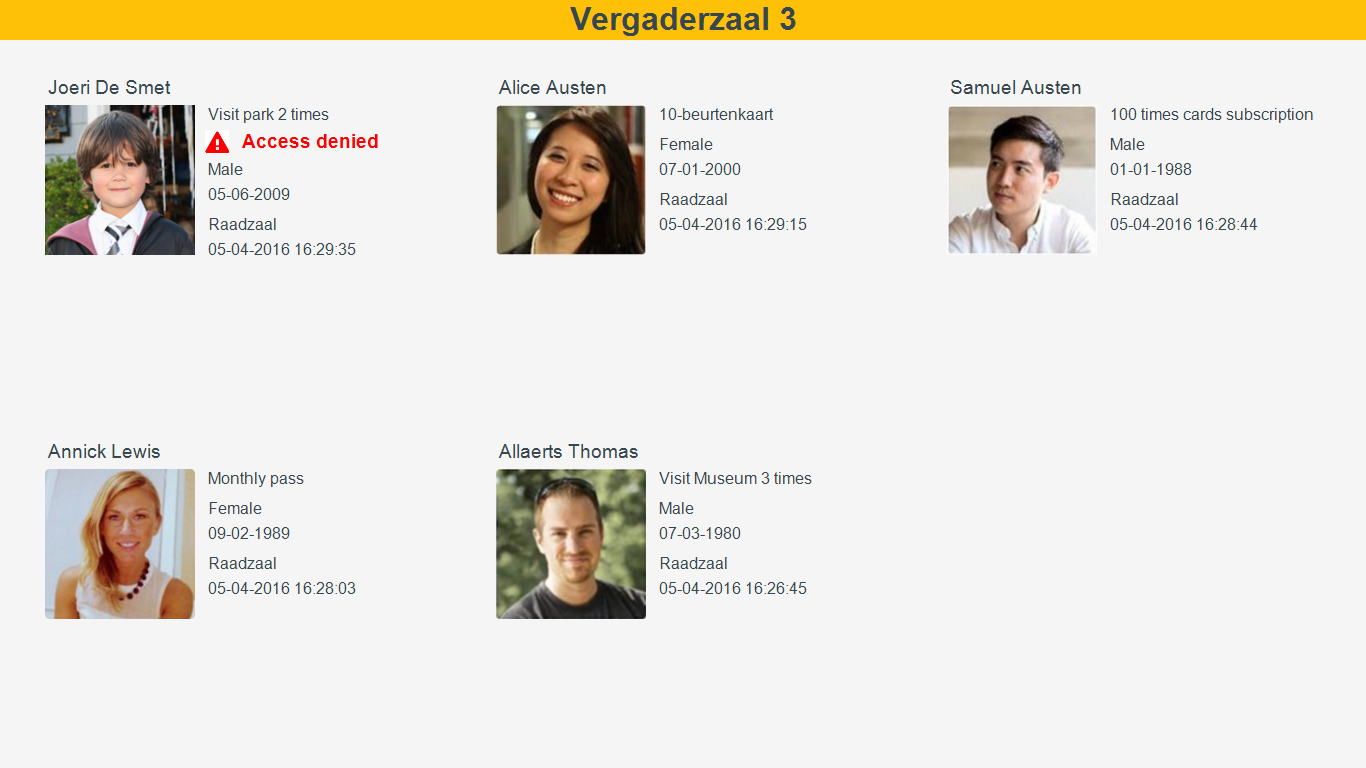
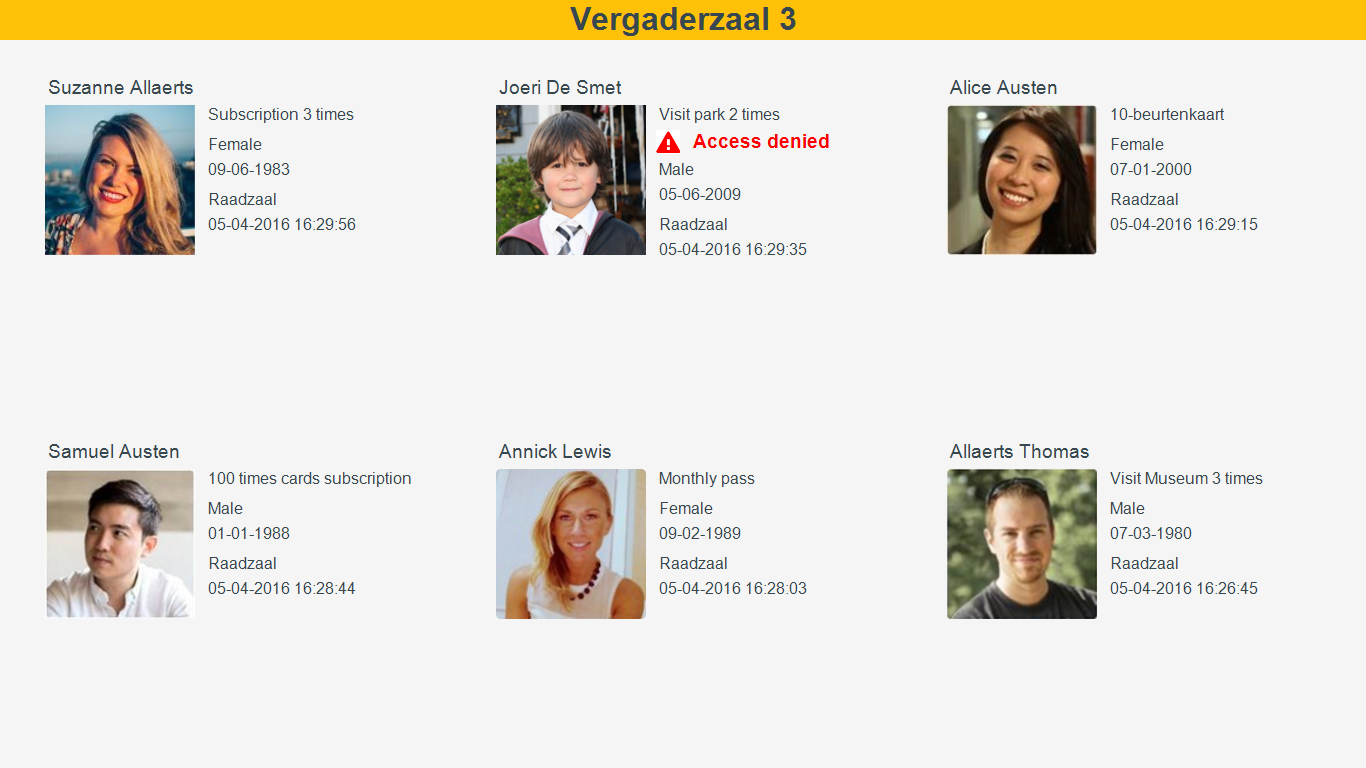
Number of visitors | This parameter allows to define the maximum number of visitors (up to 6) that can be displayed on the visitor info screen. The default value is 4. NoteIt is recommended to use an even value from 1 to 6. By default, the visitor info will populate in the following pattern: First visitor: Visitor info is displayed in the centre of the screen.
Second visitor: The screen is divided into two columns, wherein the most recent visitor's information is shown on the left.
Third visitor: The screen is divided into four equal parts. The most recent visitor's information is shown in the upper left corner.
Fourth visitor: The most recent visitor's information is shown in the upper left corner, while the first visitor's information is moved to the bottom right corner.
Fifth visitor: The screen will be divided into six equal parts.
Sixth visitor: The most recent visitor is displayed at the upper left corner. On the card scan of a new visitor, the visitor info in the bottom right corner will be replaced by its subsequent record.
| ||||||
Resolution | This parameter allows to define the resolution of the screen on which visitors' details will be shown. The default value is 1024x768. Use the exact device resolution from the available options:
In case the display screen has a deviating resolution (different from those mentioned above), it is obligatory to create an XML file for the new dimension before using it. Procedure:
| ||||||
Profile picture type | This parameter allows defining the picture that will be visualised along with the visitor's information. Use a value from the following options:
| ||||||
Show visitor name | This parameter allows to define the visualisation of the visitor's name on the visitor info screen. XML file: Use a value from the following options
Configuration tool: Activating this option results in visualisation of the visitor's name on the visitor info screen.  | ||||||
Show gender | This parameter allows to define the visualisation of the visitor's gender on the visitor info screen. XML file: Use a value from the following options
Configuration tool: Activating this option results in the display of visitor's gender on the visitor info screen.  | ||||||
Show birth date | This parameter allows to define the visualisation of the visitor's date of birth on the visitor info screen. XML file: Use a value from the following options
Configuration tool: Activating this option results in visualisation of the visitor's date of birth on the visitor info screen.  | ||||||
Show subscription name | This parameter allows to define the visualisation of the visitor's membership name on the visitor info screen. XML file: Use a value from the following options
Configuration tool: Activating this option results in visualisation of the visitor's membership name on the visitor info screen.  | ||||||
Access zone | This parameter allows to define the access zone for which visitor info will be visualised. XML file: Enter the access ID in the code <AccessZoneID>....</AccessZoneID> Note
Configuration tool: Select the access zone from the drop-down list.  | ||||||
Readers | This parameter allows to define the readers for which the visitor info will be visualised. XML file: The tag <Readers>...</Readers> defines one or multiple entrance reader IDs, each separated by a semi-colon (;). Configuration tool: Dependent on the selected access zone, a list of readers will populate in the Readers section. Select the readers for which you wish to display visitor info.  WarningIf no reader is selected, by default, the Infoplay desktop app will display visitor info of all the readers configured for the selected access zone. |

Application Theme
The colours of the the Infoplay desktop application's user interface can be modified by using application theme parameters.
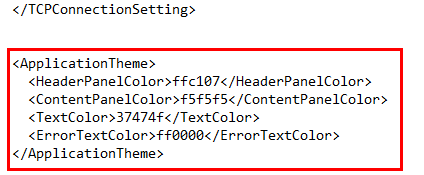
In order to change a colour, enter the hex colour code of the desired colour for the parameter in question.
It is possible to configure by editing the application theme parameters in the Settings XML file with appropriate values.
Alternatively, the parameters can be configured by using the Infoplay configuration tool.

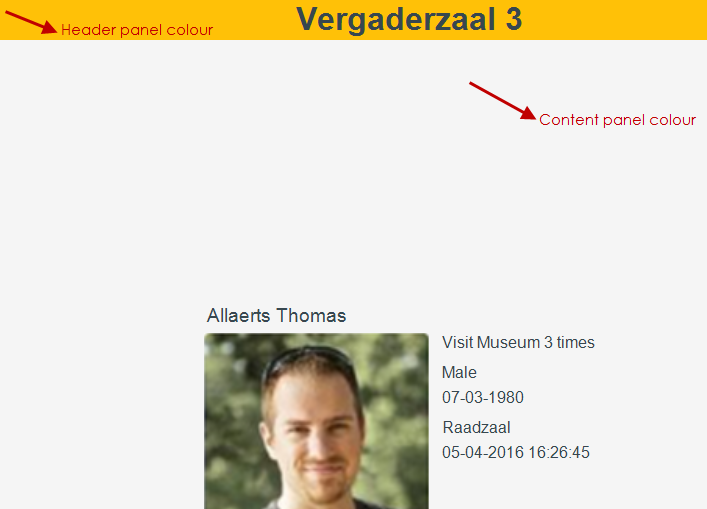
Header panel colour | Colour of the top panel of the visitor info screen. |
Content panel colour | Background colour of the visitor info screen. |
 |
Text colour | Colour of the text on the visitor info screen.
NoteBy default, the title text is formatted in bold. | ||
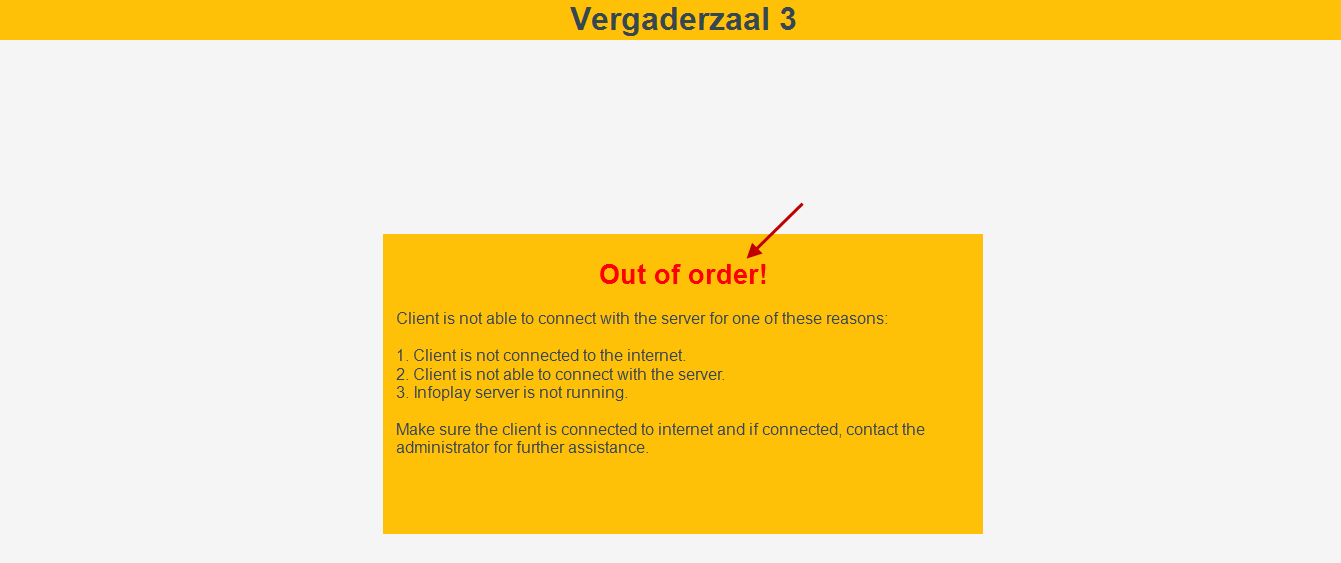
Error text colour | Colour of the error text.
|