Configure Recreatex
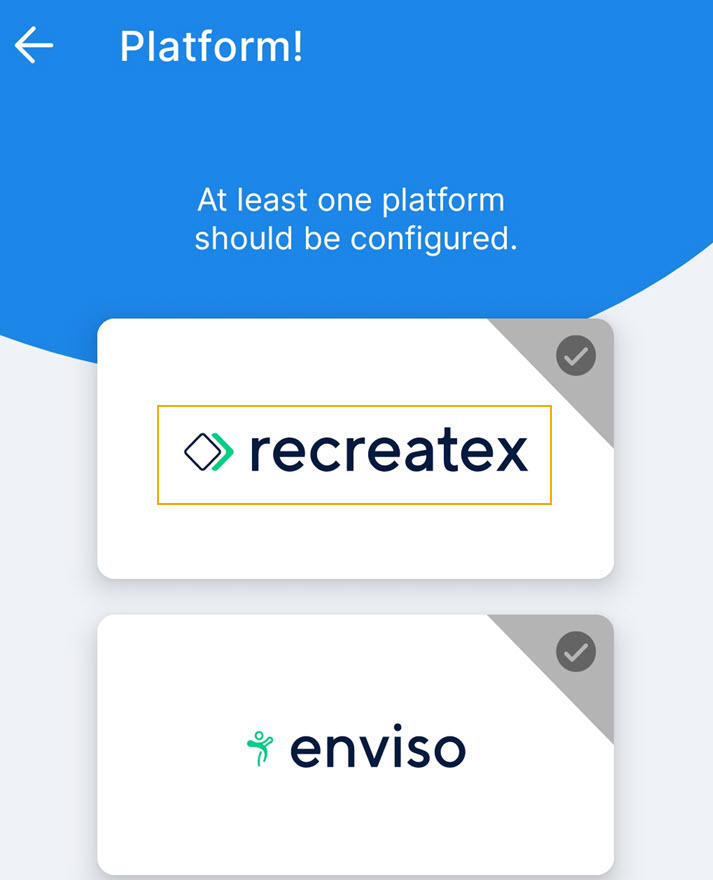
1. Select platform
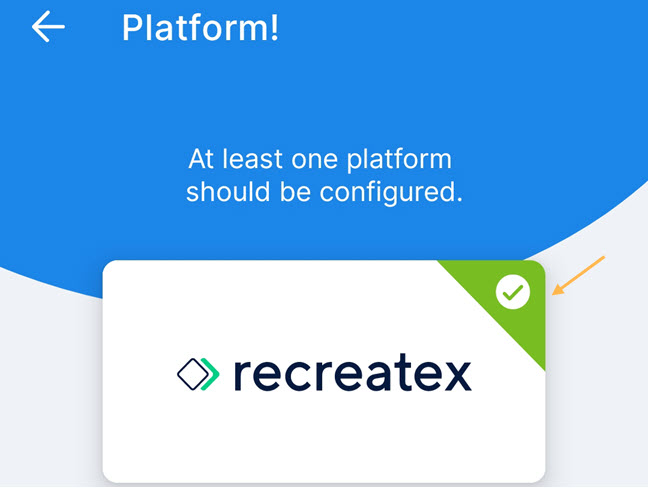
On the Platform screen, select Recreatex.
 |
2. Scan configuration QR code
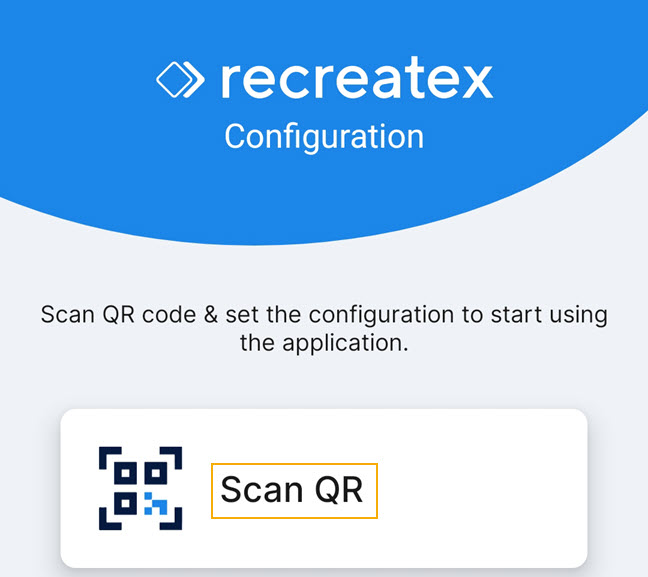
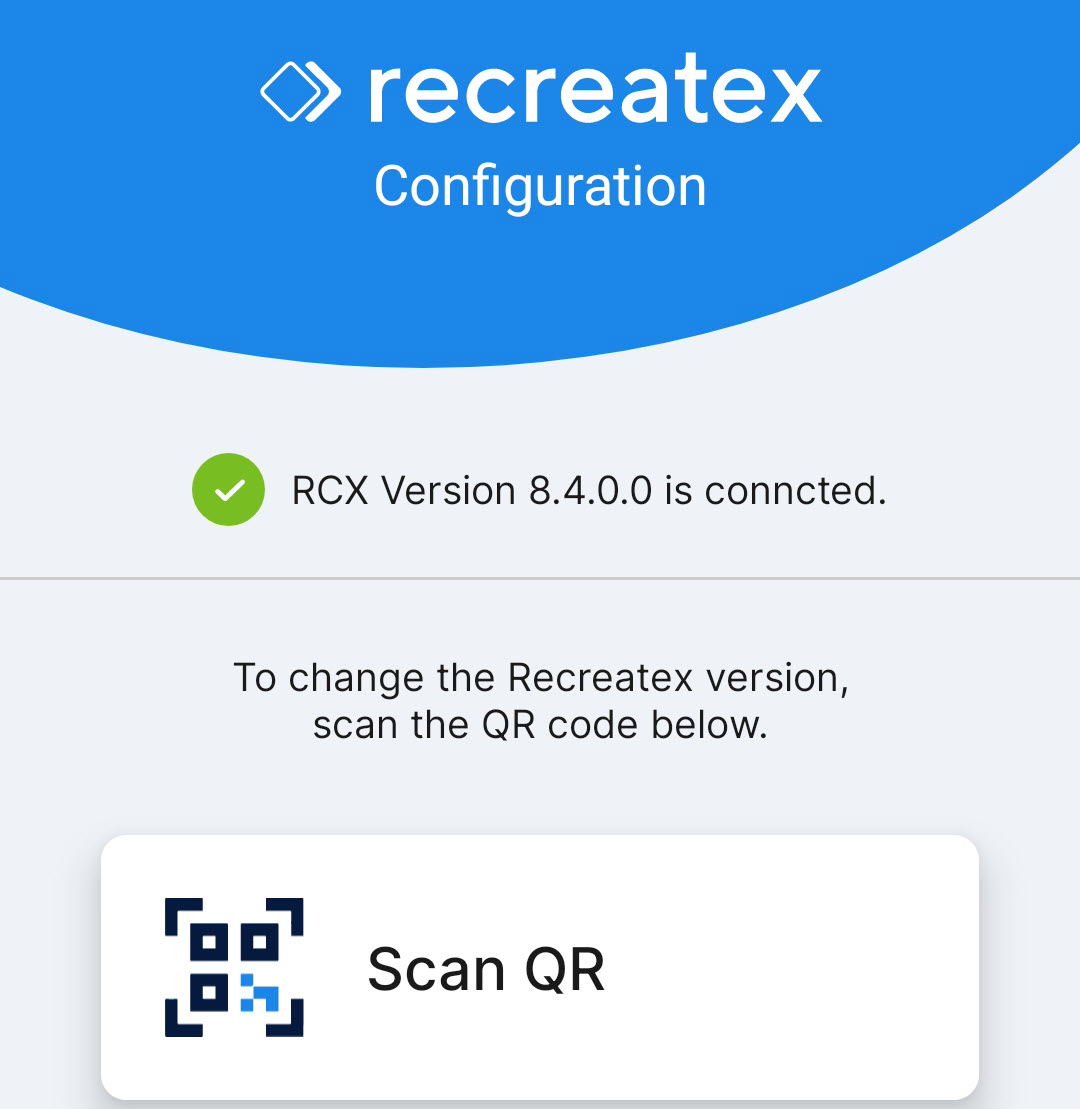
Next on the Recreatex configuration screen, tap Scan QR and scan the Recreatex configuration QR code. The Recreatex configuration QR code will be provided by Vintia support.
For added security, the Recreatex configuration supports only HTTPS URLs. Vintia support will embed the HTTPS URL in the provided Recreatex configuration QR code.
 |
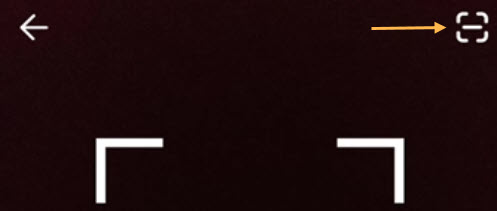
In case the device supports red light barcode scanning, you will have the option to scan the barcode using the scanner button in the top-right corner of the screen.
 |
3. Enter employee credentials
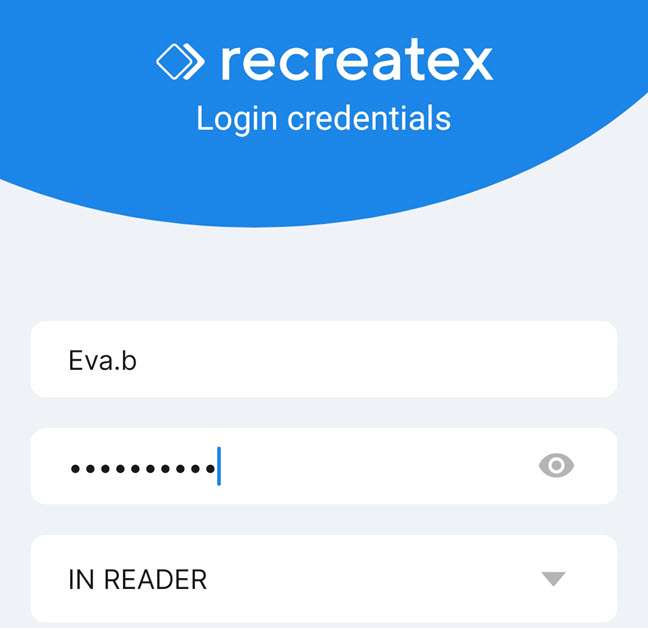
If the connection with Recreatex is successful, you will be navigated to the Login credentials screen. Enter the employee credentials as defined in Recreatex. Also, select a reader.
 |
This completes the process of configuring Recreatex platform for the Admission app. Click Save .
 |
Upon subsequent logins with the same profile, you will be required to enter only the employee password. The Recreatex reader will be pre-selected. However, you will be able to change the reader if required.
If you wish to connect to another Recreatex version, tap Scan QR and scan the configuration QR code of that version.
 |
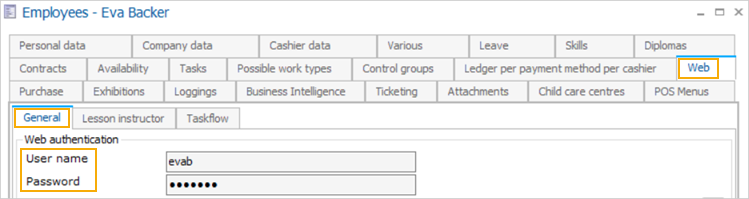
Employee login credentials
In the Recreatex desktop, the employee login credentials can be defined from the tab Web > General on the employee level.