Update stock count
On the location screen, scan the item barcode to update the stock count in mStock.
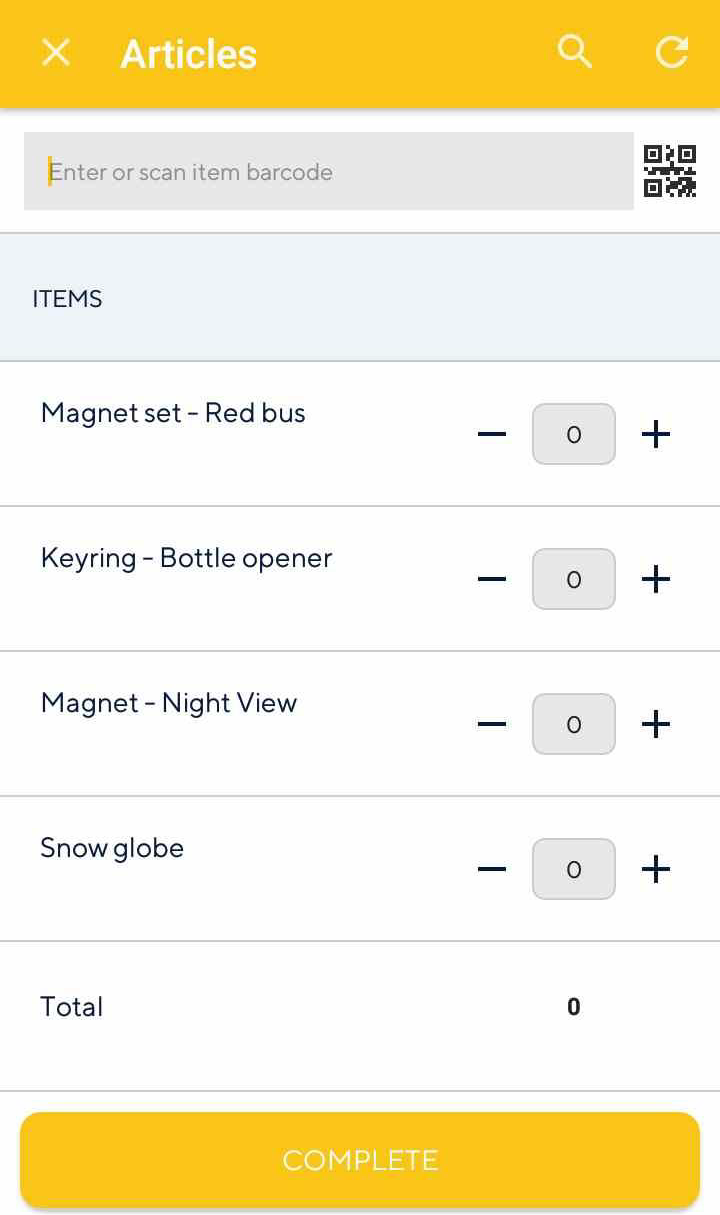 |
Note
Depending on the Recreatex parameter Propose quantity counted, the input box will be pre-filled with the system stock quantity. See further, Display of system stock
System stock quantity is the current quantity of an item in Recreatex.
You can update item quantity in any one or combination of the following methods:
Manually enter the item barcode.
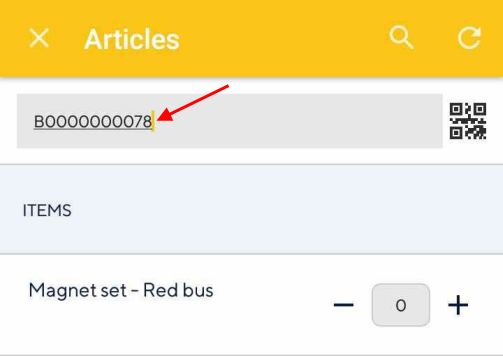
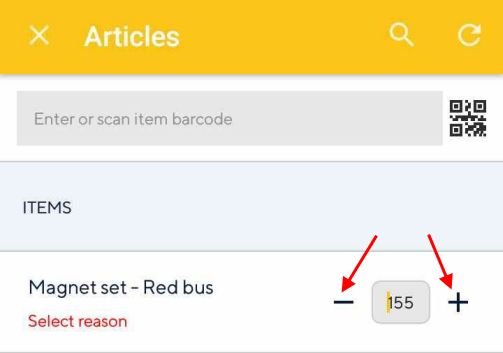
Manually enter the item quantity, by tapping on the input box and filling in the item quantity.

Adjust the item quantity using the + and - buttons on the sides of the input box.
Scan the item QR code using the device camera. Tap
 in the top right corner of the screen. This will initiate QR code scanning. Now, point the device scanner at the QR code of the item.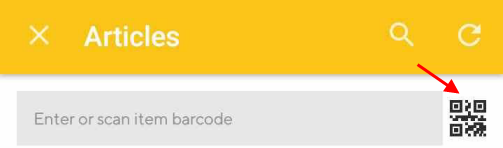
You can use the device scanner to scan the item barcode.
Note that when updating a stock count, the user will be prompted to select a reason for the damage.
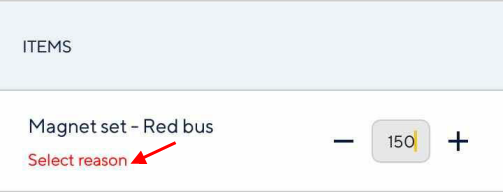 |
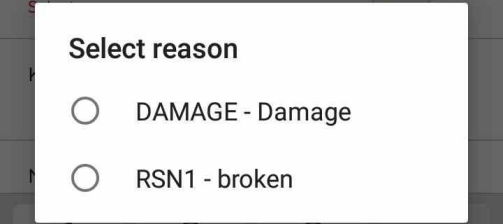
Tap Select reason. In the resulting pop-up select an appropriate reason for the damage.
 |
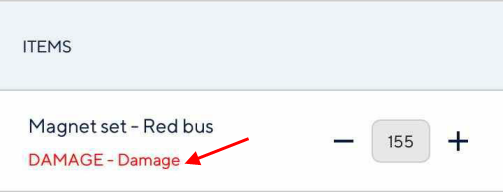
The selected reason will display below the item name.
 |
Search item
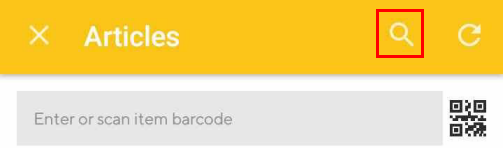
Tap on the search icon in the top panel.
 |
On the resulting screen, enter the item name in the search bar.
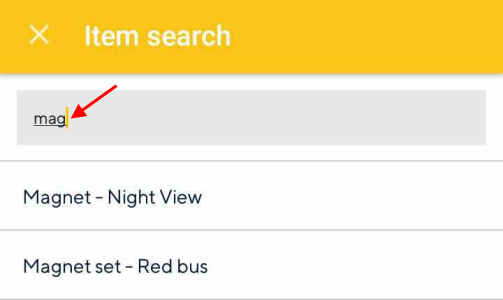 |
Note
The search result will contain only those items which are linked to the location in question in Recreatex.
Consult item details
Tap an item to consult its details.
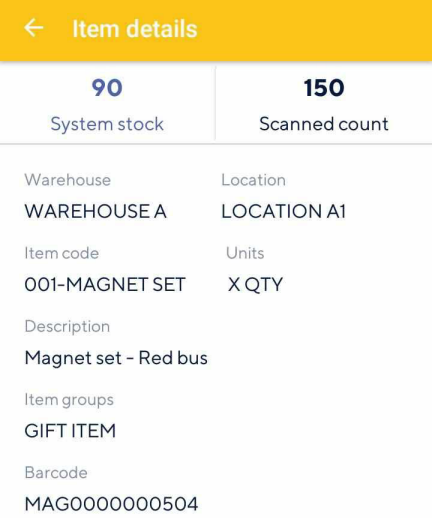 |