Select an inventory journal
From the list of journals on the Inventory journal screen, select the journal for which you want to audit or recount stock.
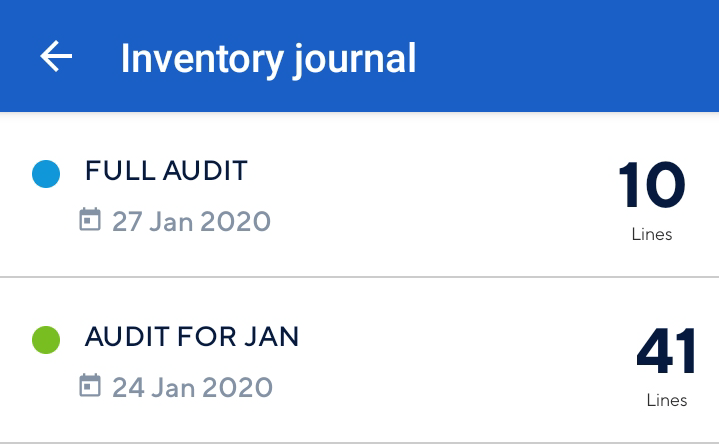 |
You can either select from the journals that are synced from Recreatex or create a new inventory journal.
Note
For a description of the journal screen, refer Journal components and Journal status.
Create an inventory journal
When you open the inventory journal for the first time, you will see journals that have been created in Recreatex. However, if you wish to create a new journal, you can do so from mStock. The created journals sync automatically with Recreatex.
Creating a journal involves the following steps:
Warning
Once a journal is created, details such as the journal name, description and creation date cannot be edited from mStock. Moreover, it is not possible to delete a journal from mStock.
Enter journal details
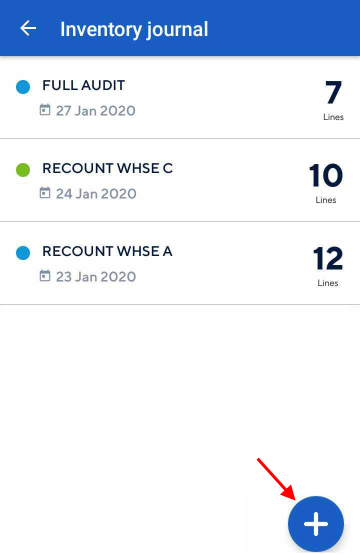
Select a Inventory journalon the Home screen. Next, tap the add journal button  in the bottom right corner of the screen.
 |
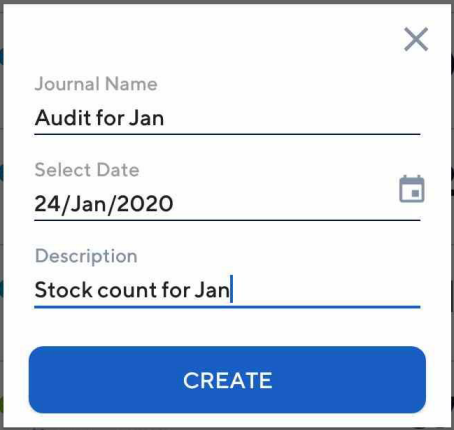
In the resulting pop-up, enter the details to create a journal. Thereafter, tap Create.
 |
Note
You will be able to consult the journal name and journal creation date in both, mStock and Recreatex. However, the description text will only be visualized in Recreatex.
Link warehouse with the journal
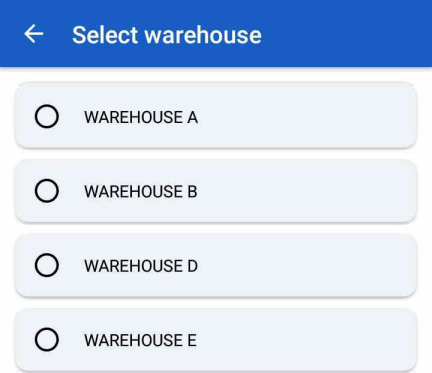
Select the warehouse which you wish to link with the journal.
 |
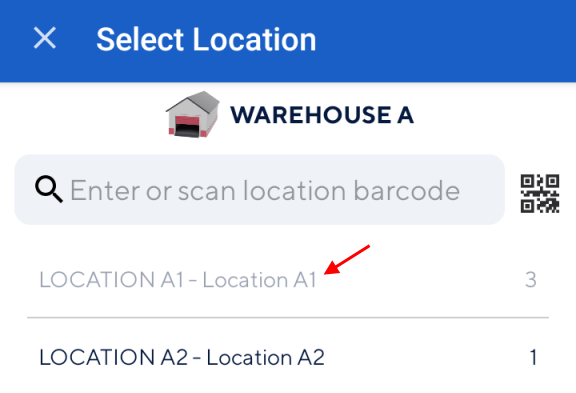
Thereafter, select a location in the warehouse.
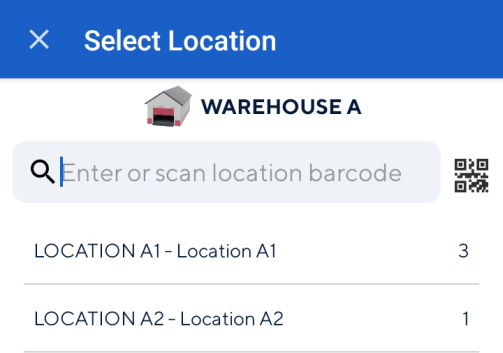 |
Note that the number corresponding to a location refers to the number of items in that location.
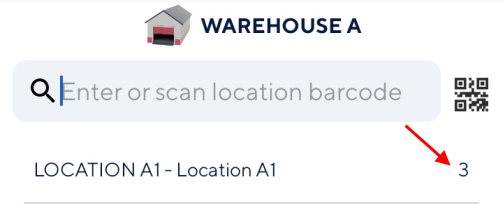 |
On the resulting screen, you will be able to consult the linked location. To add more locations, tap  in the bottom right corner of the Select location screen.
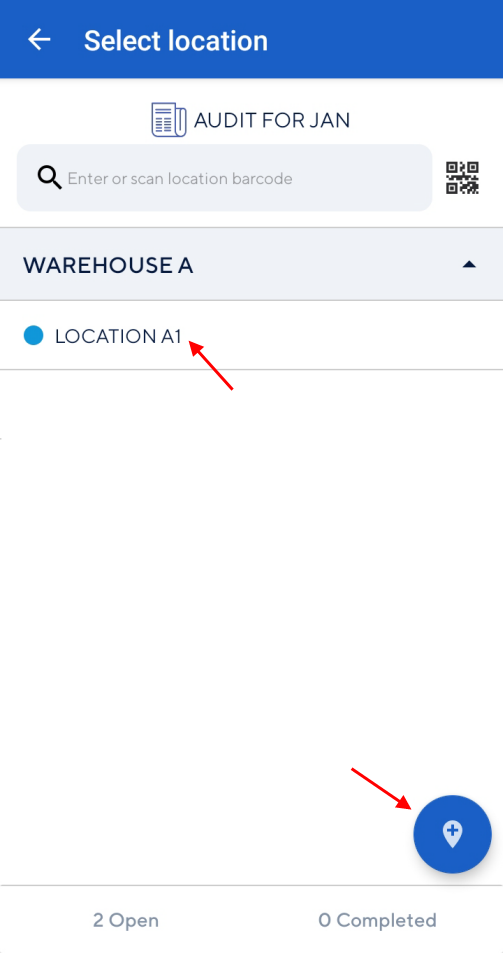 |
Now, on the Inventory journal screen, you will see the created journal.
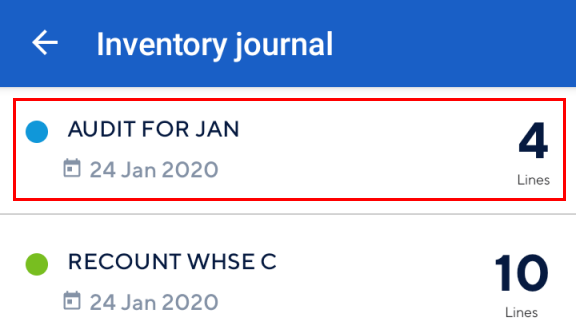 |
Important to know:
If a location has already been selected, you will not be able to deselect it.
It is possible to add more warehouse to the journal even after the journal is created.
It is not possible to delete a journal from mStock.