Submit count and transfer journal
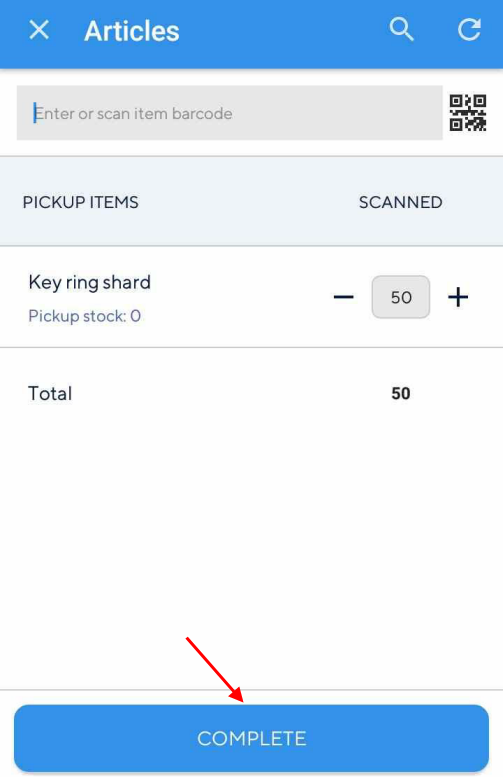
After you have completed scanning the items, scan the source location barcode.
Alternatively, you can tap Complete to complete the count.
 |
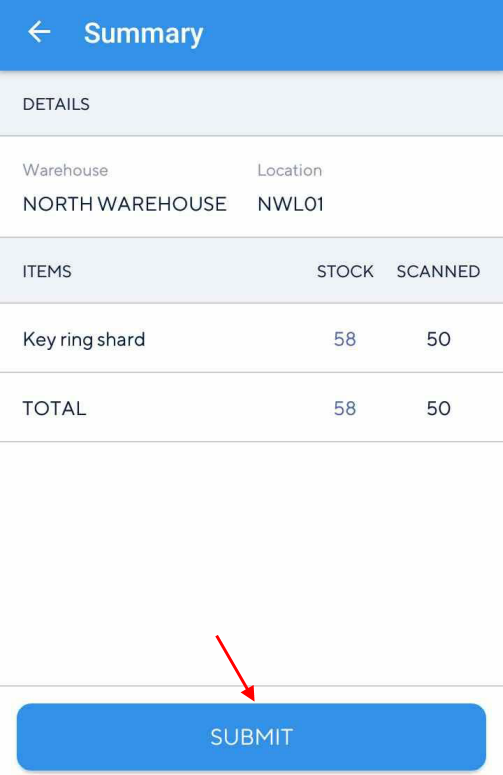
Next, the user will be navigated to the Summary screen, which contains an overview of the stock count for the current location.
To submit the stock count to Recreatex, scan the source location barcode.
Alternatively, you can tap Submit for submitting the stock count to Recreatex.
 |
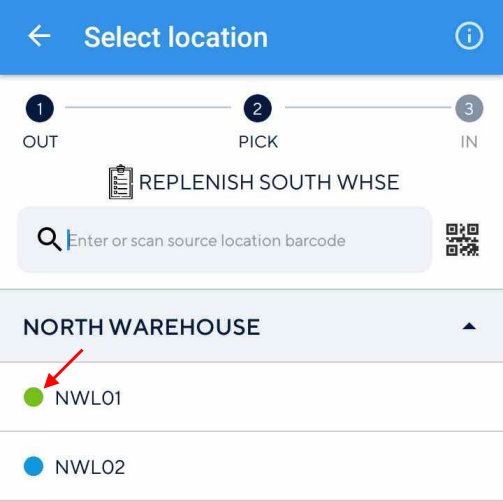
The location will be marked as completed on the Select location screen.
 |
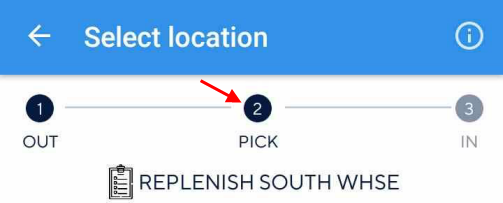
Note the change in progress status after submitting the journal.
 |
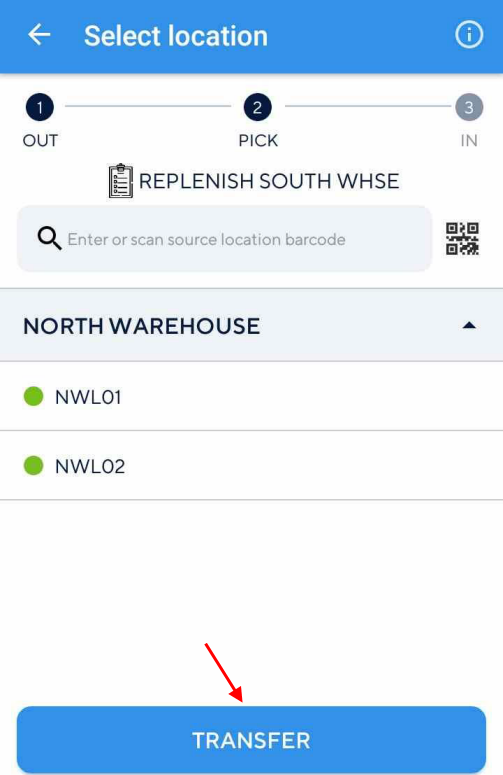
Transfer the journal
When all the source locations in a journal are completed, the user will be able to transfer stock to the destination location.
 |