Select location
Select the location from where the stock needs to be picked up.
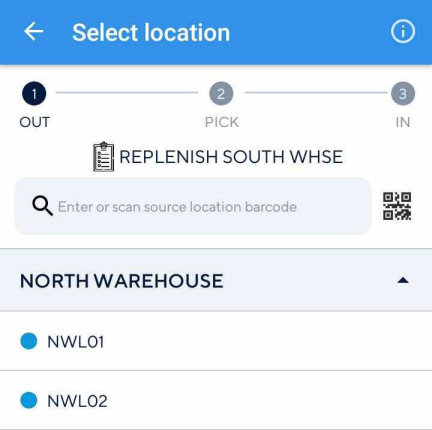 |
It is possible to select a location in any of the following ways:
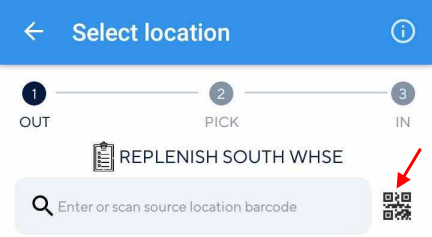
Scan the location barcode to select the stock pick up location. You can also use the device's in-built scanner.
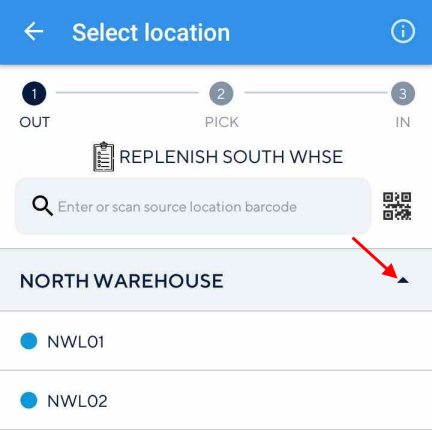
Tap the desired location, which is nested in the corresponding warehouse
Enter the location barcode manually.
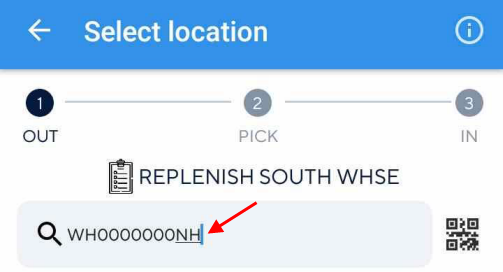
Understanding 'Select location'
Transfer status
The progress bar at the top of the Select location screen shows the steps involved and their status for a transfer journal.

Filter locations
It is possible to filter locations by status using the Open and Completed buttons at the bottom of the Select location screen. For a detailed description, refer Filter locations.
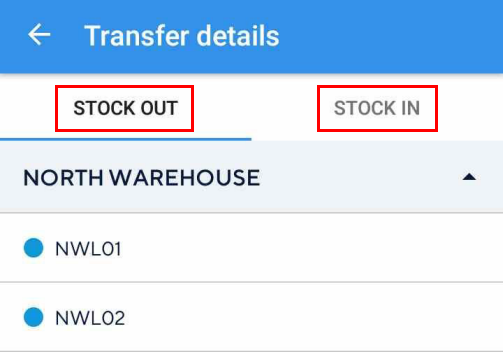
Transfer details
Tap the info icon
 in the top-right corner of the Select location screen to consult warehouses and locations for stock transfer.
Switch between the tabs Stock out and Stock in to consult the source and destination locations, respectively.