Select location
Select a location from the list of locations.
 |
It is possible to select a location in any of the following ways:
Scan the QR code of the location for which you wish to audit or recount stock. To scan using the device, tap
 on the right of the input field. This will initiate QR code scanning. Now, point the device camera at the QR code of the item.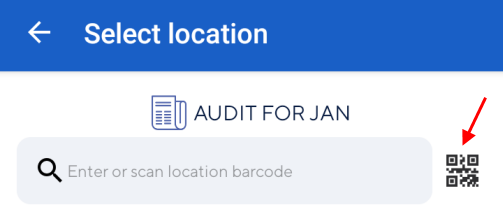
You can also use your device's built-in scanner to scan the location barcode.
Tap the desired location, which is nested in the corresponding warehouse
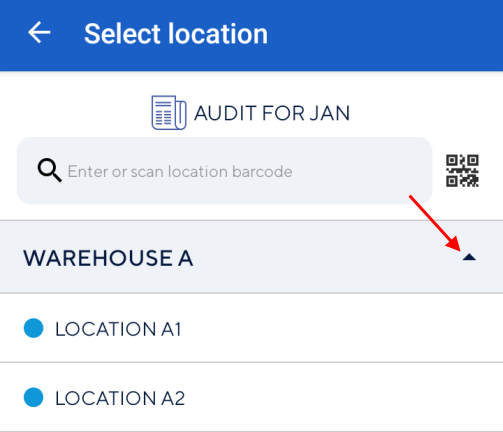
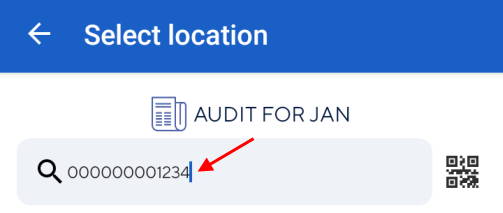
Enter the location barcode manually.
You can also add a location, if required. For a detailed description, refer Linking warehouse and location with the journal
Note
On the Select location screen, it is possible to filter locations for which stock count is either open (pending/in-progress) or completed. See further , Filter locations
Filter locations
It is possible to filter locations by their progress status.
To do so, tap Open or Completed at the bottom of the Select location screen.
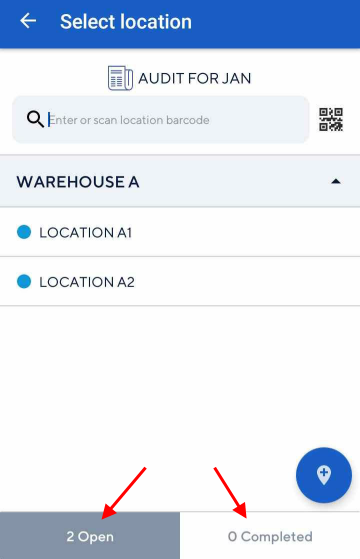 |
To disable the filter, tap again on the enabled filter (Open/Completed).
The digit in the filter buttons indicates the number of locations currently in that status.
 |