Close the journal
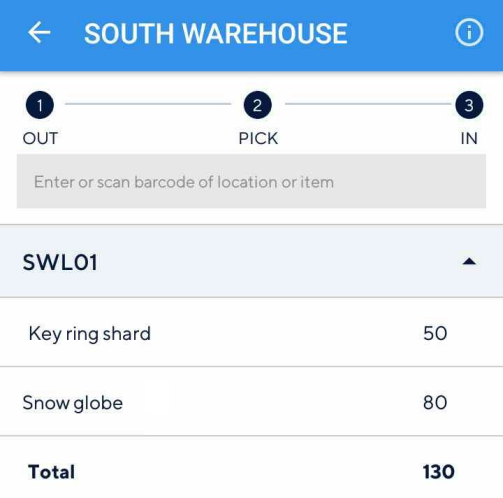
After transferring the journal, the user will be navigated to the destination warehouse screen. This screen contains a list of locations in the destination warehouse and the items which are to be transferred to each location.
 |
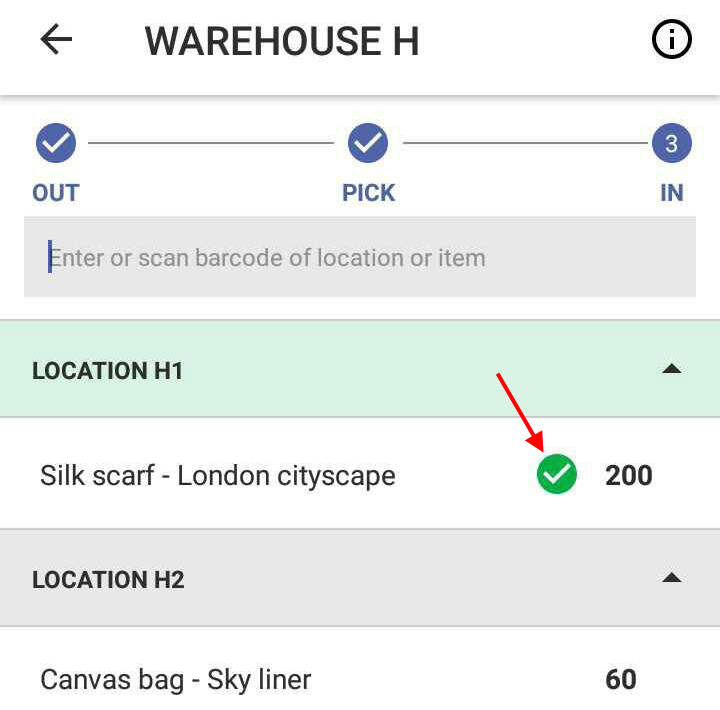
After you have placed a stock item at the destination location, scan the item barcode or tap the item name on the screen.
A  mark will appear next to the item. This indicates the item has been placed at the destination location.
 |
Warning
Once an item has been marked , it cannot be undone.
You can also scan the barcode of the destination location to mark all the items in that location at once.
When all the locations are marked, the user will be able to close the journal.
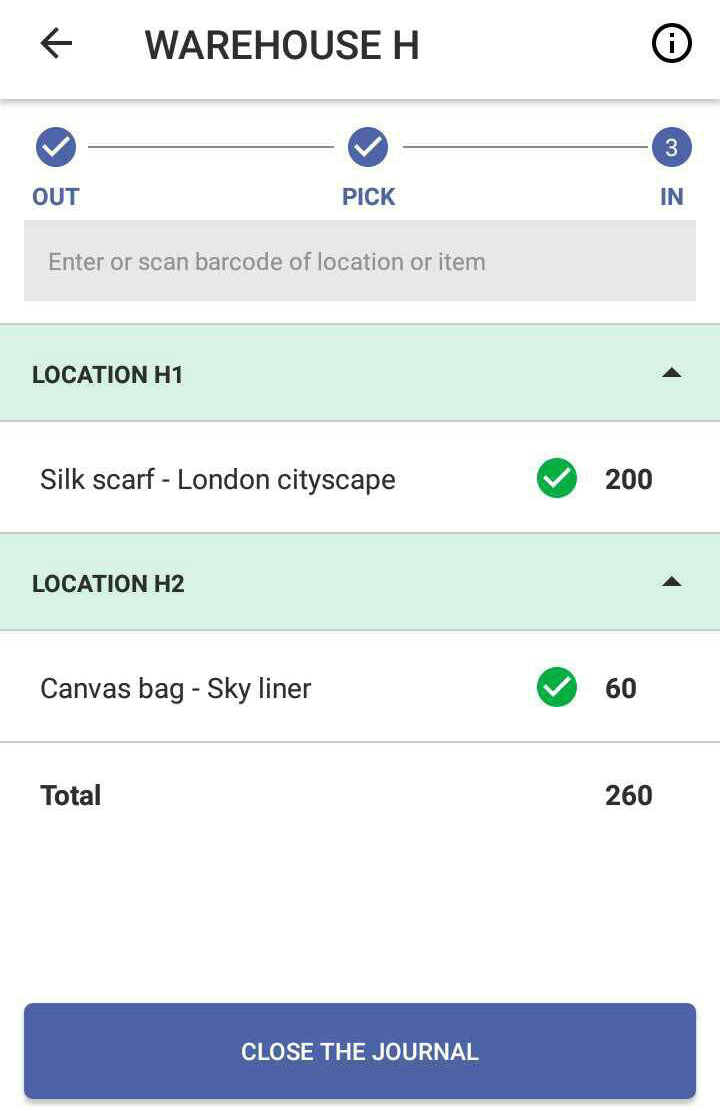 |
Closing the journal will result in the stock count being updated in Recreatex. Moreover, the closed journal will no longer show in mStock.