Managing user profile
On the extreme right of the top panel, you can see the name of the user that is currently logged in. By clicking on the name, you will be able to consult/edit the current user profile.
To view or edit the profile information, click My profile.

On the user profile page, you have options to change settings for the profile of the logged-in user.
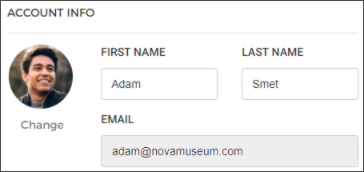
Account Info | It is possible to edit the first name, last name, phone number, and the profile picture of the user. It is not possible to edit the email address. By default, the initial of the user's first name will show as the profile picture. To change the user profile picture, click Change and upload a profile picture for the user.
| ||||||||||||
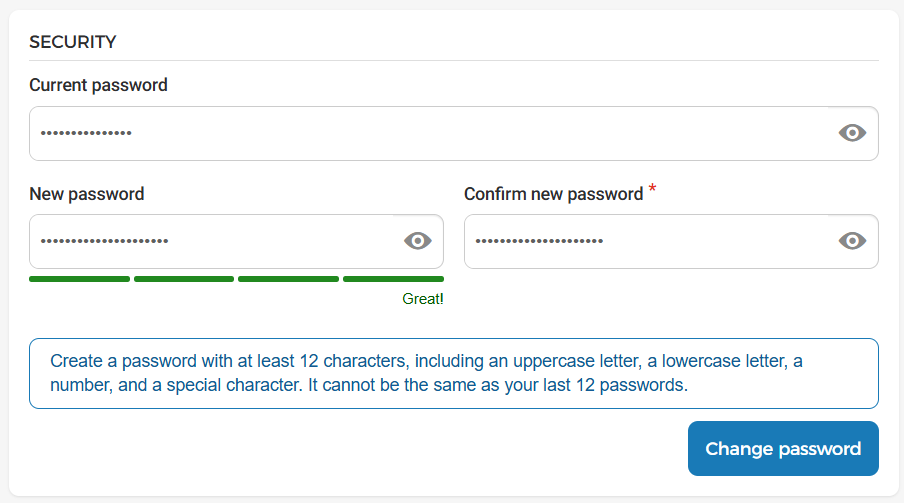
Security | It is possible to change the user password. Enter your current password and the new password. Re-enter the new password to confirm. Click Change password to set the new password.
| ||||||||||||
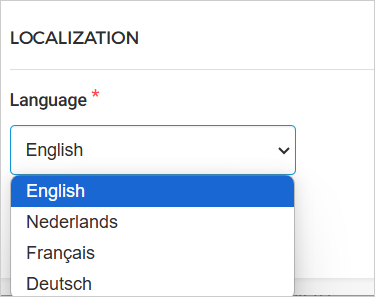
Localization | Allows you to change the app language to English, Dutch, French, or German.
NoteThe default language is English. In case the language defined for the browser used for accessing the Trade for venues portal is Dutch, then the application will be displayed in Dutch. | ||||||||||||
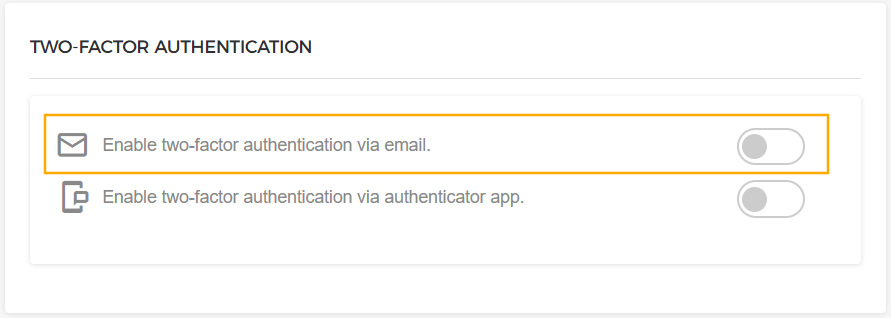
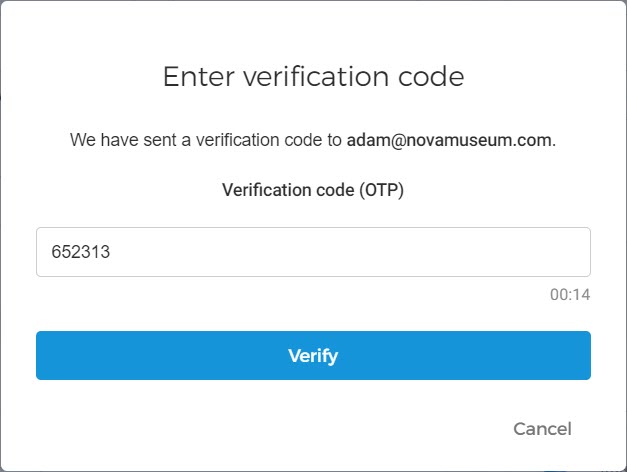
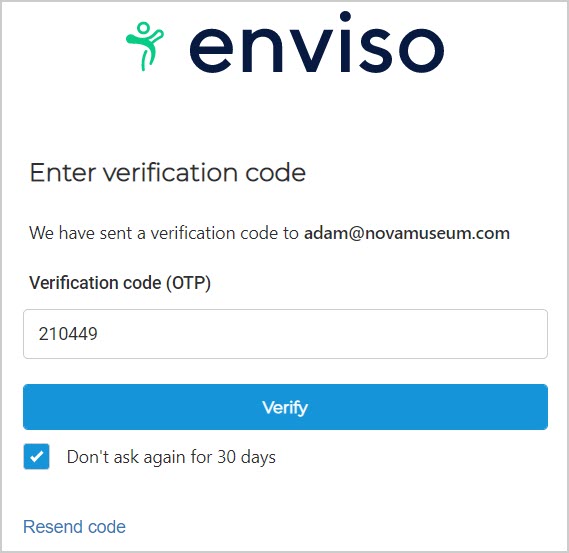
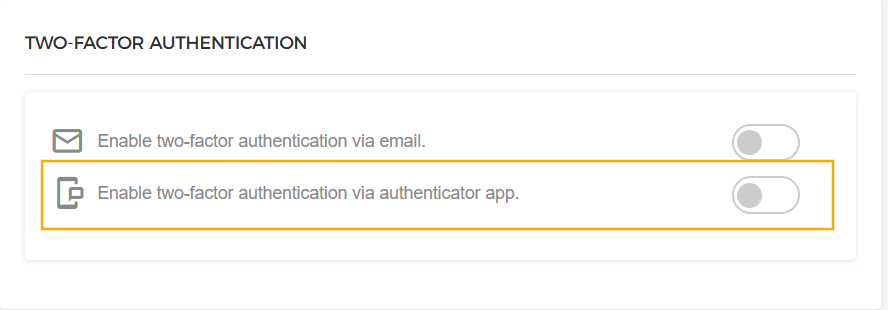
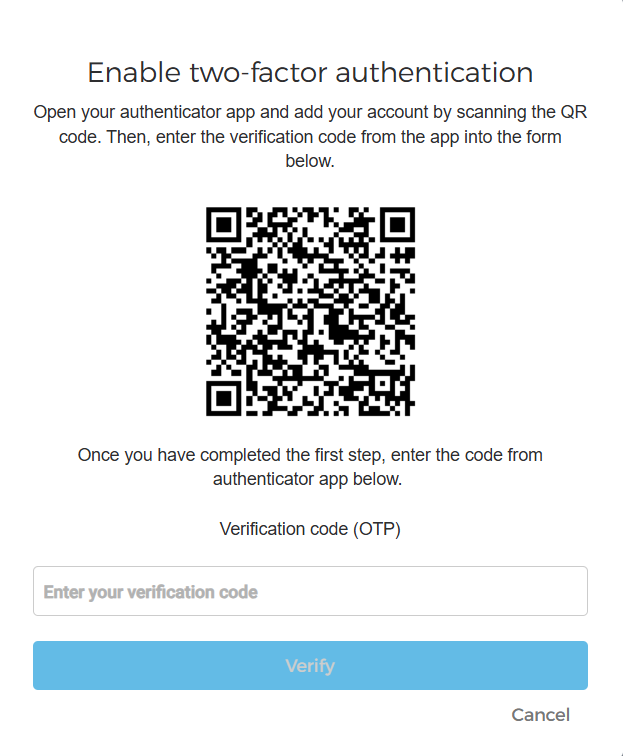
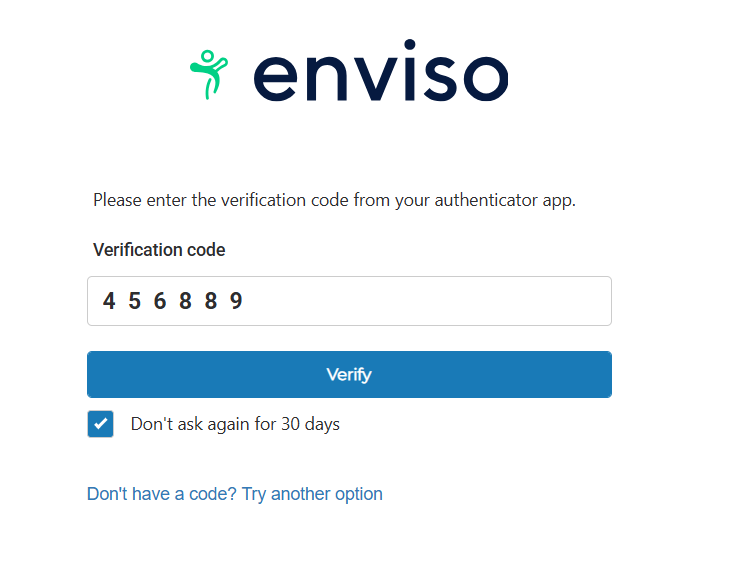
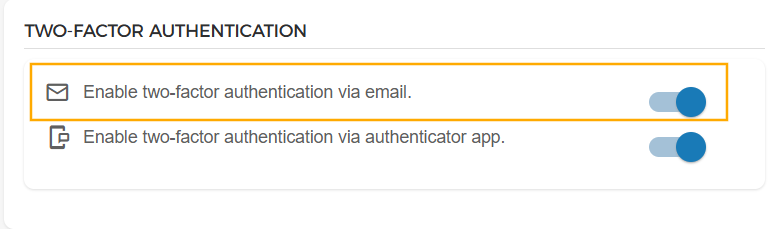
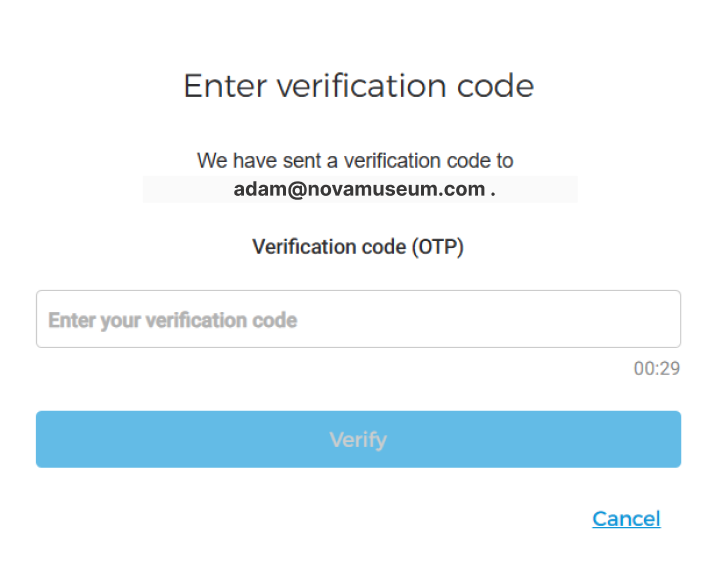
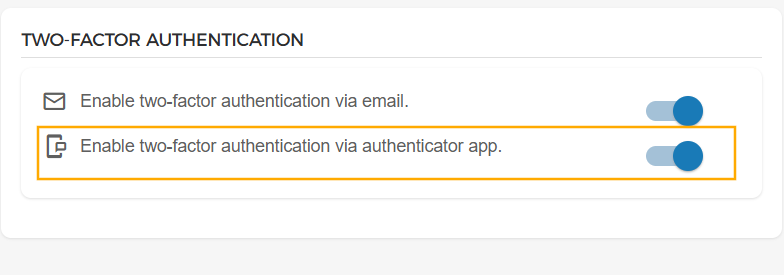
Two-factor authentication | Enable two-factor authentication By default,two-factor authentication (2FA) is disabled for your account. You can enable an additional verification step to improve the security of your account. The following 2FA methods are supported:
Enable 2FA via Email
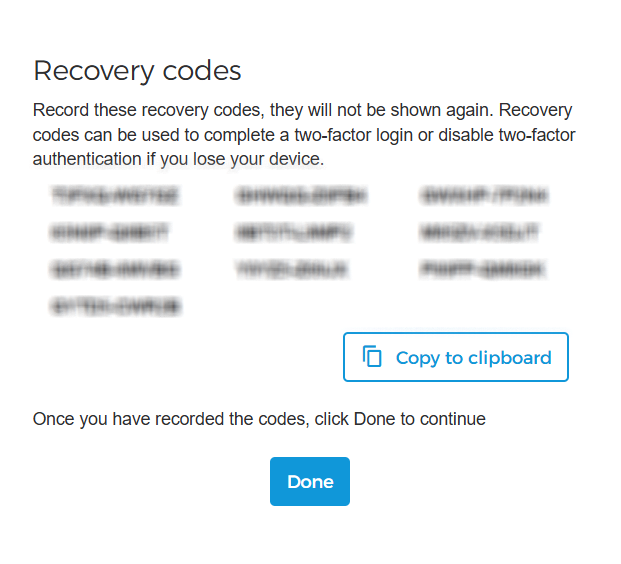
Enable 2FA via Authenticator App
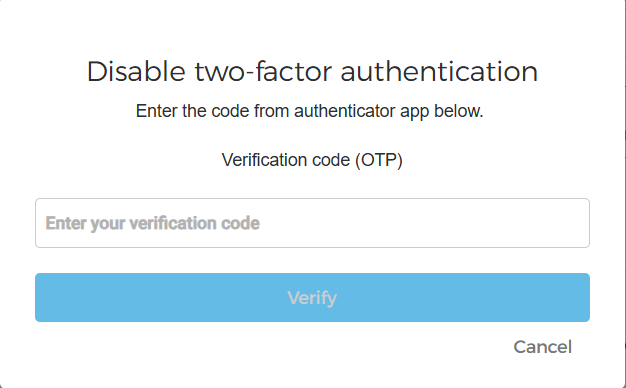
For more details, refer two-factor authentication Disable two-factor authentication If 2FA is enabled for your account, you can disable any configured 2FA authentication method from your profile settings. Disable 2FA via Email
Disable 2FA via Authenticator App
Now, upon subsequent logins, you can only log in with your Enviso credentials. The additional step to re-authenticate with a verification code will not appear. |
Note
The Help icon in the top panel of the Trade for Venues account navigates you to the online portal for Enviso documentation.
