Oct 15, 2025
Sales
Choose when the voucher configuration is applied
In the Offer details tab when creating or editing a voucher, a new Voucher configuration setting is available. This option lets you choose which version of the voucher configuration should be applied when the customer redeems the voucher.

Configuration at time of purchase
The system locks in the voucher settings (e.g. validity dates, allowed products, price) exactly as they were when the customer bought the voucher.
Even if the voucher offer is later edited, the original configuration still apply to that voucher.
Use this when you want to guarantee customers the same terms they purchased. (not sure if we should mention this)
Configuration at time of redemption
The system applies the current, most up-to-date settings of the voucher offer when the customer redeems it.
If you have modified the offer after the voucher was bought, the new configurations will apply.
Use this option when you want full flexibility and want redeemed vouchers to follow the latest configuration.
Display a custom message for basket-level promotions
You can now configure a custom message for basket-level promotions. When the promotion is applied, the message will be shown in the 'Order overview' step of the checkout flow in the Ticketing Widget.
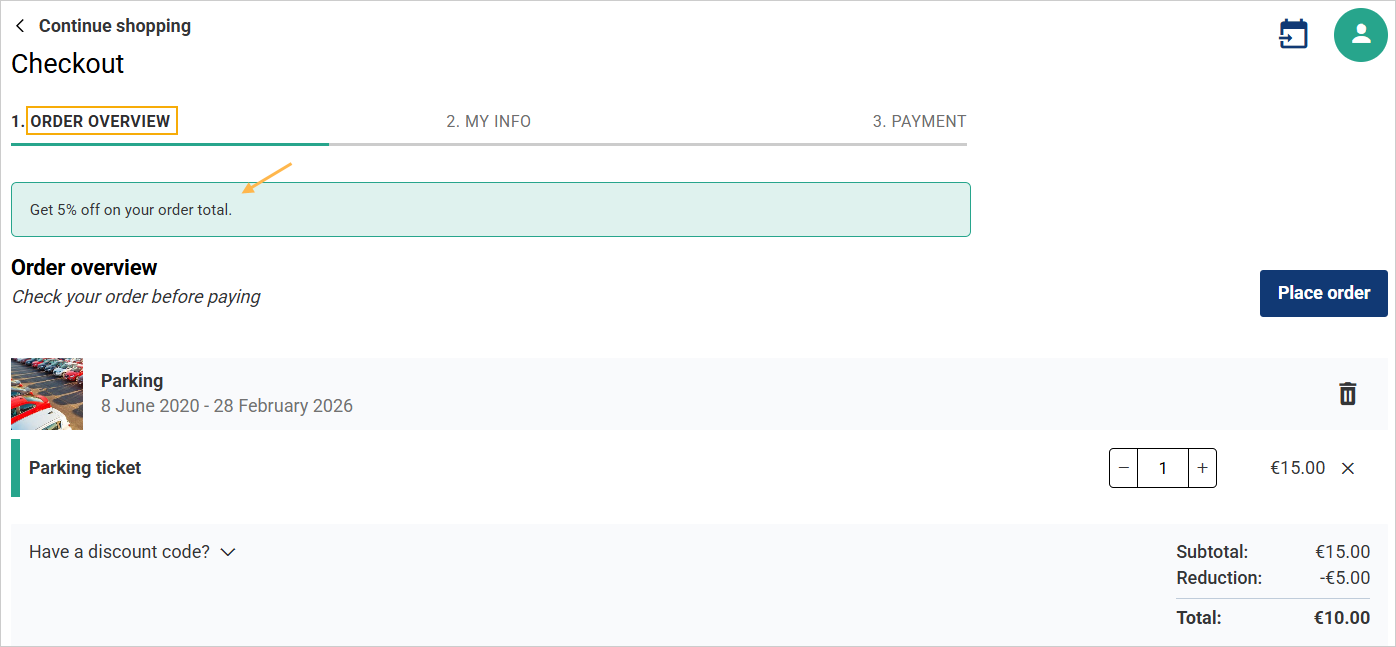
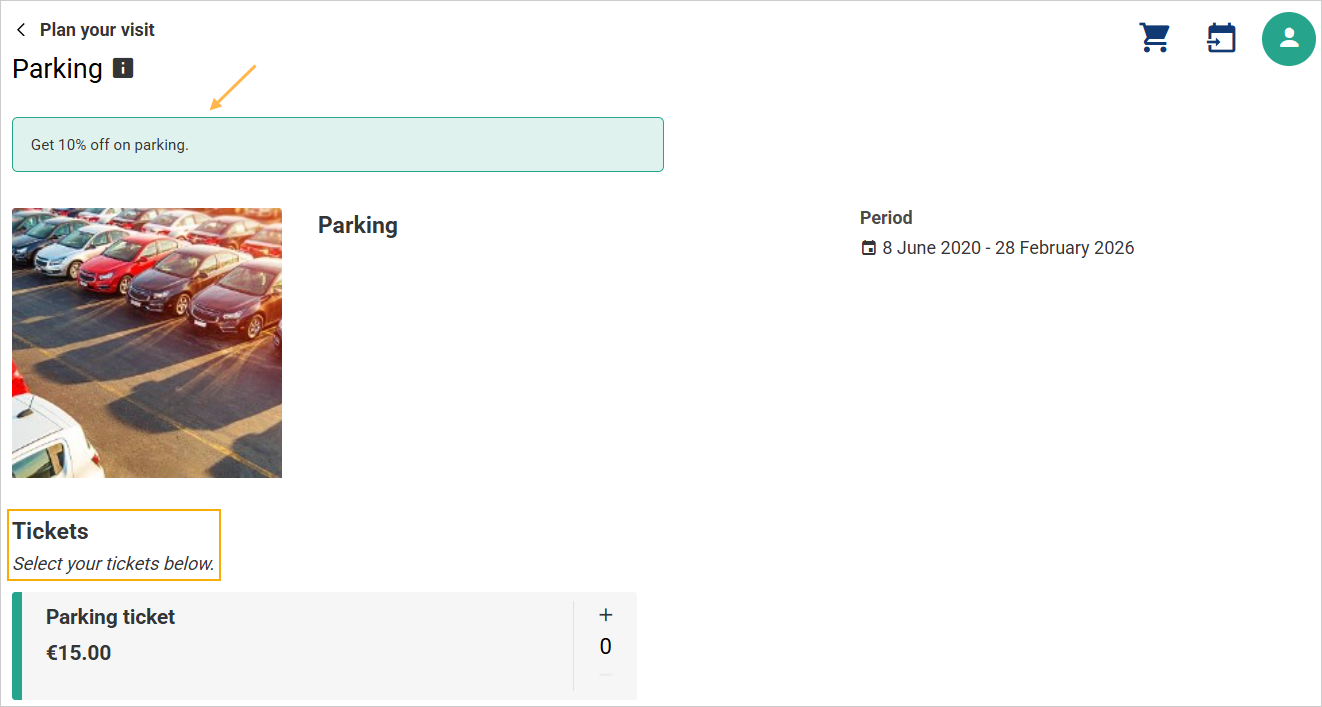
For offer-level promotions, the custom message will continue to appear in the 'Ticket selection' step, as before.
Link external codes to indirect channel sales points
External codes can now be linked to indirect sales points in addition to direct sales points.
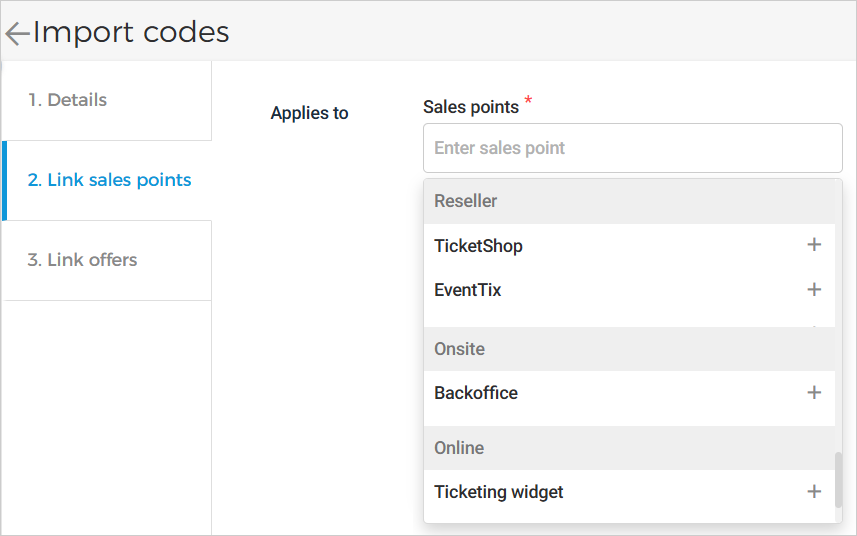
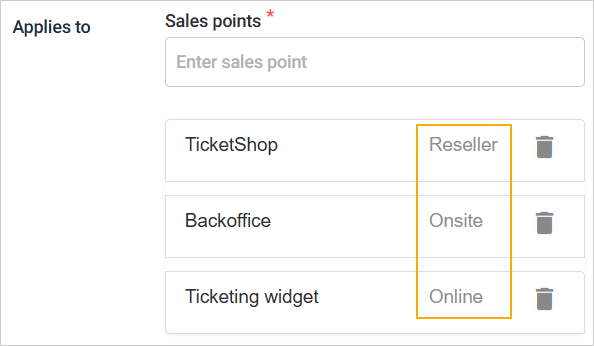
After selection, you can see if the sales point is reseller, online, or onsite.
Trade for Venues
Enhancement
You can now add ‘External code’ and ‘External QR code’ fields in the ticket template and publish them to resellers.
Note
If external codes are used, the fields ‘External code’ and/or ‘External QR code’ must be added to the ticket template. Otherwise, codes will still be marked as used but will not appear on the visitor pass.
Trade for Resellers
Enhancement
As a reseller, you can now add ‘External code’ and ‘External QR code’ fields in the ticket template.
Note
If external codes are used, the fields ‘External code’ and/or ‘External QR code’ must be added to the ticket template. Otherwise, codes will still be marked as used but will not appear on the visitor pass.
Ticketing widget
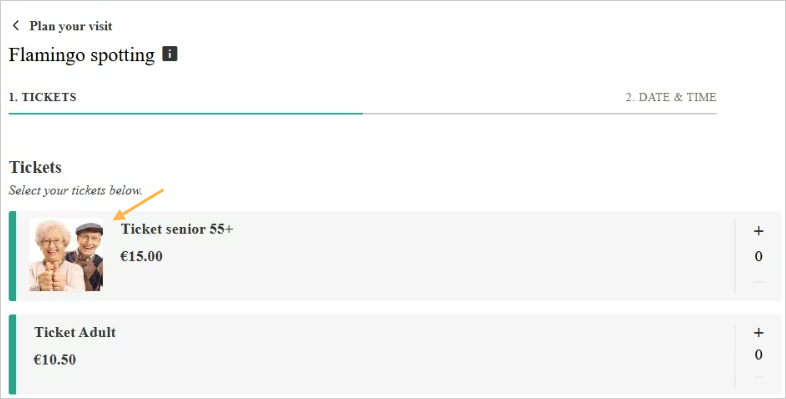
Show product images
Product images are now displayed in the add to cart step and the checkout process in the Ticketing widget. Product images will only appear if they are added in the Sales app, either at the product level or the offer level.
Enhancement
Visitors will now see their main offer listed first in the basket, followed by any cross-sell items.
Reselling API
Reselling API V2: Added new property
ExternalCodeunderTicketBarcodes. The affected endpoints are Checkout basket, Fetch order information, and Confirm reserved order.Reselling API V1: Added new property
ExternalCodeunderTicketBarcodes. The affected endpoints are Place order, Fetch order information, and Confirm reserved order.