Tasks
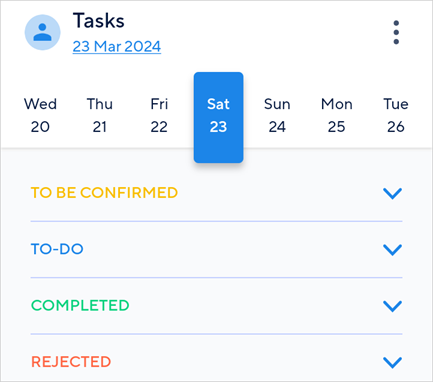
The Tasks screen provides an overview of the tasks assigned to the logged-in user for the selected date. Depending on the task status, you will see your tasks categorised as To be confirmed, To-do, Completed, and Rejected.
 |
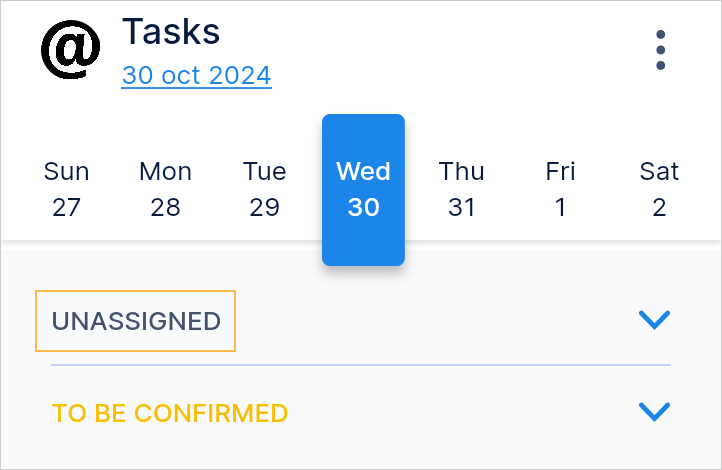
If the user is a planner employee, you might see an additional section 'Unassigned' containing the tasks created but not yet assigned to any employee.
Tap on a task to see the details.
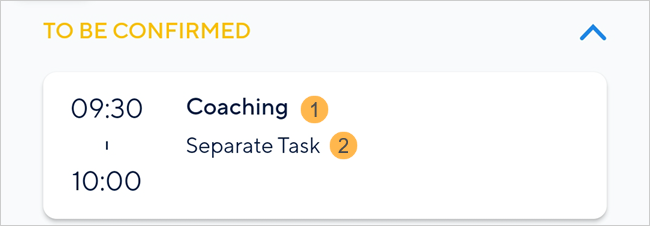 |
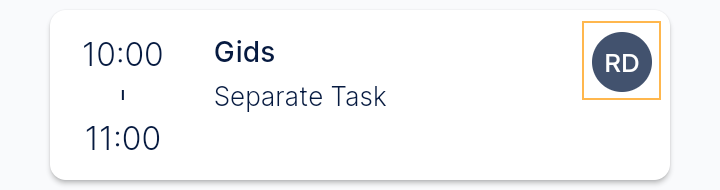
(1) Denotes the work type (2) Denotes the task origin. In case a task is not linked to any of the pre-defined task origins in Recreatex, the task origin will show as a 'Separate Task'.
However, if the user is a planner employee s/he can see the initials of the user to whom the task is assigned. Tapping on the task will take you to the task detail screen where you can consult the complete name of the assigned user and other details.
Task indication
| Indicates it is a recurring task WarningChanging task status to Done for a reoccurring task before its last occurrence will result in that task showing as done for ALL the subsequent occurrences. |
| Indicates there is a comment for this task. |
| Any icon in grey indicates that the time for the task has elapsed. |


Search a task
Scroll down on the Tasks screen and note the search bar appears at the top.
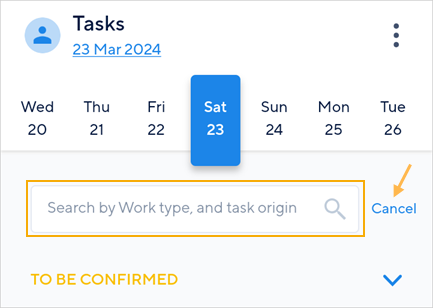 |
You can search tasks by work type or task origin. To remove the search bar, tap Cancel.
List options
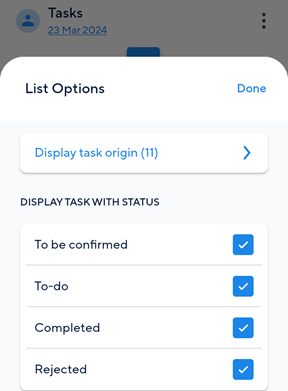 |
Task by origin | Select one or multiple task origins to consult tasks of those origins only. NoteFor the current release, you will be able to choose from the pre-added task origins in the TaskFlow application. |
Working group | If the user is a planner employee, the user can see the working group assigned to him/her from Recreatex. NoteA planner employee cannot see the tasks of the work type that are not linked to his/her working group. However, the user can create tasks of the work type that are not linked with his/her working group. |
Status | Displays tasks with the selected task status. |
Display | Shows tasks of the logged-in user. If selected, the option ' Working group' will automatically be disabled. |
Edit or Delete a task
If the logged-in user is a planner employee, you will be able to edit or delete a task. To do so, long press on a task. From the resulting menu, select to edit or delete the task.

The edited or deleted task will be reflected in the Recreatex application.
Note
While editing a task, an already assigned employee will not be visible in the employee list for assigning tasks.
Task origin
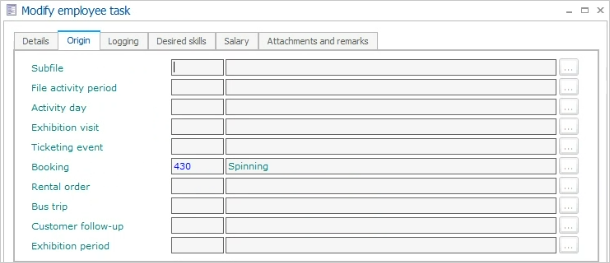
The task origin can be defined at the employee level tab Origin.
Recurring task
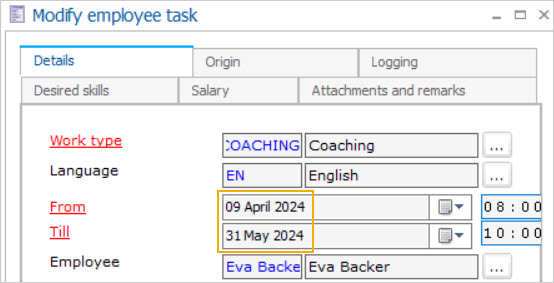
If the task duration is across multiple, continuous days, the task will be marked as a recurring task on the Tasks screen.
 |
Task status
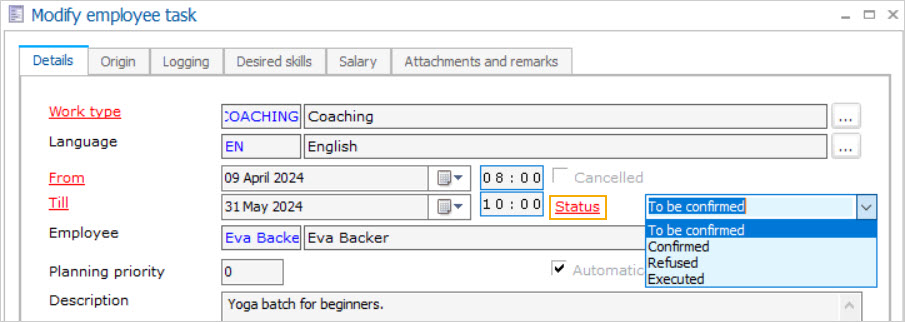
The status of the employee's task as defined at the employee level. The employee can, however, change the task status from the TaskFlow app.