Task details
On the Tasks screen, tapping on a task transfers the user to the Task details screen.
On the Task details screen, you can consult information such as the duration of the task for that day, employee language for the task, whether the task is linked with a Booking or Registration, notes related to the task, and more.
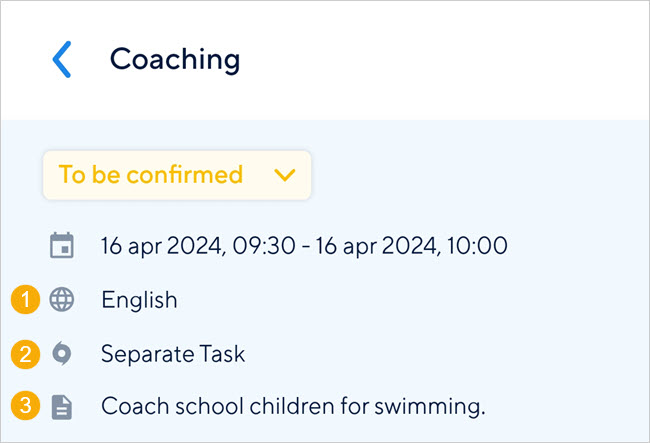 |
(1) Refers to the employee language added in Recreatex
(2) Refers to the linked task origin. In case a task is not linked to any of the pre-defined task origins in Recreatex, the task origin will show as 'Separate Task'.
(3) The task description, if added in Recreatex.
Change task status
On the booking details screen, you can change the status of your task.
The task status options will depend on the selected task status.
Selected task status | Available task status options |
|---|---|
To be confirmed |
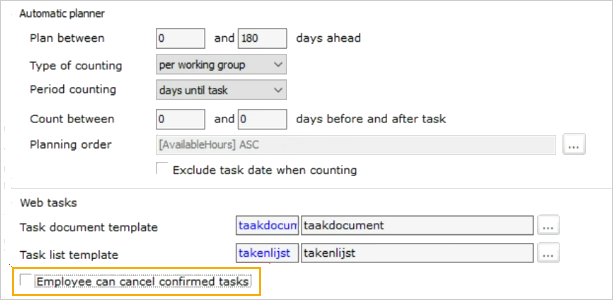
Important to know: This setting can be configured in Recreatex from Basic > Parameter > Employees > Employee can cancel confirmed tasks.
|
To-do |
|
Done |
|
Rejected |
NoteFor a rejected task, the option to change the status to To-do will be available until the task has not been assigned to another employee. |
Warning
Changing the task status to Done for a recurring task  before its last occurrence will result in that task showing as done for ALL the subsequent occurrences.
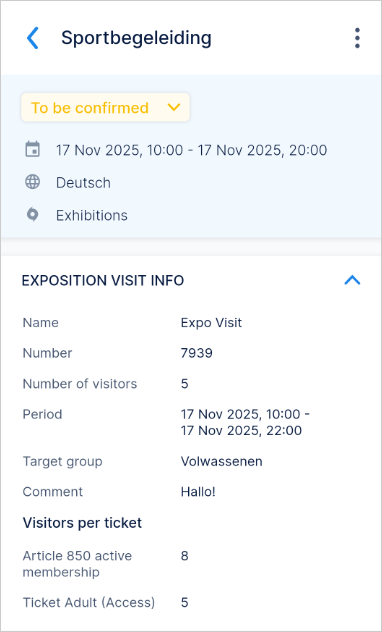
Exposition visit info
In the Exposition visit info, you can consult information related to the exhibition.
Skills
You can consult the skills linked to the task in Recreatex.
 |
Employee
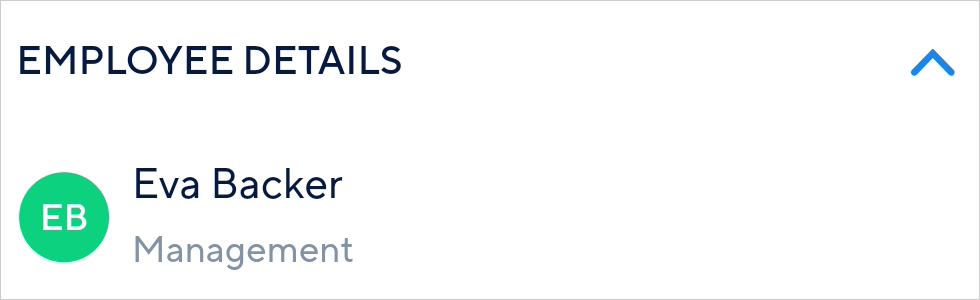
In the Employee details section, you can consult the assigned user's name, department, and profile picture.
 |
Comments
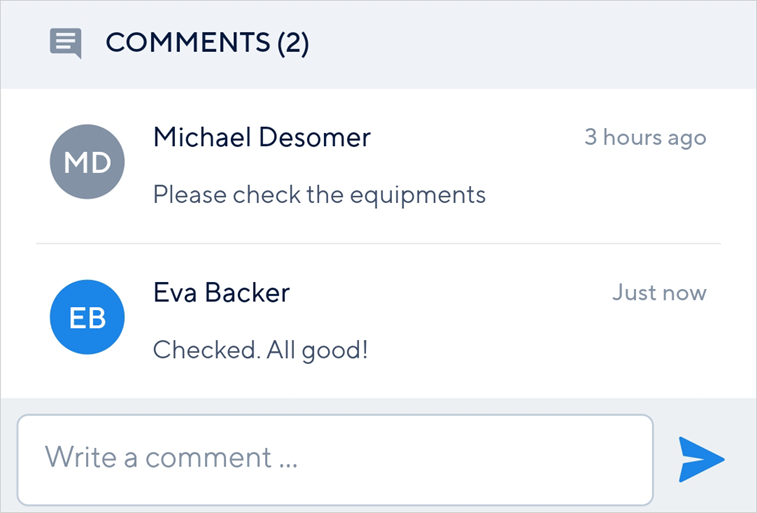
In case a task has comments posted by other users (either using TaskFlow or from Recreatex), their comments will show in the Comments section. The logged-in user can also add a comment for the booking.
To do so, type a comment in the text box. The comment will be visible to all the users who can see that booking.
 |
To edit your comment, long-press on your comment.
 |
Note
It is not possible to delete a comment.
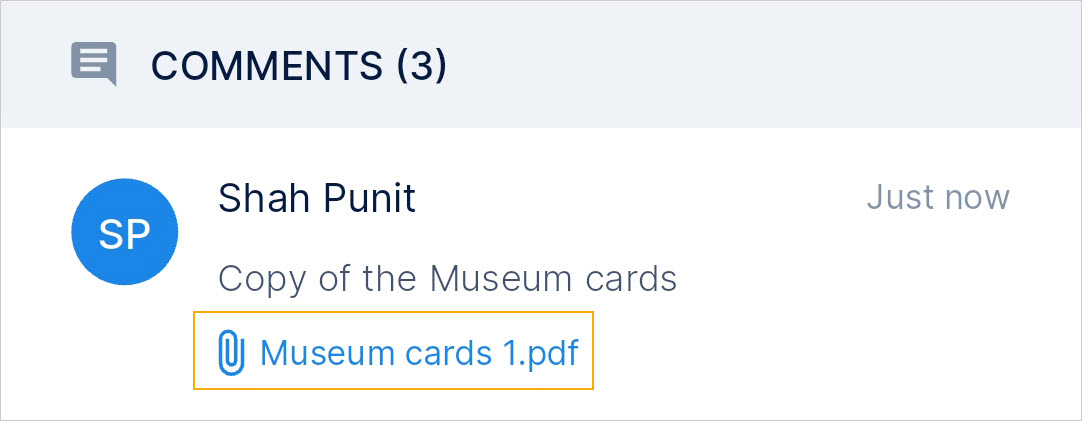
In case a PDF file is attached to the comment from Recreatex, you can tap and open the attached PDF file.
 |
Employee language and Task more information
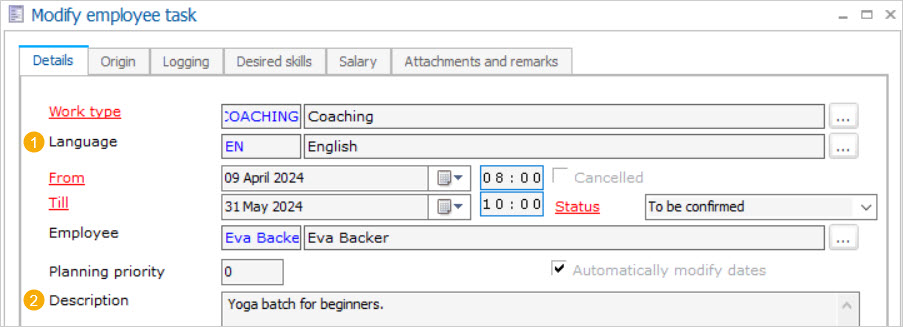
The (1) Language (2) Description fields on the Employee task level, tab Details will show on the task detail screen of the TaskFlow app.
Comment for task
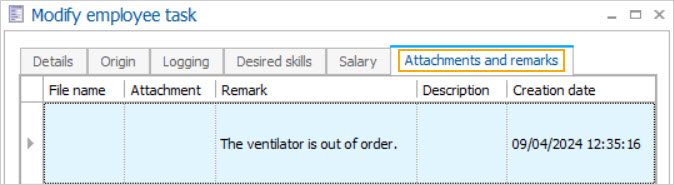
The comment entered in the TaskFlow app or entered in the Recreatex at the Employee task level tab Attachments and remarks will be displayed to the logged-in user.
Restrict employees from rejecting a to-do task
If configured from Recreatex, TaskFlow users will not have the option to reject a task in the to-do status. However, employees can still reject the task if it is in the confirmed status.
This setting can be configured in Recreatex from Basic > Parameter > Employees > Employee can cancel confirmed tasks.
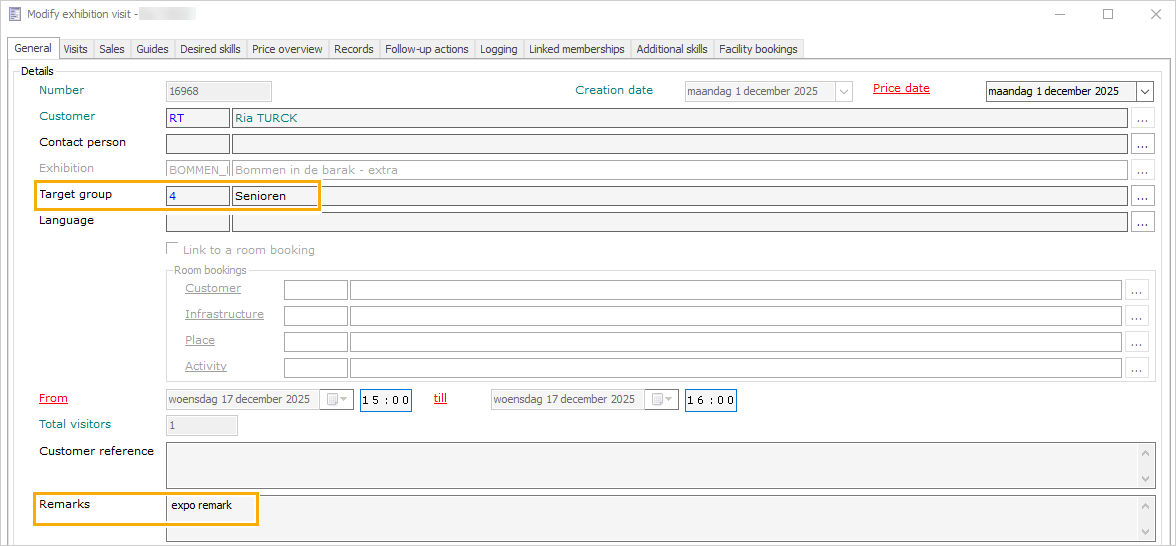
Consult target group and comment in the Exposition visit info section of the task details
If the target group and remark are added at the exhibition visit level in Recreatex, you can see them in the Exposition visit info section of the task details as the target group and comment.