Booking details
Details of the booking
On the Bookings screen, tapping on a booking transfers the user to the Booking details screen.
On the Booking details screen, you can consult information such as the activity for which the booking is made, the duration of booking, place, and infrastructure booked, number of participants, booking amount, and more.
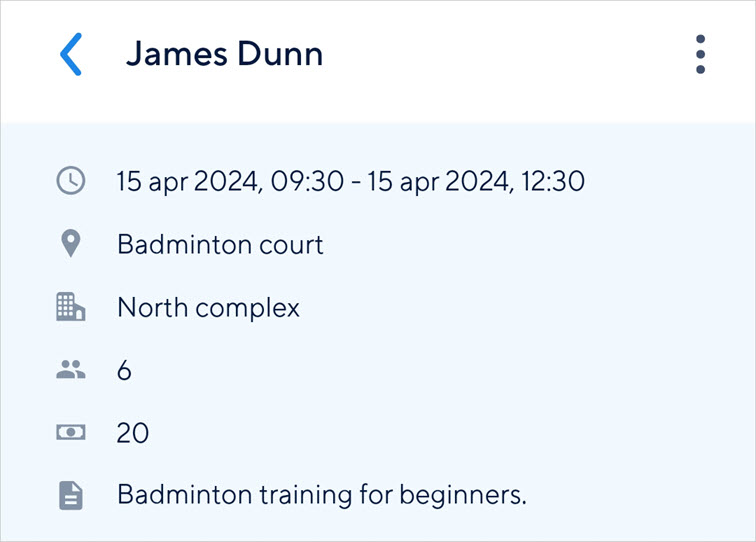 |
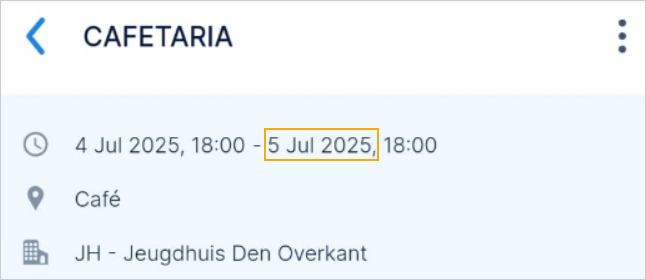
If a booking spans multiple days, the booking details will display both the start and end dates.
 |
Booking details
In case tasks are linked with the booking, you can consult the booking-related tasks.
Customer details
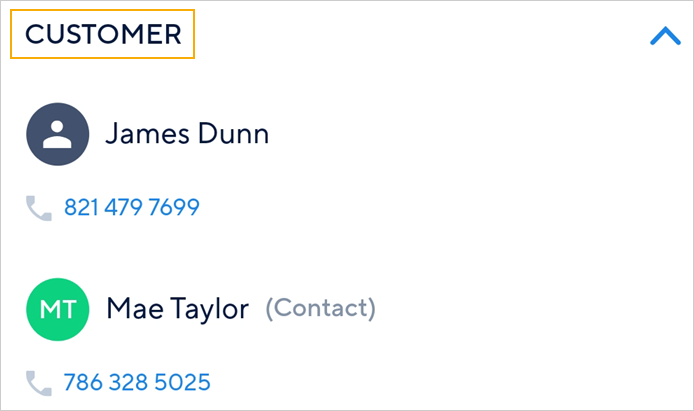
If showing customer details is enabled from Recreatex for the logged-in user, then you will see contact details of the customer and the contact person linked with the booking. In case showing customer details is disabled from Recreatex, you will be able to see only the contact person's details (if it is available in Recreatex).
Moreover, the icon next to the customer's name indicates whether the customer is an individual, group, institution, and so on. If the contact person's photo is available in Recreatex, it will be shown next to the contact person's name.
 |
Should there be a need, you can tap on a contact number and initiate a call to the customer. Similarly, you can tap on the email address to send an email message to the customer.
Rentals
The section Rentals allow you to consult the rentals linked with the booking.
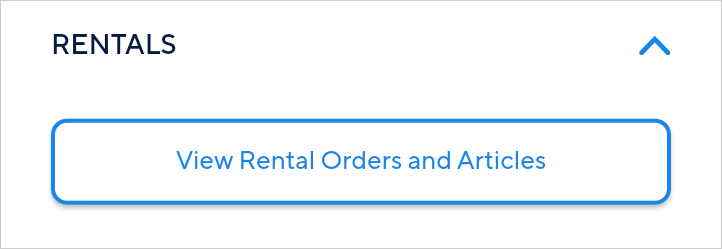 |
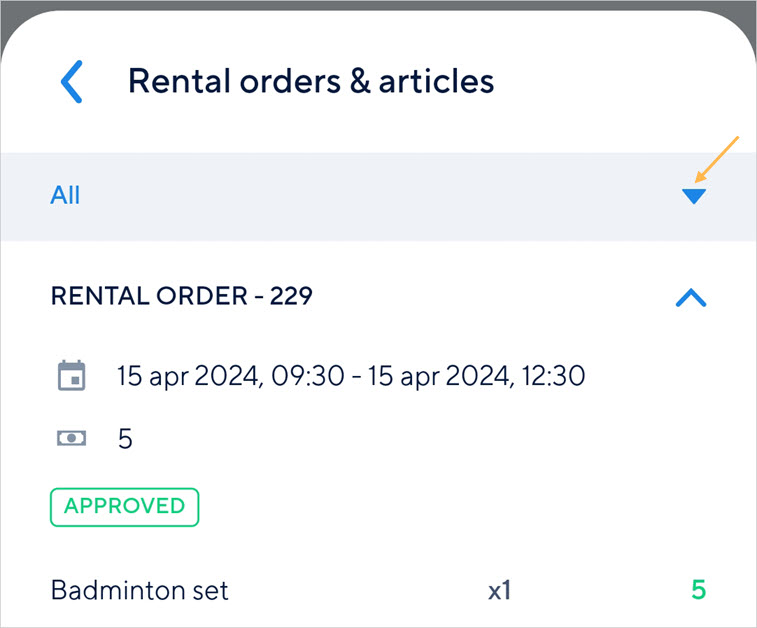
Tap on View Rental orders and Articles. Next, you will see the details of the rental order and articles. In case there are multiple rental orders linked to the booking, you can tap in the grey bar to expand it and consult the desired rental order.
 |
Sales articles
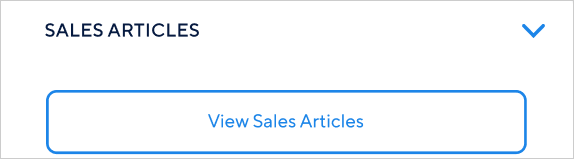
The section Sales Articles allows you to consult the sales articles linked with the booking. Tap on View Sales Articles.
 |
Next, you will see the list of sales articles. Tap Edit to modify the quantity of the sales article.
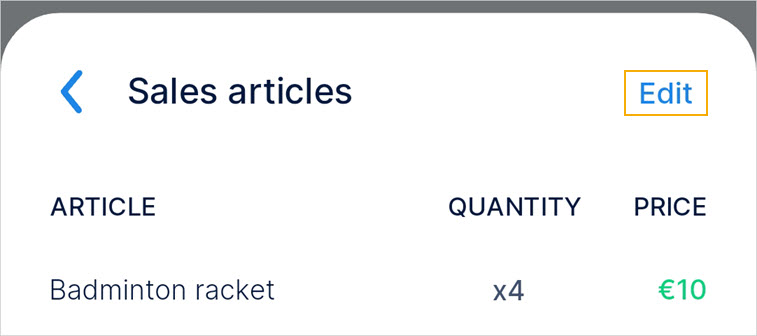 |
Note that the price will also change depending on the modified quantity.
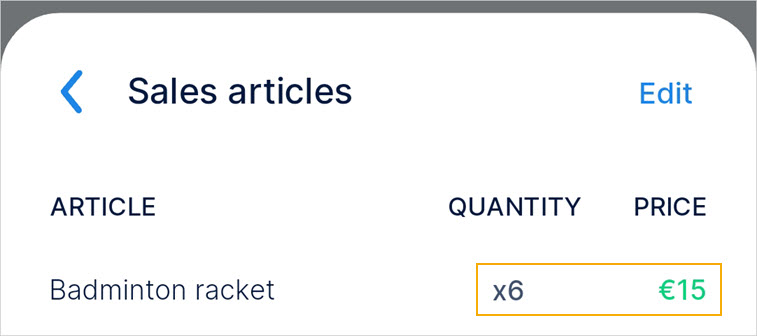 |
Comments
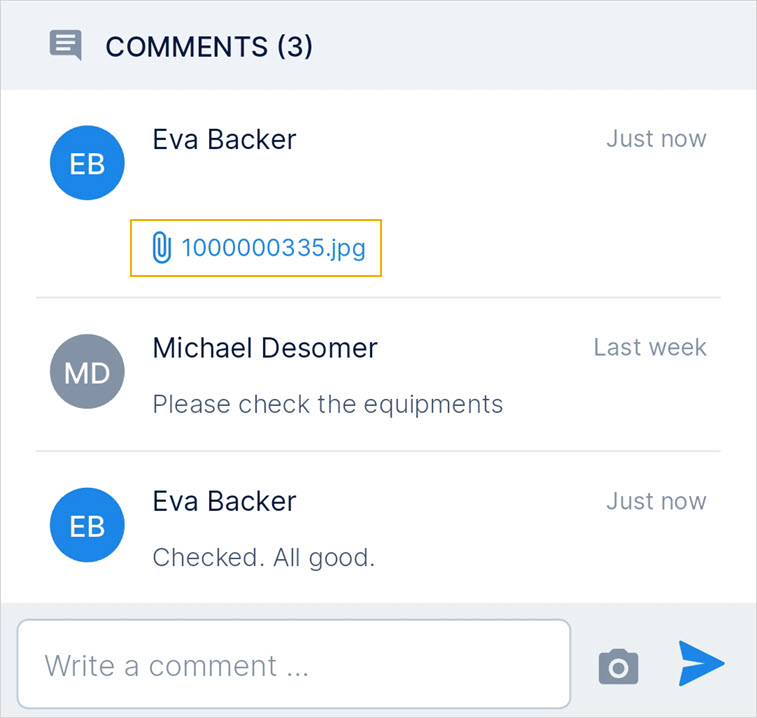
In case a booking has comments posted by other users (either using TaskFlow or from Recreatex), their comments will be displayed. show in the Comments section. The logged-in user can also add a comment for the booking.
To do so, type a comment in the text box and send it. The comment will be visible to all the users who can see that booking.
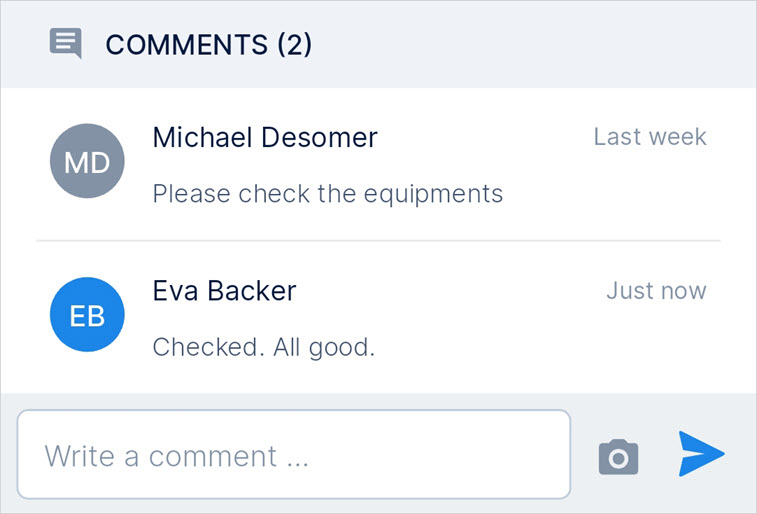 |
You can also add an image in the comment section of the booking detail screen. To do so, tap the  icon. In the resulting screen, select whether you want to use the camera or upload the image from your gallery.
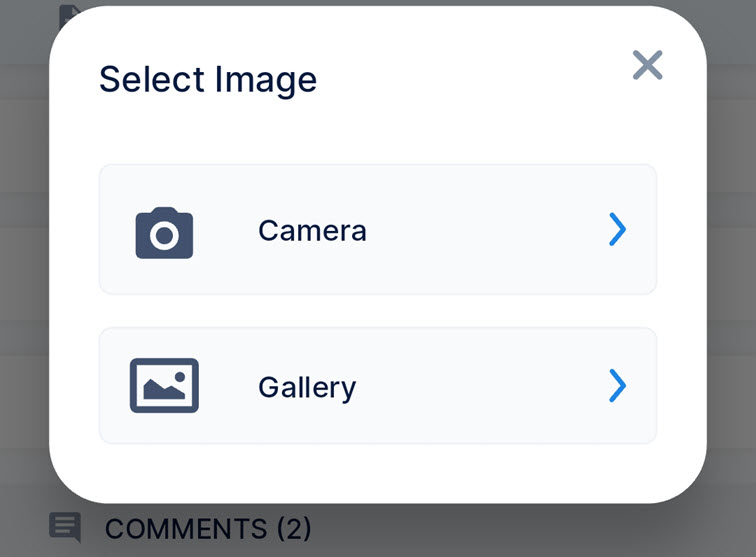 |
Next, you will see the uploaded image. Optionally, you can write a comment as well. Tap on the cross icon to cancel the image, else tap the send icon to add the image as a comment. The supported image formats are BMP, JPG, GIF, SVG, and PNG.
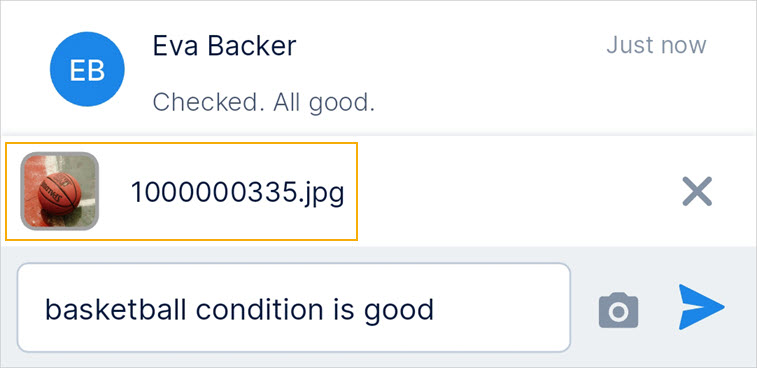 |
Thereafter, you will see the image attachment in the comment. Tap the attachment to view the image.
 |
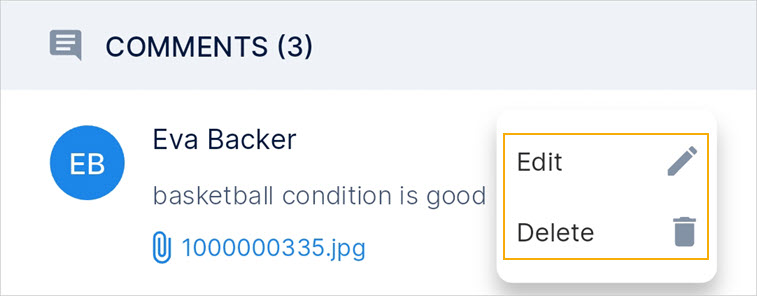
Long-press on a comment posted by you to edit or delete it.
 |
Update participant count
If the user has the privilege to update the count of the participant, you will see three dots in the top-right corner of the booking details screen.
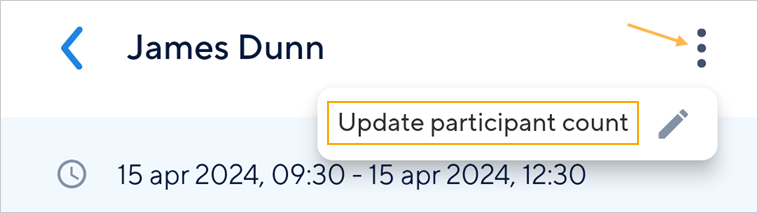 |
Tap on the three-dots and select Update participant count.
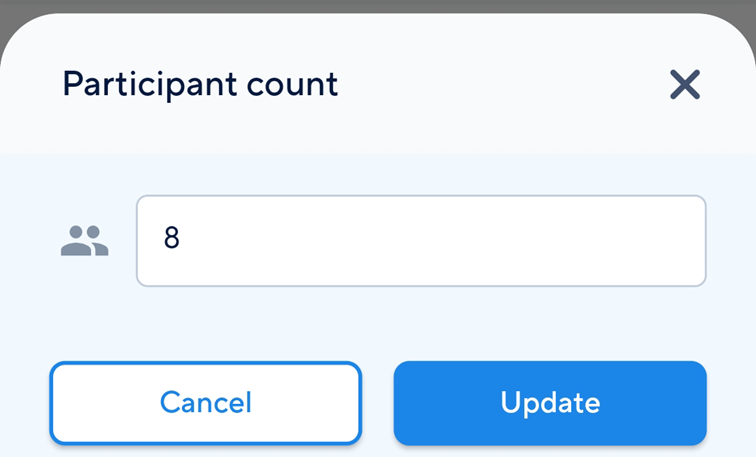 |
In the resulting pop-up, enter the participant count and tap Update.
Once updated, the participant count will be updated for the booking in Recreatex as well.
Show customer details
The Customer section will be shown if on the employee level, tab Web > tab TaskFlow > option Show customer details is enabled.
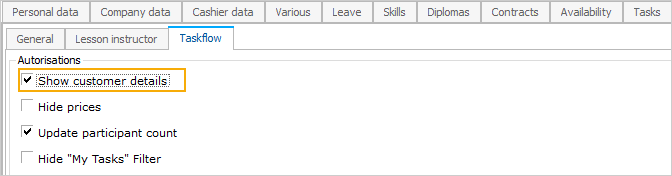
From the Booking card in Recreatex, the marked customer details will be shown on the Booking details screen.

Bookings with rental
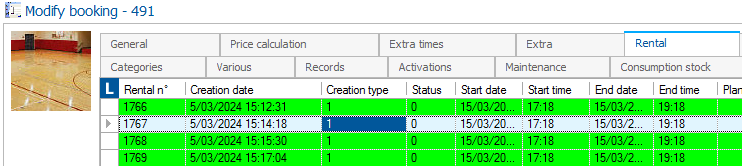
In Recreatex if a rental order is added at the Booking level tab Rental, the rental order and its article will show in the TaskFlow app.
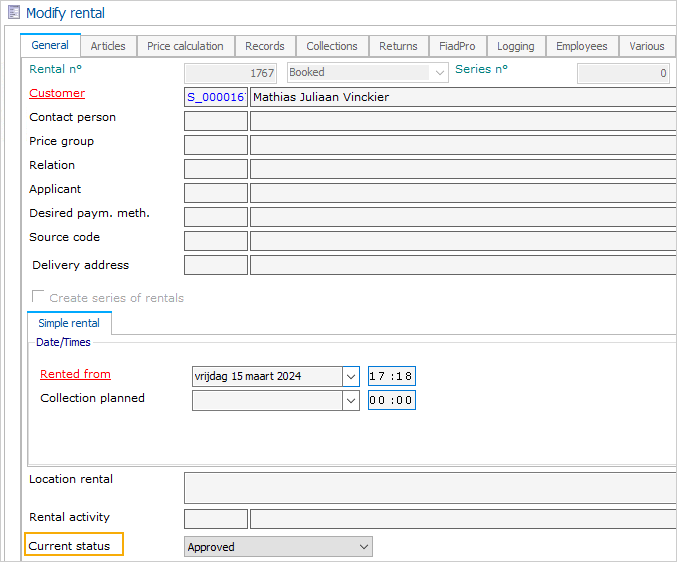
Depending on the status defined at the rental level in Recreatex, the rental will show as New order, Approved, or Rejected in the TaskFlow app.
Show price of the booking and rentals
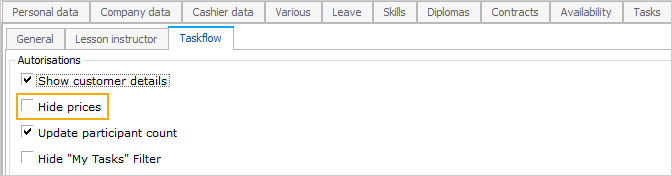
In the Booking detail screen of the TaskFlow app, the price for the booking and rental will be shown if on the employee level, tab Web > tab TaskFlow > option Hide prices is disabled.
Update participant count
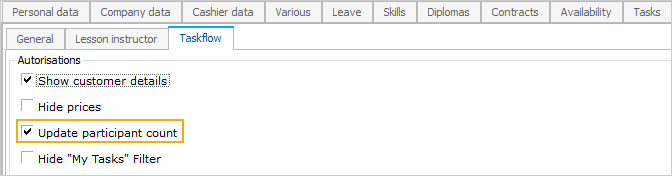
To enable an employee to update the participant count for the booking, at the employee level tab Web > tab TaskFlow check the option Update participant count.
When a TaskFlow user updates the participant count, it is reflected on the Booking's card tab General.
Comments for booking
You can review the comment posted from TaskFlow app on booking level from the tab Attachments in the Recreatex desktop application.
 |
Show contact details
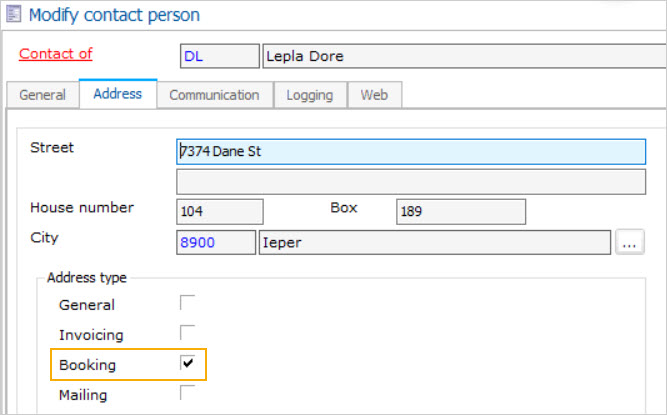
On the Contact card level, in the tab Address, the contact should be marked for Booking.