Create/Assign/Unassign task
Create task
Note
Only those users can create tasks who are assigned Working group/s in the Recreatex application. This means that the user is a Planner persona.
On the Tasks screen, tap the '+' icon to create a task.
Enter the details on the resulting 'Create task' screen. Selecting the work type, task period, and skills is mandatory.
Note
A planner employee cannot see the tasks of the work type that are not linked to his/her working group.
However, the user can create tasks of the work type that are not linked with his/her working group.
Next, select the employee from the list of employees. You can choose to not assign a user to the task at the time of creating a task. You can assign the task to a user later as well.
Note
Employees who match the task criteria of work type and skill will show in the Assign employee list. Employee availability is not considered.
Tap Done to create the task.
If the selected task type of the task is linked with your assigned working group, you will be able to see the created task on the Tasks screen for the defined date and time.
Assign task
Note
A user with the Planner persona can assign a task any available employee. Whereas, an Operator persona user can assign an unassigned task to him/herself only (if enabled from Recreatex).
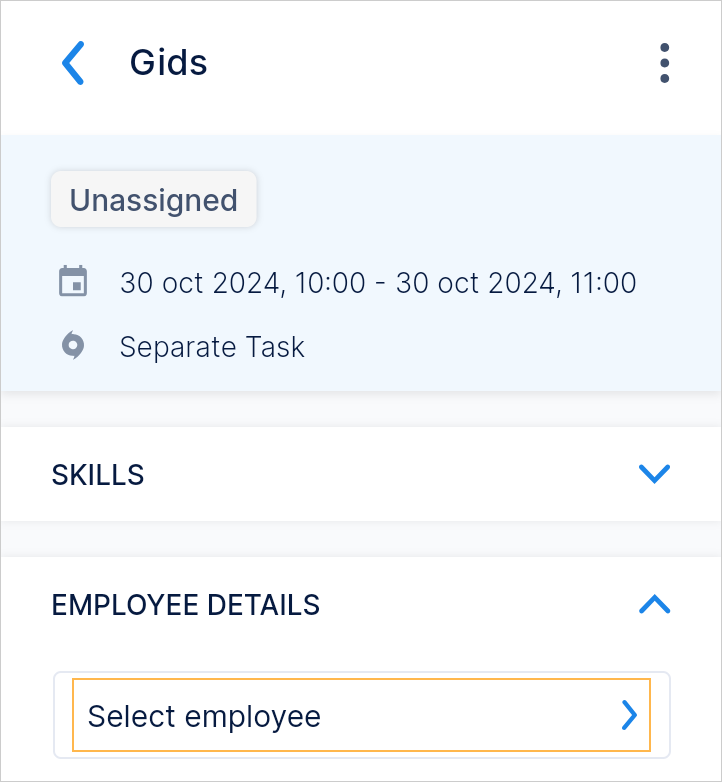
Tap on an unassigned task to go to the task details screen. In the section Employee details, tap Select employee to assign him/her the task.
The employee list generated for assigning the task is based on the work type and skill. Employee availability is not considered.
Note
For the current release, the employee does not receive notifications when a task is assigned or unassigned to them. This functionality will be available in a future release.
Unassign task
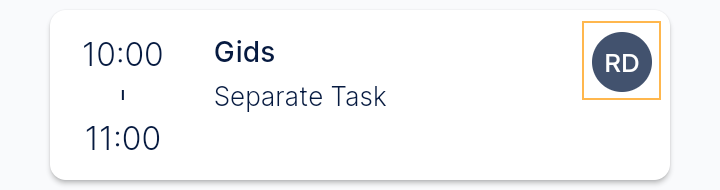
For a task that is already assigned to an employee, you will see the initials of the assigned employee on the Task screen. If you wish to unassign the task from the assigned user, tap on the task to go to the task detail screen.
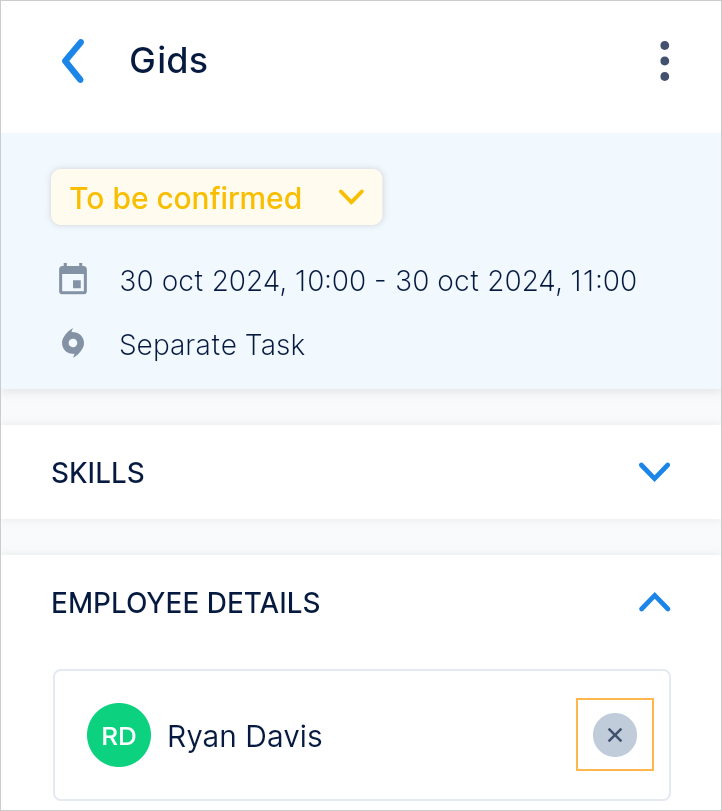
Next, in the Employee details tab, tap the cross icon next to the assigned employee name to unassign the task.
An operator employee can assign an unassigned task to self
A user for whom the Work group is not assigned, meaning the user is an Operator persona, the user will be able to assign an unfassigned task to self. In this case, the user will not be able to assign the task to another employee.
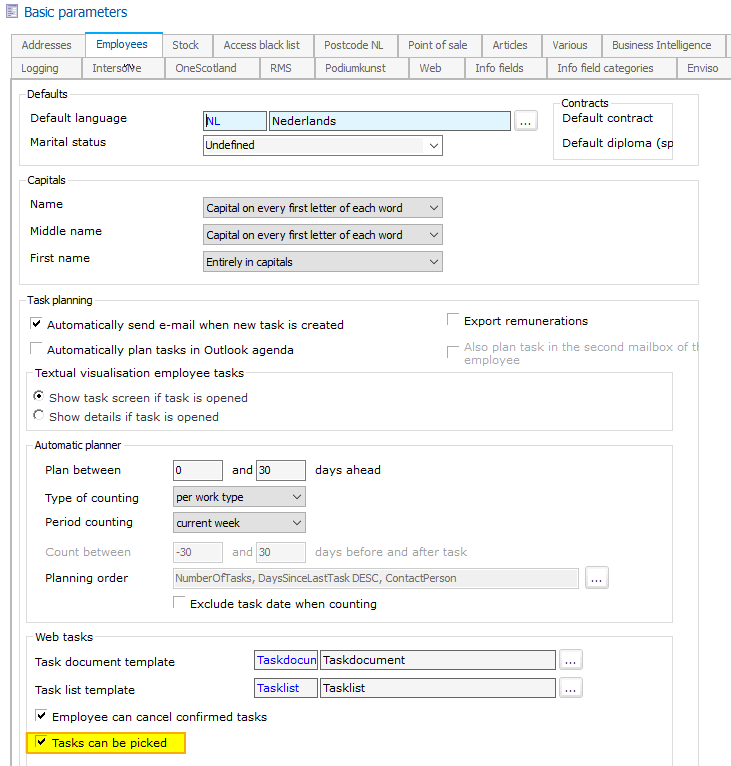
For this, the parameter Task can be picked must be enabled at the employee level.
Planner persona
A user who is assigned one or more working groups is a Planner persona. Such a user can create tasks, assign tasks, and unassign tasks.
To assign a user to a user group, go to General > Basic data > Employees > Settings > Working groups. In the resulting window of Working groups, select a working group. In the specific working group window, tab Responsibilities, select the employees who will be assigned to that working group.

Once saved, those users will have the possibility to create tasks, assign tasks, and unassign tasks in the TaskFlow application.