Logging into the app
After configuring the TaskFlow application, you can log in using your employee credentials.
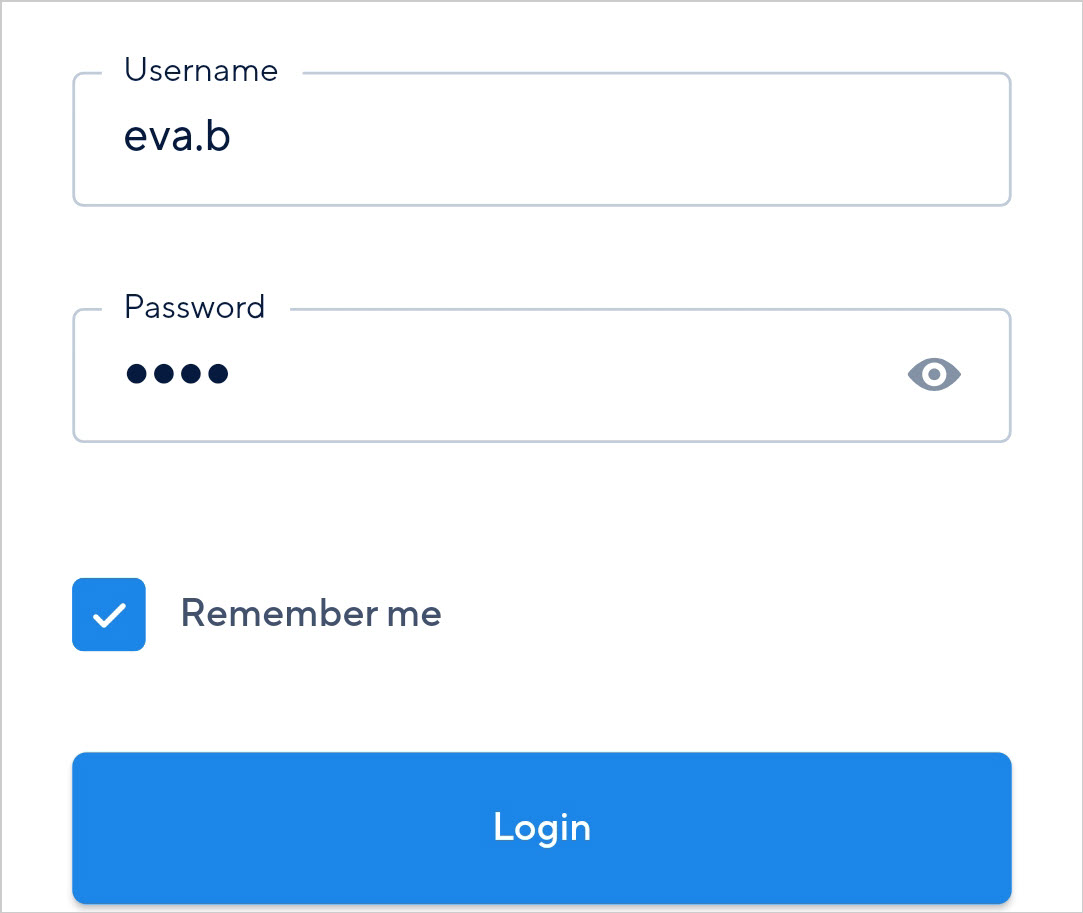 |
If the option Remember me is used, the last logged-in user's password will automatically be filled in when logging into the application subsequent time.
Two-factor authentication
If two-factor authentication is enabled at the employee level in Recreatex, the user must double authenticate to log into the TaskFlow app.
Note
The pre-requisites of using two-factor authentication are:
1. Two-factor authentication must be enabled for the user in Recreatex.
2. You have installed the Google Authenticator app.
Login procedure with two-factor authentication
On the login screen, enter your employee name and password and tap Login.
On the Two-Factor Authentication screen, copy the code to add the user into the Google Authenticator app. In case the Google Authenticator app is on another device, you can scan the QR code on that device.
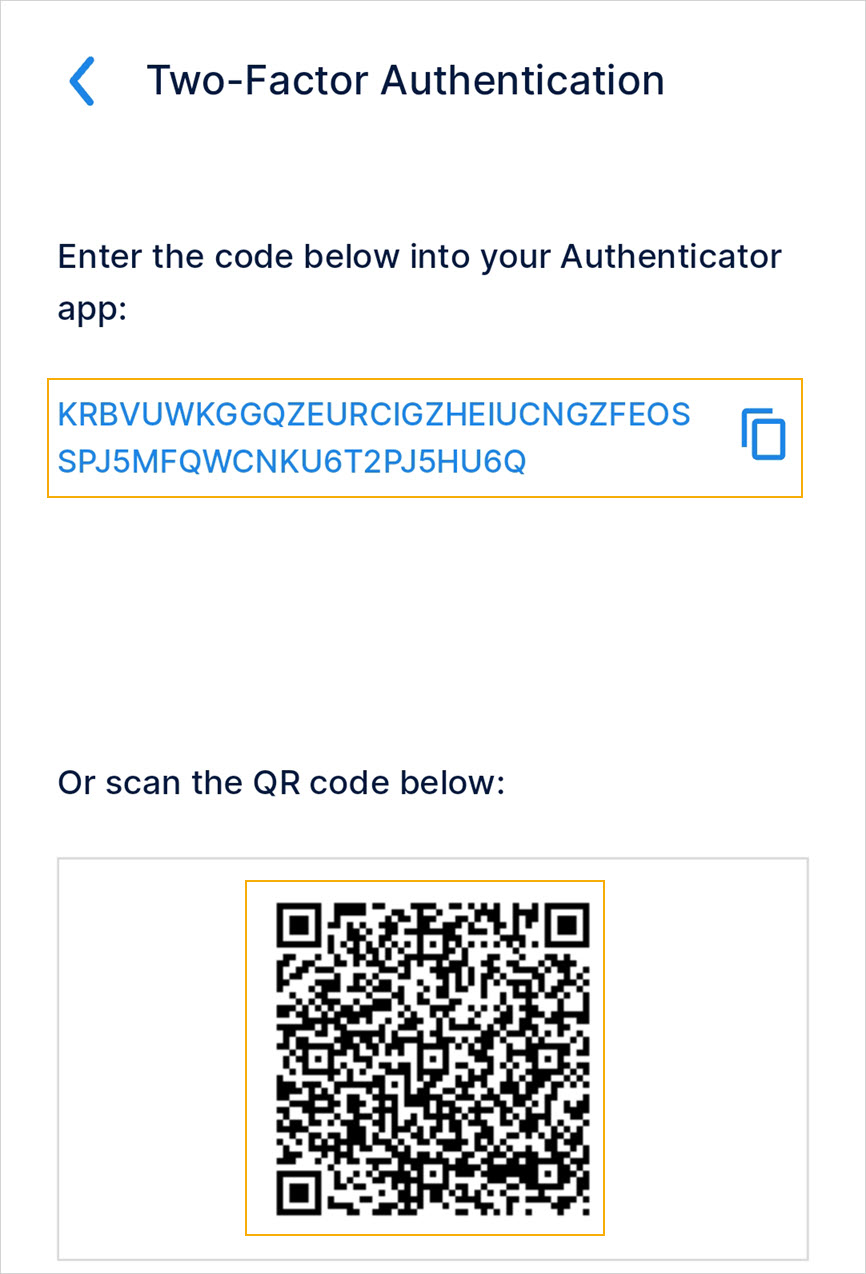
It is possible that your device directly adds the user to the Google Authenticator app. In this case, you can skip this step.
Switch to the Google Authenticator app to copy the validation code.
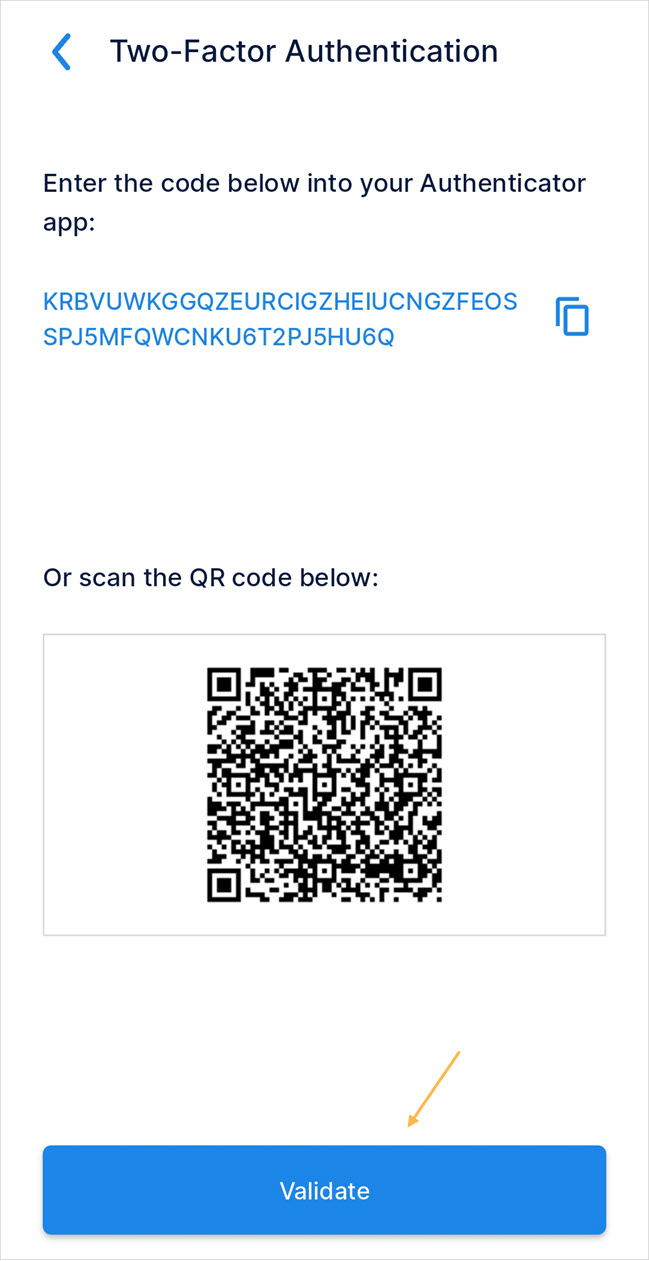
Now, in the TaskFlow app, tap Validate at the bottom of the Two-Factor Authentication screen.
On the next screen, enter the copied validation code from the Google Authenticator app and tapSubmit.
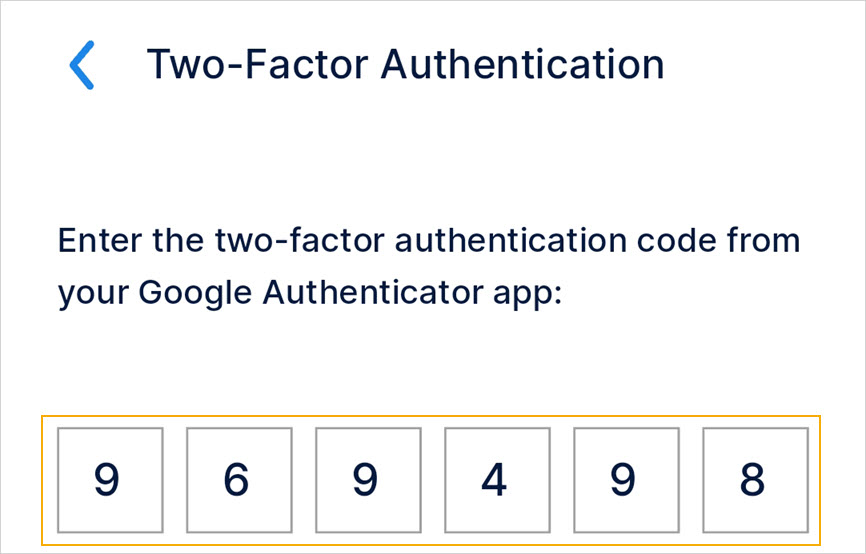
Upon successful validation, you will be logged into the TaskFlow app. You will be required to additionally validate yourself with an authentication code every time you log into the app.
Reset Two-factor authentication
If two-factor authentication is disabled from Recreatex, the user can log in with the login credentials.
Employee login
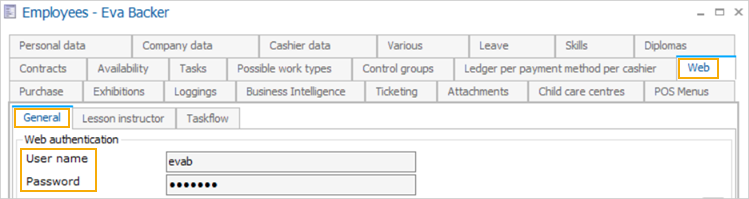
In the Recreatex desktop, the employee login credentials can be defined from the tab Web > General on the employee level.
Employee validation
TaskFlow constantly validates the user in the background to ensure that the logged-in user is a valid user. The TaskFlow app checks the following two parameters to ensure the user's authentication:
Blocked employee
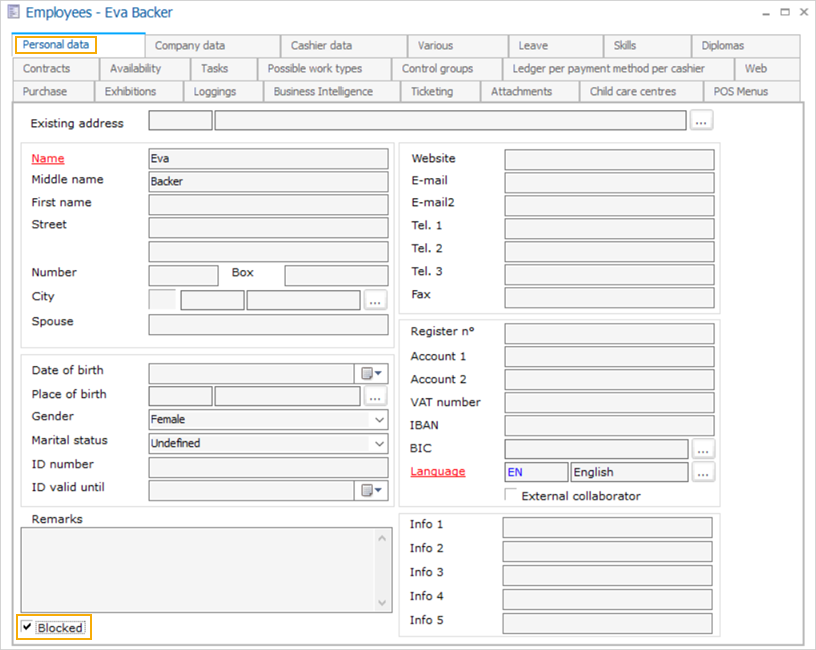
If the logged-in employee has been blocked in Recreatex, then the user will automatically be logged out from the TaskFlow app. An employee can be blocked from the employee card,tab Personal data> Blocked.
Changed password
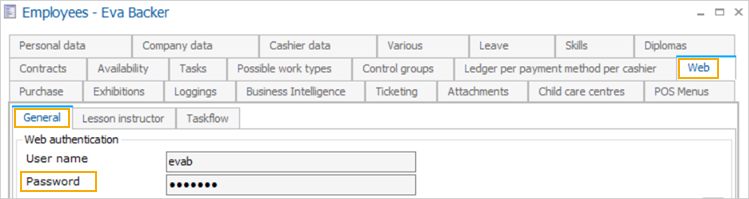
If the logged-in employee's password has been changed from Recreatex, then the user will automatically be logged out from the TaskFlow app. The employee's password for the TaskFlow app can be changed from the employee's card tab Web > tab General.
Two-factor authentication enabled
On the employee level, if the setting Activate 2 factor authentication (BKO-app) is enabled, the user will have to double authenticate to log into the TaskFlow app.
