My Calendar
From the TaskFlow app profile settings the feature My Calendar, you can set your availability for taking up new tasks. The task planner can see your availability from Recreatex and assign tasks to you accordingly. You can also consult tasks assigned to you on the My Calendar screen.
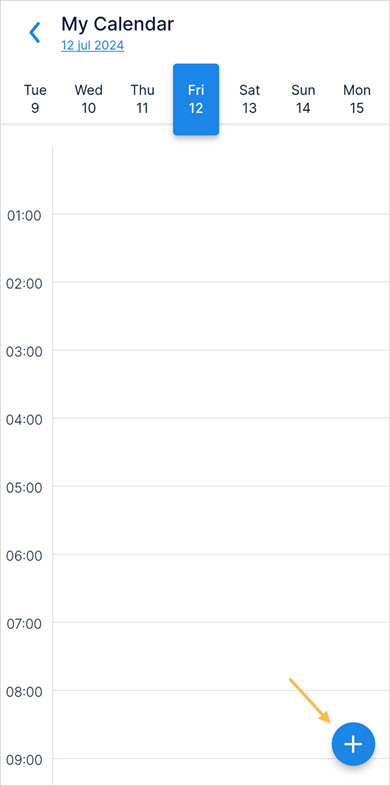
On the My Calendar screen, select the date you wish to set your availability for. Next tap on the add icon.
 |
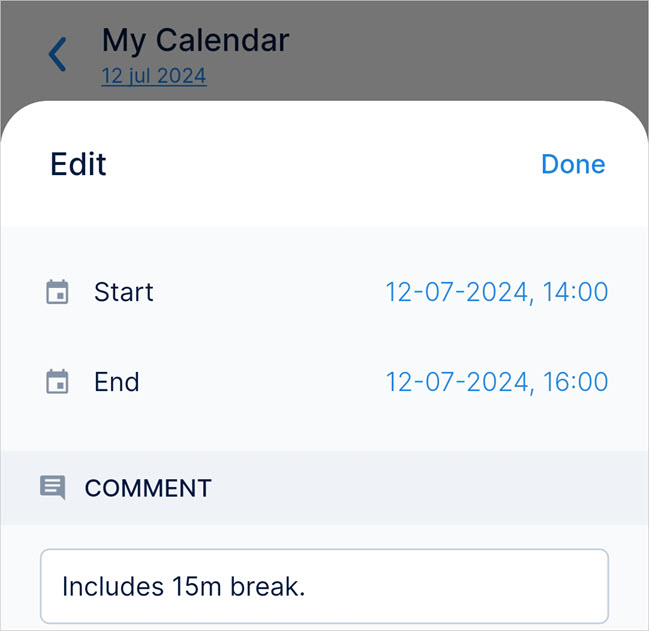
On the resulting screen, set the date and time range for your availability. Moreover, you can add a comment which the planner can see in the Receatex. Next, tap Done.
 |
Note
The available time slot must be more than 30 minutes. It is possible to define multiple available time slots for a day.
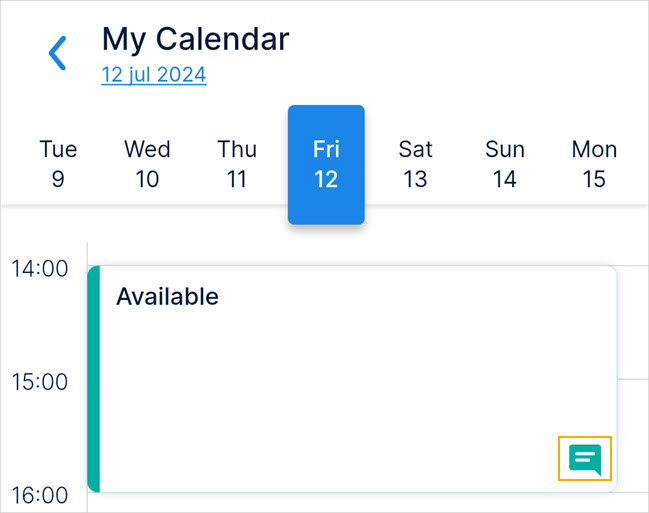
Thereafter, on the My Calendar screen, you will see your availability time slot. You will see a comment icon if a comment is added to the availability.
 |
Important to know:
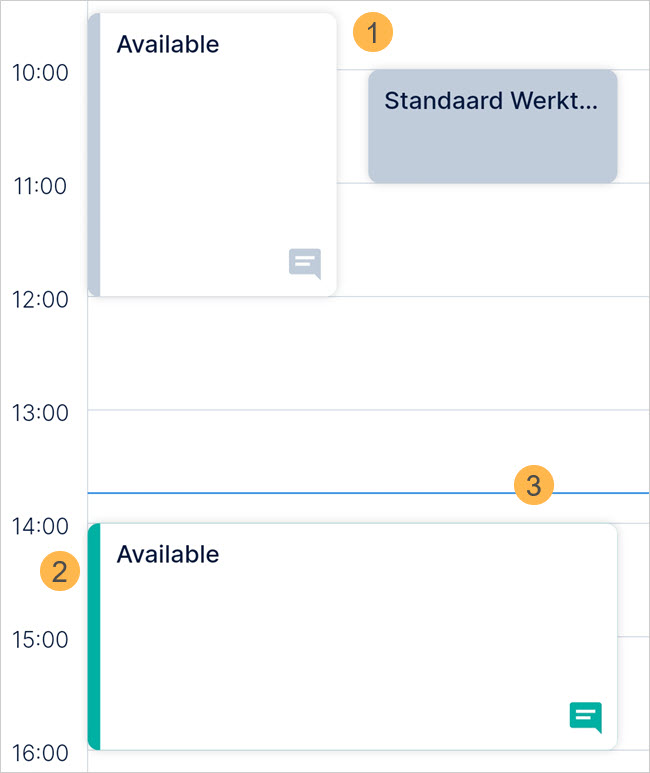 |
(1) The available time slots in the past are shown in grey and cannot be edited.
(2) Current and future time slots are shown in green.
(3) If you see a blue horizontal line in the calendar, it indicates the current time on the present date.
Consult and manage tasks
You can consult the assigned tasks as well from your My Calendar screen.
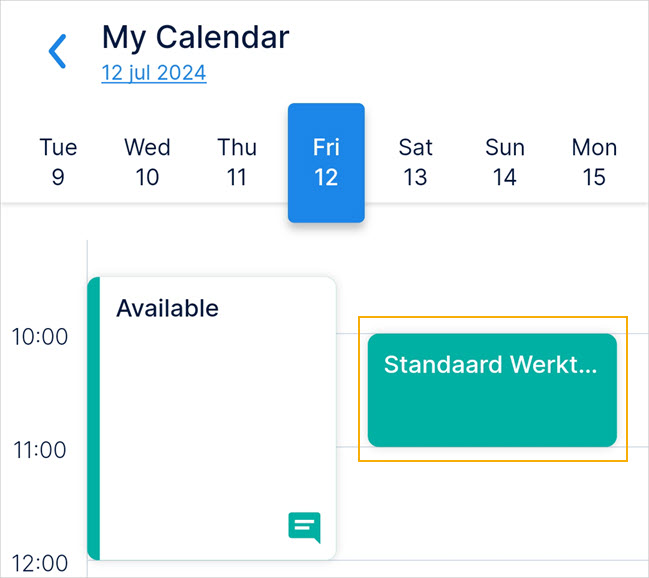 |
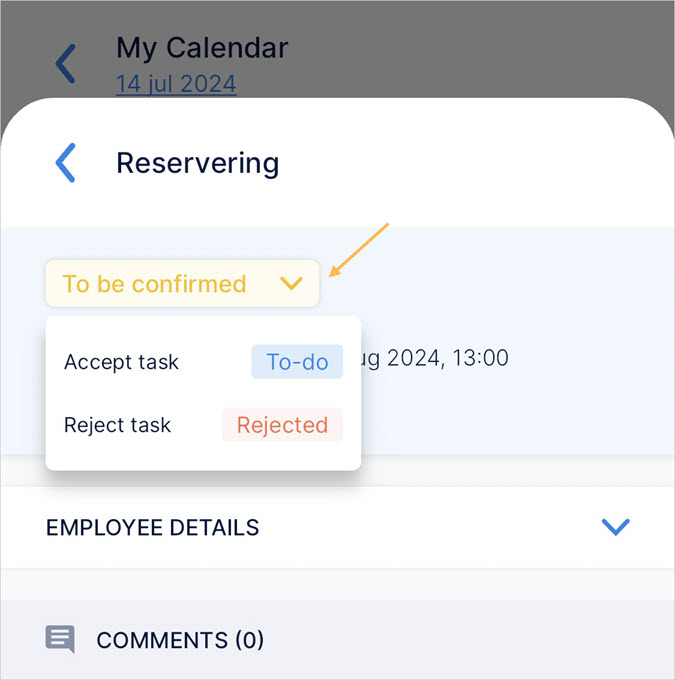
Tap on the task to manage the task status.
 |
Availability overview
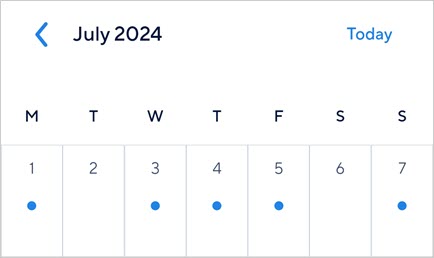
Tap on the date under My Calendar title to consult a monthly view of your availability.
Days marked with a blue dot indicate availability has been set for those days. Tap on a date to view the defined available time slots for that date. You might need to scroll the screen to consult the time slots.
 |
Edit and delete availability
Tap on a current or future available time slot. On the resulting screen, you can (1) edit the time slot date and time, comment as well as (2) delete the availability time slot.
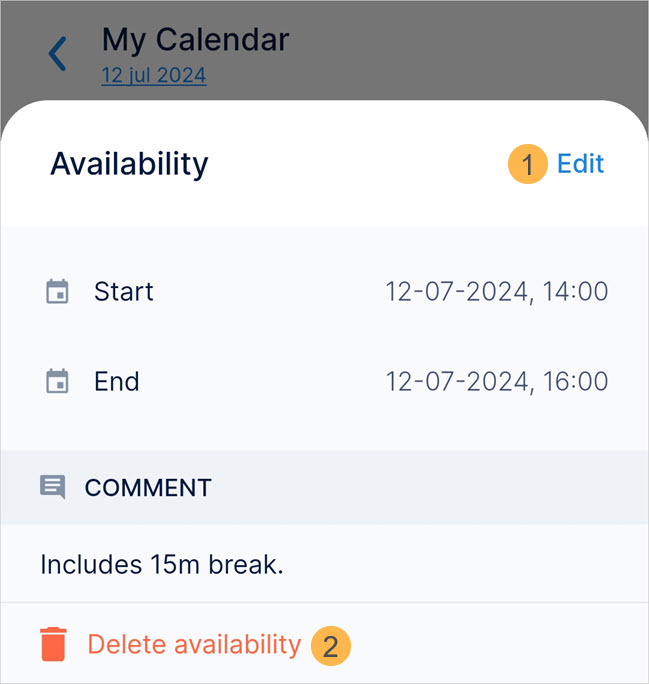
Once availability is deleted from TaskFlow, it will be removed automatically from the Recreatex.
Validations
Certain validations have been added for adding, editing, and deleting availability.
Overlapping availability
If you add availability for the same date and time slot for which availability already exists, the TaskFlow app will not allow you to do so. However, it will be possible to add an overlapping availability from Recreatex.
Add or Edit availability for the allotted task time slot
It is not possible to add availability or edit availability for the same time slot as that of your assigned task.
Eg: The time slot for the assigned task is 10 am to 11 am. It will not be possible to add or edit an existing availability for 10 am to 11 am. However, you can edit the time slot such that the task remains included in the availability time slot.
Delete availability when a task is already assigned.
It is not possible to delete availability if a task is already assigned to you for that time slot.
Eg: If a task is assigned to you from 10 am to 11 am, you will not be able to delete availability for that time slot.
Recreatex restriction on availability removal
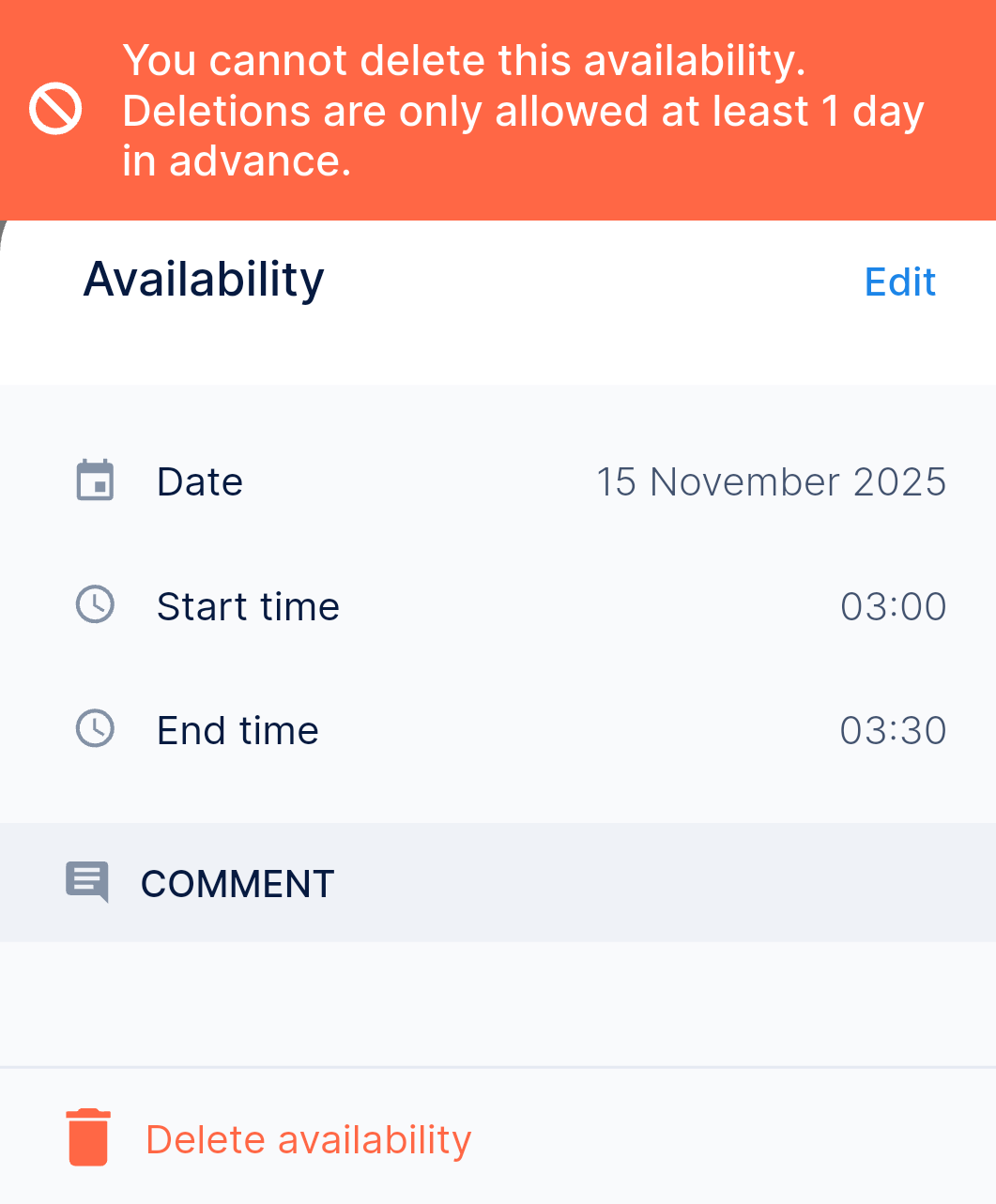
User availability can be deleted only while availability removal is allowed in Recreatex, otherwise, the system displays an error.
Employee availability
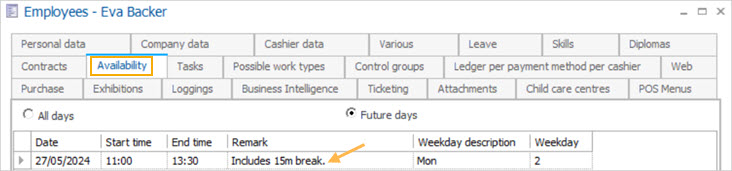
Once an employee sets availability in the TaskFlow app, it reflects in the Recreatex app on the employee level under the tab Availability.
Restriction on availability removal
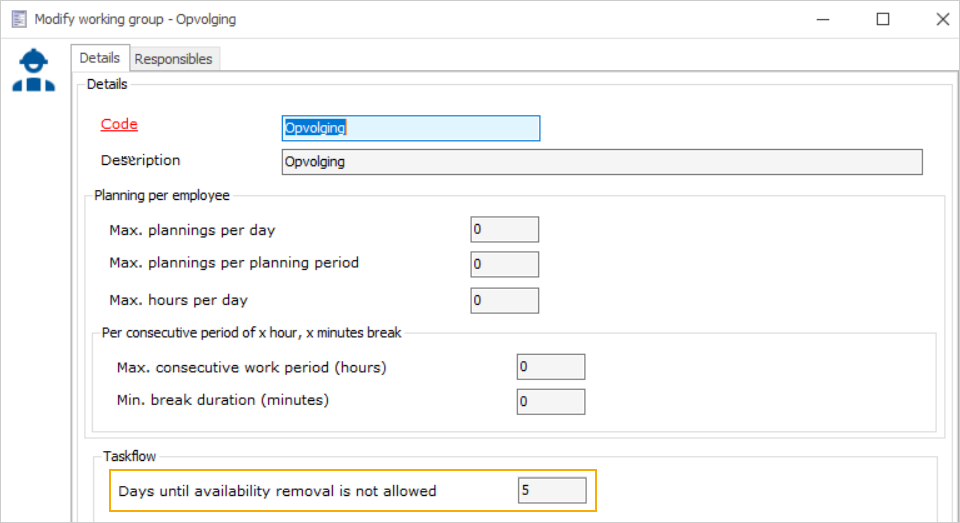
At the working group level, it is possible to define the Days until availability removal is not allowed. When the number of days is 0, the user will be able to delete without the availability removal restriction.
Example: If the parameter 'Days until availability removal is not allowed' is set to 2 days, a 10 January availability can be deleted up to 7 January. It cannot be deleted after 7 January from the TaskFlow app.