Order display screen
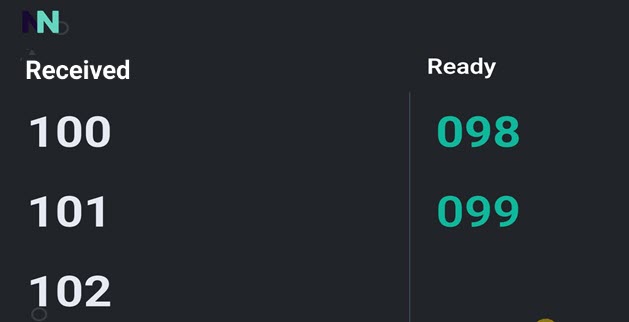
On the ODS app, you will see the order token numbers under the columns 'Received' and 'Ready'. It is possible to customise the display from the app Display settings.
 |
The order status on the ODS app changes in real-time when it is changed from Recreatex or the KDS app.
App behaviour
Recreatex/KDS app | ODS app |
|---|---|
When a new order is placed on the POS, the order token number is shown with the status 'Received' in Recreatex/KDS. | That order token number will show in the 'Received' column of the ODS app. |
When the order status is charged from 'Received' to 'Ready' in Recreatex/KDS. | That order token number will move from the 'Received' column to the 'Ready' column in the ODS app. |
When the order status is charged from 'Ready' to 'Delivered' in Recreatex/KDS. | The order token number will be removed from the 'Ready' column and no longer show on the ODS app. |
Important to know:
Recreatex generates an eight to ten-digit order number when an order is placed on the POS. If certain parameters are configured for the sales zone, this order number is converted into a three-digit token number ranging from 001 to 999. Each day, the token number starts again from 001.
The ODS app supports displaying a maximum of 40 orders on the screen at a given time.
If the 'Received' and 'Ready' columns have been split equally, a maximum of 20 orders will be displayed in each column. If the split ratio is 75% and 25%, then a maximum of 30 orders will show in the 'Received' column and 10 orders in the 'Ready' column.
The order status can be refreshed manually. Use the pull-to-refresh gesture to refresh the orders on the ODS screen.
A manual refresh is necessary to see today's orders.
You may need to manually refresh to see the token number of the new orders.
By default, orders until midnight (00:00) are shown on the ODS app.
POS configuration
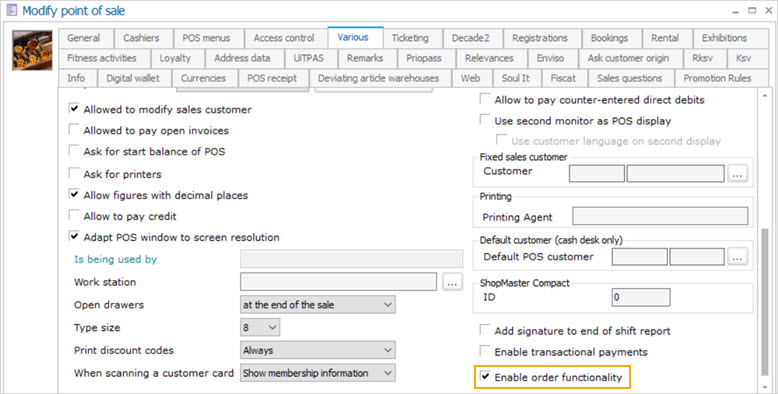
Enable order functionality for the POS
On the POS level > tab Various, enable the parameter Enable order functionality to visualise orders on the ODS app.
 |
Sales zone configuration
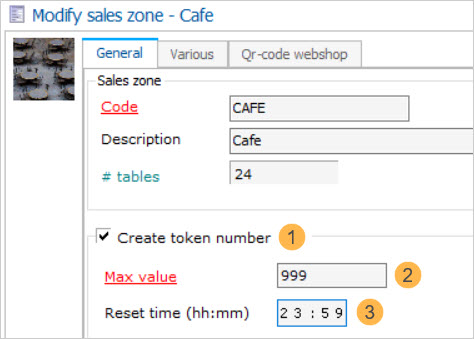
The sales zone linked to the POS must have the following configurations:
(1) Create a token: Enabling this option creates a token number for each order placed on the POS starting from token number 1. After the reset time has elapsed, the token number starts again from 1.
(2) Max value: The maximum value of the token number can reach before the token number is reset to 1 as per the reset time.
(3) Reset time: The time after which all the current orders will be removed from the ODS app and the token number series will start again from 1. This is usually set to the closing time of the restaurant/cafe.
Example: The reset time is 11 pm. At 11 pm, all the orders until then will be removed and the token number for orders placed after 11 pm will start from 1.
Note
The parameter 'Reset time' will be functional for the ODS app in a future release.
 |