Display settings
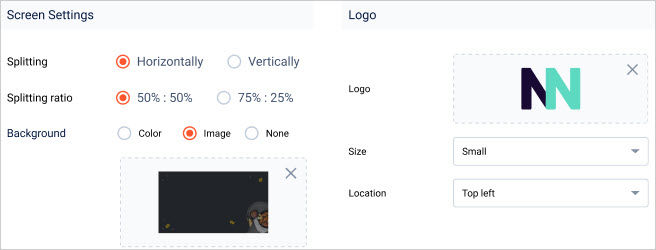 |
Screen settings
Splitting |
|
Splitting rato |
|
Background |
|
Logo
Logo | Allows you to upload your logo image. NotePNG and JPEG images are supported. A large-size image will automatically fit the resolution of the order display screen. |
Size | You can choose the logo display size from Small, Medium, and Large. |
Location | Select where your logo will show on the order display screen. |
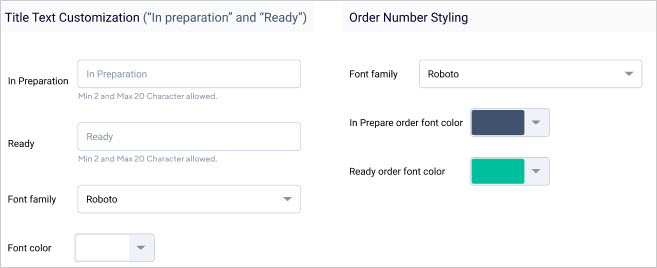 |
Title text customisation
Received | By default, the column name is 'Received' in English. You can customise the text to another language as well. |
Ready | By default, the column name is 'Ready' in English. You can customise the text to another language as well. |
Font family | Select from the available fonts in which the text 'Received' and 'Ready' will show on the ODS app. It is not possible to add a new font to the app. |
Font color | The selected font colour will apply to the title text 'Received' and 'Ready'. You can select from the available colours or enter the hex code of the colour of your choice. |
Order number styling
Font family | Select from the available fonts in which the order numbers under the column 'Received' and 'Ready' will show on the ODS app. It is not possible to add a new font to the app. |
Received order font color | The selected font colour will apply to the order numbers in the 'Received' column'. You can select from the available colours or enter the hex code of the colour of your choice. |
Ready order font color | The selected font colour will apply to the order numbers in the 'Ready' column. You can select from the available colours or enter the hex code of the colour of your choice. |
Once you have made your selection for all the Display settings, click Apply. To restore the default settings, click Restore default.