App configurations
After downloading the ODS app from the Play Store, configuring the ODS app is a 2-step process.
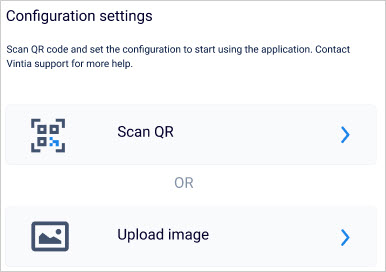
Scan or upload the configuration QR code
Scan QR: In case the device on which the ODS app is used has an in-built camera, you can use it to scan the configuration QR code.
Upload image: If the device on which the ODS app is used does not have an in-built camera, you can save the configuration QR code to the device and then upload it on the Configuration settings screen of the ODS app.
Note
The QR code with Recreatex configuration is required to configure and start using the ODS app. If you do not have the configuration QR code, please contact Vintia support.
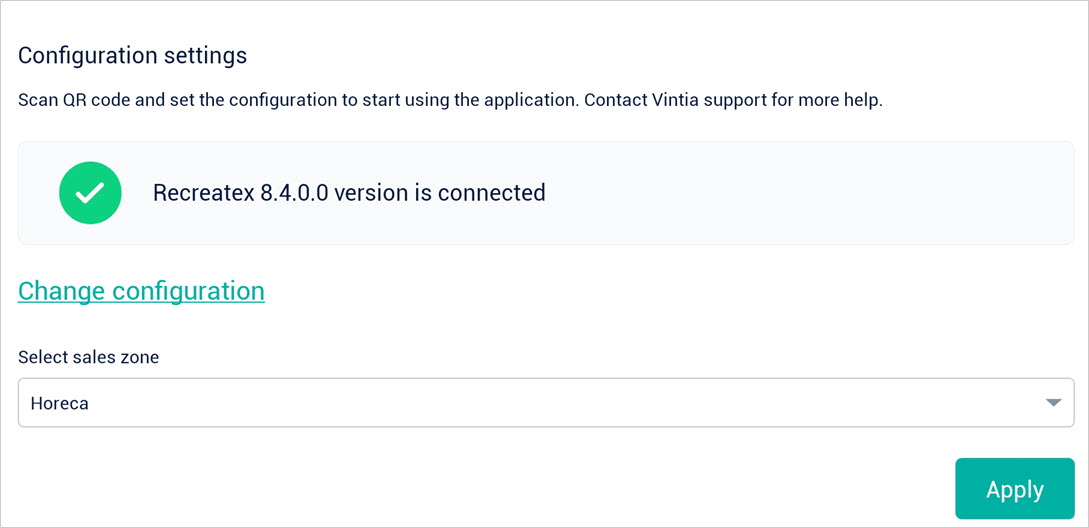
Select Sales zone
After connecting with Recreatex using the configuration QR code, select the Sales zone for which the orders will show on the ODS app.
Note
Only those sales zones linked to POS with the parameter Enable order functionality enabled in Recreatex will appear in the Select sales zone list.
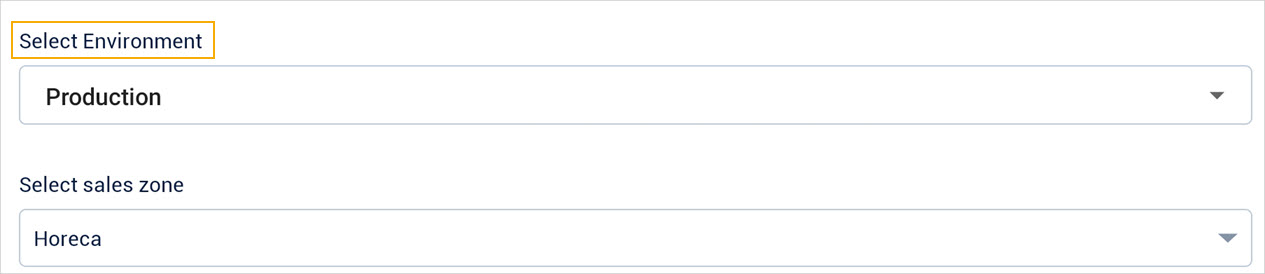
If you're using the ODS app on your premises, the login page will additionally have the option to select the environment.
Tap Apply to apply the configurations and log into the app.
Change Recreatex configuration or sales zone
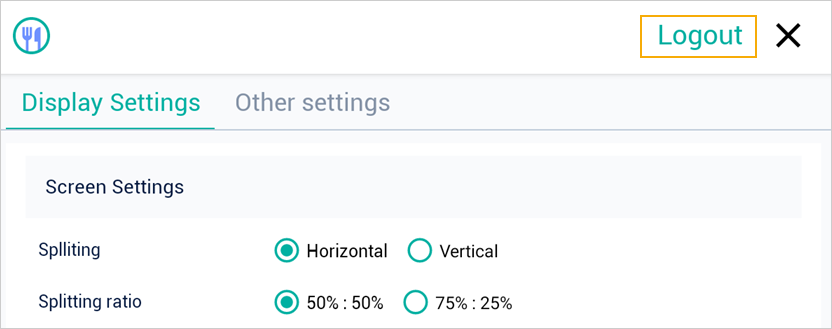
After the initial app configuration, if you wish to change the configured Recreatex version, the sales zone or the environment (applicable when using the ODS app on-premises), go to the app settings and tap Logout.
Note
To access the Settings screen, tap on any one point on the order display screen for 5 consecutive times.
 |
You will be transferred to the configuration screen, where you can make the required changes.