Remote app configurations
Exhibition settings
Click Apply to apply the changes to the signage display screen.
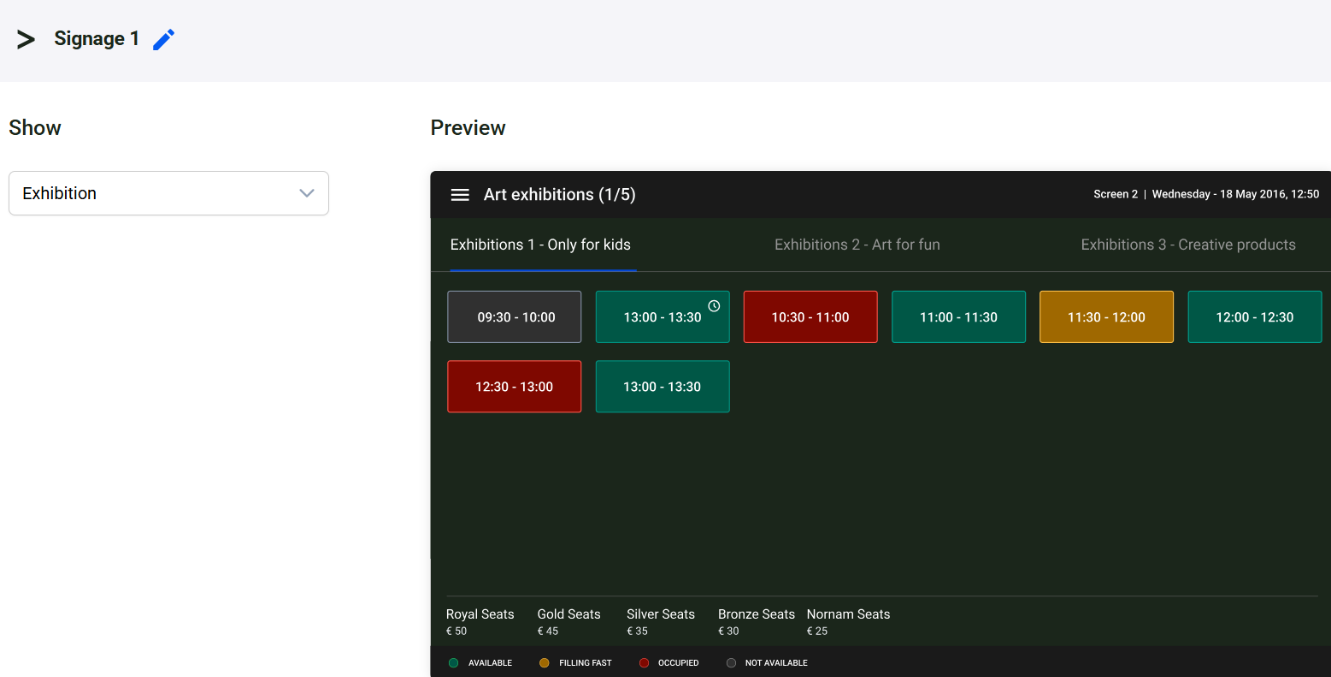
To view the exhibition display screen settings on the signage display screen, first navigate to Home Screen Display in the remote app and select the Exhibition module.
 |
Screen name
Enter the screen name that will be displayed on the signage screen for the Exhibition module.
Show exhibition
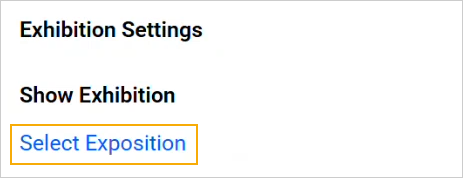 |
In the Show Exhibition section, click Select exposition.
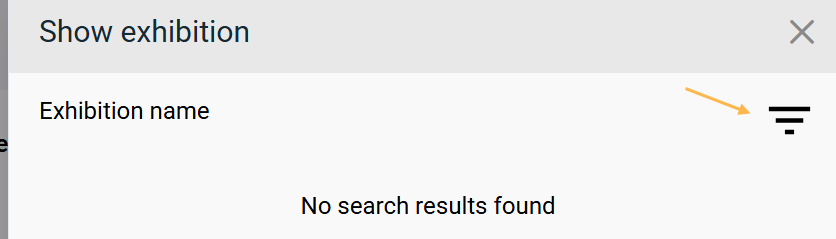
On the resulting screen, tap the filter icon and select the exhibition type and target group. Once done, tap Save. The selected exhibition will be displayed on the signage screen.
 |
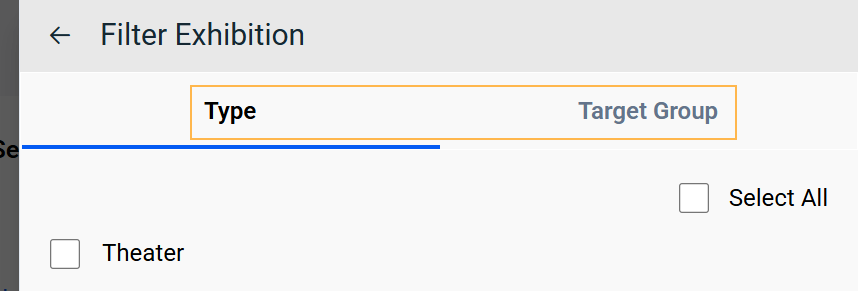
Thereafter, select the exhibition type and target group, and tap Save.
 |
Signage display screen
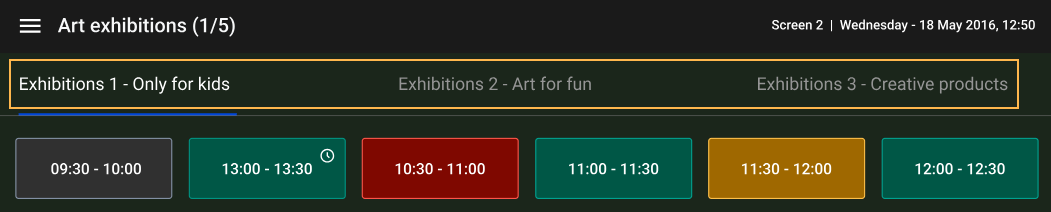
On the signage display screen, the selected exhibitions are shown at the top, and the exhibition information is displayed based on the configured exhibition screen settings.
 |
Exhibition display settings
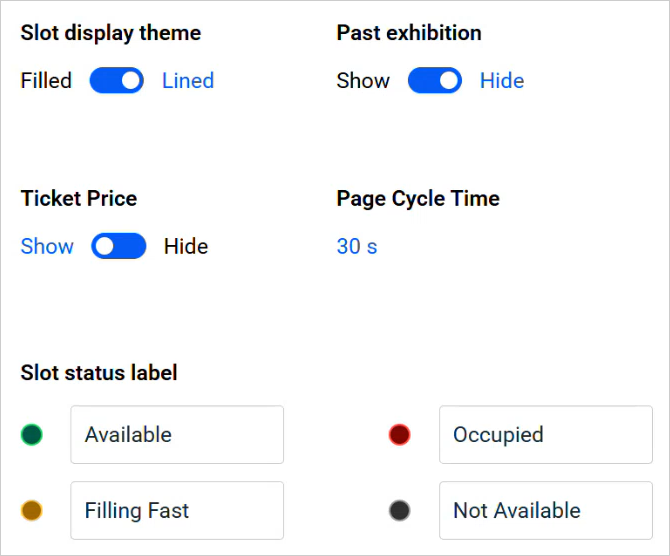 |
Slot display theme | Filled: Time slots are displayed with a coloured fill. Lined: Time slots are displayed with a coloured line. |
Past exhibition | Show: All exhibitions for the day are displayed on the exhibition screen. Hide: Only ongoing and upcoming exhibitions for the day are displayed. |
Ticket price | Show: The ticket price is displayed on the exhibition screen. Hide: The ticket price is not displayed on the exhibition screen. |
Page cycle time | This setting defines the duration that elapses before the next page is displayed on the exhibition screen. |
Slot status label | You can edit the slot status label if required. This is useful for adding translated or customised labels to the slot status. |
Click Apply to apply the changes to the signage display screen.
Booking settings
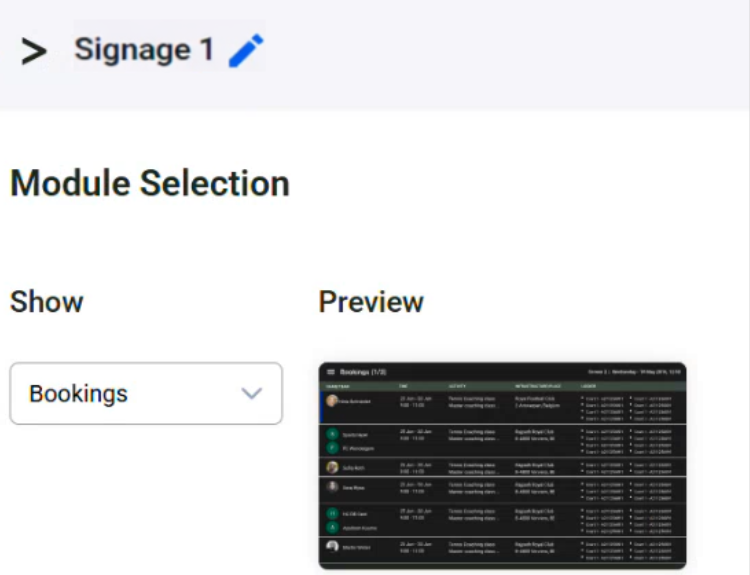
To view the booking display screen settings on the signage display screen, first navigate to Home Screen Display in the remote app and select the Bookings module.
 |
Screen name
Enter the screen name that will be displayed on the signage screen for the Booking module.
Places and Activities
Select the places and activities for which bookings should be displayed on the signage screen. These are fetched from Recreatex.
Select places
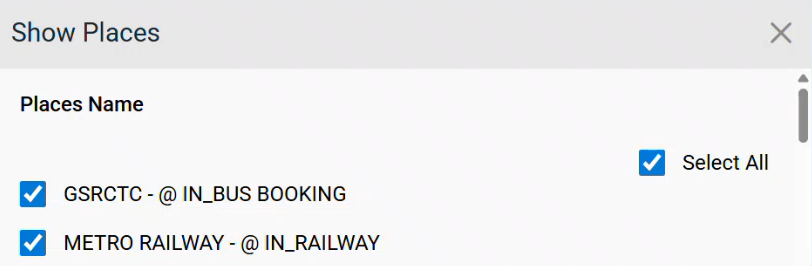
Select one or more places for which bookings will be displayed. The list includes the place and infrastructure names. Click Save once the selection is complete.
 |
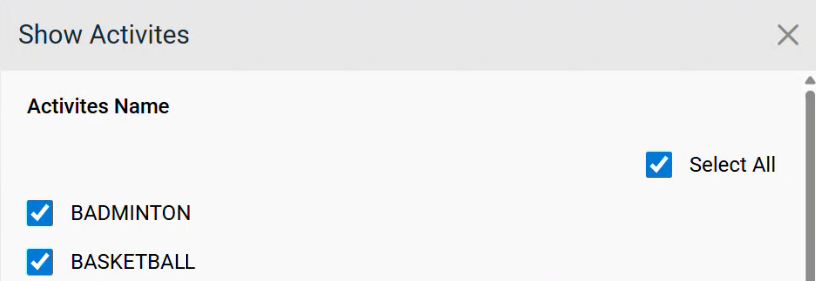
Select activities
Select one or more activities for which bookings will be displayed. Click Save once the selection is complete.
 |
Page cycle time
This setting defines the duration that elapses before the next page is displayed on the bookings screen.
Display booking for
Define the time duration for which booking details are displayed.
For example, selecting Display bookings for next 4h shows only the bookings scheduled within the next four hours, instead of all bookings for the day. This setting is useful for limiting the number of listings when there are many bookings during a single day.
Warning
The Infoplay mobile app displays bookings only for the current day. Therefore, bookings are shown for the defined duration or until 23:59 of the same day, whichever occurs first.
For example, if the current time is 21:00 and the display duration is set to the next 4 hours, bookings will be displayed only until 23:59.
Optional bookings
Show: Displays unconfirmed bookings (in option) on the bookings screen.
Hide: Unconfirmed bookings (in option) are not displayed on the bookings screen.
Note
To enable this feature, the Option parameter (under the General tab) must be enabled at the booking level in the Recreatex desktop application.
Bookings display settings
Image
Show: Displays the customer image on the signage screen.
Hide: Displays the customer’s initials on the signage screen.
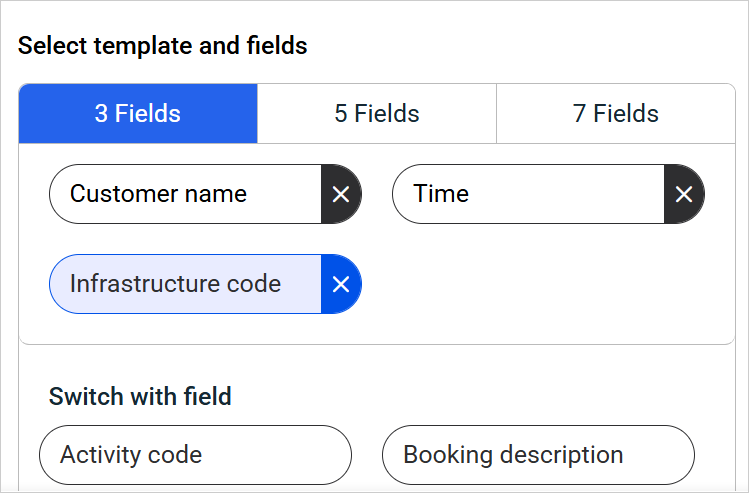
Select template and fields
Choose to display booking information using 3, 5, or 7 fields. You can also select which fields to display and define their sequence.
Switch with field
You can also switch the fields you wish to show on the signage screen from the list of available fields.
 |
Click Apply to apply the changes to the signage display screen.
Order screen setting
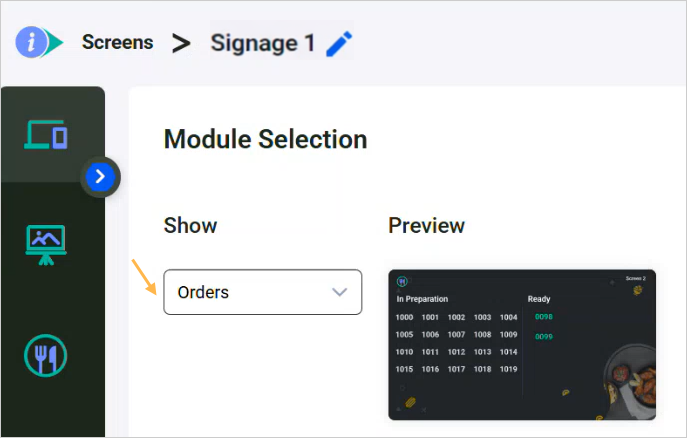
To view the order display screen settings on the signage display screen, first navigate to Home Screen Display in the remote app and select the Orders module.
 |
Prerequisites
To use Order Display Screen and Kitchen Display Screen with InfoPlay 2.0.0, contact Vintia Support to update the system to the new production URL.
When using InfoPlay 2.0.0 for the Order Display Screen, ensure that Kitchen Display Screen version 2.1.0 is installed.
Order Display Screen integrated in InfoPlay 2.0.0 is only compatible with Kitchen Display Screen version 2.1.0 and higher.
Splitting and background
Splitting |
|
Splitting ratio |
|
Background |
|
Title text customisation
In preparation | By default, the column title is 'In preparation' in English. You can customise this text to another language if required. |
Ready | By default, the column title is 'Ready' in English. You can customise this text to another language if required. |
Font family | Select one of the available fonts to define how the 'In preparation' and 'Ready' title text appears on the signage display. Adding new fonts to the app is not supported. |
Font colour | The selected font colour is applied to the 'In preparation' and 'Ready' title text. You can choose from the available colours or enter a hex colour code of your choice. |
Sales zone settings
Dine in | Select from the Recreatex sales zones that are configured for dine-in purposes. |
Takeaway | Select from the Recreatex sales zones that are configured for takeaway purposes. |
Logo settings
Upload logo image | Allows you to upload a logo image. NotePNG and JPEG image formats are supported. Large images are automatically scaled to fit the resolution of the order display screen. |
Size | Select the logo display size as Small, Medium, or Large. |
Location | Select the position where the logo is displayed on the order display screen. |
Order number styling
In preparation order font color | The selected font colour is applied to the order numbers in the 'In preparation' column. You can choose from the available colours or enter a hex colour code. |
Ready order font color | The selected font colour is applied to the order numbers in the 'Ready' column. You can choose from the available colours or enter a hex colour code. |
Font family | Select one of the available fonts for displaying order numbers in the 'In preparation' and 'Ready' columns. Adding new fonts to the app is not supported. |
Size | Select the order number font size as Small, Medium, or Large. |
Tap Apply to apply the changes to the signage display screen.
General
Settings
Language | You can set the app language to English, Dutch, or German. The default language is English. |
Theme mode | Allows you to define the app theme from the available options. |
App tracing | When enabled, the app generates log files for all operations performed in the Infoplay mobile app by the logged-in user and stores them on the device. The app log file is stored on the file system of the device on the location <Path where the Infoplay app is stored>/Infoplay/EventLogs. Log files are listed by date, with the most recent file shown at the top. WarningEnabling app tracing may reduce overall app performance. It is recommended to disable this setting after completing app logging. |
Auto launch on reboot | When enabled, Infoplay automatically launches after the device restarts due to a power outage or any other system reboot. NoteThe Auto launch on reboot feature is supported on Android 9.0.0 and earlier only. On a web browser, the Infoplay app must be launched manually after a system restart. |
Full screen | This setting is primarily intended for Android display devices. If the signage display uses a web browser, you will need to enable the full-screen option within the browser itself. |