Getting started
To begin using Infoplay, you will need to first establish a connection with Recreatex. Once this connection is established, you will use a separate mobile device to access the Infoplay settings and configure the signage display.
IP address and port information:
Before configuring Infoplay, ensure the following network settings are configured.
IP address: 212.72.62.157 (rmq-qservice.vintia.cloud)
Port: 15673 and 5671 (TCP)
IP address to whitelist: 212.72.62.129/255.255.255.224
Configuration
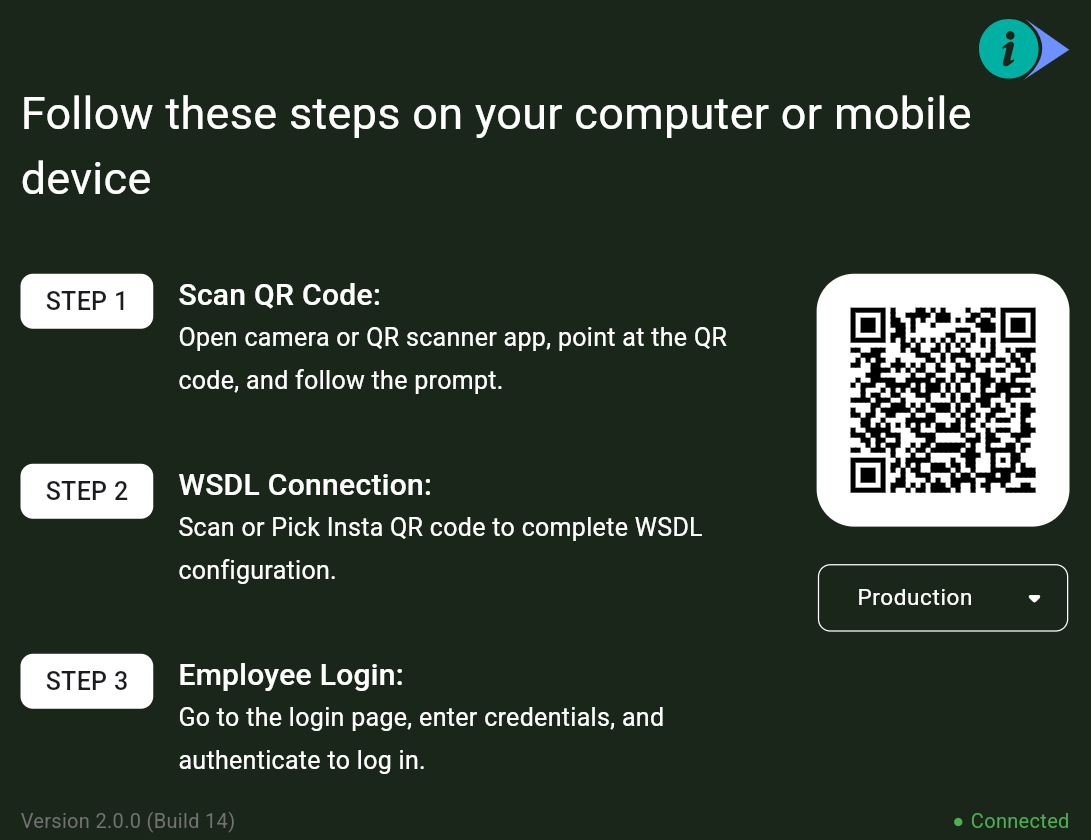
On the signage device, open the URL https://infoplay.vintia.cloud/
On the displayed page, follow the instructions provided.
Scan QR code: Using the mobile device that will be used to configure Infoplay, scan the QR code displayed on the signage screen. Ensure that you select the environment based on your setup.
Production: Select this if you are a customer using the live production environment. This is the default environment for all customer deployments.
QA: This environment is intended for internal testing and validation purposes only. Customers should not use this environment.
Custom: Select this only if you are an on-premise customer. In this setup, all required services must be hosted within your own infrastructure, including:
RabbitMQ
Infoplay Application
Remote App
QService
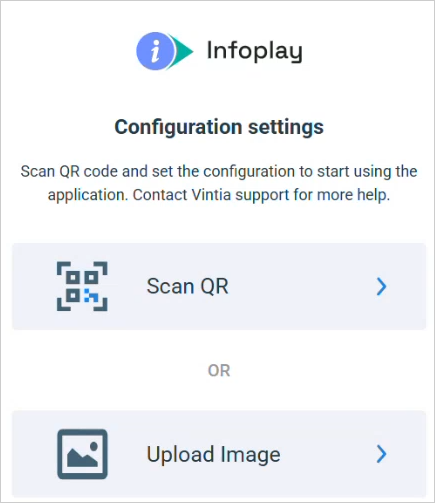
WSDL connection: After scanning the Infoplay QR code, the mobile device will display a screen allowing you to connect to Recreatex.
You can either scan the Recreatex configuration QR code or upload the QR code image.
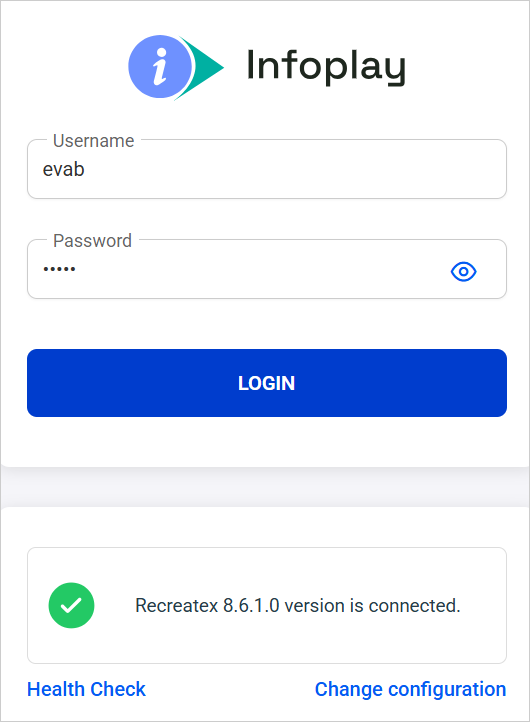
Employee login: Once the Recreatex connection is successful, enter your employee login credentials to log in. After logging in, you can configure and control the signage display.
On the login screen, the currently connected Recreatex version is displayed. To change the version, tap Change configuration at the bottom of the screen.
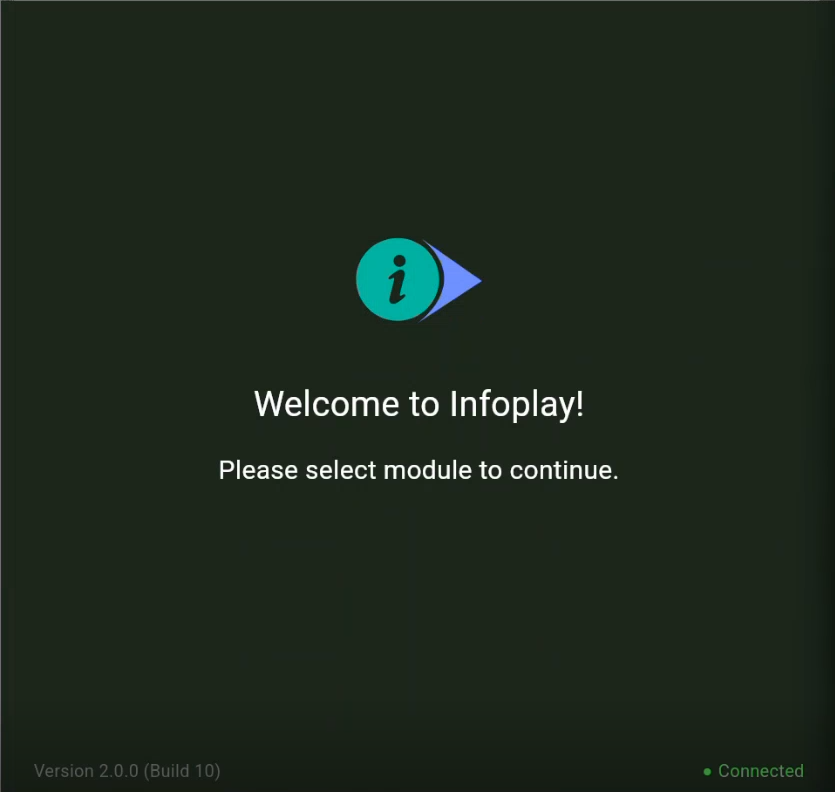
After logging in, the signage display will show a welcome screen prompting you to select a module from the Remote app.
Signage display screen
Note
Ensure that the status displayed at the bottom-right corner of the signage screen is always Connected to enable real-time data display.
Opening another browser tab within the same session will disconnect the app. It is recommended to keep the current tab active to maintain the connection.
Remote app
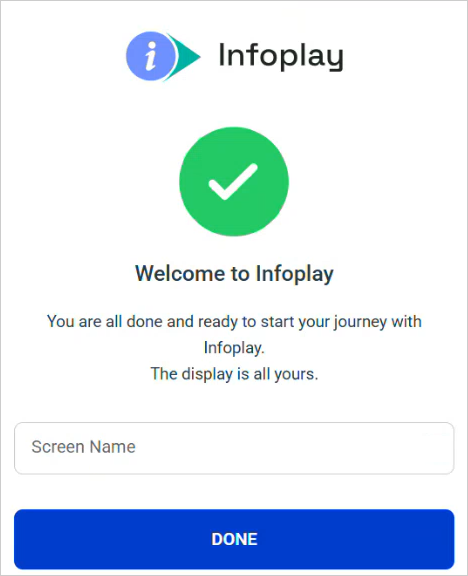
When you log into the Infoplay app for the first time, you will be prompted to enter a screen name. Enter the screen name and tap Done.
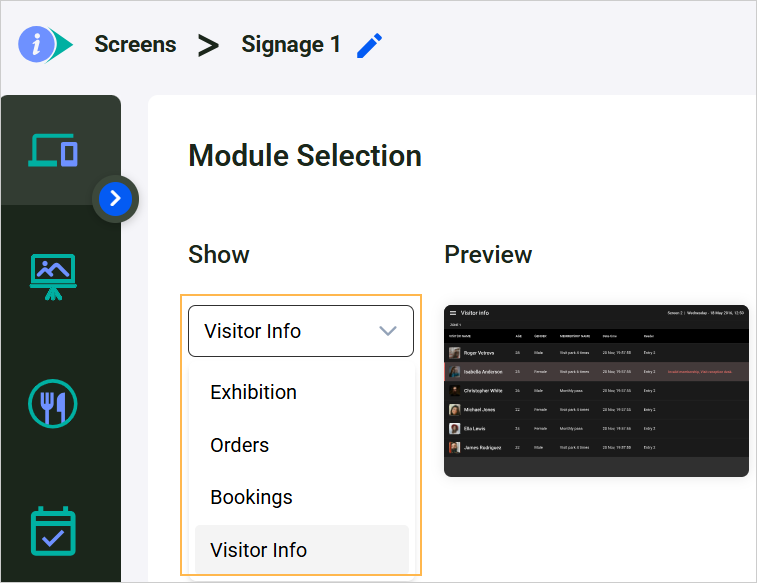
You will then be navigated to a page where you can select the module you wish to display on the signage screen and tap Apply.
Once applied, the selected module’s information will begin displaying on the signage device.
Managing screens
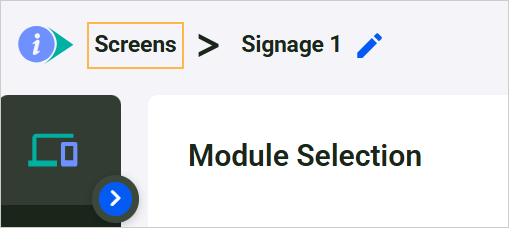
When the QR code is scanned from a new device using the same employee account, a new screen is automatically added to the screen list. To switch between screens, tap Screens in the top-left corner of the remote app.
 |
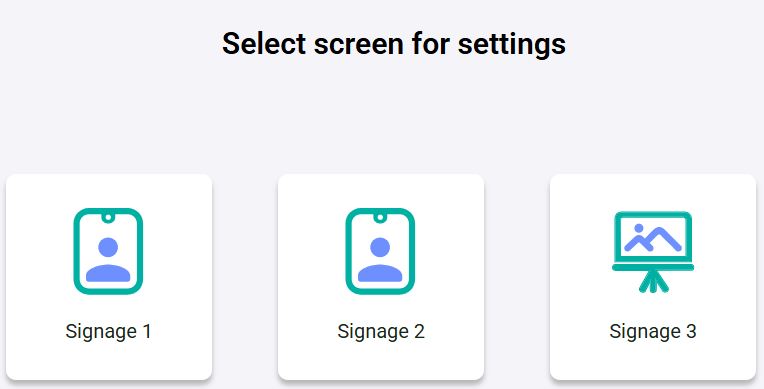
On the displayed page, select the screen for which you want to configure the display settings. The list shows all screens that have been set up by the currently logged-in employee.
 |
Edit screen name
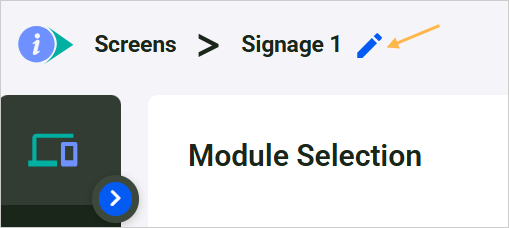
To edit a screen name, tap the edit icon next to the screen name. After making the changes, tap Apply. The updated screen name will be reflected on the display app.
 |