Download Citrix Workspace
To access Recreatex in the Colo Citrix environment via Citrix Workspace, make sure to use a compatible version of the Citrix Workspace app. Always install the latest version that has been tested and approved by Vintia IT.
You can download this version when logging in to the Vintia Cloud environment.
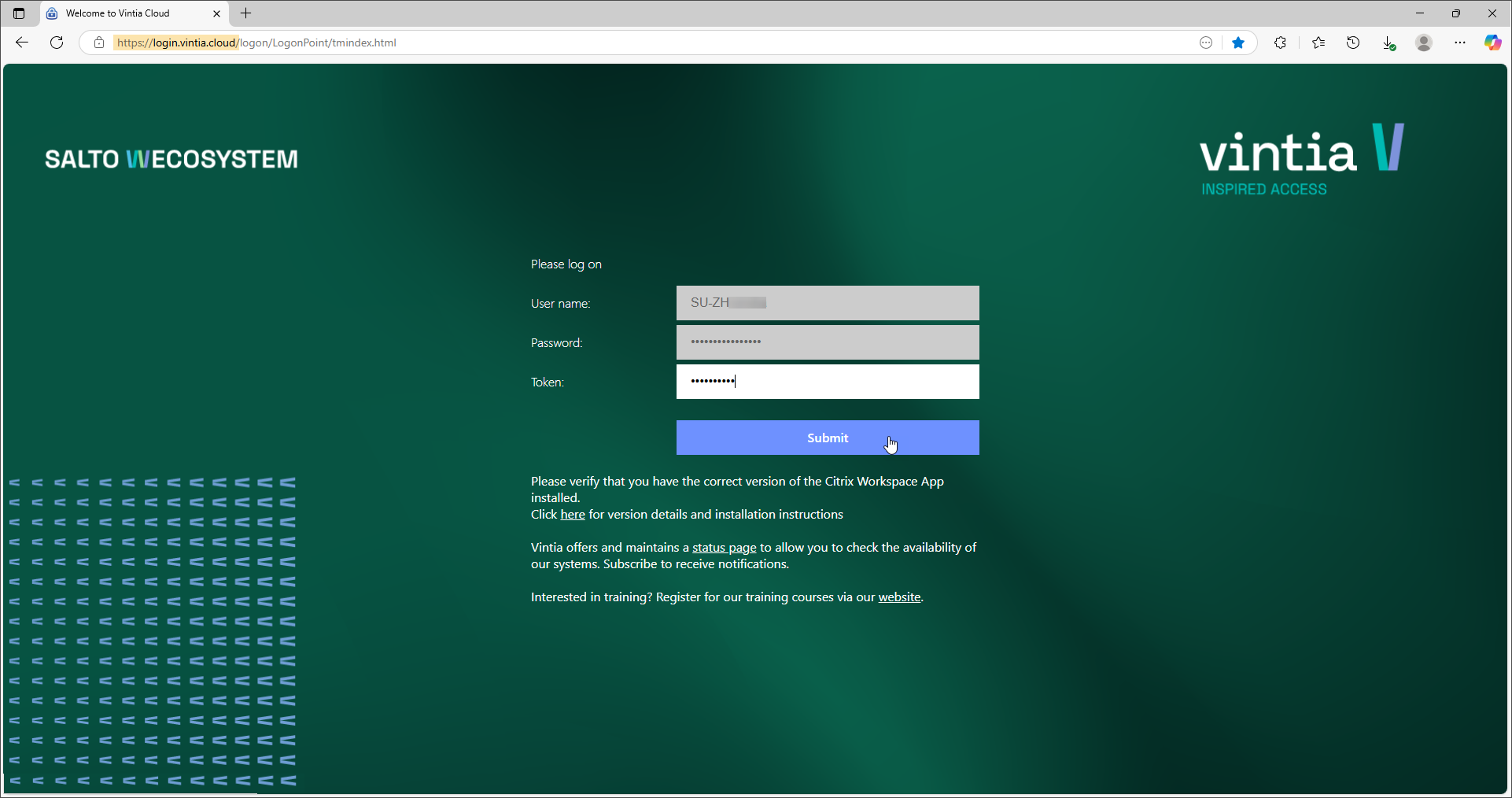
Navigate to the desired environment (1) login.vintia.cloud (production) or login-test.vintia.cloud (test), and log in using the login method configured for your user account.
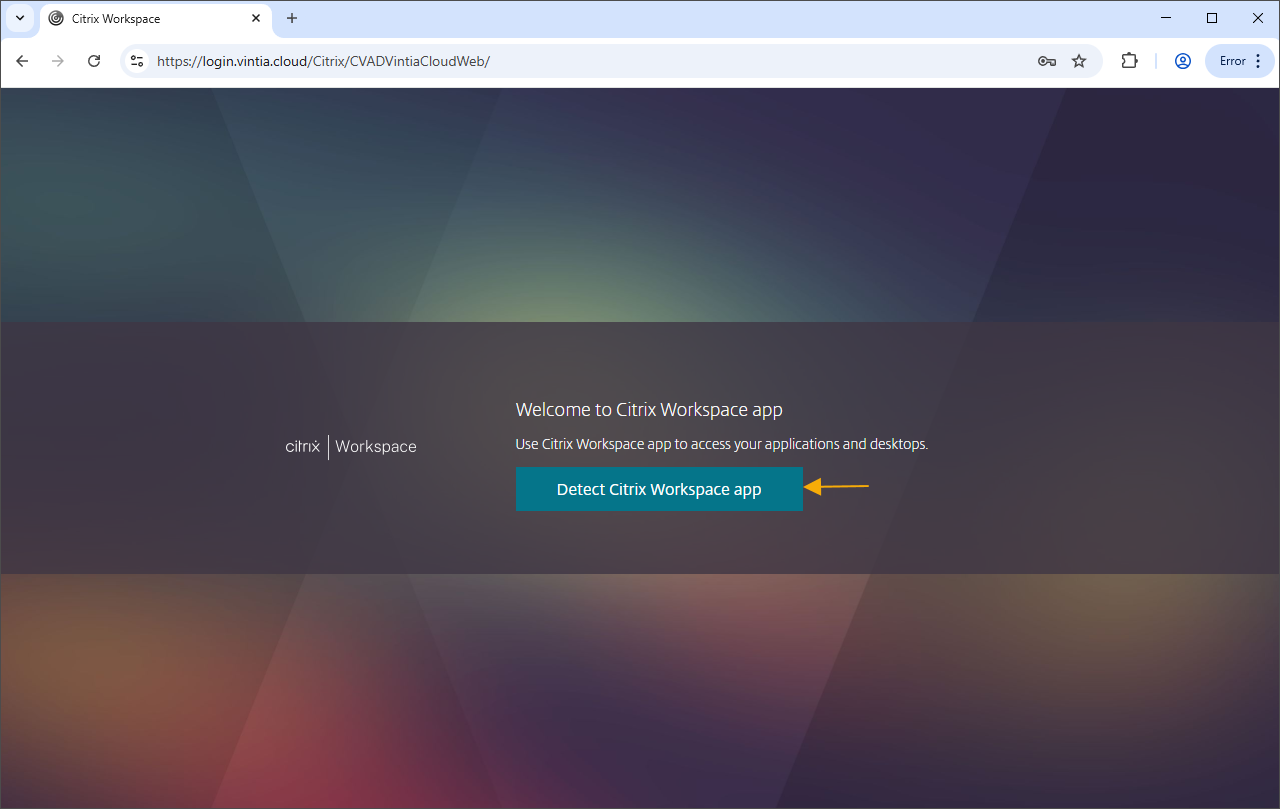
Detect whether the Citrix Workspace app has already been installed on your computer.
Click on Detect Citrix Workspace app, if this option appears automatically.
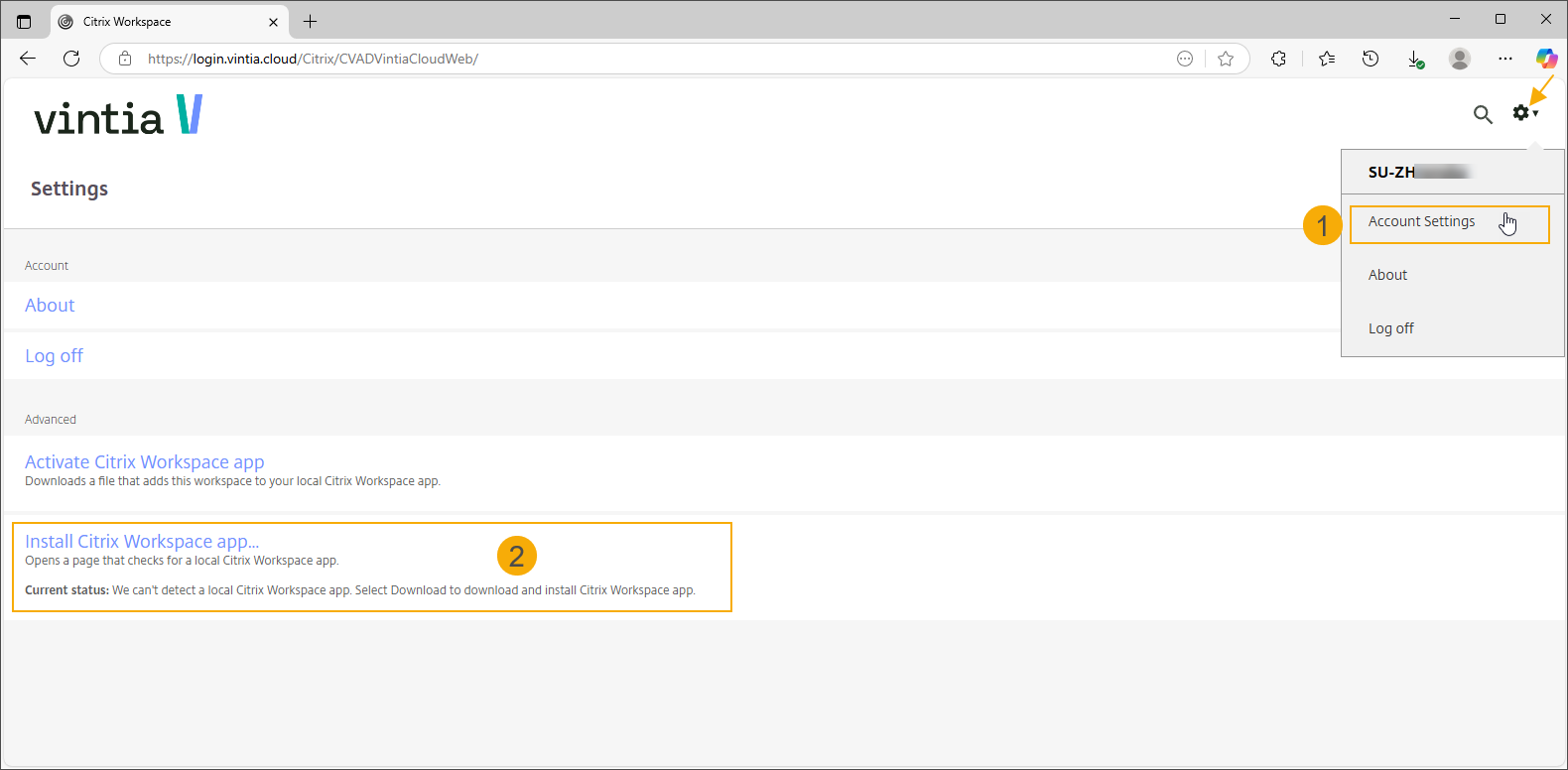
If the option Detect Citrix Workspace app does not appear automatically, proceed with the login. Once logged in, open the user menu in the top-right corner and select Account settings. Then click Install Citrix Workspace app to manually launch the installation wizard.
Important
If a previous version of the Citrix Workspace app is detected, proceed with the clean install and upgrade procedure to ensure any older versions are removed.
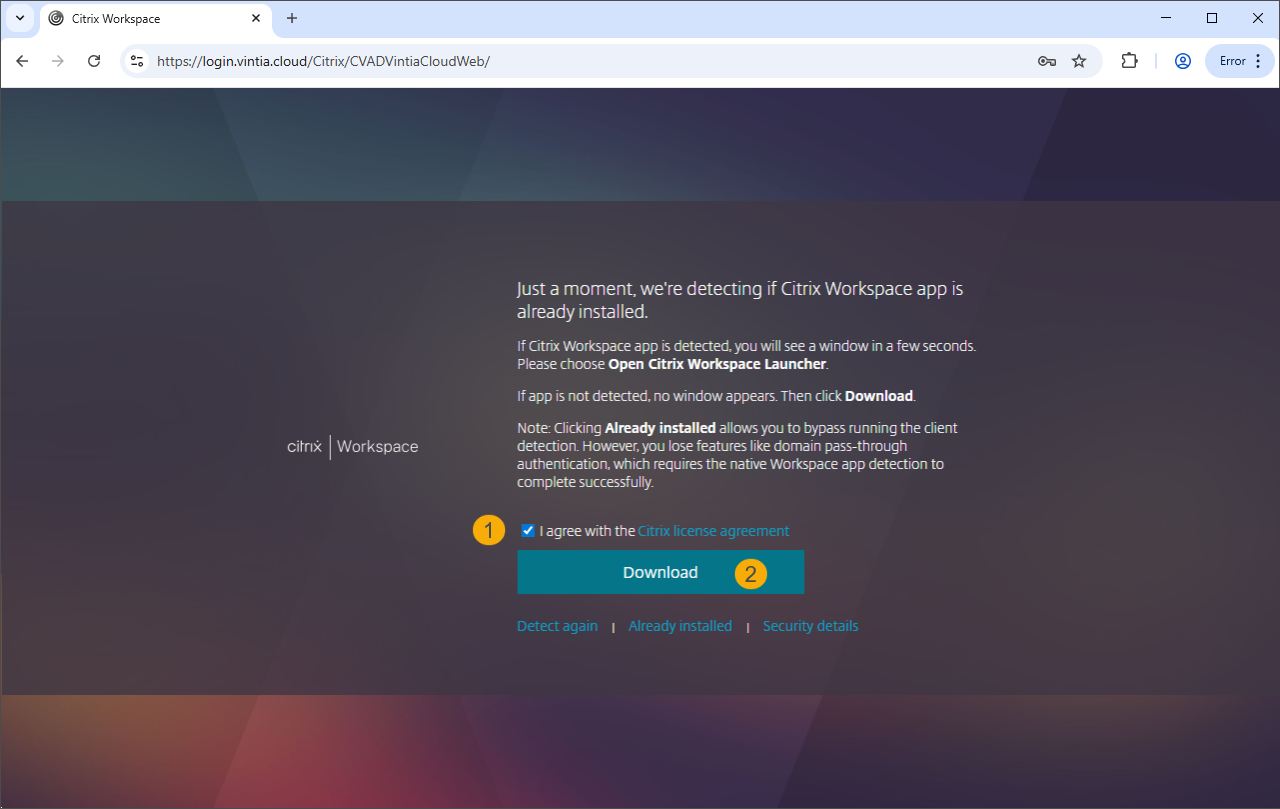
Check the box to agree with the Citrix license agreement (1) and click Download (2).
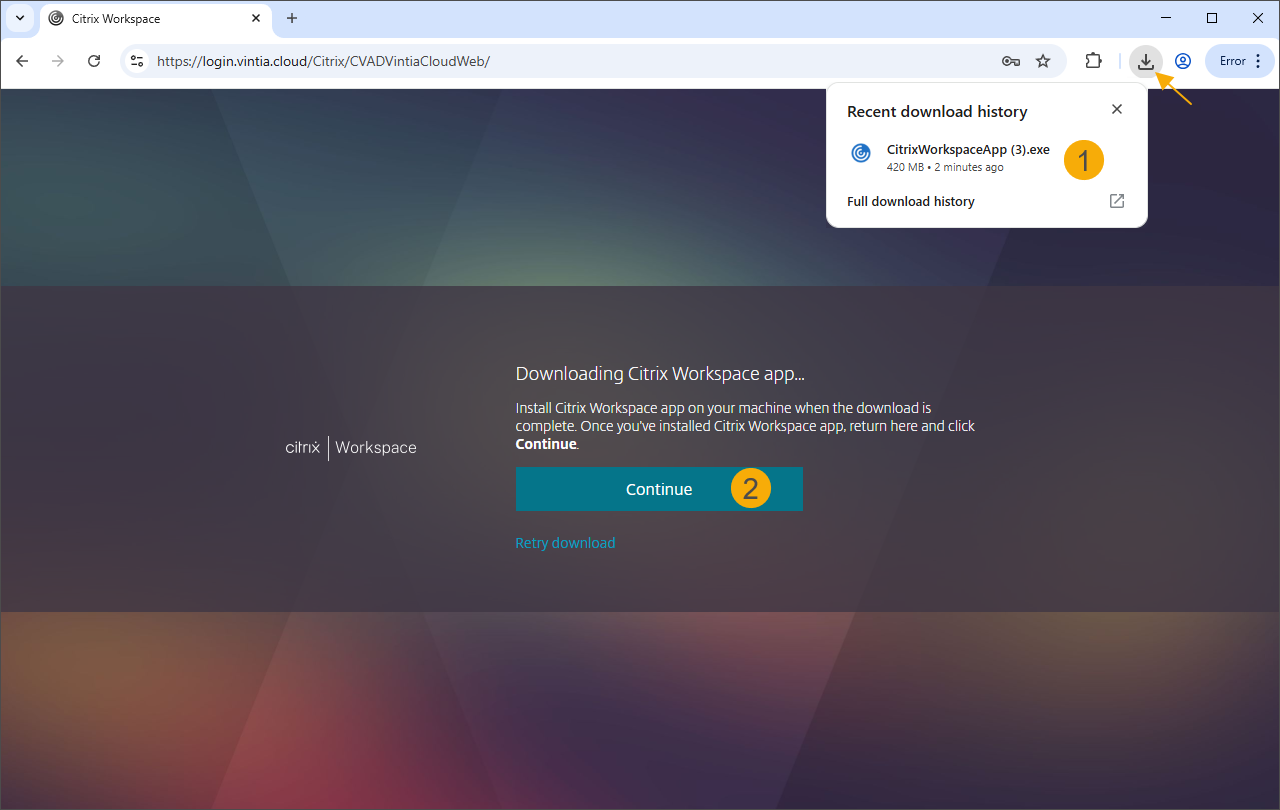
Locate the CitrixWorkspaceApp.exe file in your downloads folder (1) and install the app. After the installation is complete, click Continue (2).