Payment methods
To onboard a new customer to Enviso pay, Vintia support configures various parameters and widget settings (for online stores). The customer is then prompted to complete their KYC on the Licenses. After payout settings are configured and verified, the customer will be notified that Enviso Pay is ready to use.
The Payment methods page shows the configured payment methods. These selected options will be available for your visitors on the Ticketing widget.
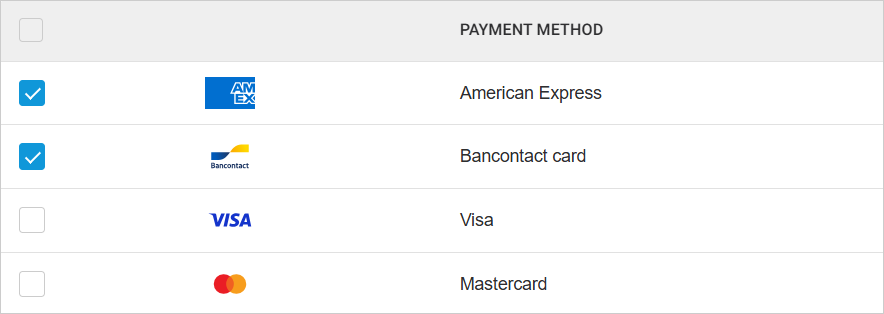 |
Warning
The selected payment method will not be available if:
The payment method is not supported in the visitor's selected country.
The payment method does not support the currency configured in Enviso.
Activating a payment method
Some payment methods in the Pay app require activation by Vintia support in the Console app. This activation is a prerequisite for the payment method to appear on the Pay app's payment method page. Specifically, for Google Pay activation, Vintia support will need to enter the venue's Merchant ID in the Console app. Without this, Google Pay will not be available in the list of payment methods in the Pay app.
You can activate a payment method by selecting it from the list of payment methods. However, some payment methods, such as Klarna Pay, Apple Pay, and Google Pay, require additional configuration.
Klarna Pay: To enable Klarna Pay, you must provide a support email address. This email address will be configured by Vintia support within the Console app.
Apple Pay: You must add the Apple Pay certificate to your website to allow Apple Pay. See further Apple Pay certificate
Google Pay: To activate Google Pay, you must have your Merchant ID. Refer to Find your Merchant ID.
Note
Apple Pay and Google Pay require at least one active card payment method as they utilise Visa, Mastercard, or other credit card networks for processing the payment.
Once configured, the visitor can choose to split the payment between multiple payment methods.
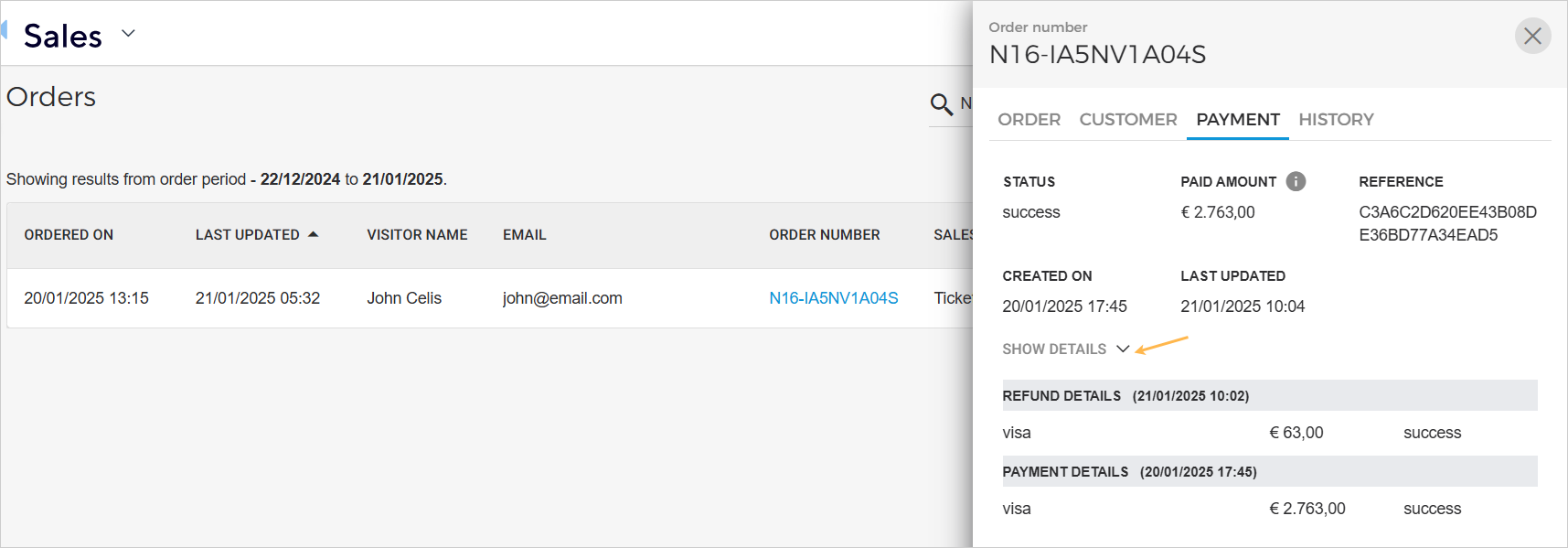
The selected payment method(s) used by the visitor can be consulted from Enviso Sales > Orders > Order detail > tab Payment.
 |
Deselecting a payment method
While deselecting payment methods, please be aware that the available payment methods differ between countries.
Warning
Deselecting too many payment methods may result in no available payment methods for a particular country.
Example: Enabling only 'Payconiq by Bancontact' will result in a payment page without payment methods for Dutch visitors.